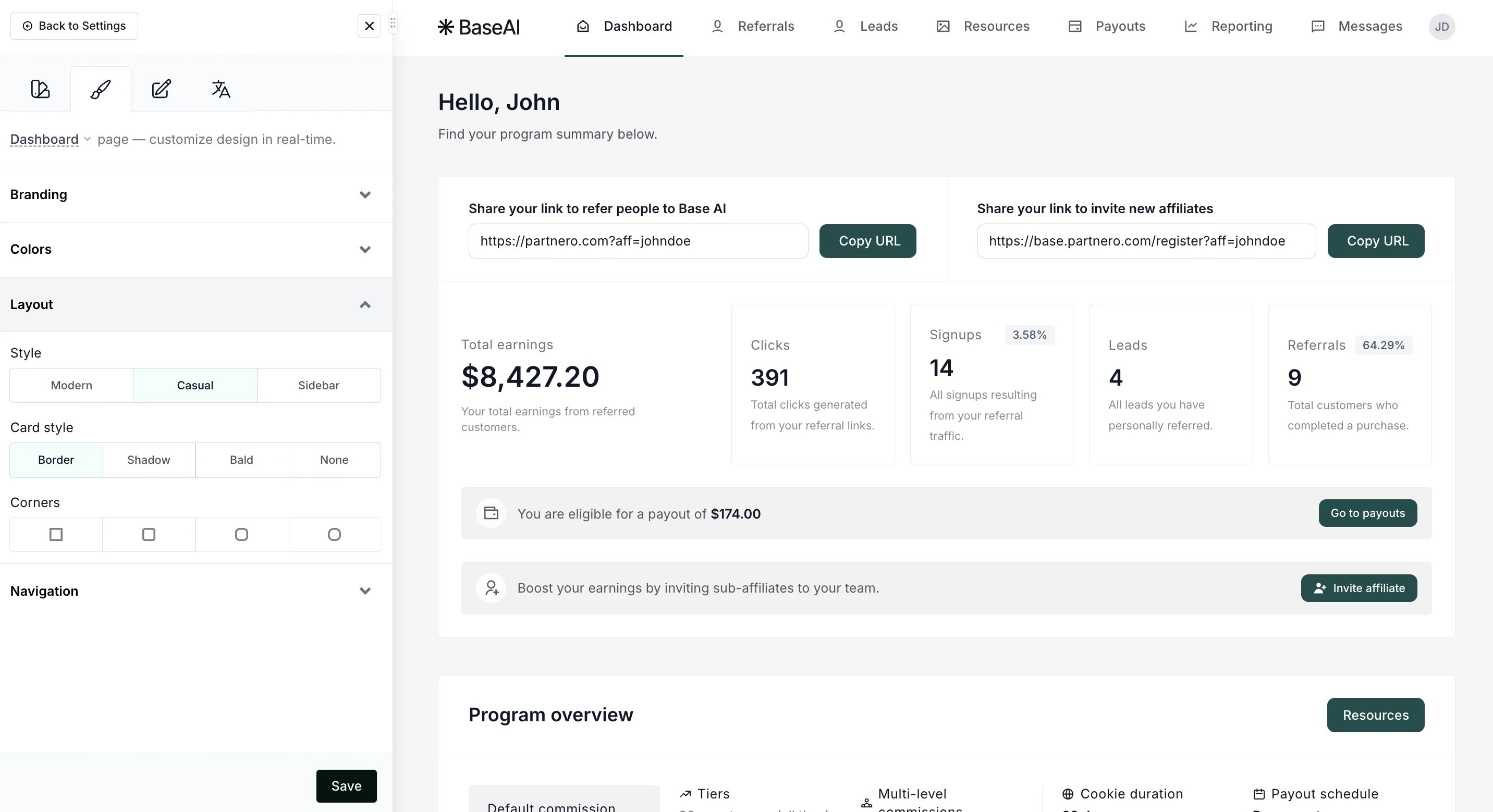
What can be edited with Live Designer
With Live Designer, you can fully customize the key public-facing pages of your program:- Sign-up & Log-in pages – Customize how affiliates register, including form fields and messaging. Read more about sign-up and log-in pages.
- Program page – Design the program page content and customize the look. Read more about the Program page.
- Leads page (affiliate only) – Adjust the required lead information and the page’s appearance. Read more about the Leads page.
- Internal partner portal pages (affiliate only) – Customize Dashboard, Resources, Payouts, partner profile, and all other internal pages.
- Other pages – Customize authentication pages, such as password reset and partner invite.
- Branding – Upload your logos, choose fonts, and ensure brand consistency.
- Colors, Layout & Structure – Change the page layout, background colors, images, and visual hierarchy.
- Copy – Edit all text elements, including headlines, descriptions, and buttons.
- Content – Add content blocks and resources such as images or FAQ sections.
- Forms – Add or remove fields, and include custom questions.
- Page Settings – Configure Terms of Service checkboxes, marketing opt-ins, and other compliance details.
- Translations – Localize all visible text to match your audience’s language preferences.
How to access Live Designer
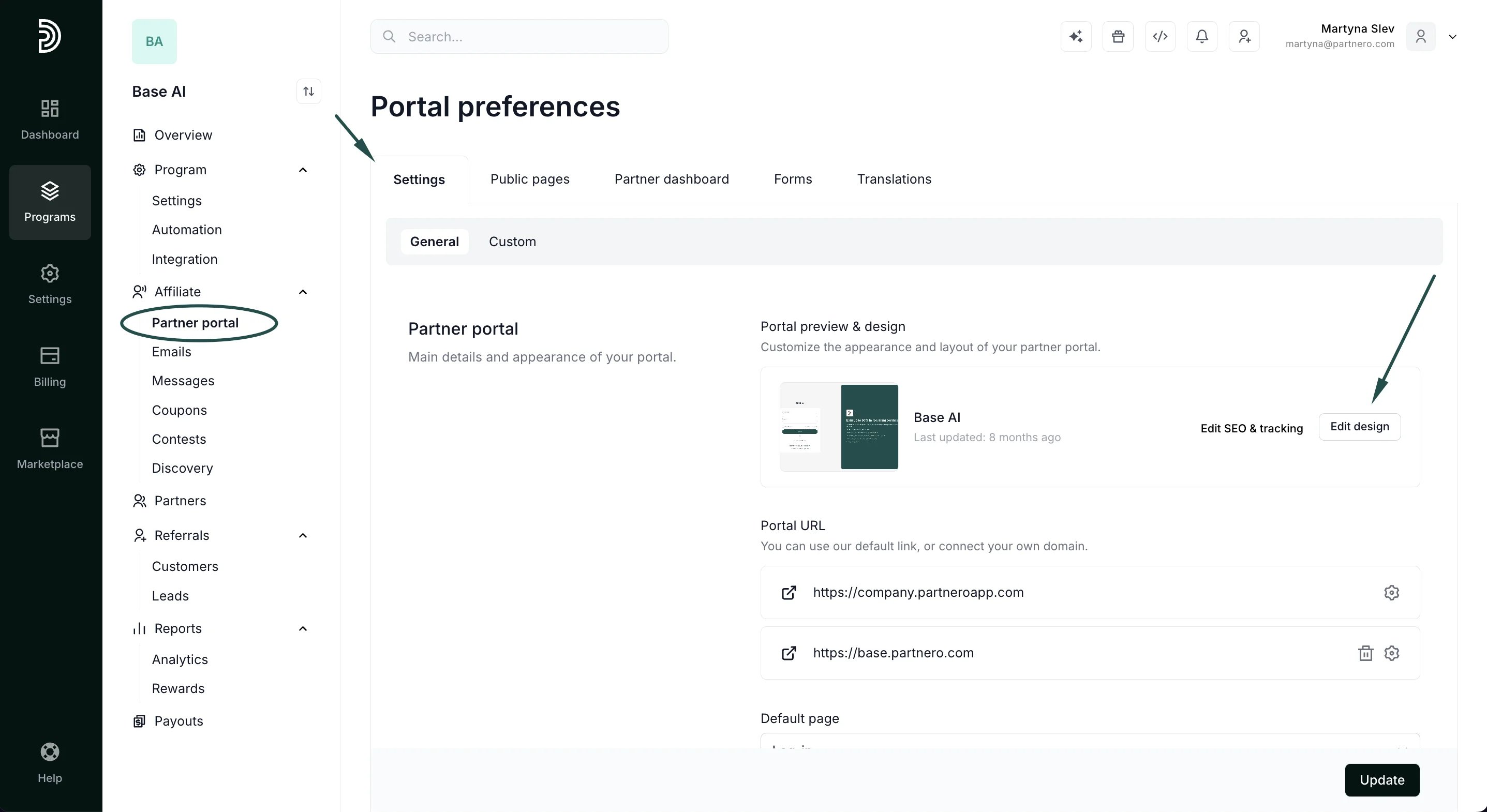
To access the feature for affiliate programs:- Open your affiliate program and go to Partner portal under Affiliate on the left-hand side menu.
- In the Settings → General section, click Edit design:
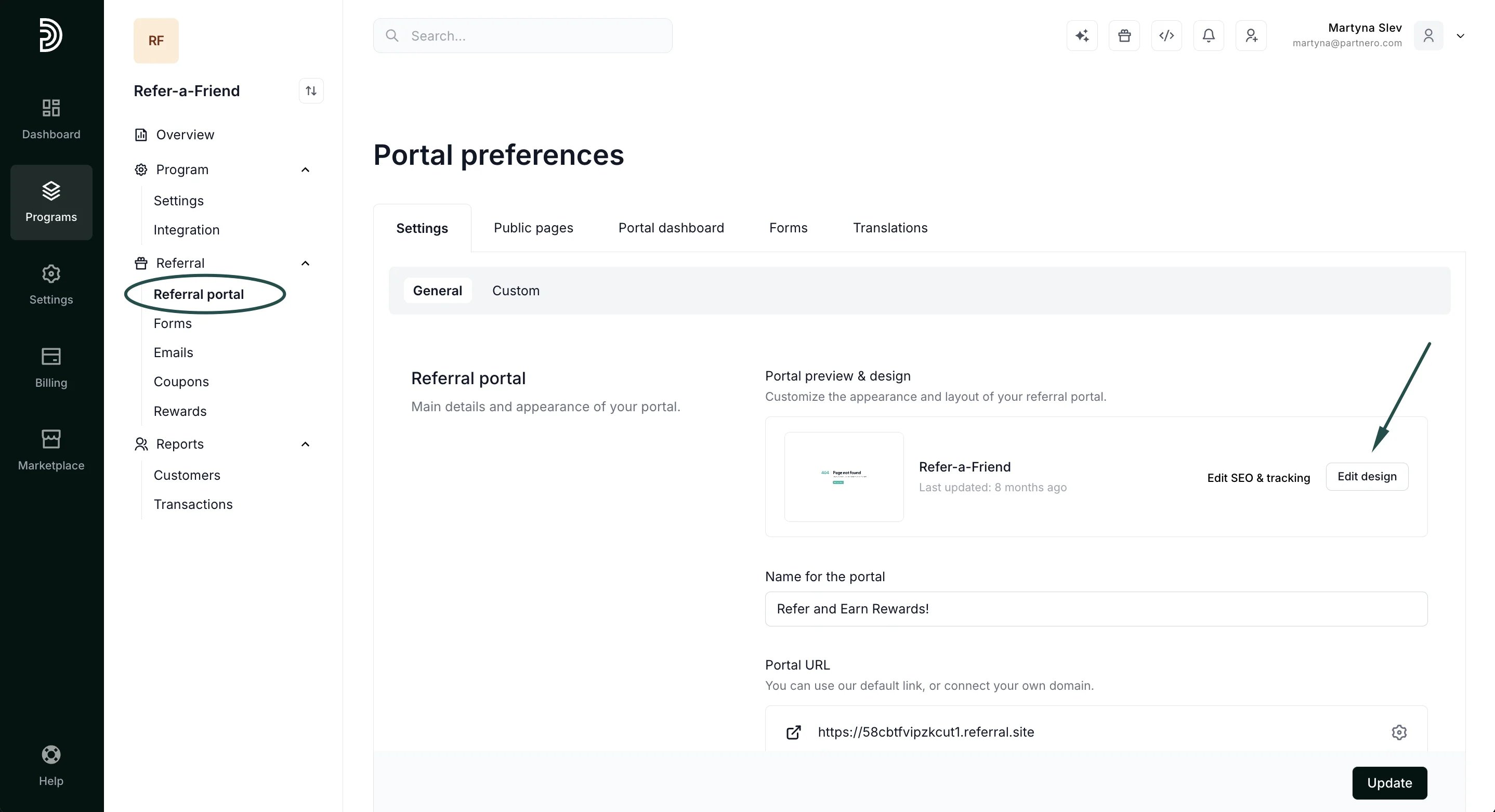
- Open your refer-a-friend program and go to Referral portal under Referral in the left-hand side menu.
- In the Settings tab → General section, click Edit design:
Editing with Live Designer
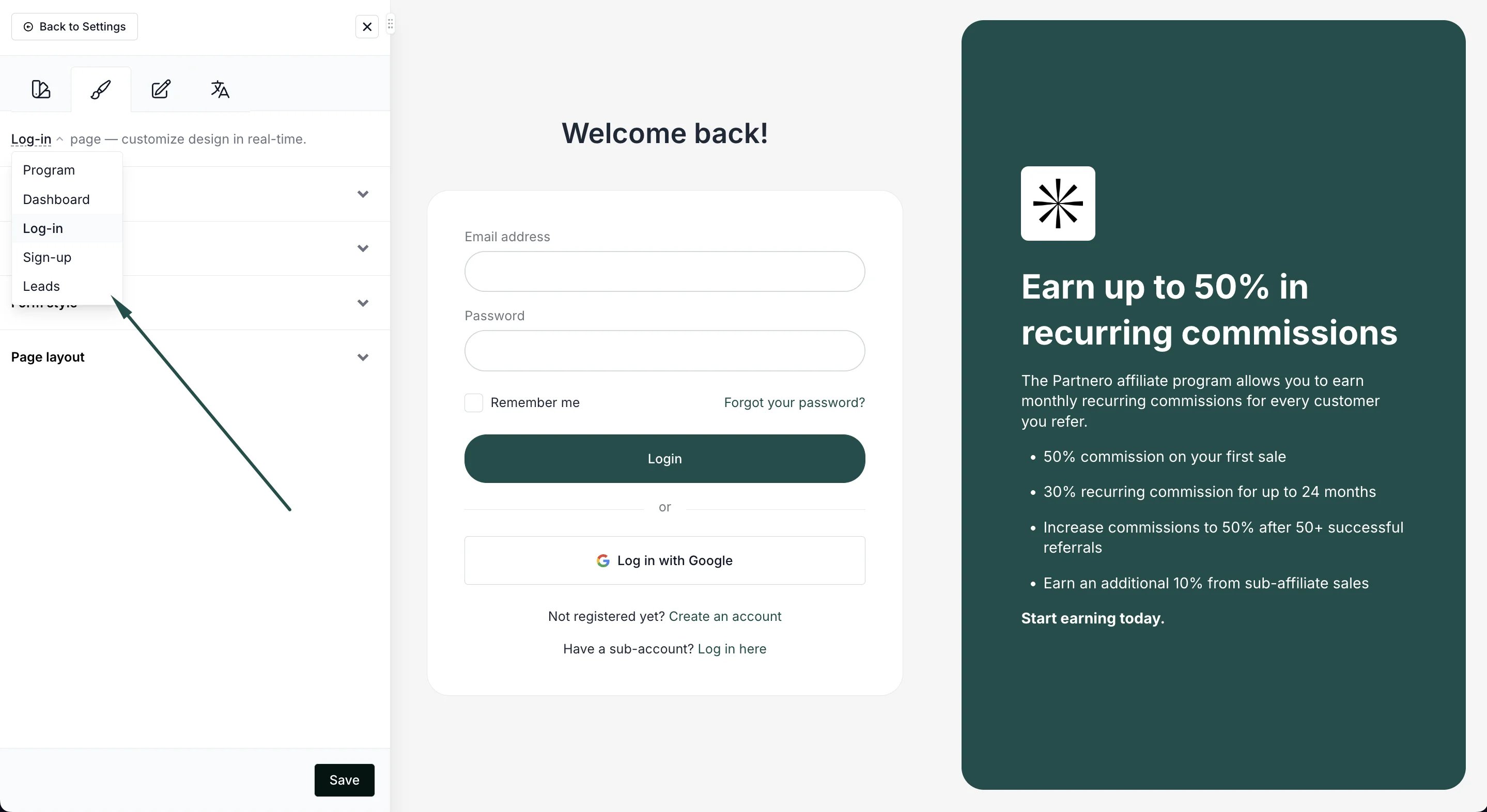
Open the Live Designer and select the page you’d like to edit. The editing panel will differ slightly based on the page you’re editing. For example, pages with customizable forms will have an additional tab to edit them. We’ll go through the options below.✅ TIP: Be sure to click Save after making any changes if you wish them to be permanent. If you do not like the changes, you can click Revert recent changes to undo.
Editing copy
Hover your mouse over any text on the page on the right to see the pencil icon. Click on it to edit the text inline: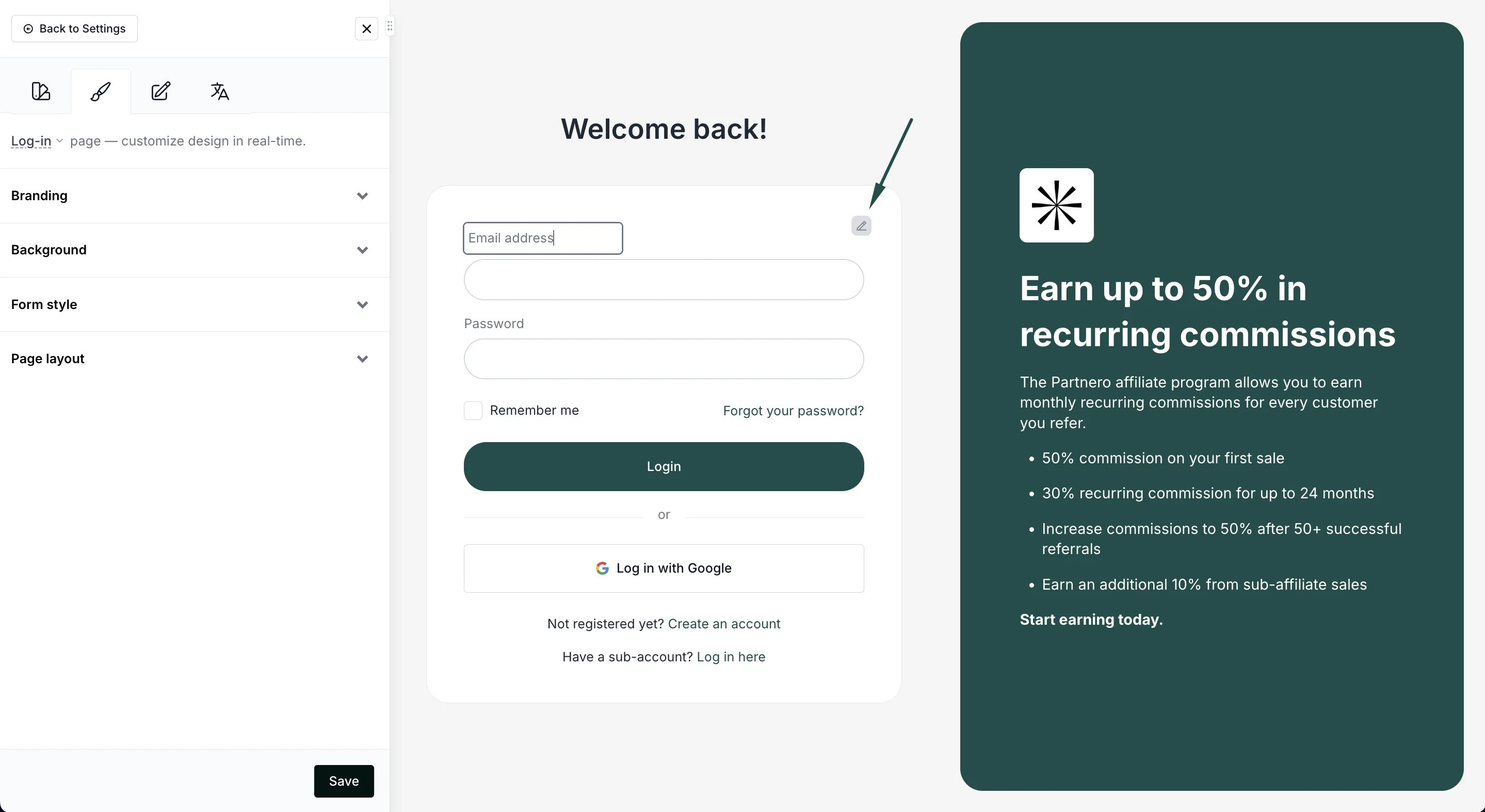
Editing appearance
In the editing panel → Design tab, under Branding, you can upload your logo, symbol, and favicon. You can also select your font and main color. These settings are universal across all pages: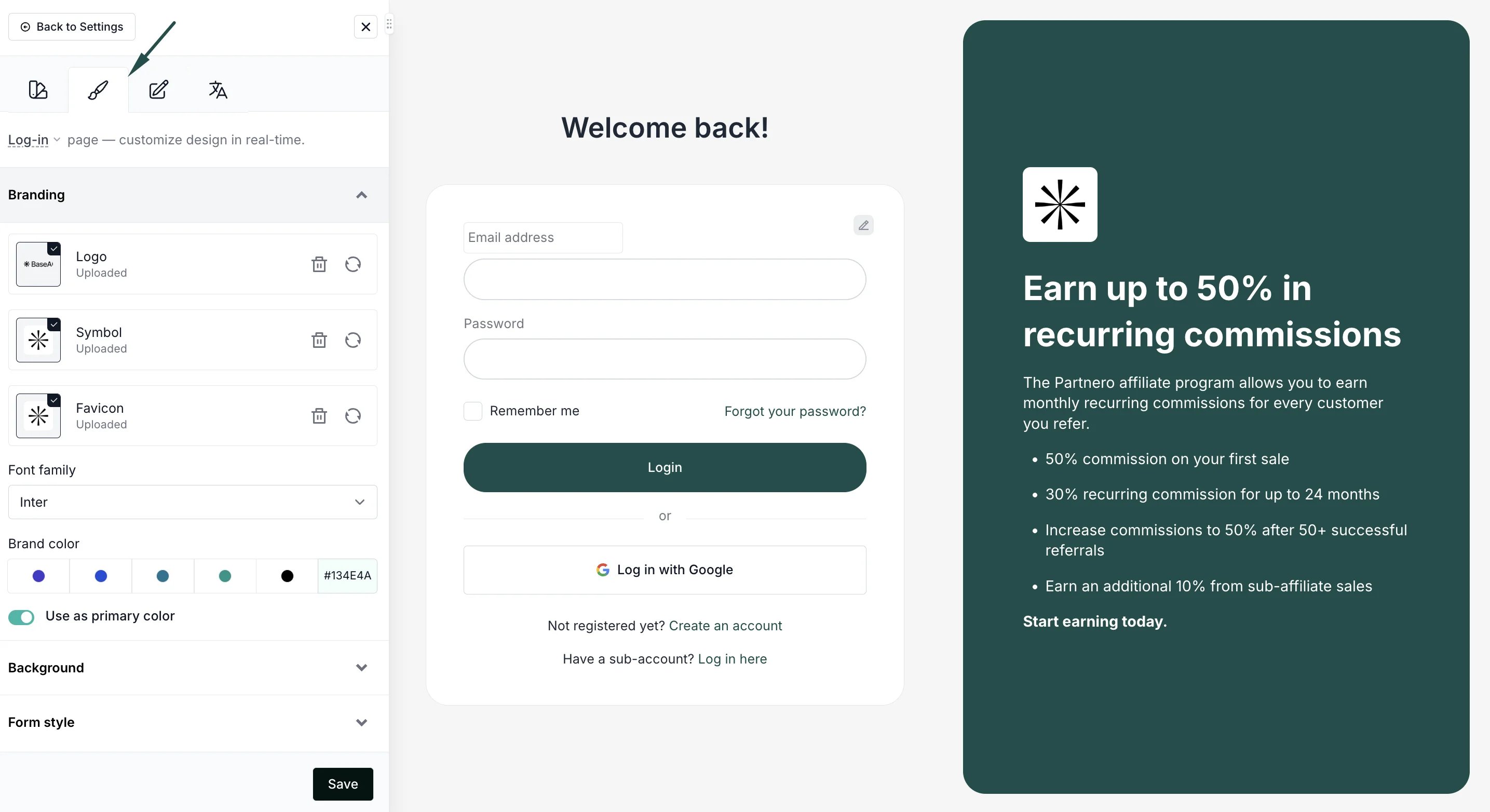
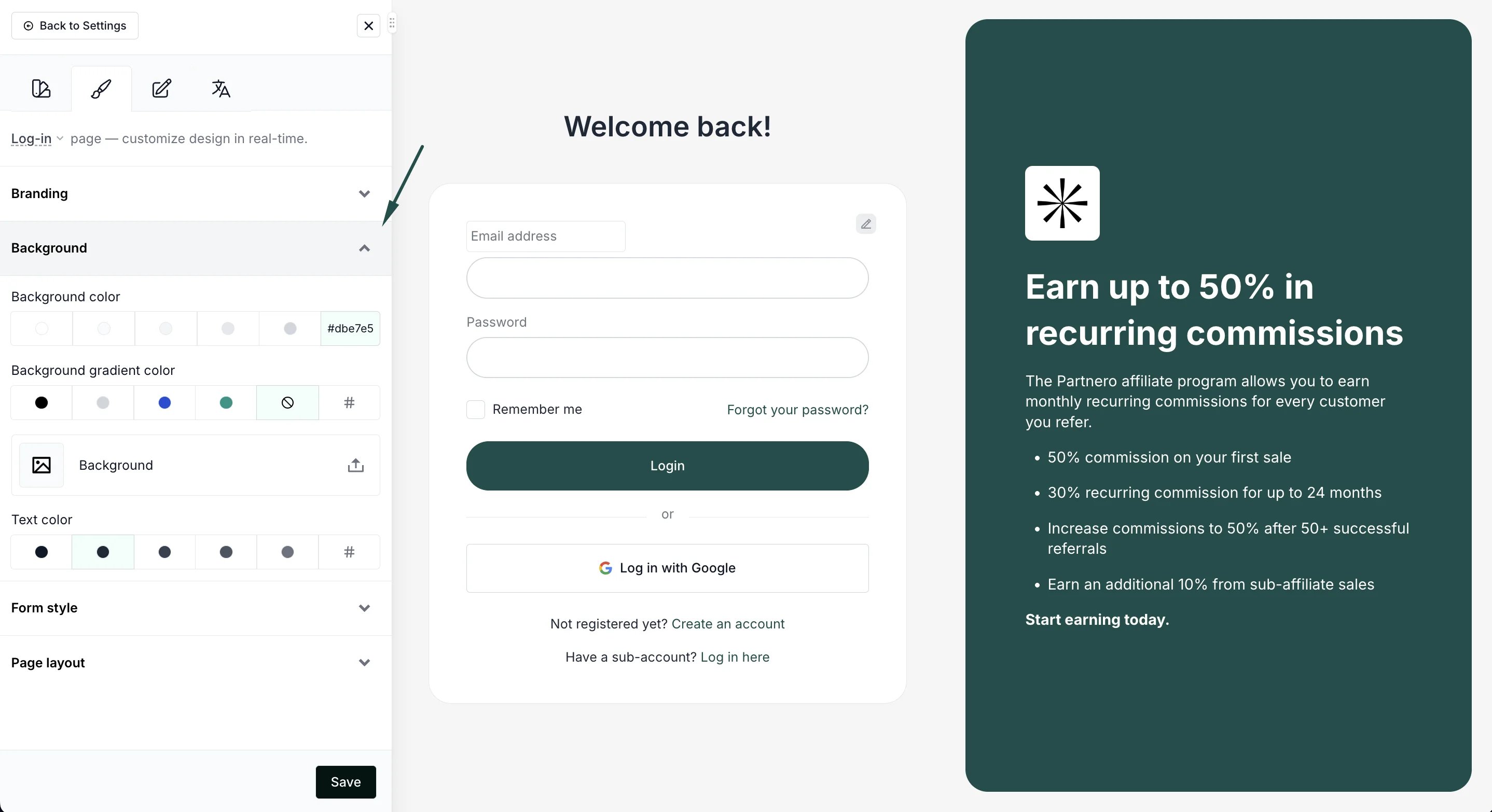
Editing forms
Pages with forms, such as sign-up, log-in, or program pages, have a separate Forms tab that allows customizing the forms used: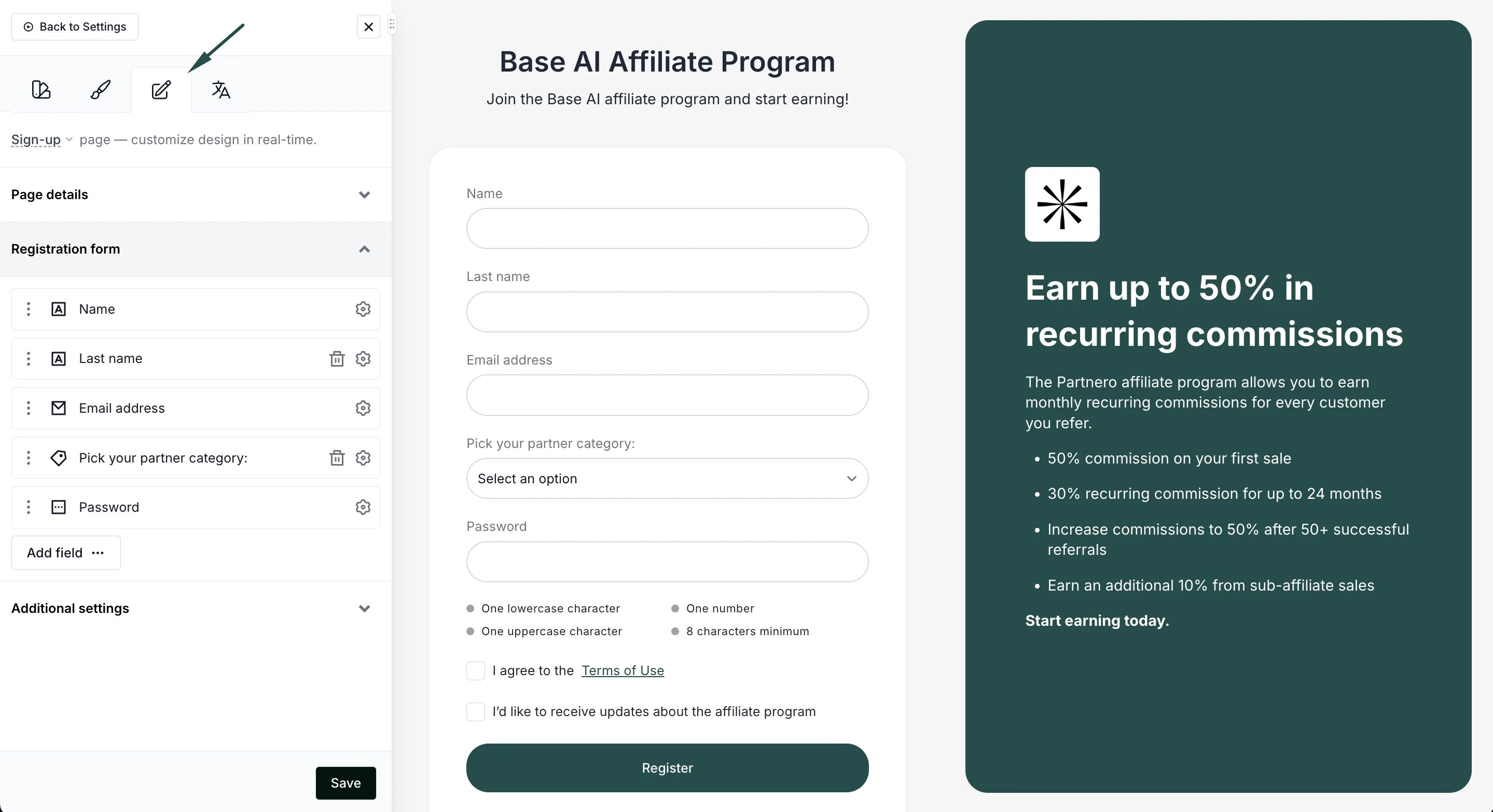
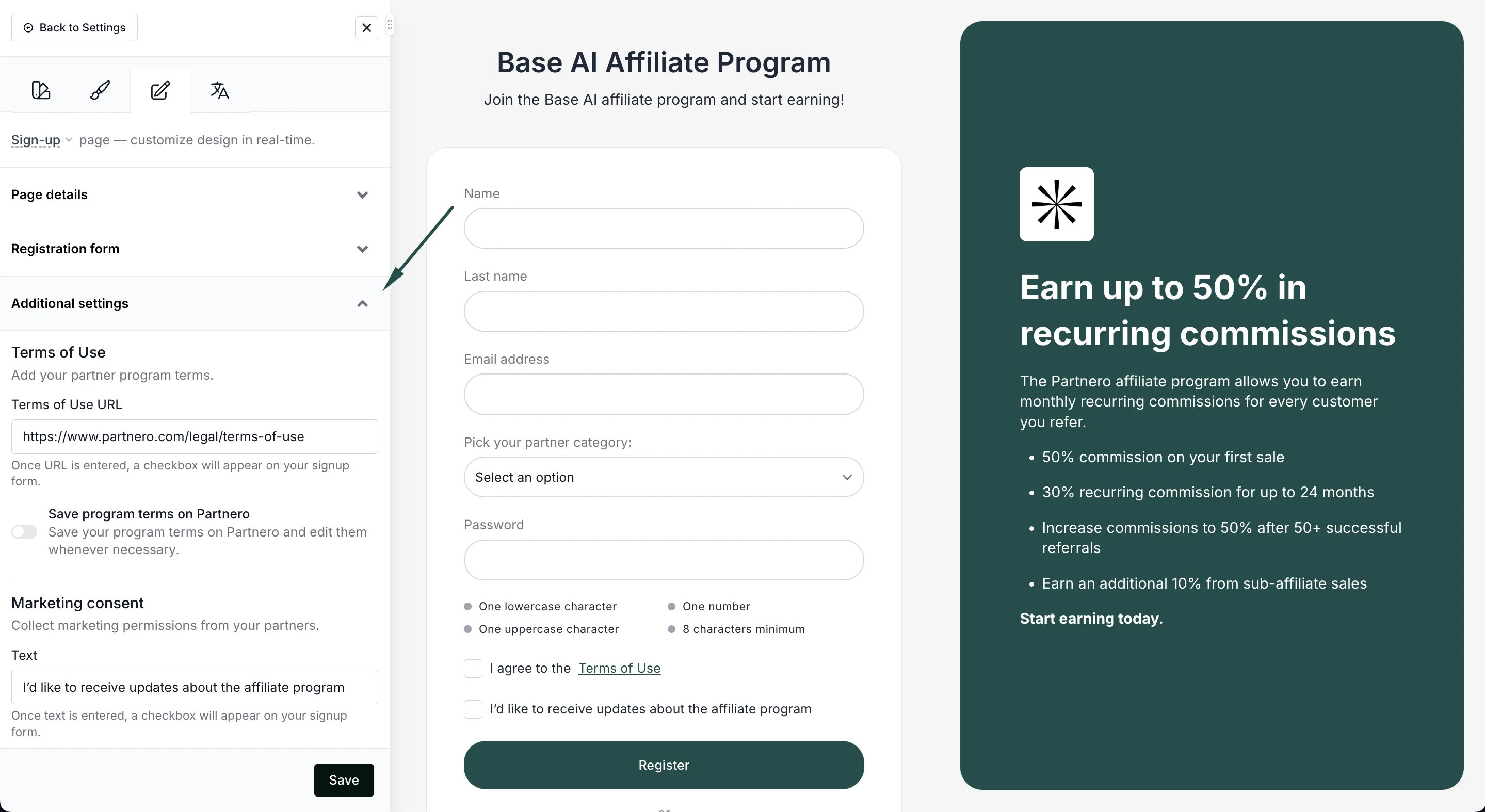
Editing translations
In the editing panel, you can switch to the Translations tab to manually translate or select one of the existing predefined translations: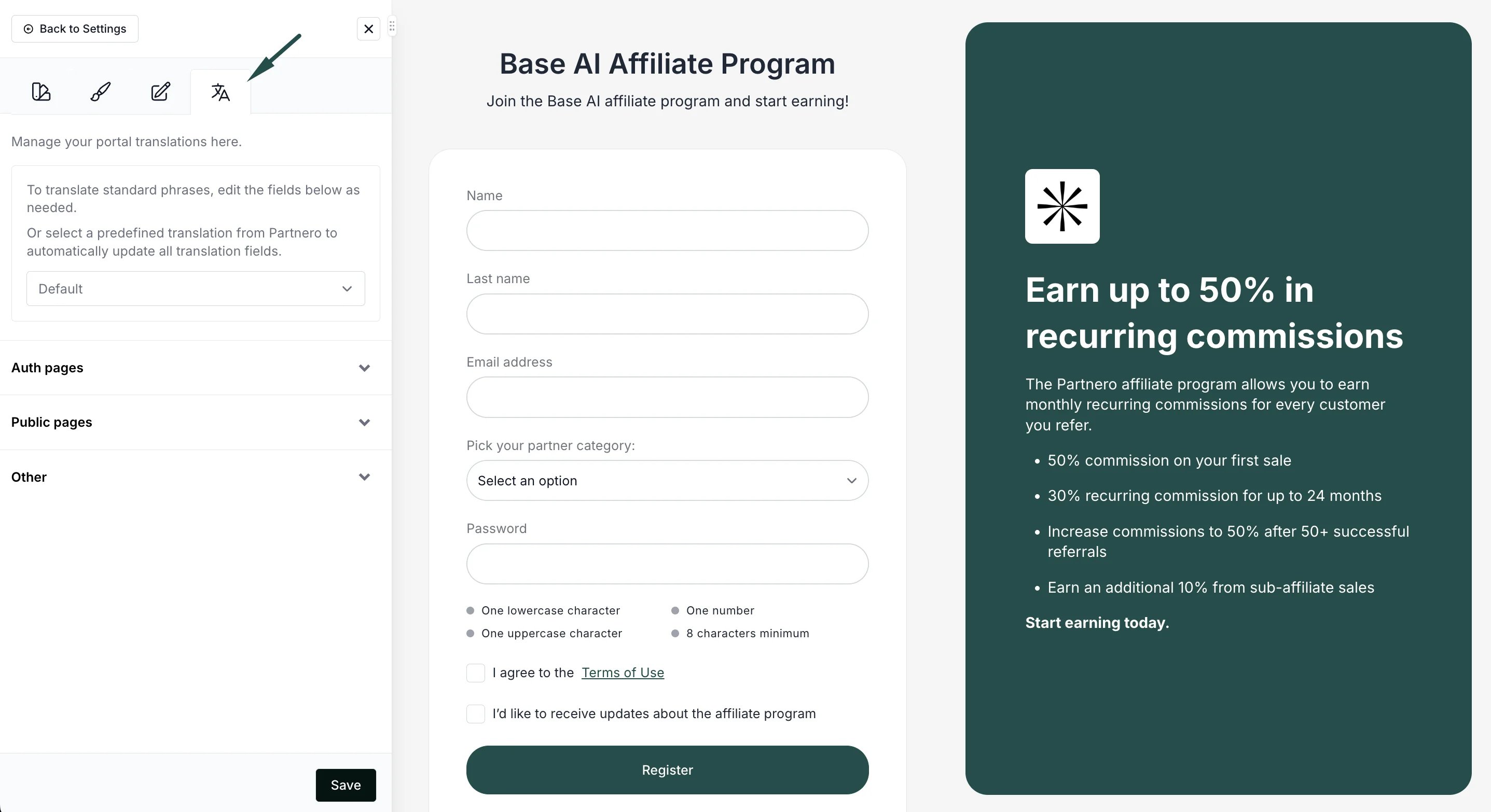
Editing internal pages
To edit internal Partner Portal pages, open the Live Designer → Log-in page and log in to the portal as you normally would: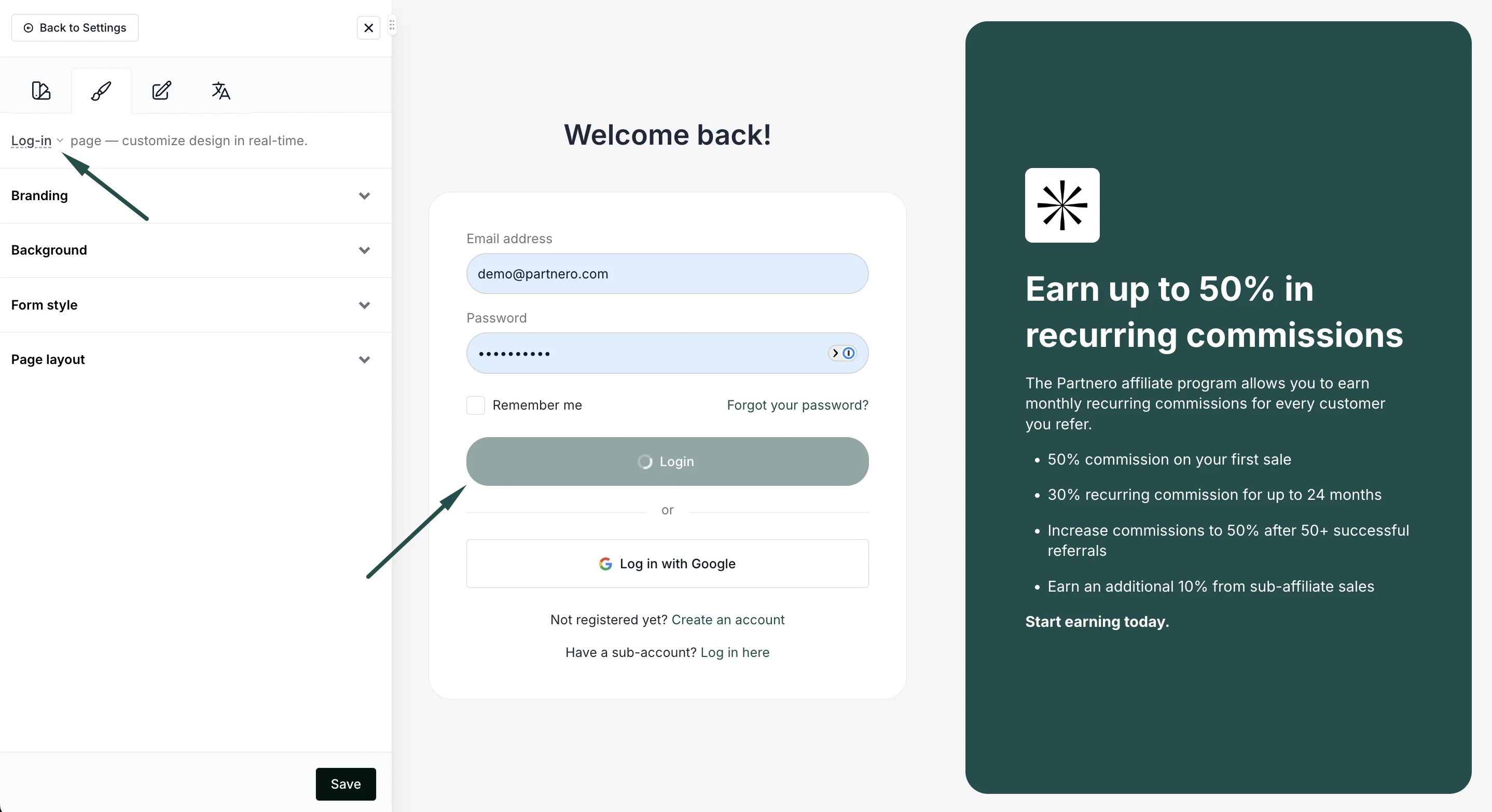
- Hover over any text to edit inline.
- Use the Appearance tab in the editing panel to adjust branding, colors, and layout.
- Use the Translations tab in the editing panel to localize content.
- Use the Content tab (if available) to build or modify page elements.