

How to import partners
- In your program, go to Partners under Reporting & Management. Click Import:
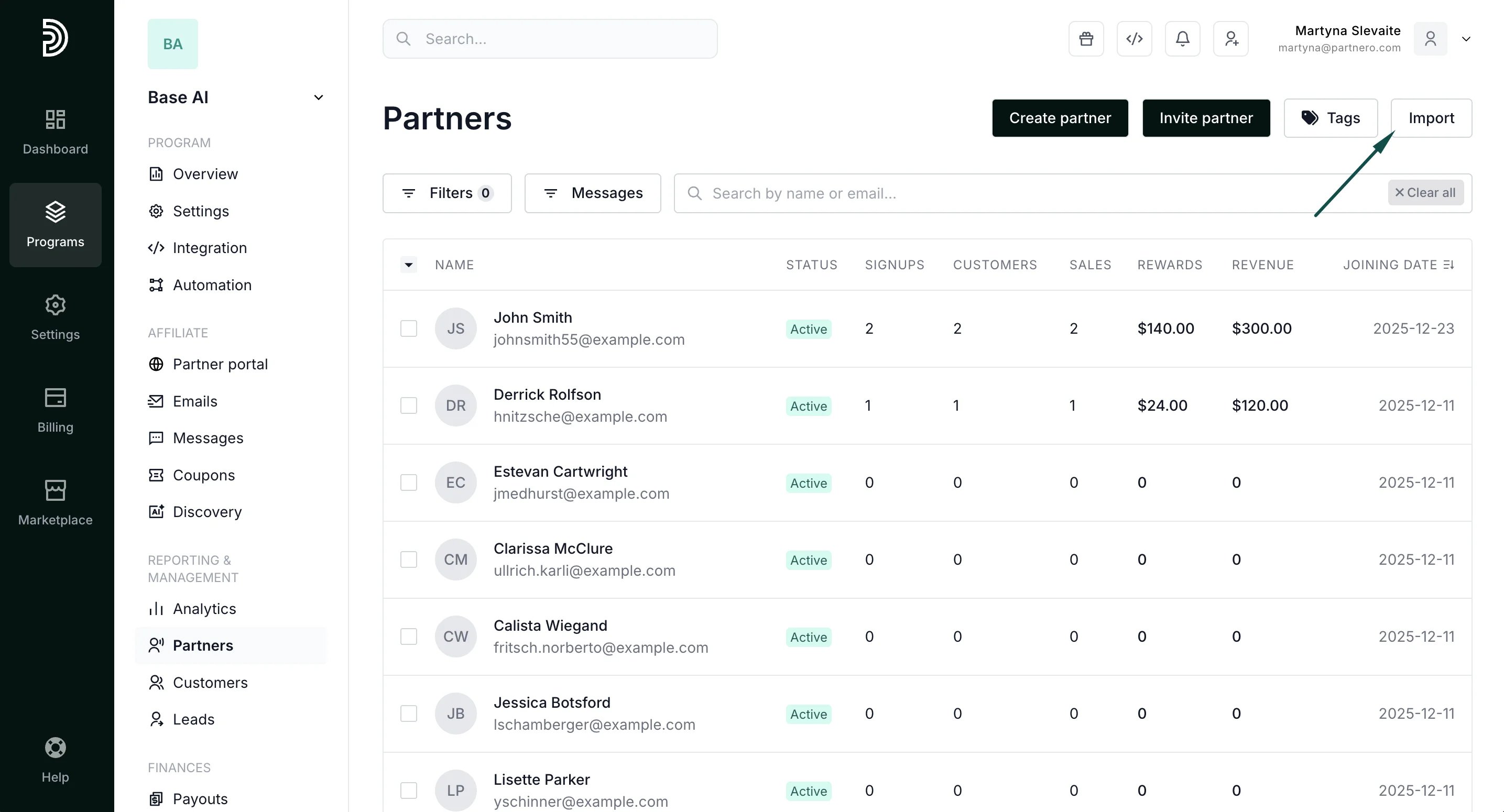
- Upload your CSV file and click Import.
- Match the corresponding fields:
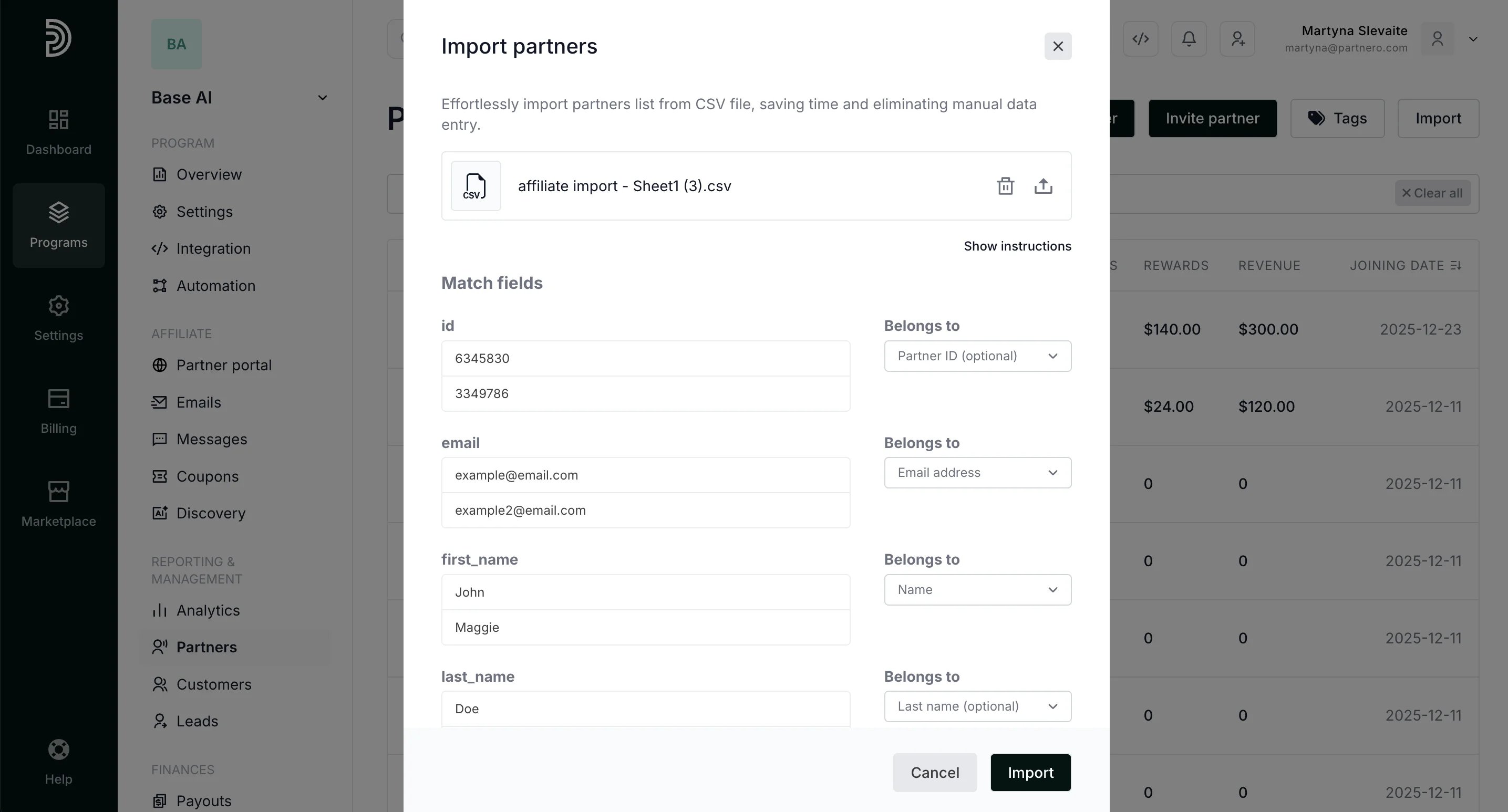
- Click Import.
Instructions for the CSV file
To easily import your CSV file, ensure that the headers in the first row of the worksheet are appropriately named. Provide a header for each respective column. Once you upload the file, you will be prompted to confirm the matching fields. The following list contains required and optional columns for import:- Partner ID (optional)
- Name
- Last name (optional)
- Partner key (optional)
- Email address
- Joining date
How to import customers
- Go to Customers under Reporting & Management. Click Import > Import Customers:
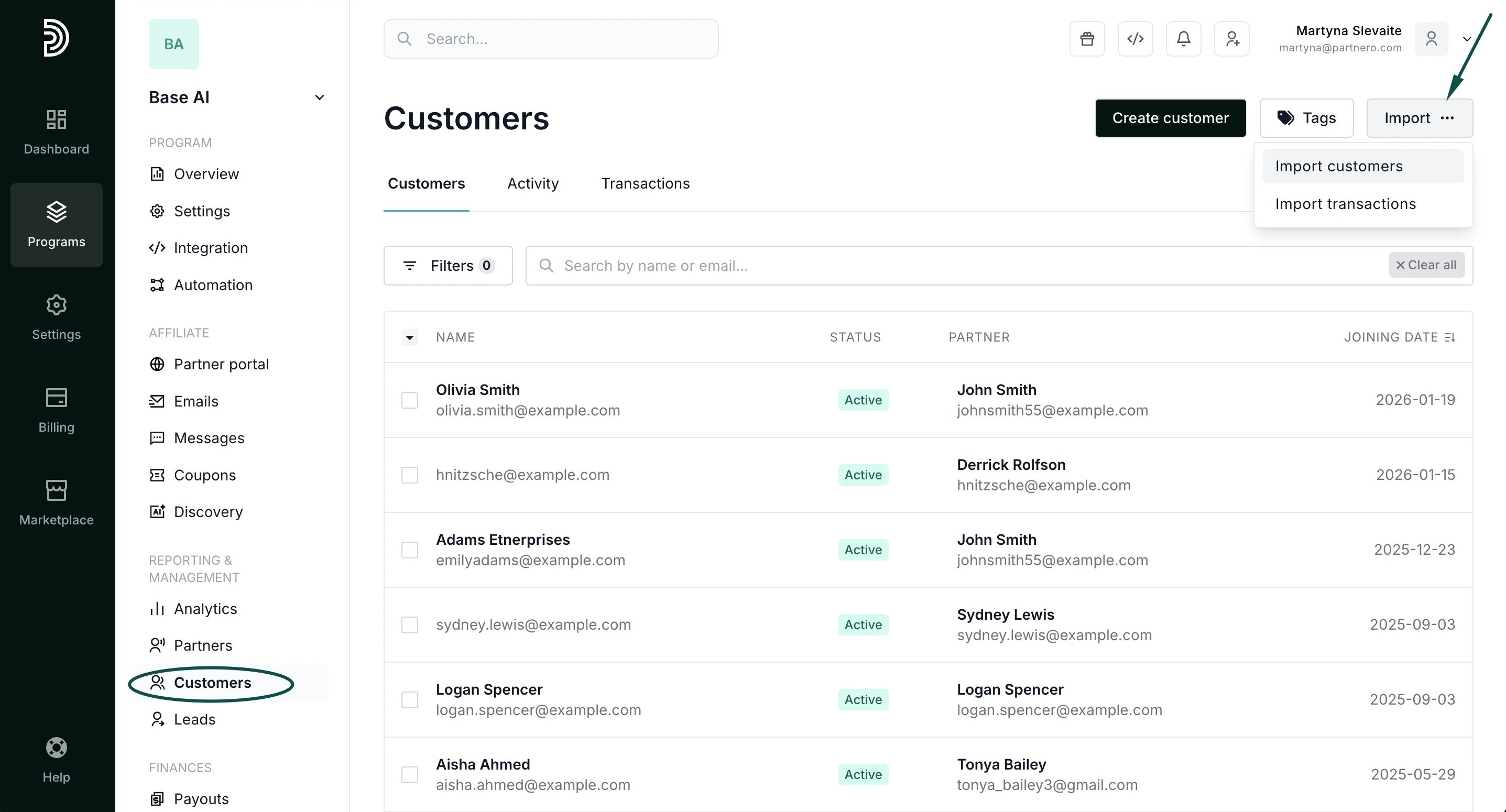
- Upload your CSV file and click Import.
- Match the corresponding fields.
- Click Import.
Instructions for the CSV file
To easily import your CSV file, ensure that the headers in the first row of the worksheet are appropriately named. Provide a header for each respective column. Once you upload the file, you will be prompted to confirm the matching fields. The following list contains required and optional columns for import:- Name
- Last name (optional)
- Email address
- Customer key
- Partner key (optional if partner email is provided)
- Partner email (optional if partner key is provided)
- Joining date
How to import transactions
- Go to Customers under Reporting & Management. Click Import > Import transactions:
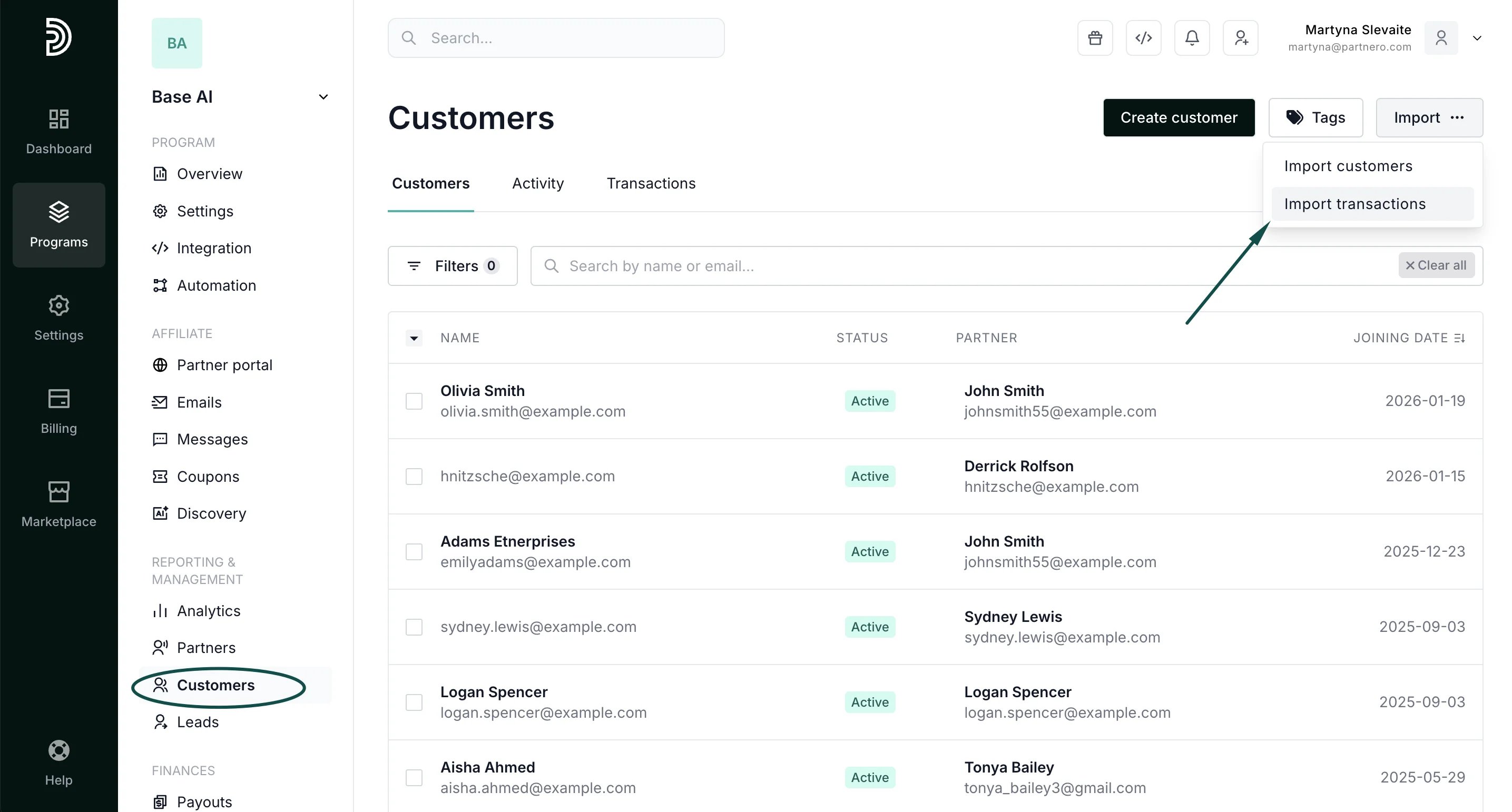
- Upload your CSV file and click Import.
- Match the corresponding fields.
- Click Import.
Instructions for the CSV file
To easily import your CSV file, ensure that the headers in the first row of the worksheet are appropriately named. Provide a header for each respective column. Once you upload the file, you will be prompted to confirm the matching fields. The following list contains required and optional columns for import:- Transaction name (optional)
- Customer key
- Action (signup/sale)
- Reward date
- Reward amount
- Amount (optional)