What are resources?
Resources are various marketing materials the program owners provide for their partners to promote their products successfully. Standard resources include:- company logos and icons,
- product descriptions of various lengths,
- product images,
- promotional banners,
- comparison articles,
- marketing messages,
- overview videos.
How to add resources
To start building your resources page:- Open the program you’d like to work with.
- On the left sidebar, click on Partner Portal under Affiliate. Select the Partner dashboard tab:
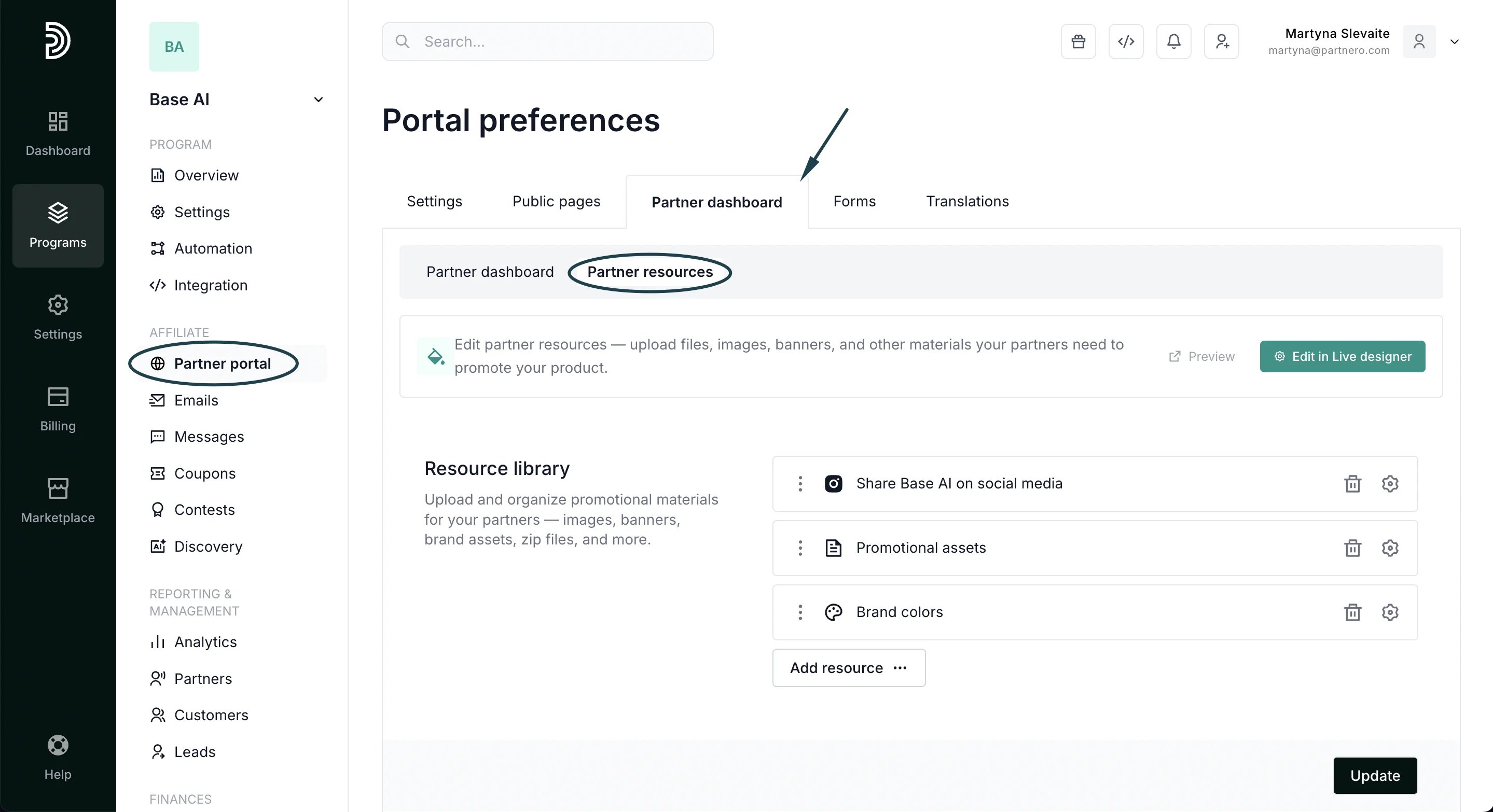
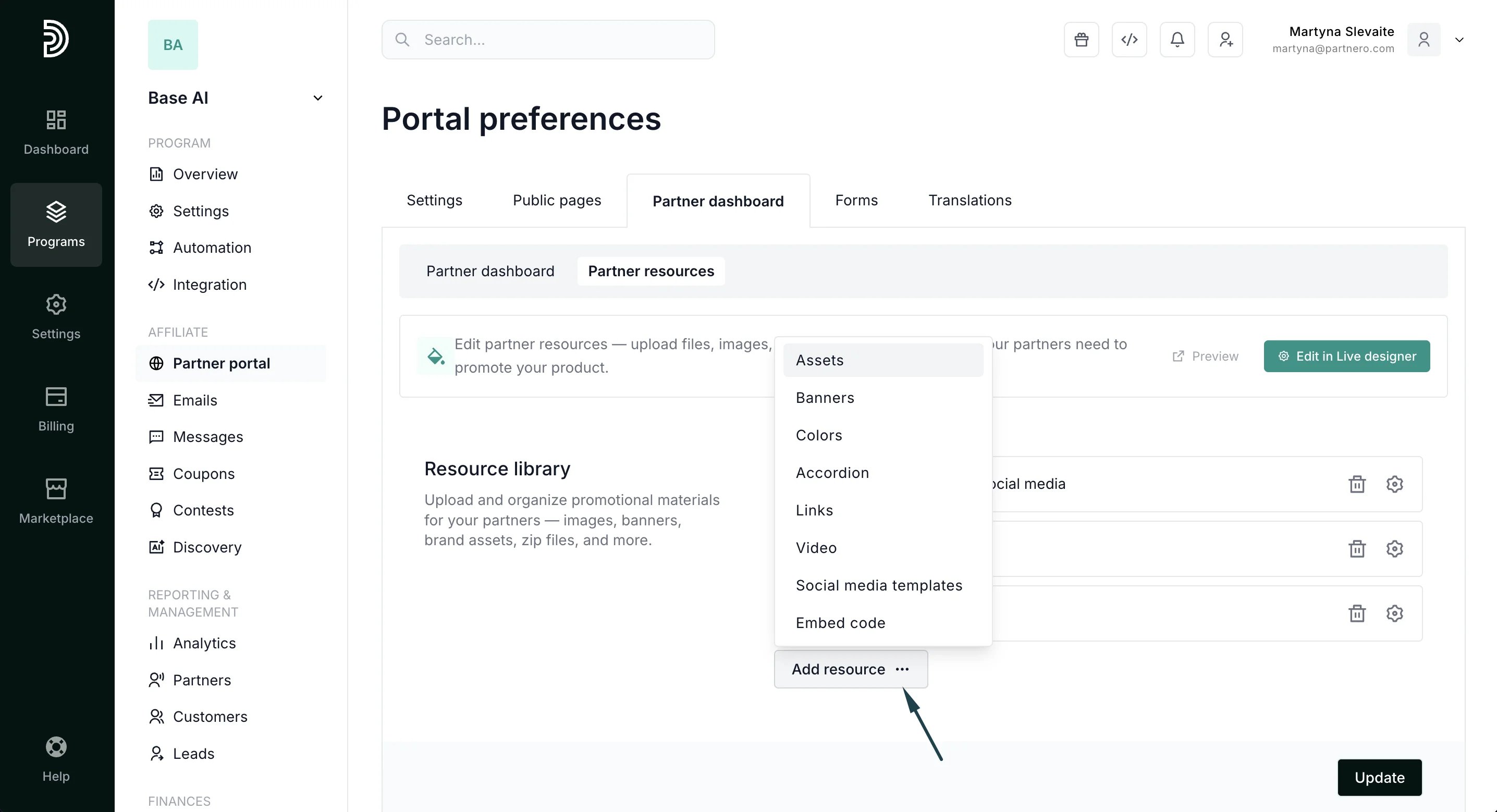
- Click Add Resource.
For each content block, you can:
- add Title and Description (optional),
- upload multiple pieces of content.
Resources page layout and visibility
When building your Resources page, there are a few important layout and visibility settings to keep in mind:- The page can be edited using the Live designer option:
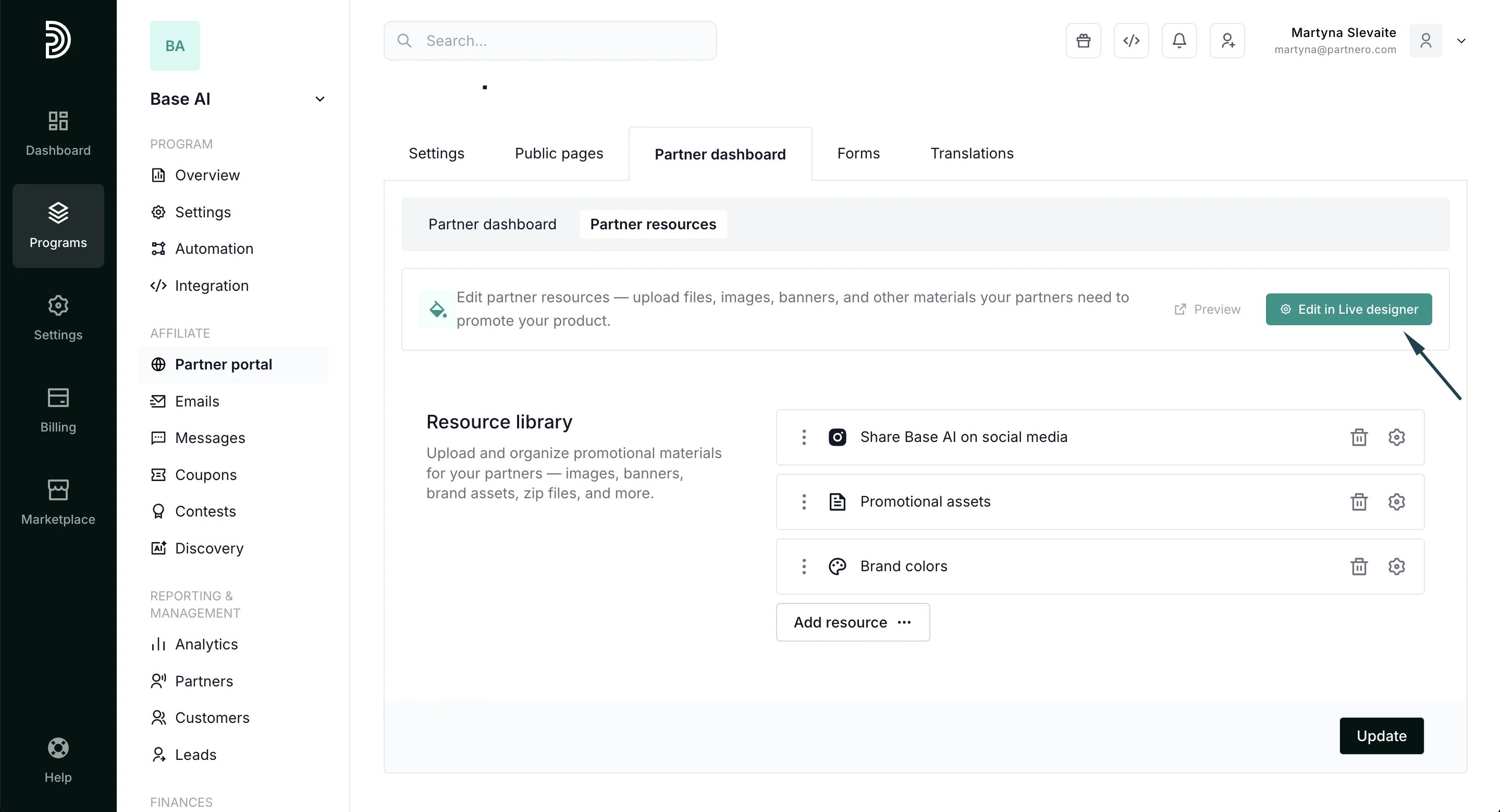
- You can use tag-based visibility to show or hide resources for specific partner groups. Click here to read more.
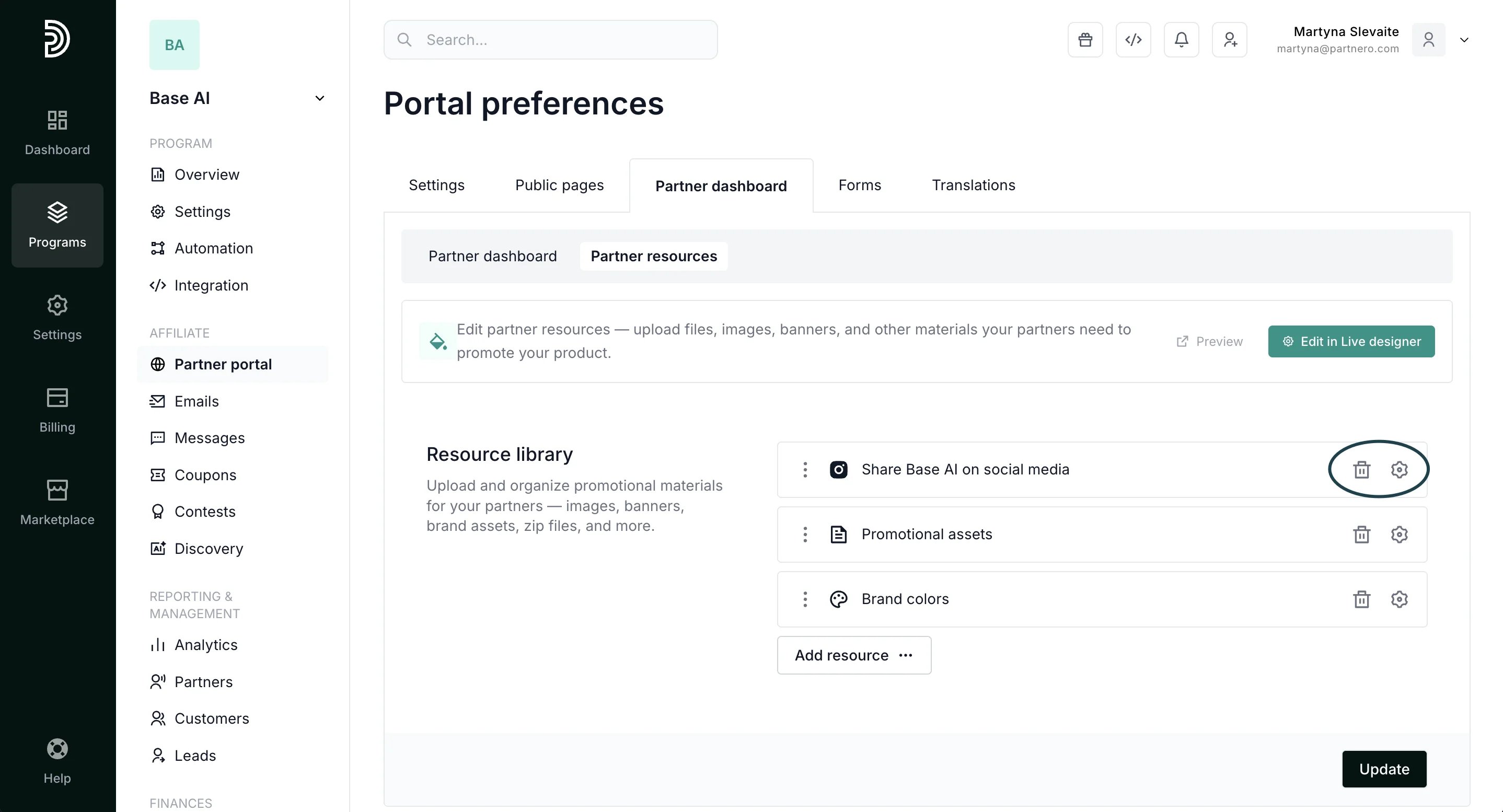
- You can re-order assets by clicking on the three dots and dragging an asset to a required position:
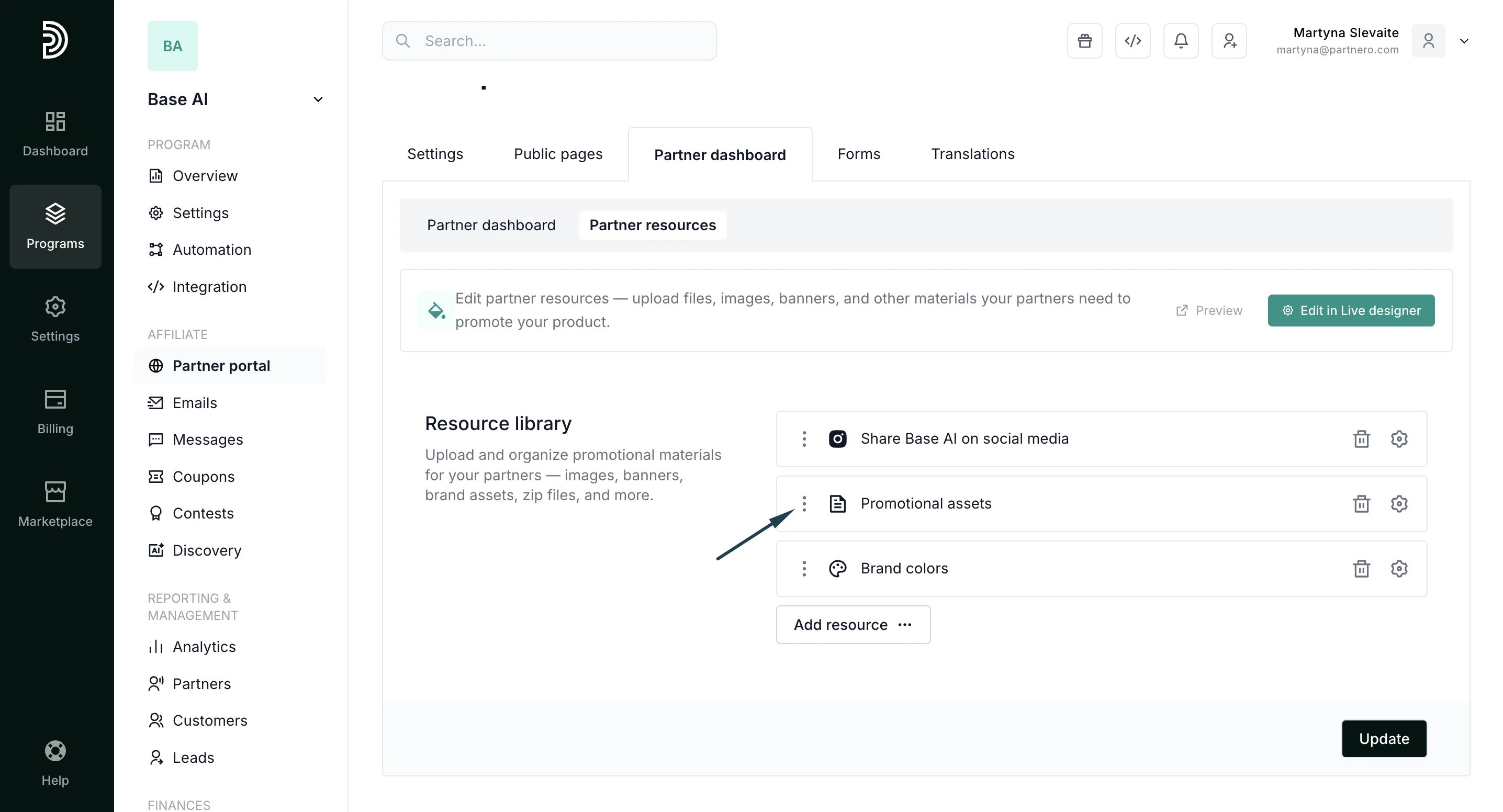
- To edit or delete existing assets, use the settings and bin icons:
Add an Asset
- Click Add Resource and select Assets:
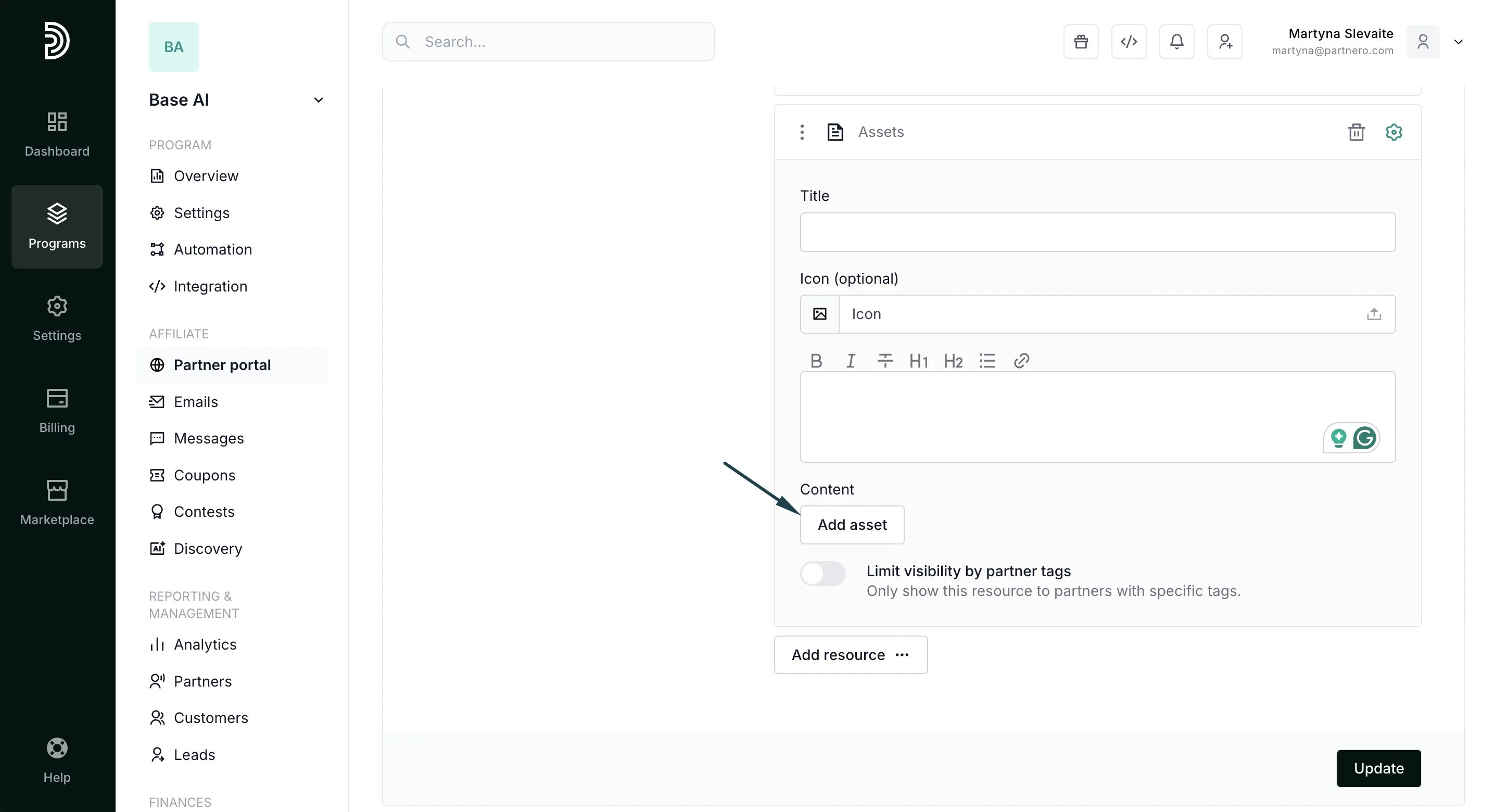
- Enter the Title and Description for the assets that will be shared (optional).
- Under Content, click Add asset. Note: you can group multiple assets.
- Upload a cover image and a zip file with the assets. You can also add a Title and Description (optional) and make the image downloadable.
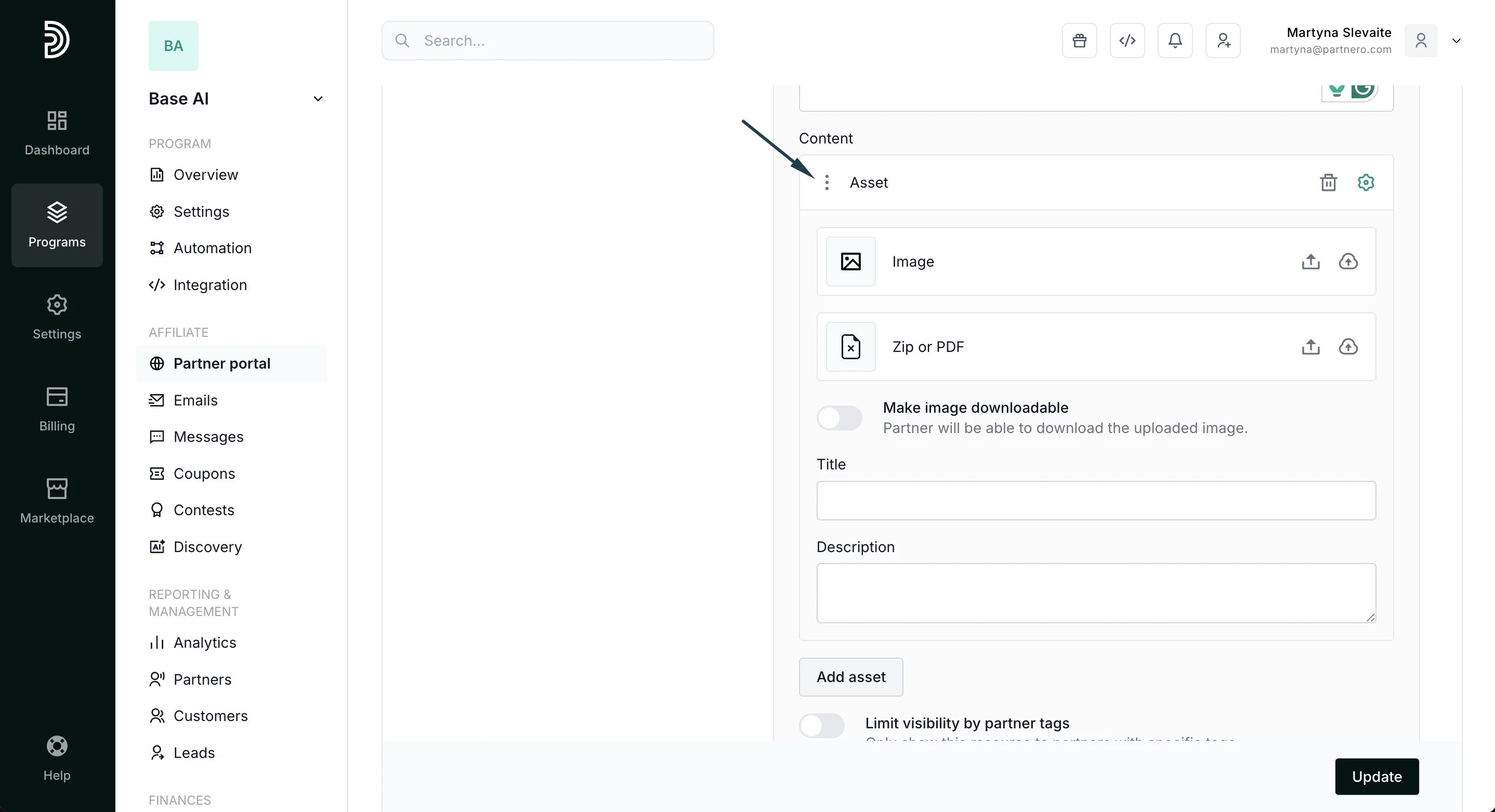
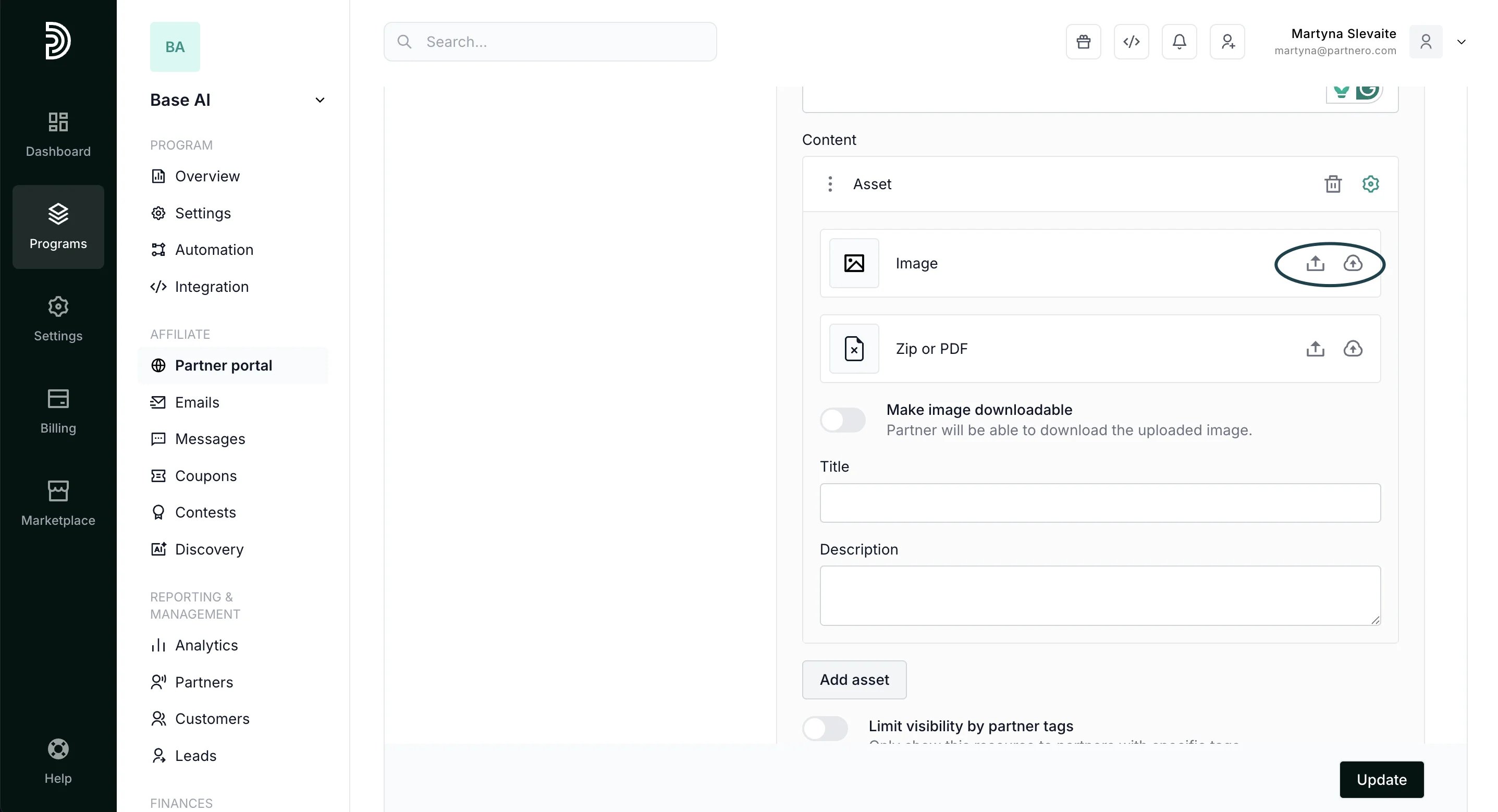
- Upload additional content, if needed, by clicking Add Asset.
- Click Update to save your changes.
Tip! While building the Resources page, have your Partner portal open in a separate tab. Every time you click Update on Partnero, refresh the Partner portal to see the changes reflected immediately. Explore all options and find what you like.
Example from a Partner portal
Asset block titled “Brand Assets,” no description added. The block has three separate content pieces uploaded, each with a Title and Description (Logos, Promotional Banners, and Product Images):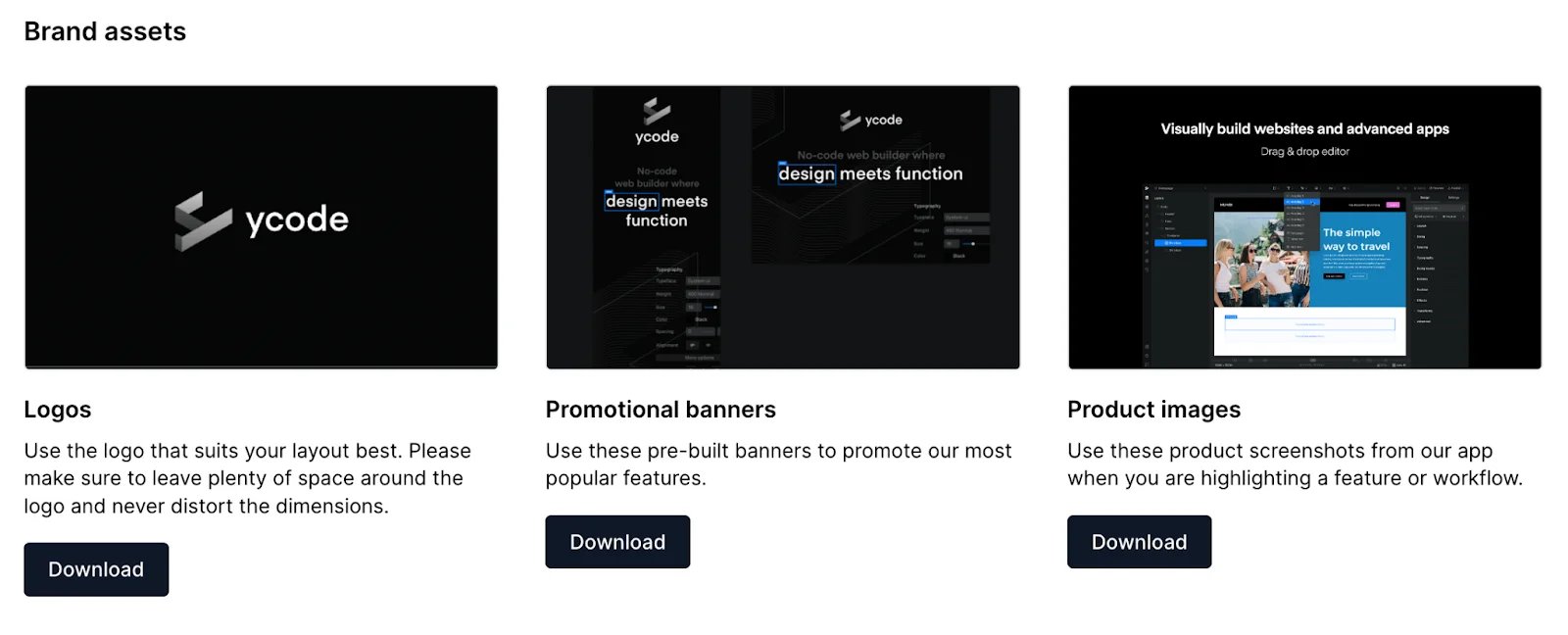
Add Colors
- Click Add Resource and select Colors:
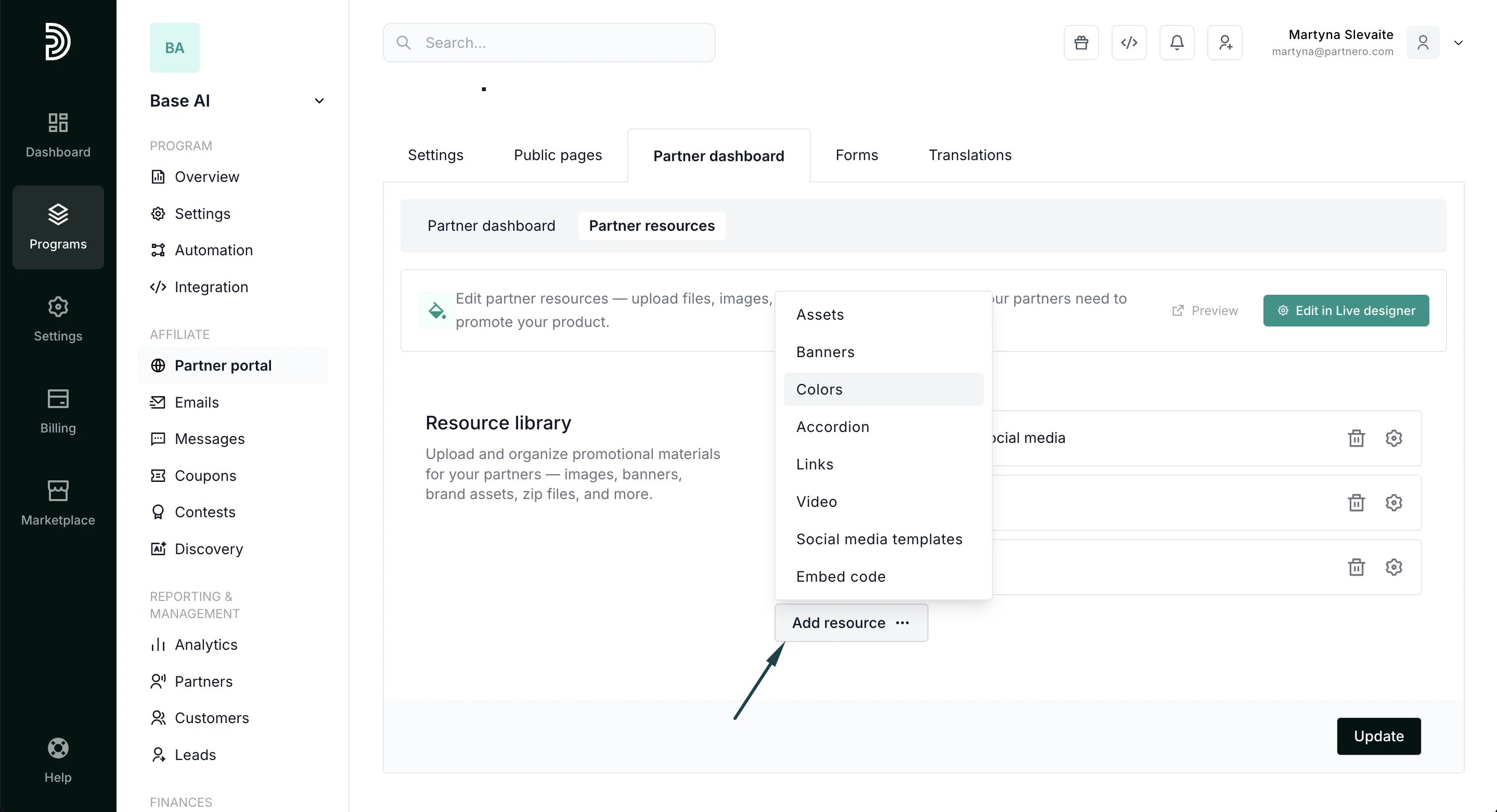
- Enter Title and Description.
- Under Content, click Add Color. Add a Color code and Description (optional):
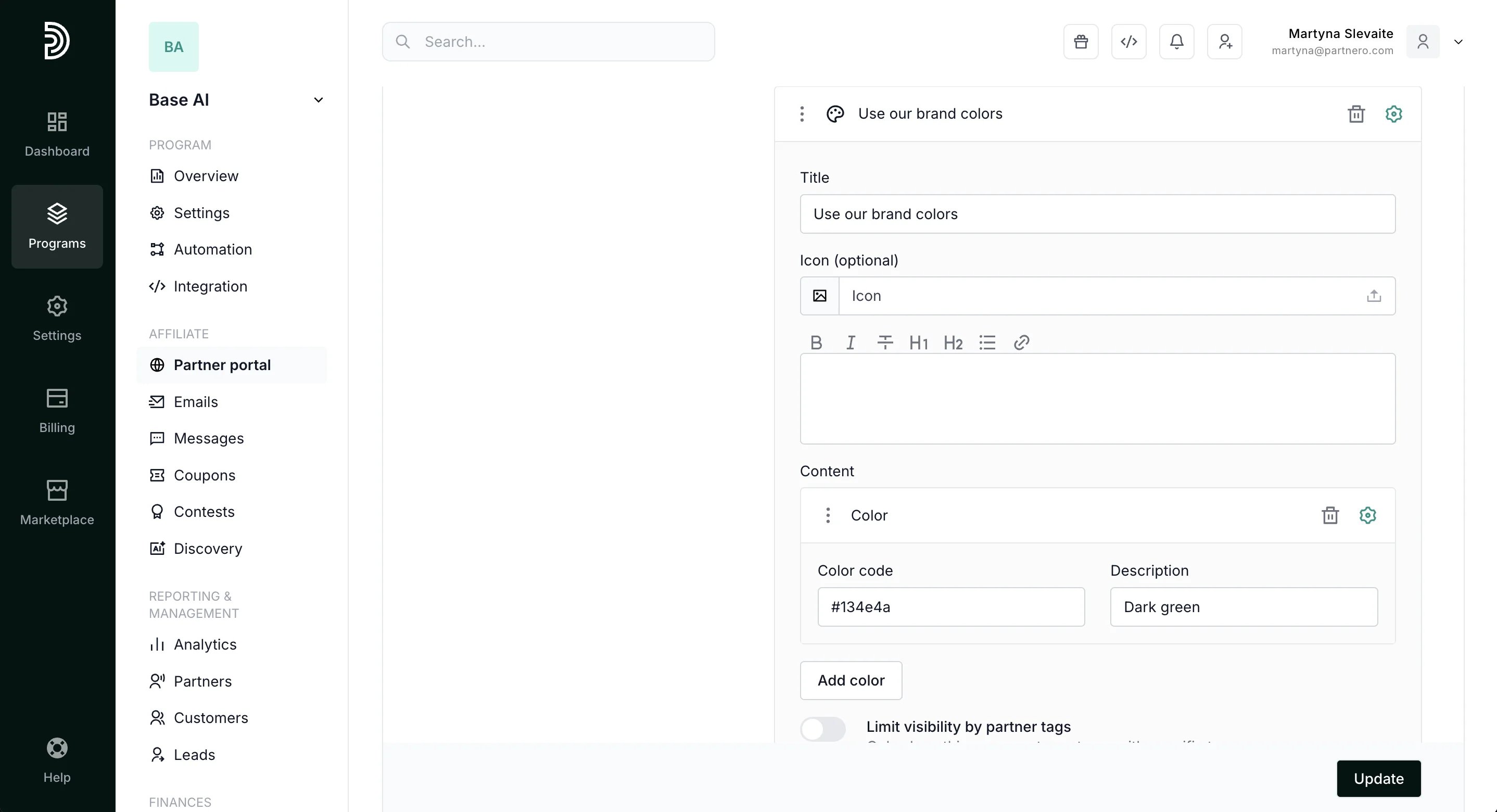
- Click Update.
Example from a Partner portal
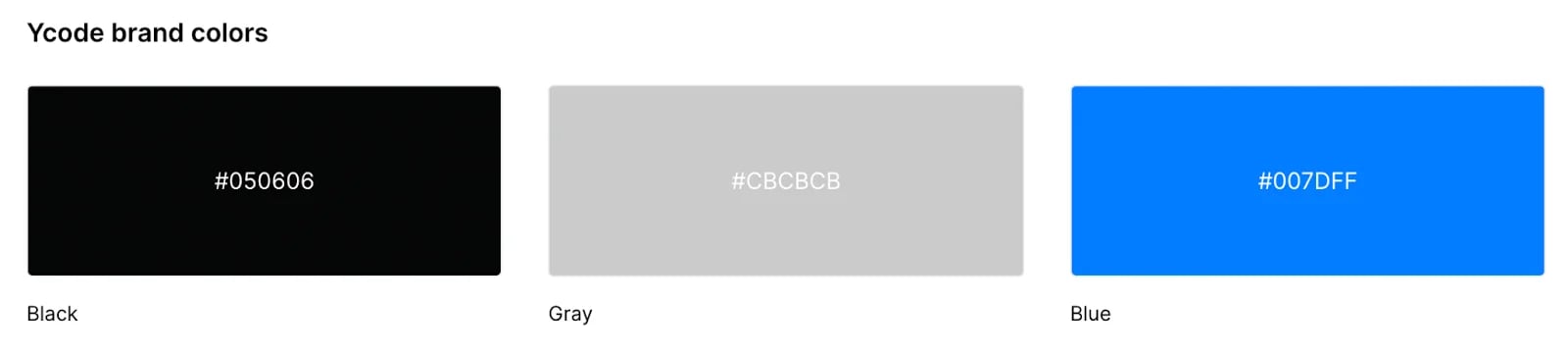
Here’s an example of the Color block with three brand colors added: