

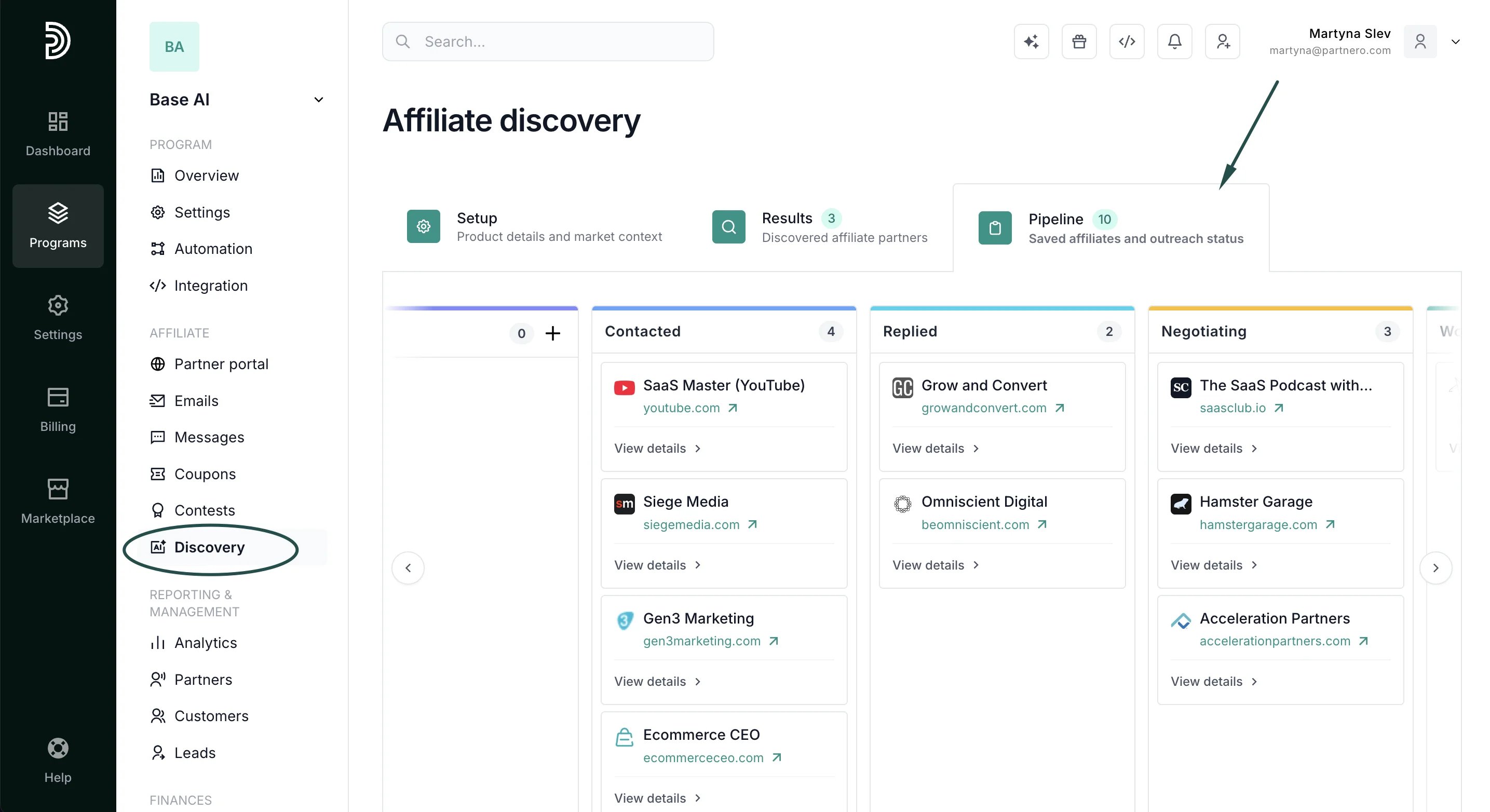
Pipeline stages
Move prospects through the following stages as your outreach progresses:- Saved: added to the pipeline, not yet contacted
- Contacted: outreach sent
- Replied: prospect has responded
- Negotiating: in active discussion
- Won: joined your program
- Lost: did not convert
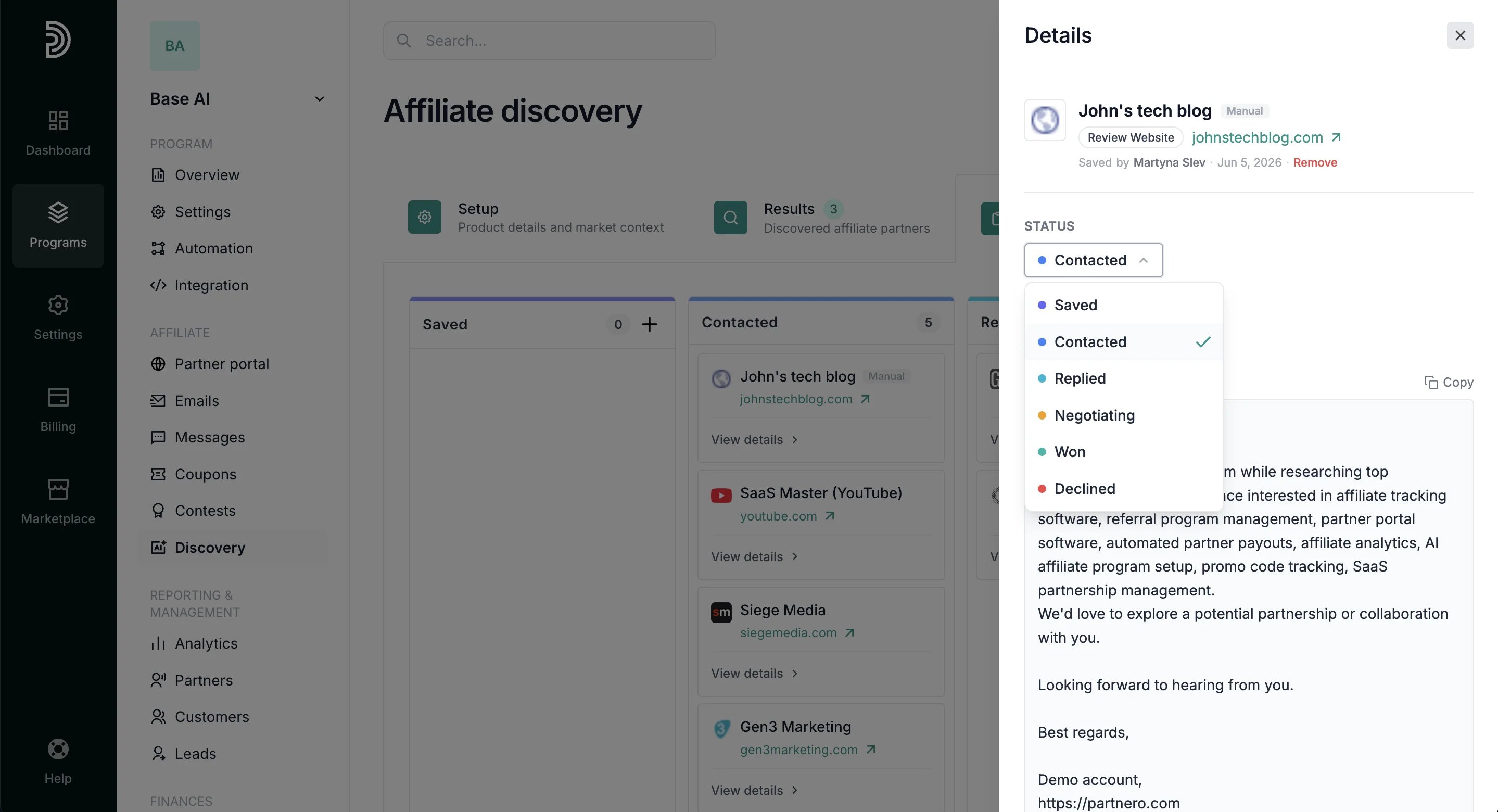
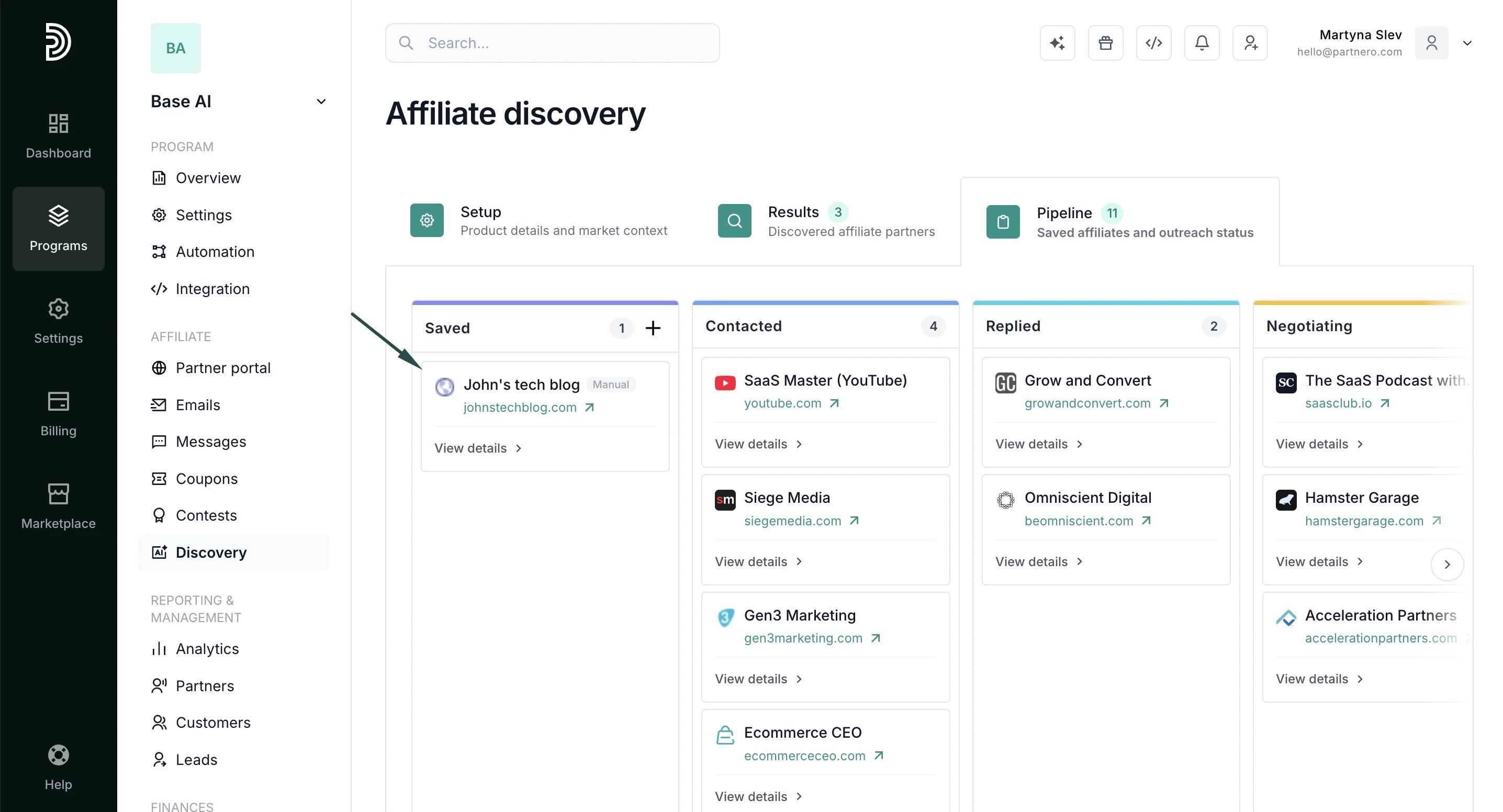
Add a prospect manually
You can add a prospect to the Pipeline without running a discovery search.- In the Pipeline, click the + icon in the Saved column.
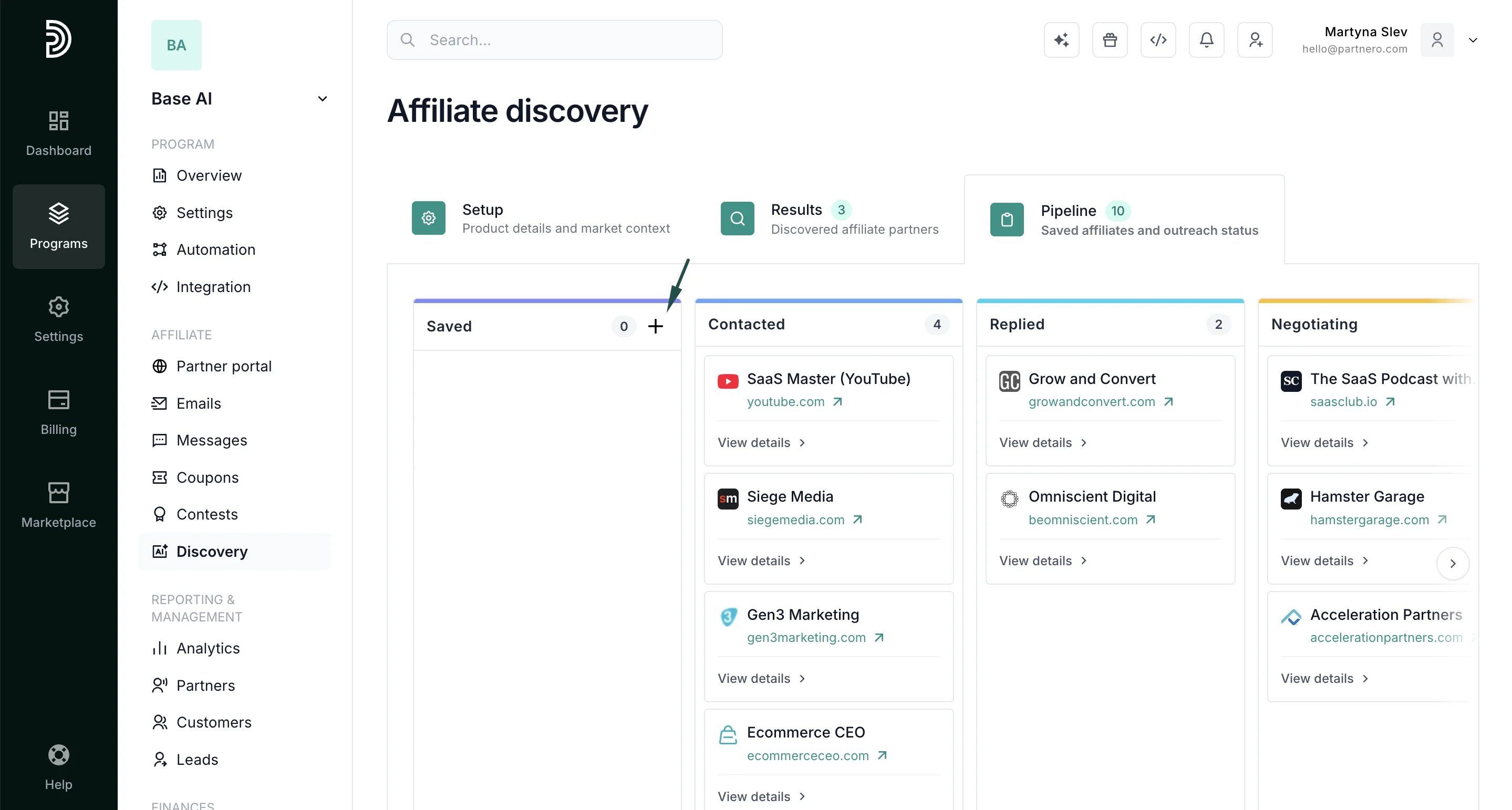
- Fill in the prospect’s details:
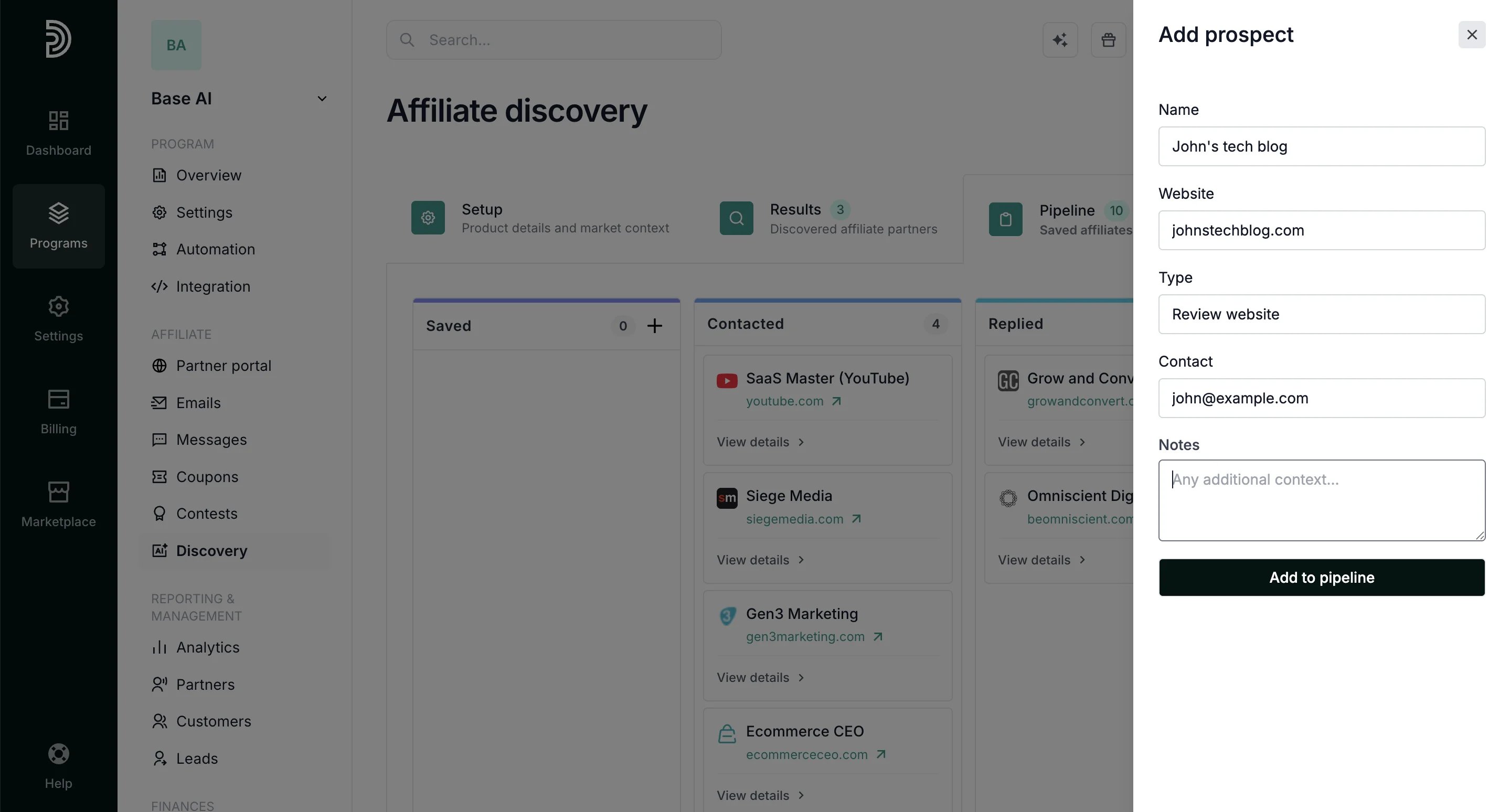
- Name: e.g. John’s Tech Blog
- Website: website URL address
- Type: e.g. blog, agency, newsletter
- Contact: email or URL
- Notes: any additional context
- Click Add to pipeline.
Add notes to a card
Each pipeline card has a notes section for tracking context, updates, and next steps. Notes are visible to everyone with access to the program, making it easy to keep the team aligned on outreach progress.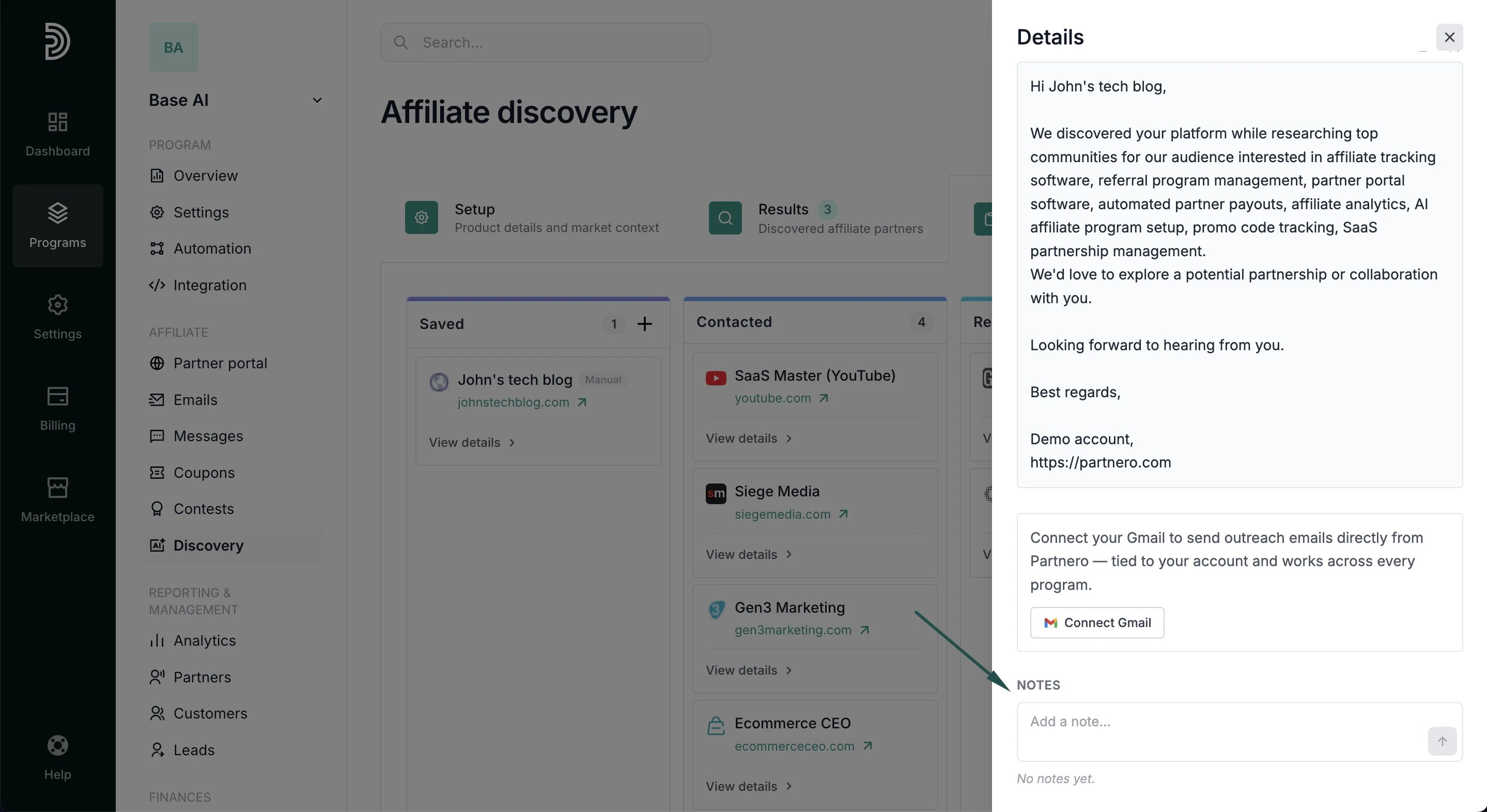
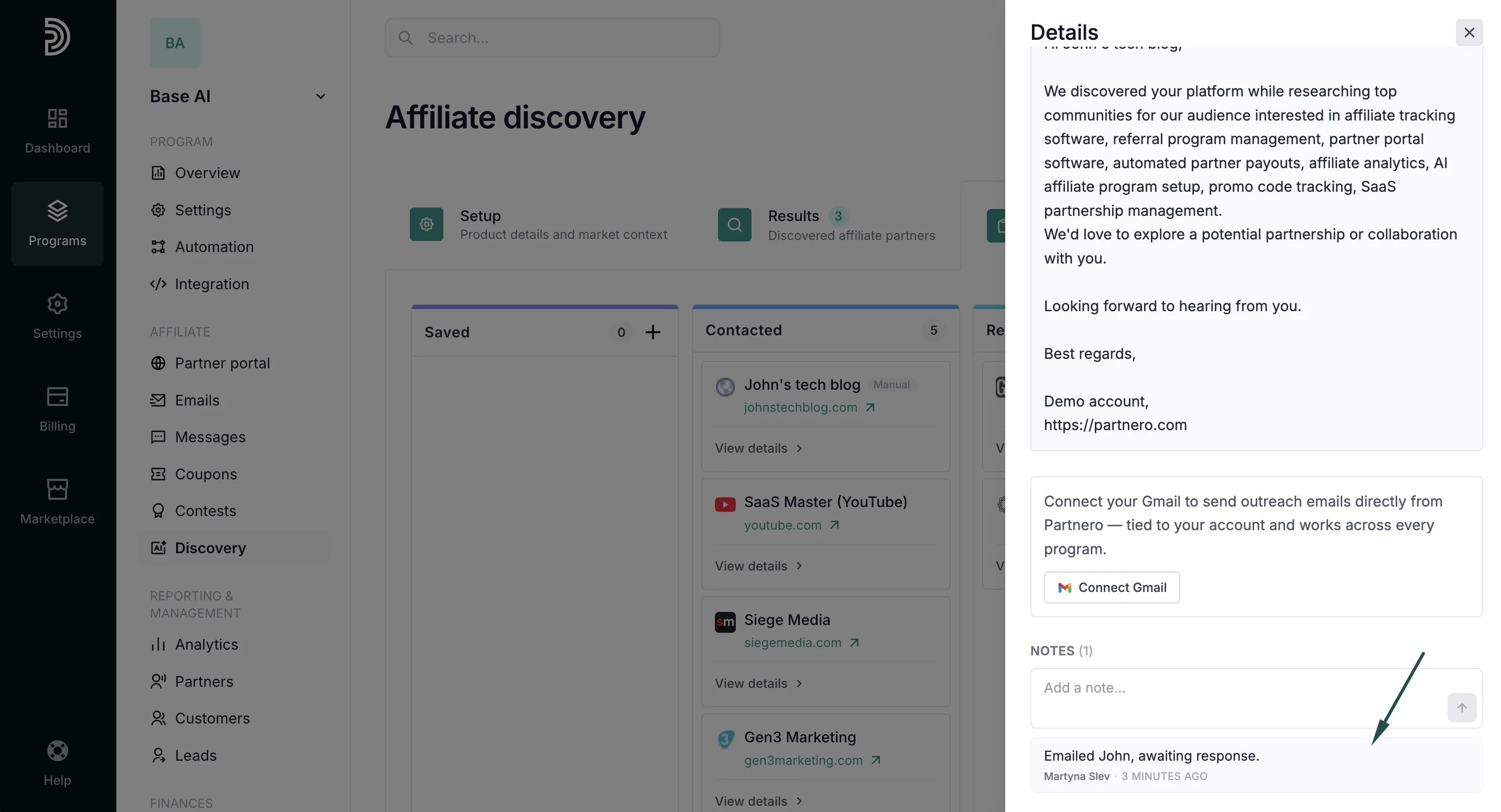
Send outreach emails
You can connect your Gmail account to send affiliate outreach emails directly from a pipeline card. Replies go to your connected Gmail inbox. The Gmail connection is tied to your user account, so once connected, it works across all programs you have access to. To connect Gmail:- Open a pipeline card and click Connect Gmail.
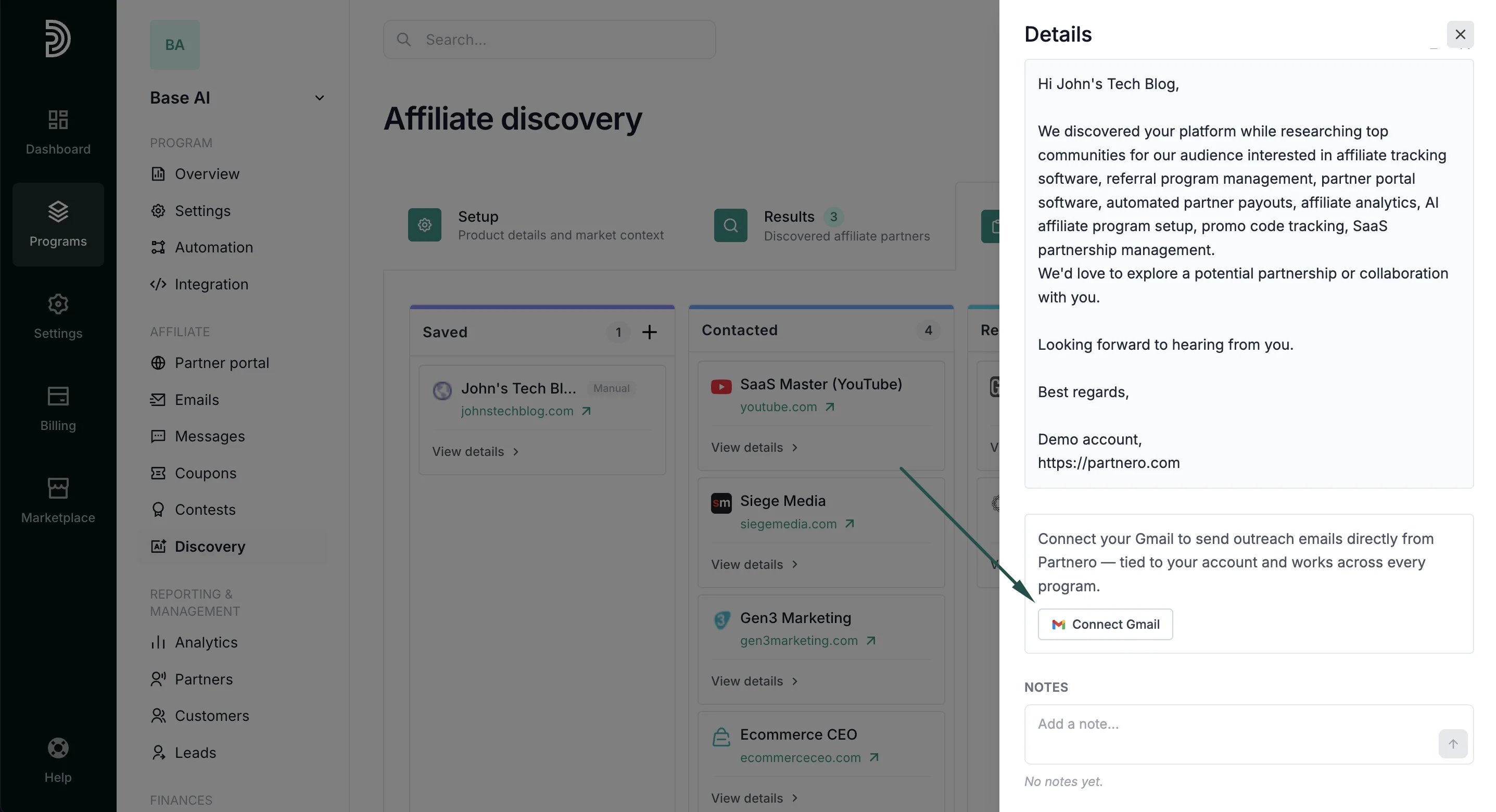
- Follow the prompts to authenticate with your Google account.
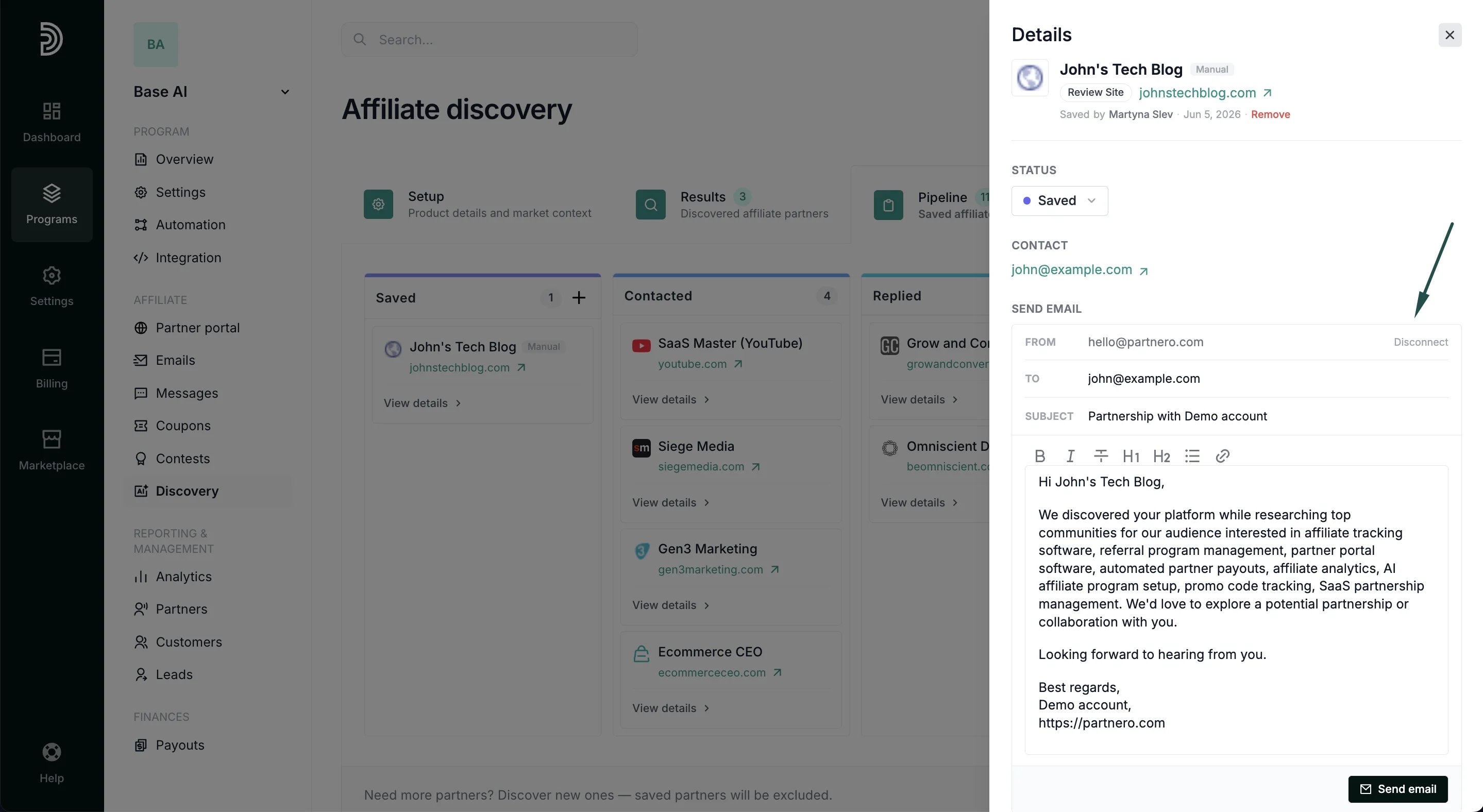
- Open the pipeline card for the prospect you want to contact.
- You can edit the recipient, subject, and message.
- Click Send email.
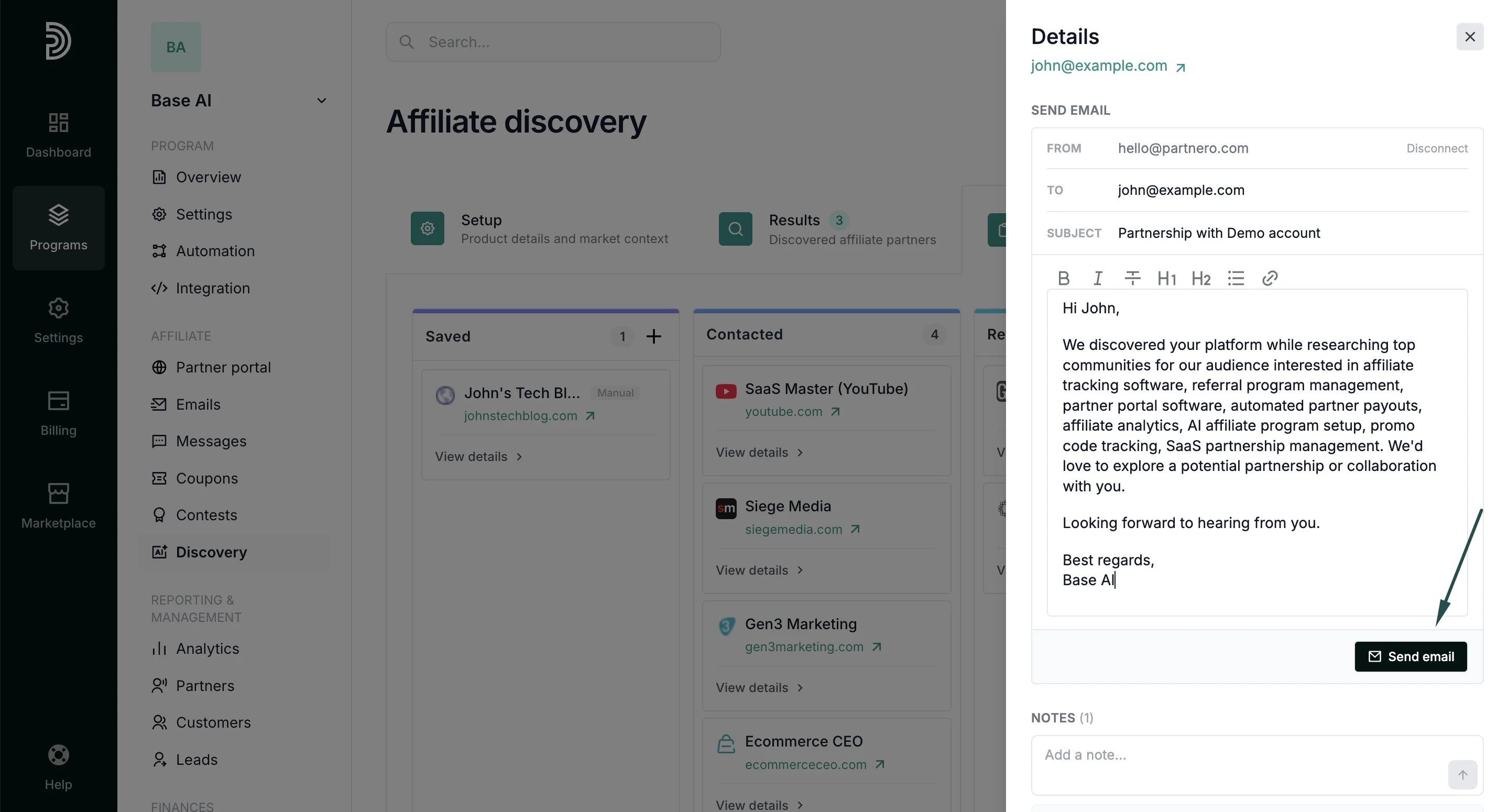
Note: Email deliverability depends on your own domain’s SPF, DKIM, and DMARC configuration. Partnero sends on your behalf via the Gmail API but does not manage your domain’s email authentication settings.
A few things worth knowing
- Saved prospects persist across discovery resets. This means that clearing your discovery results and running a new search will not remove them from the Pipeline.
- Prospects already in your Pipeline are excluded from future discovery results, so you won’t see duplicates.