Set up the automation
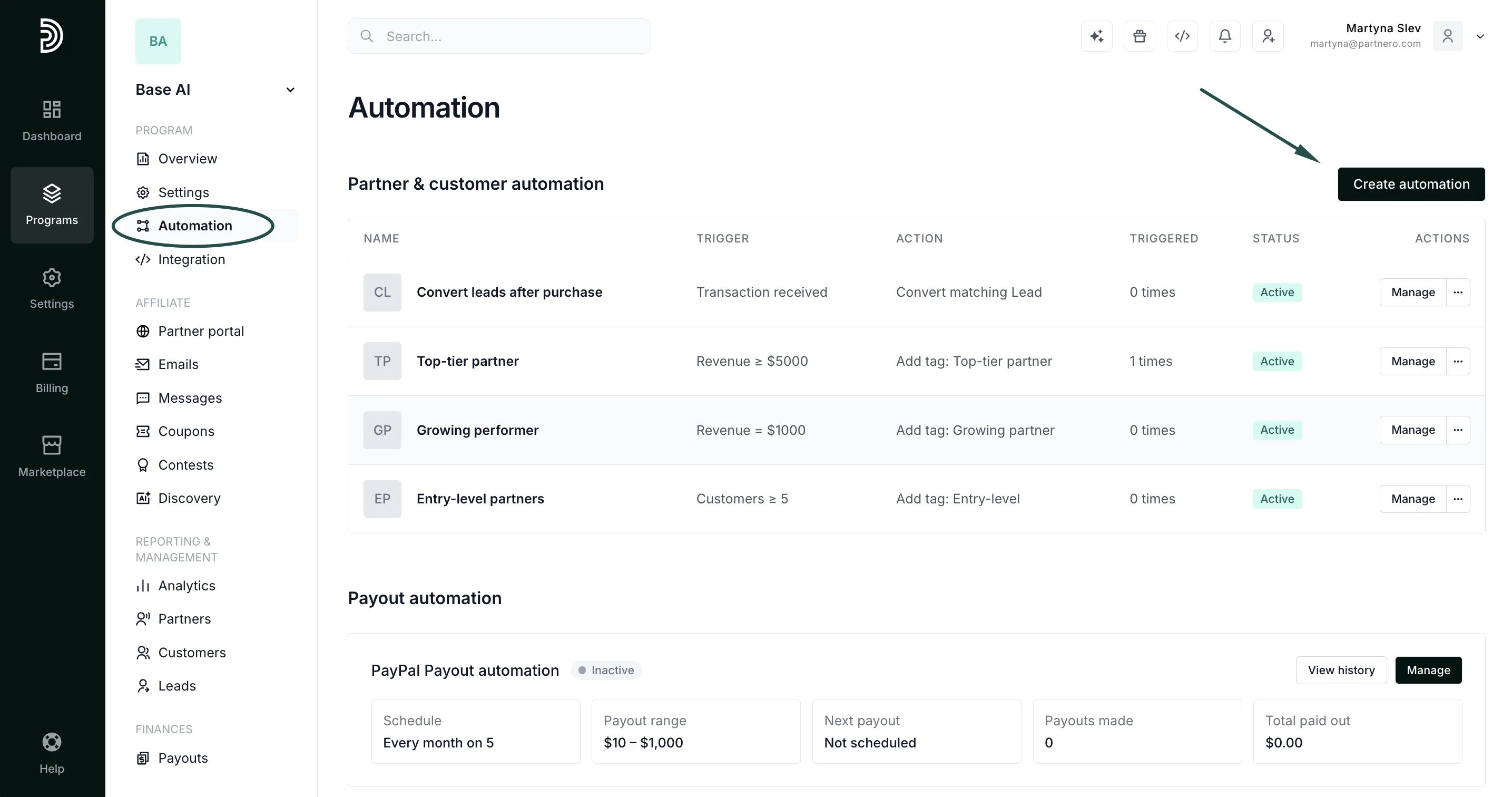
To set up the automation:- Go to Automations in your program dashboard.
- Click Create automation:
- Choose the trigger you want to use (see the full list below).
- Fill in the trigger’s settings (for example, which tag, which milestone, or how many days).
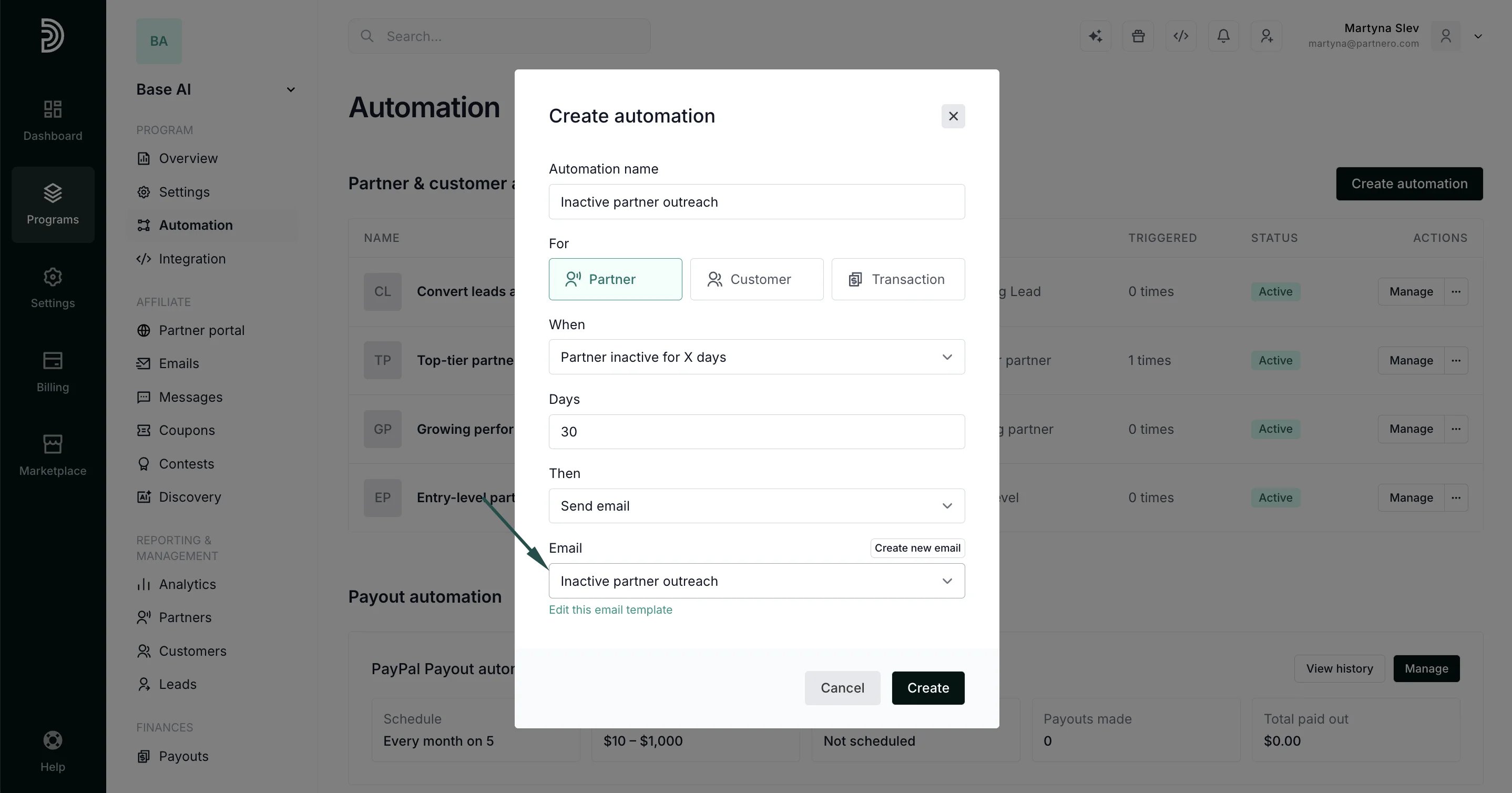
- For the action, select Send email:
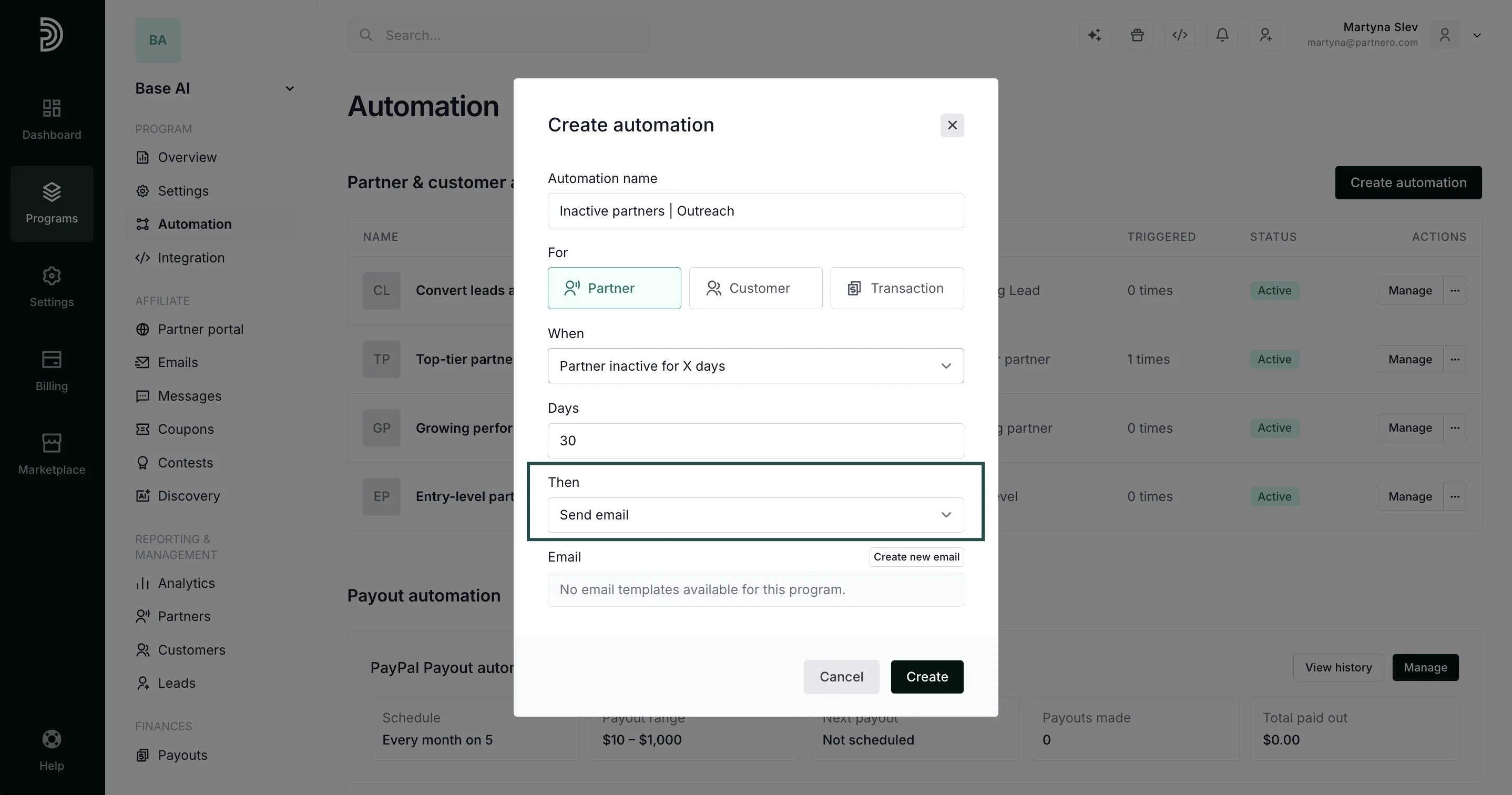
- Pick the email template to send. Click Create new email to create your own template, or select one of your existing program emails or a custom email (see below).
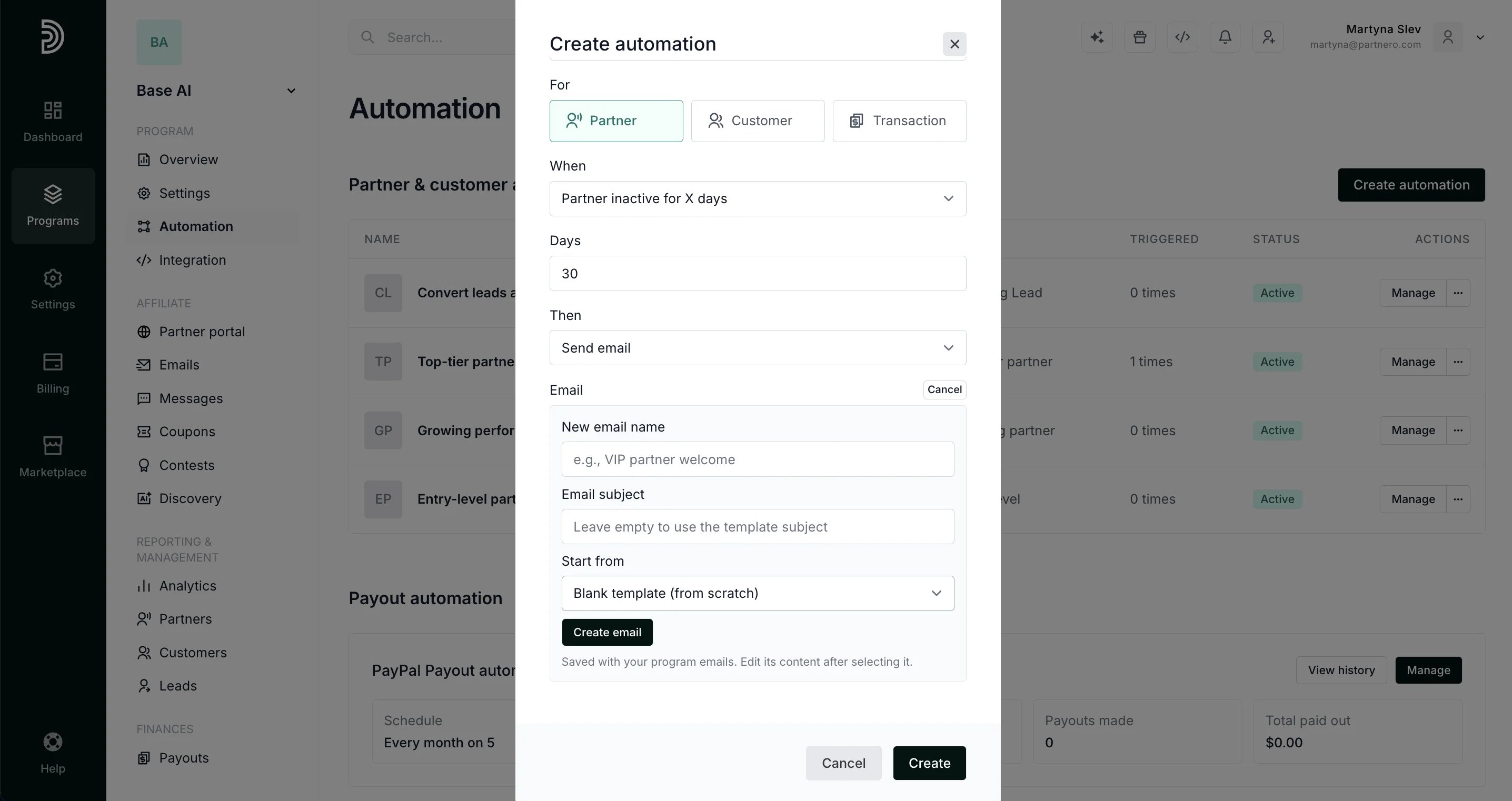
- Click Create to save the automation.
Create a custom email to use in an automation
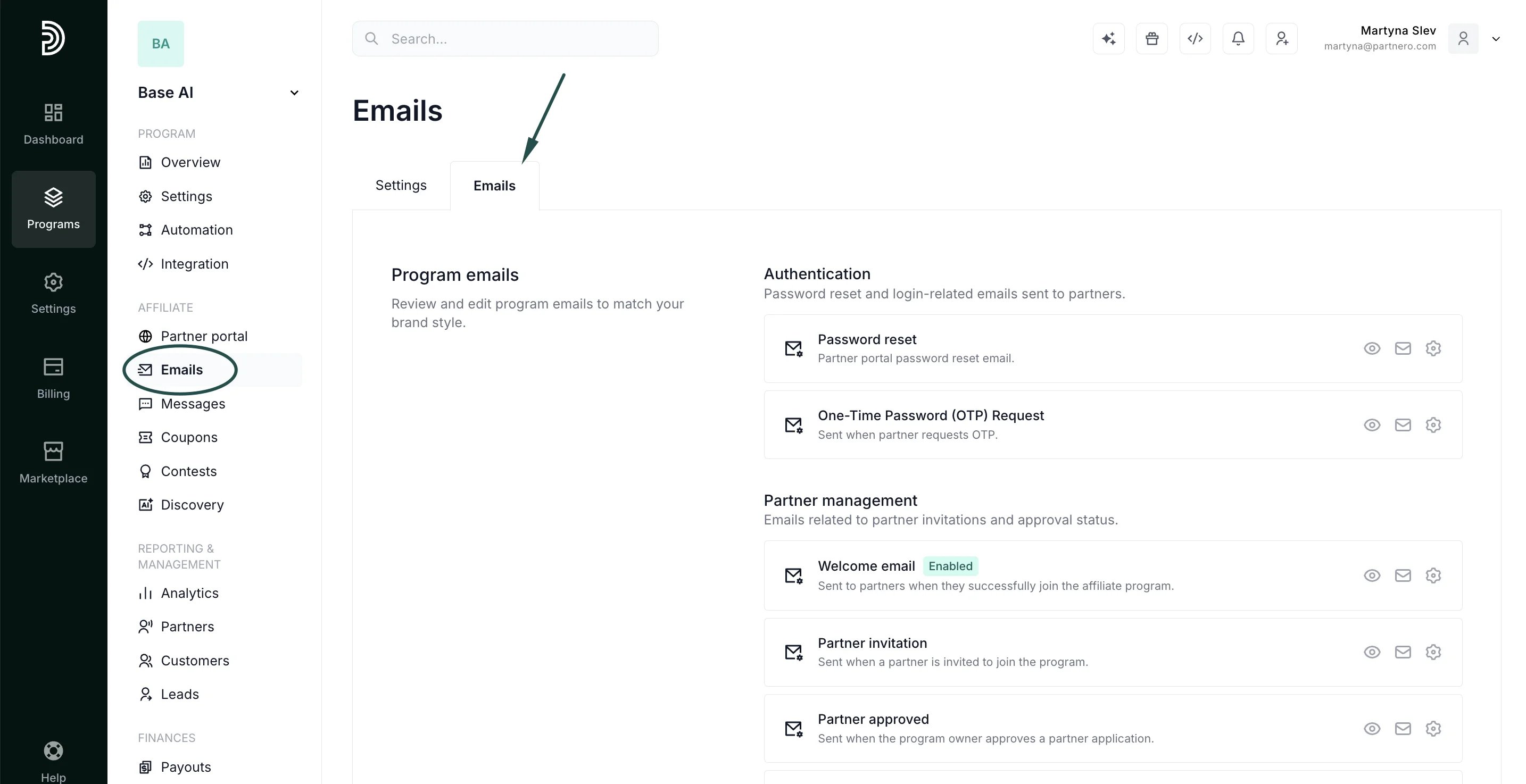
If none of your existing emails fit, you can build a new one from scratch and use it in the Send email action.- Go to the Emails page for your affiliate program, Emails tab:
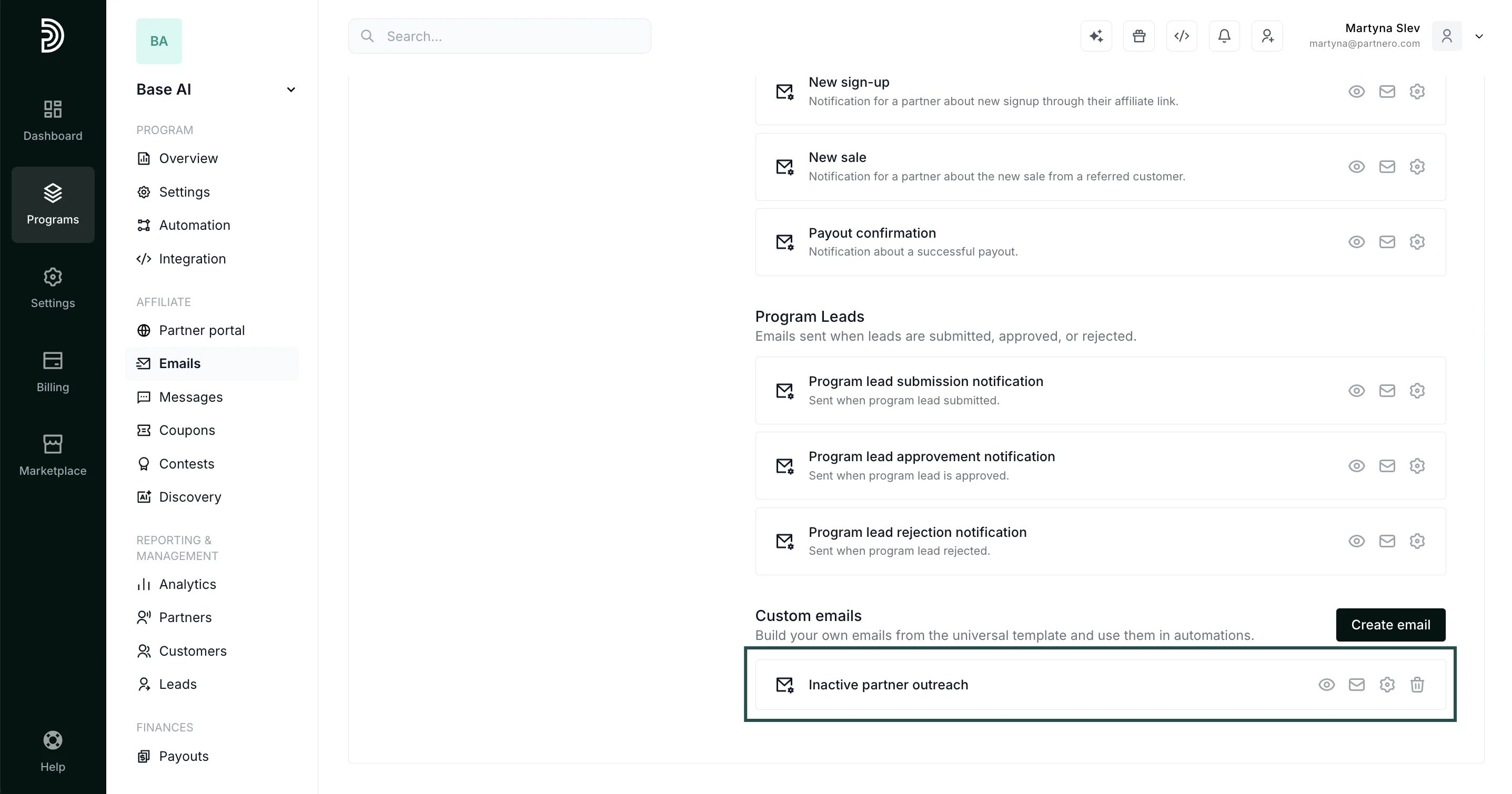
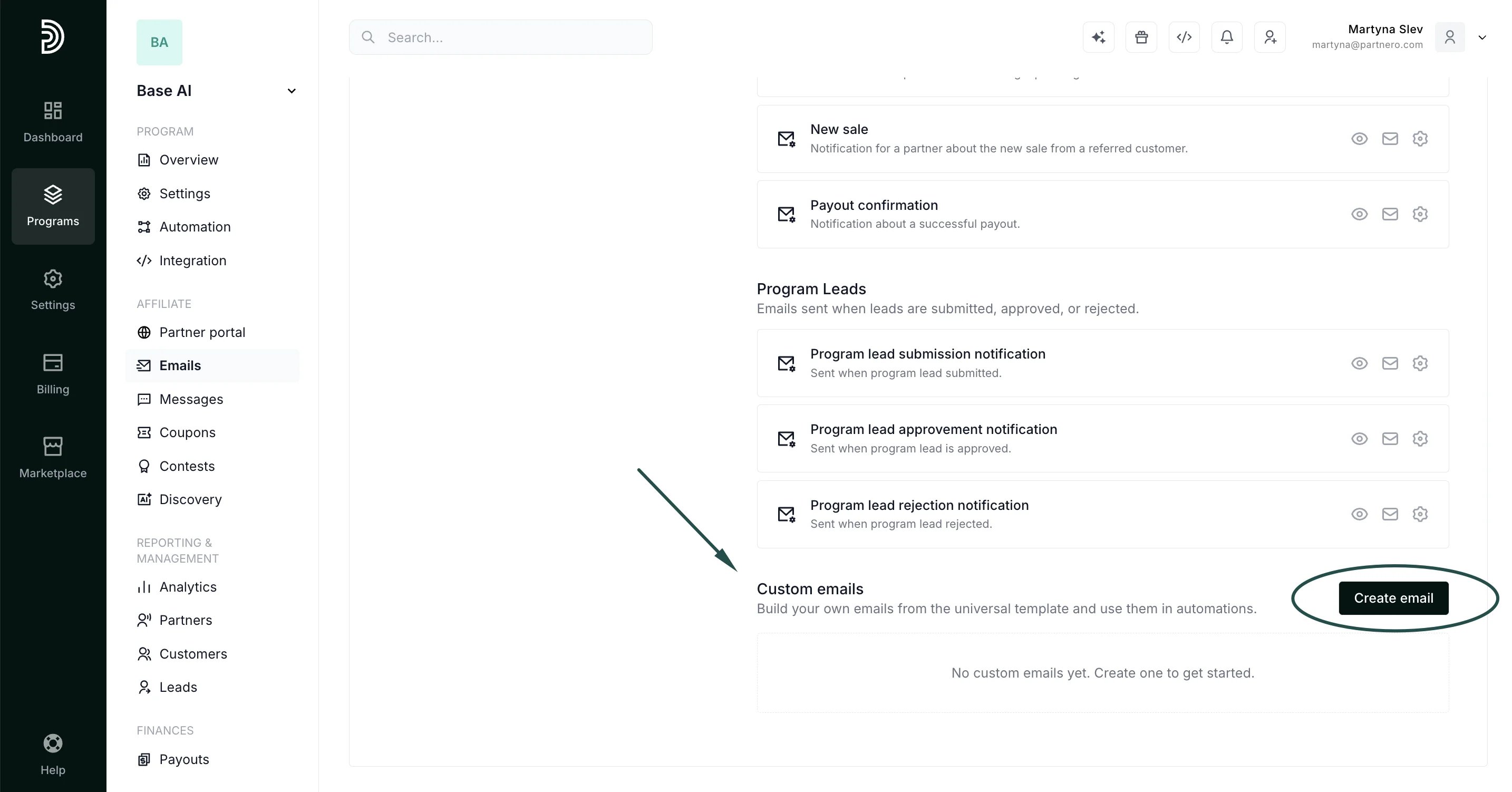
- Scroll down to the Custom emails section and click Create custom email:
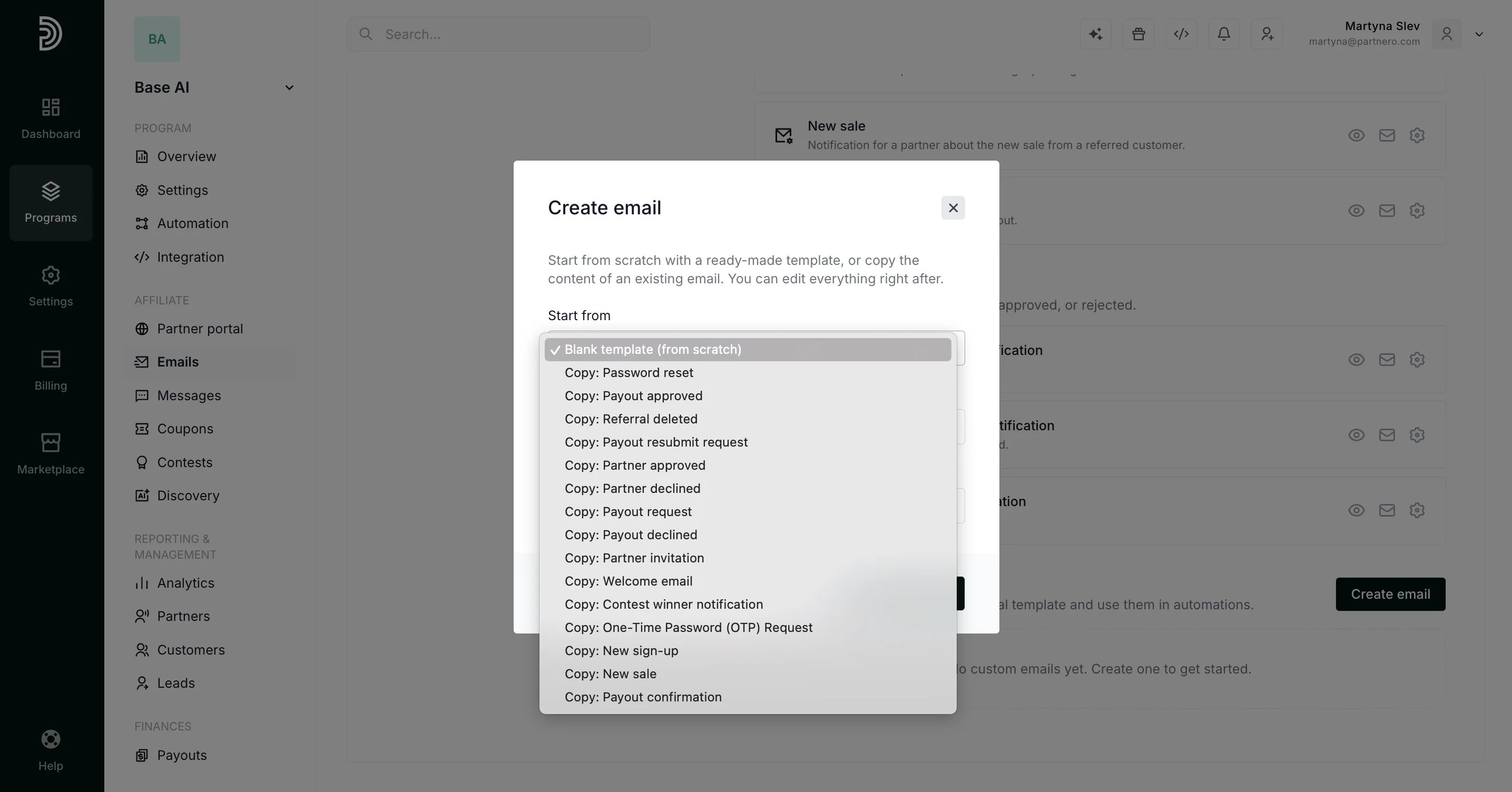
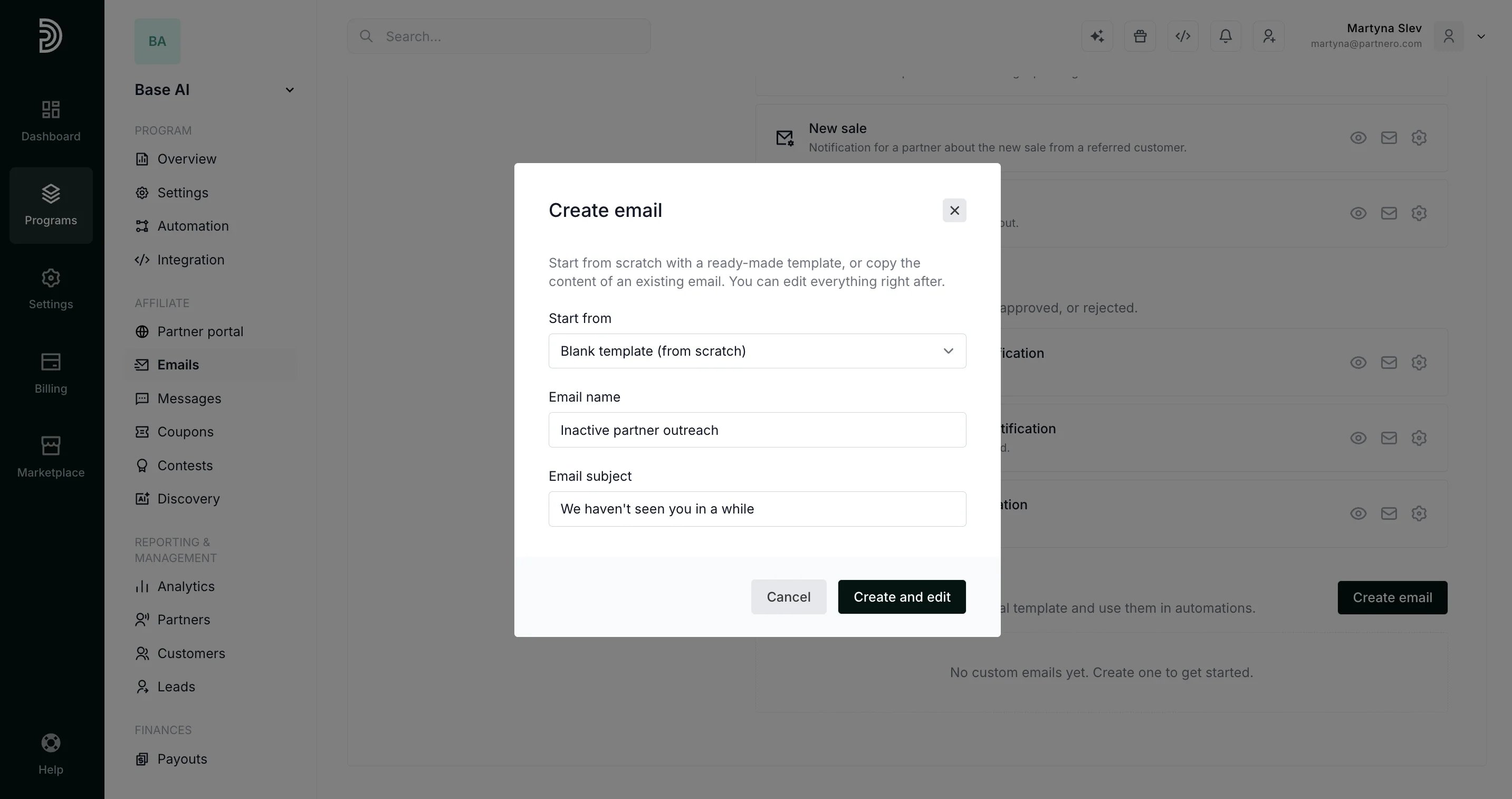
- You can start from a blank template or copy one of the existing program emails to edit:
- Add the email name and subject, and click Create and Edit:
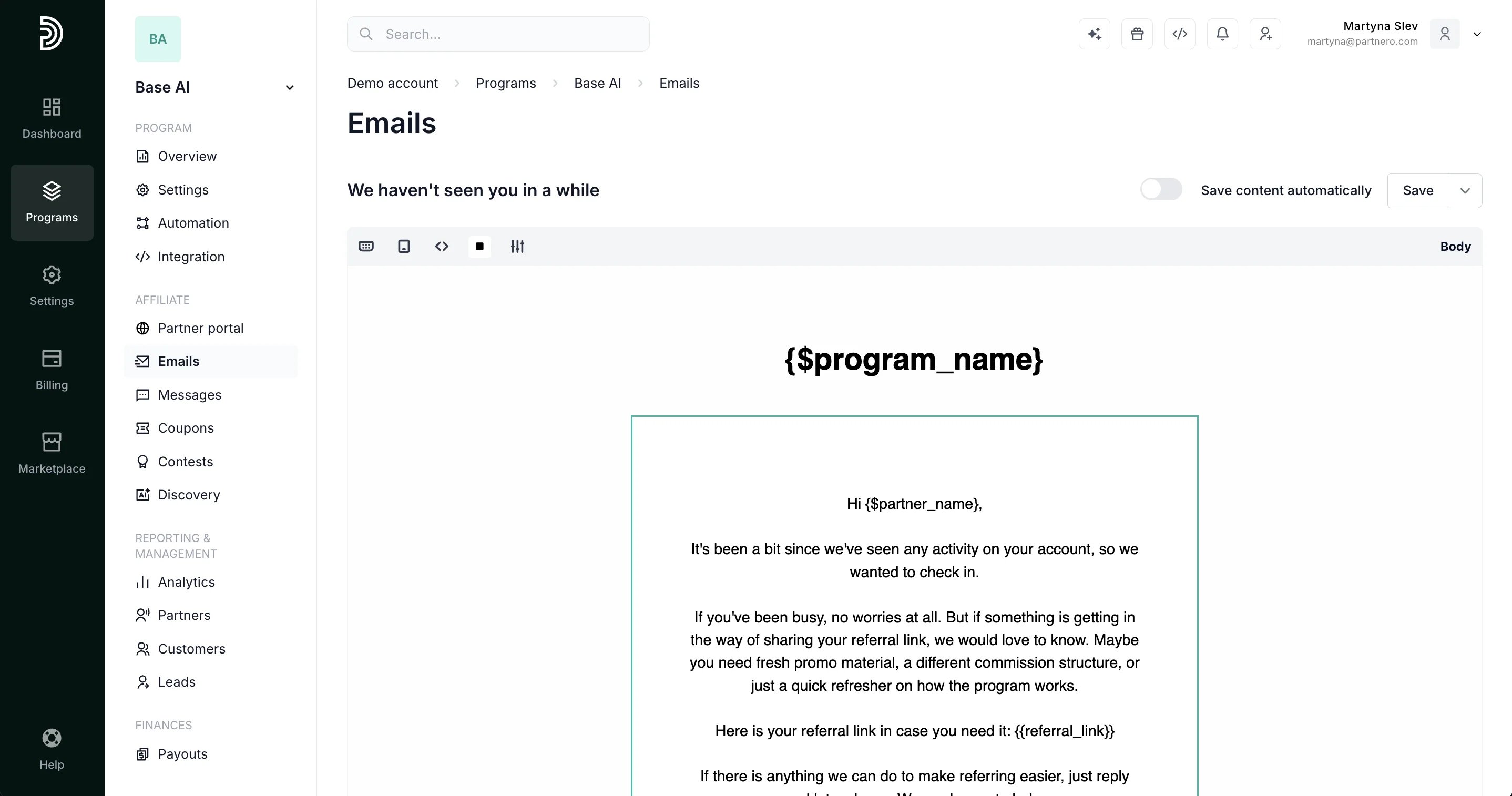
- Edit the content using the same editor you use for your other program emails.
- Preview (Eye icon) and send yourself a test email (Envelope icon) to check formatting.
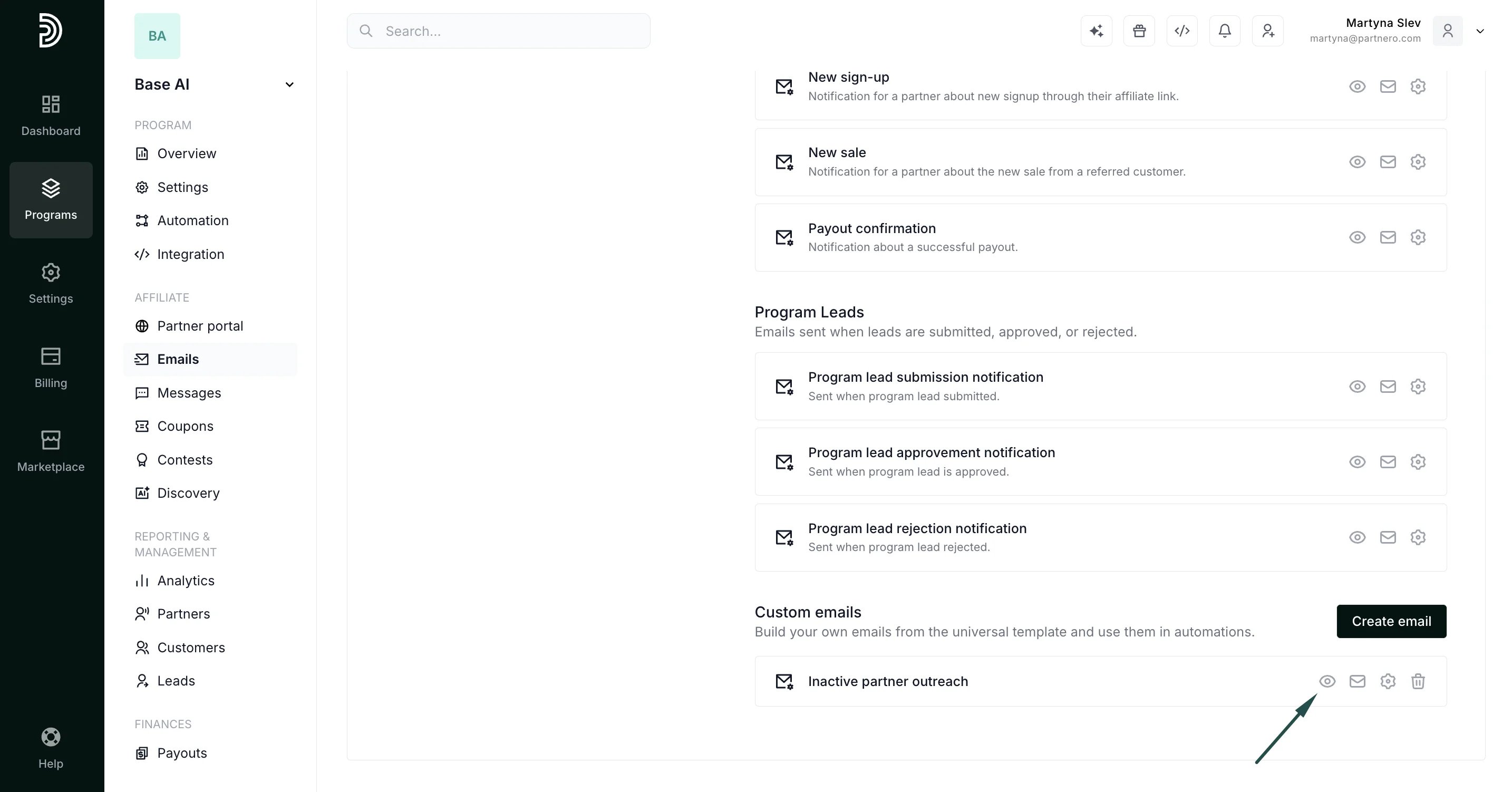
- Go back to your automation (or create a new one) and select the custom email in the Send email action picker. Custom emails appear in the same list as your other program emails.