

Creating rewards
To create a reward manually:- In your referral program, go to Rewards under Referral. Click Create your first offer (or New offer if you already have existing rewards):
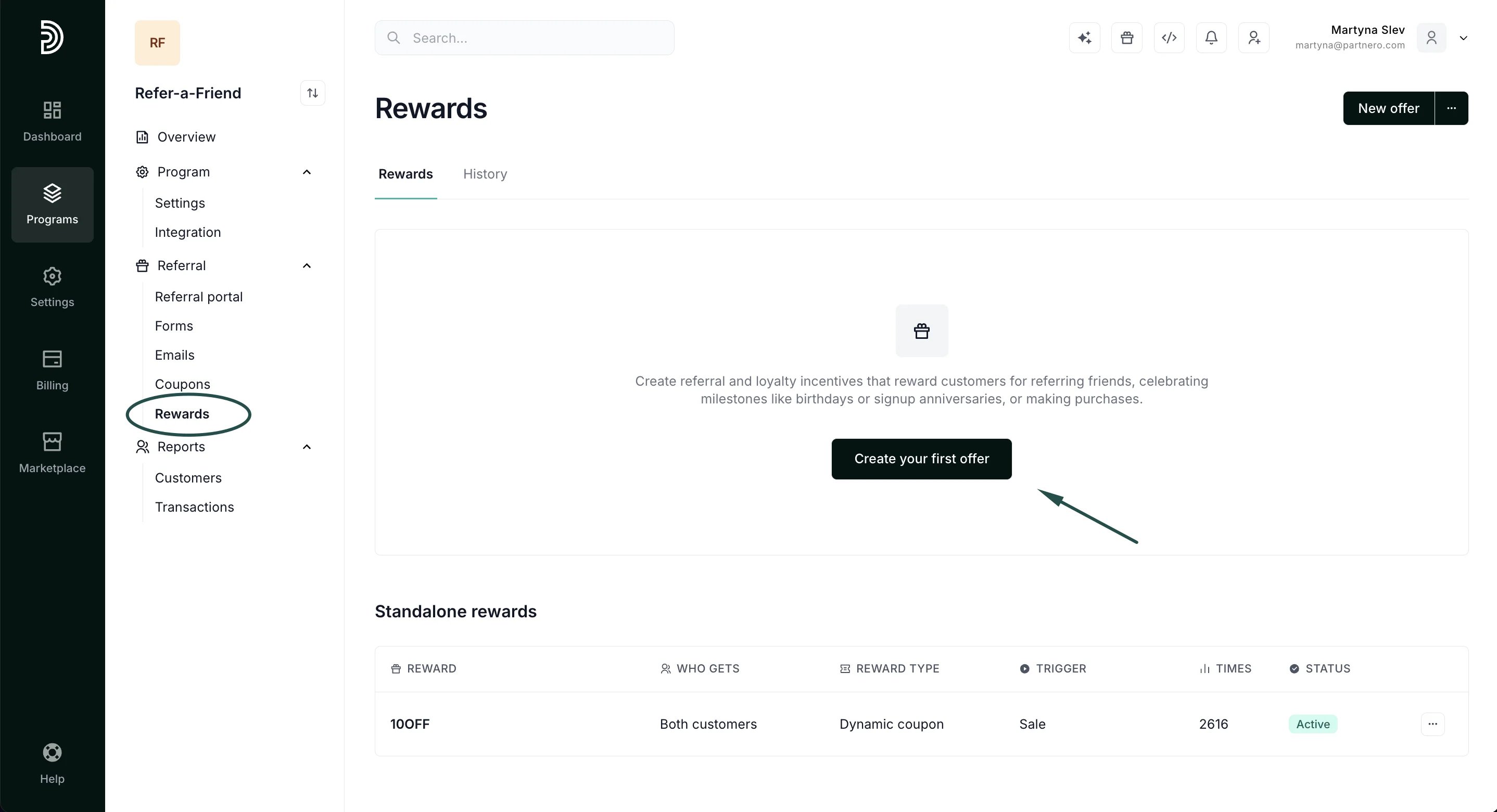
- You will be presented with a modal to customize the reward. All settings are explained in detail below. Fill out the modal and click Create.
- In the Rewards section, click on the three dots in the upper right corner and select Choose from template:
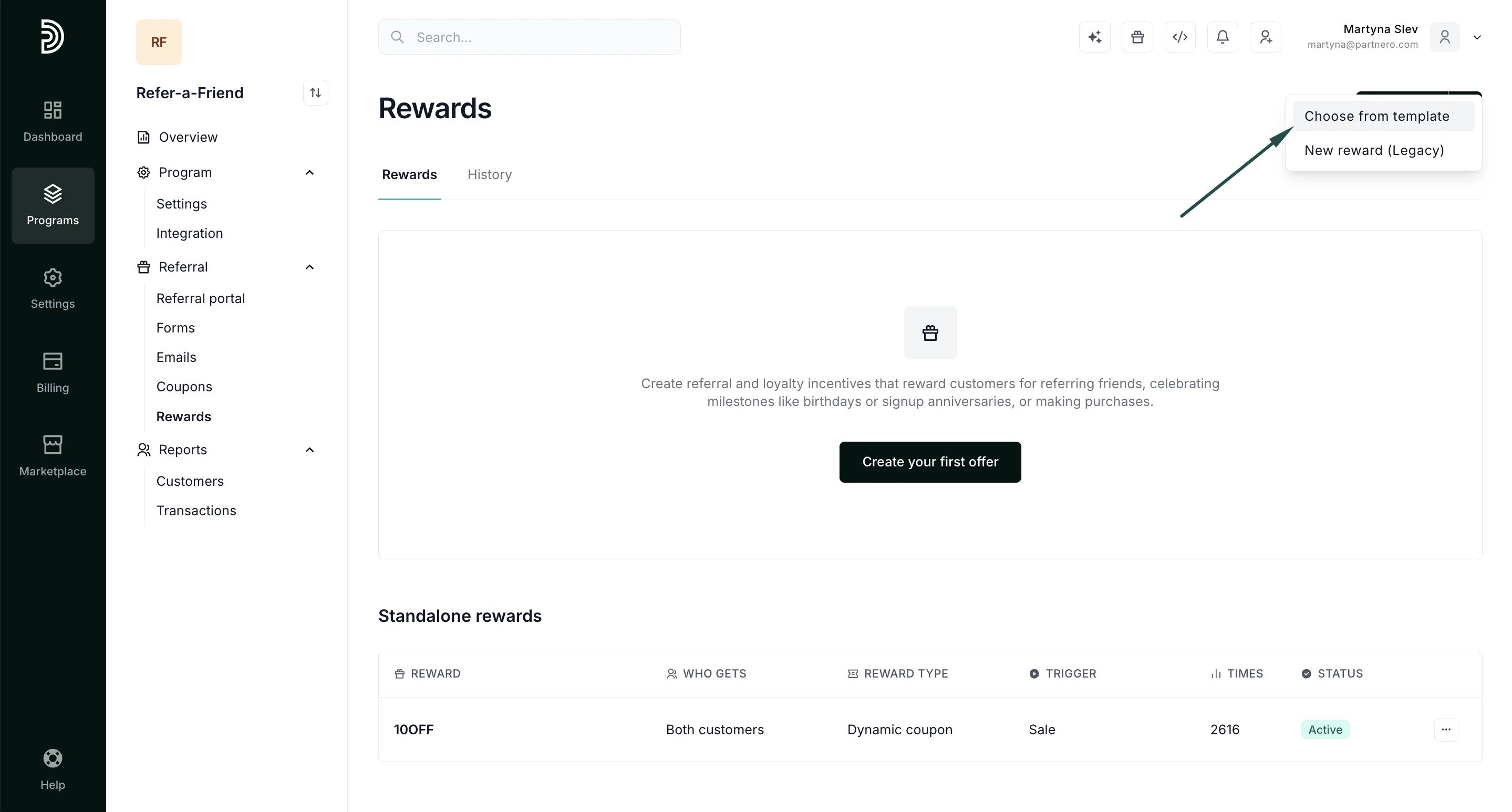
- You’ll be presented with different reward templates that will automatically configure reward settings:
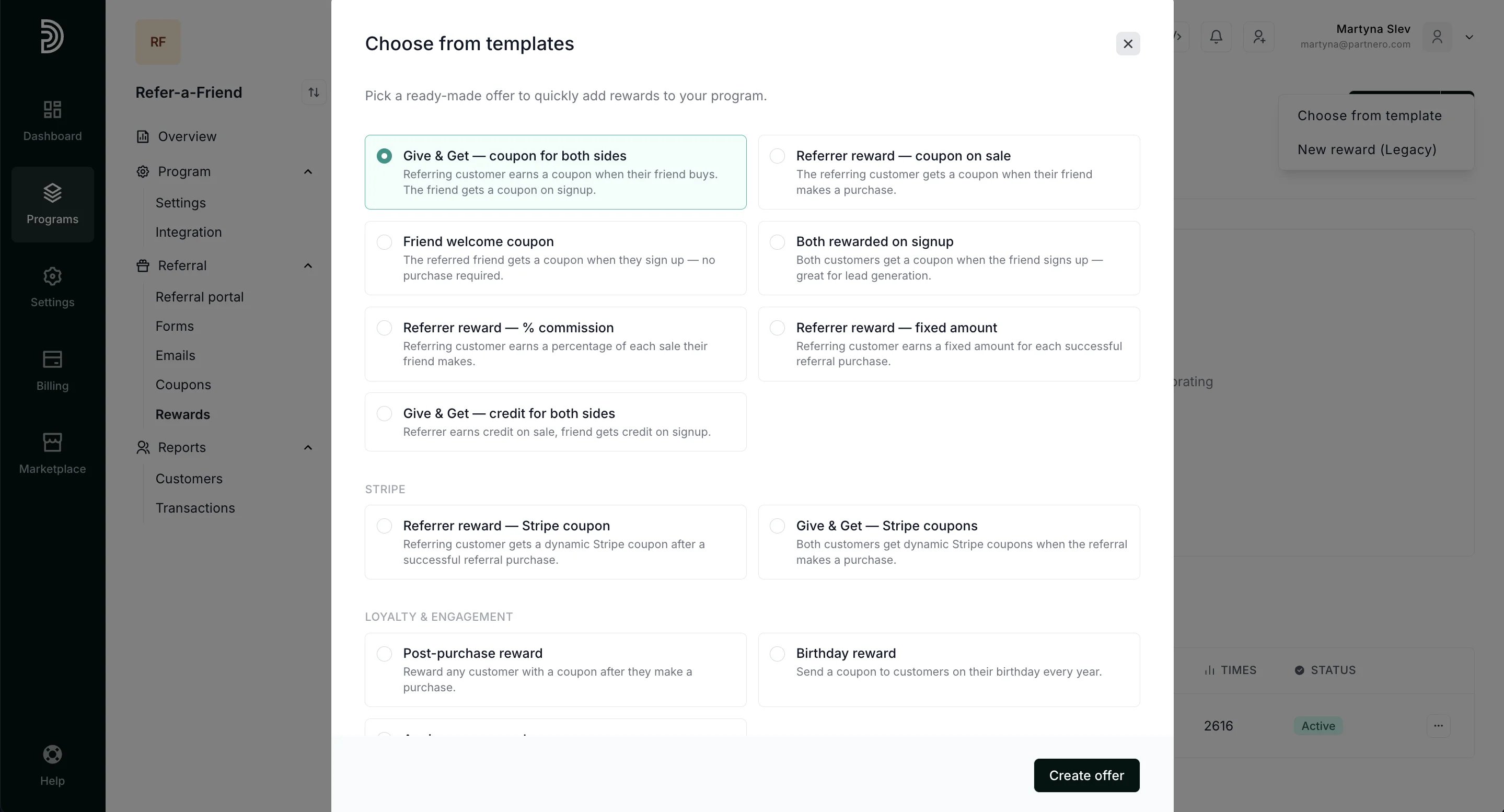
- Select the template and click Create offer.
Reward settings
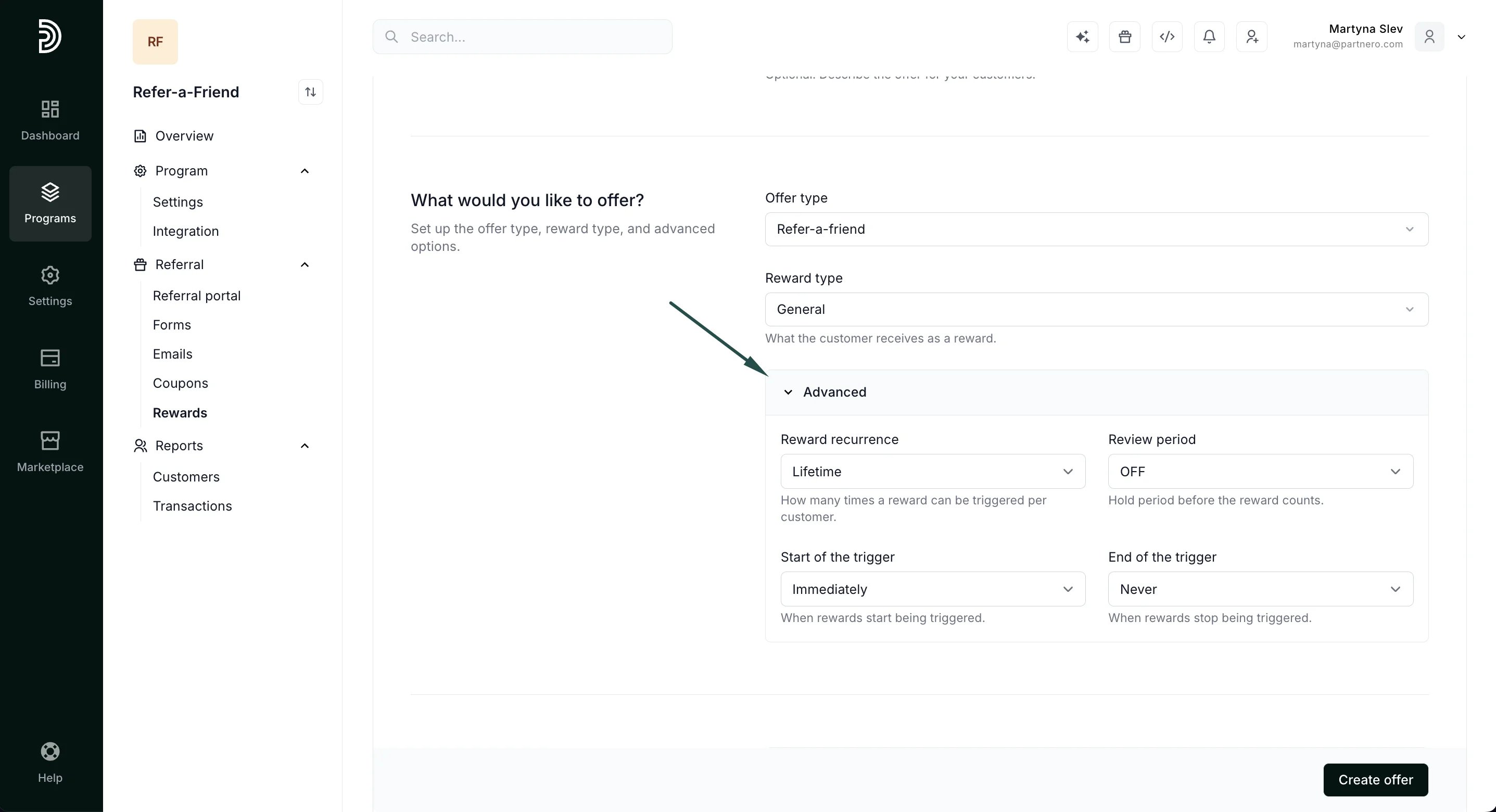
Each reward can be fully customized. Explained below are all the settings available when you create a reward manually.Offer details
Reward name: Enter the name that will help you identify the reward. This name will also be visible to your customers. Reward description: provide reward description (optional).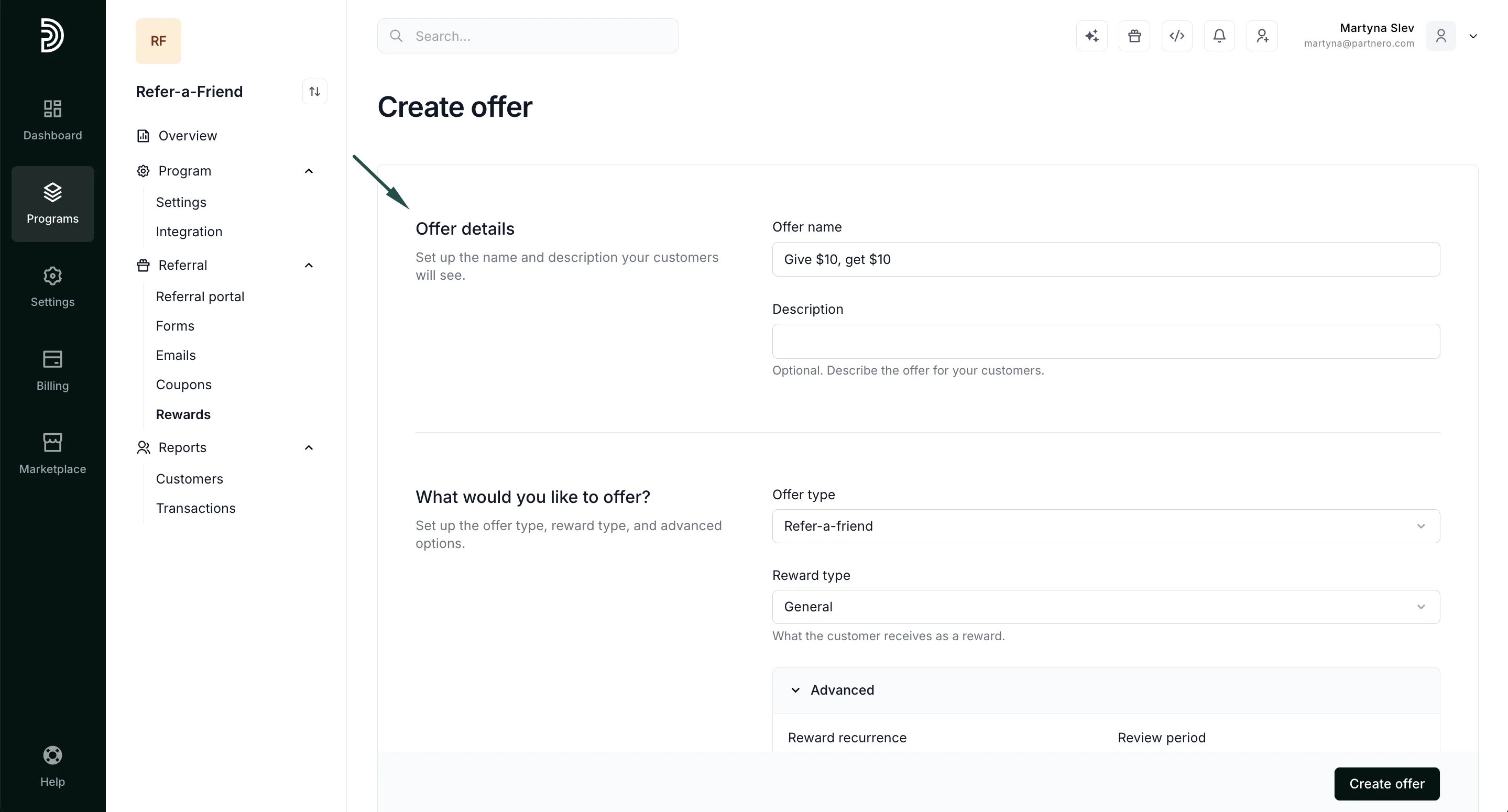
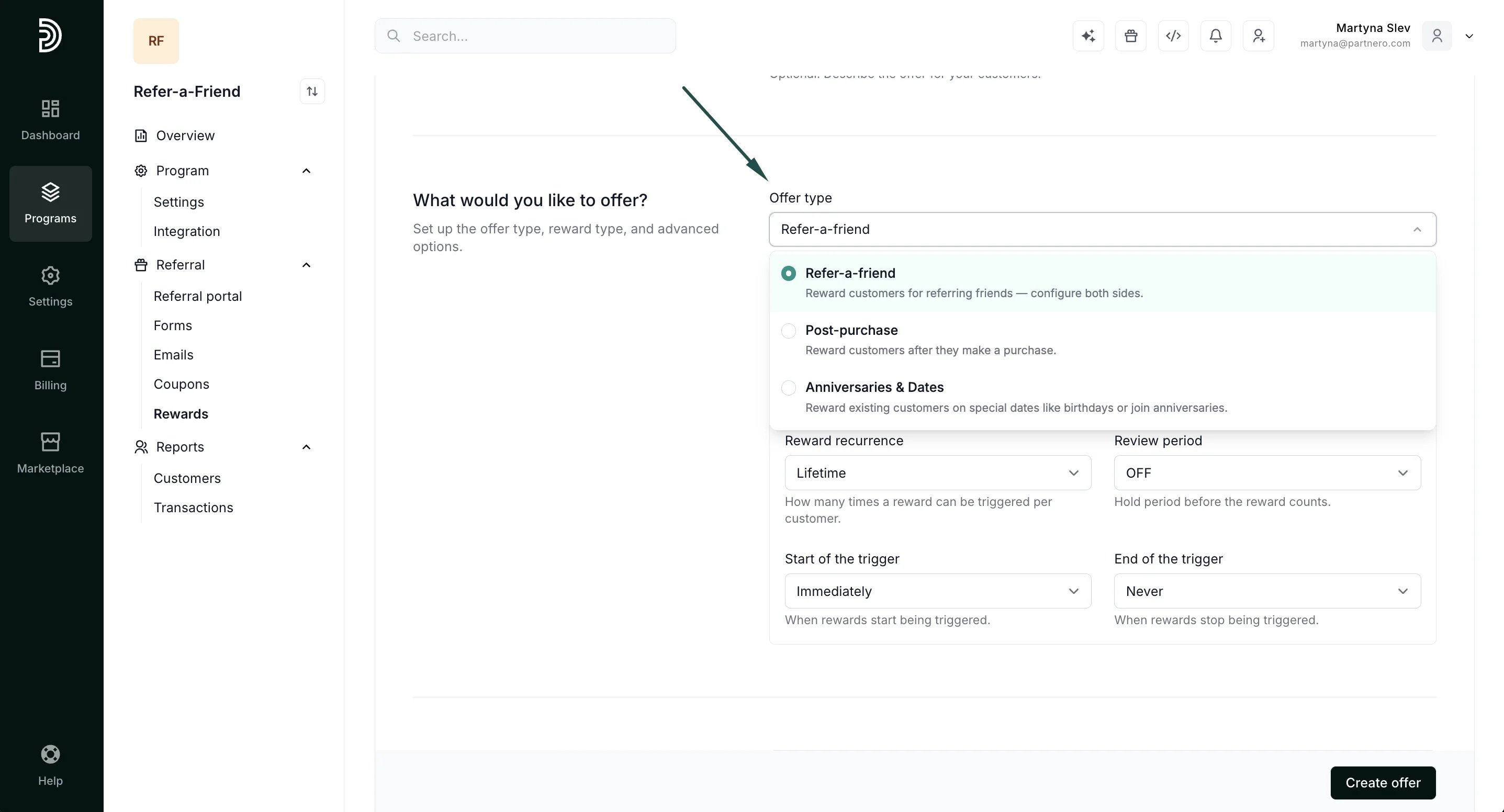
- Refer-a-friend: rewards customers for referrals.
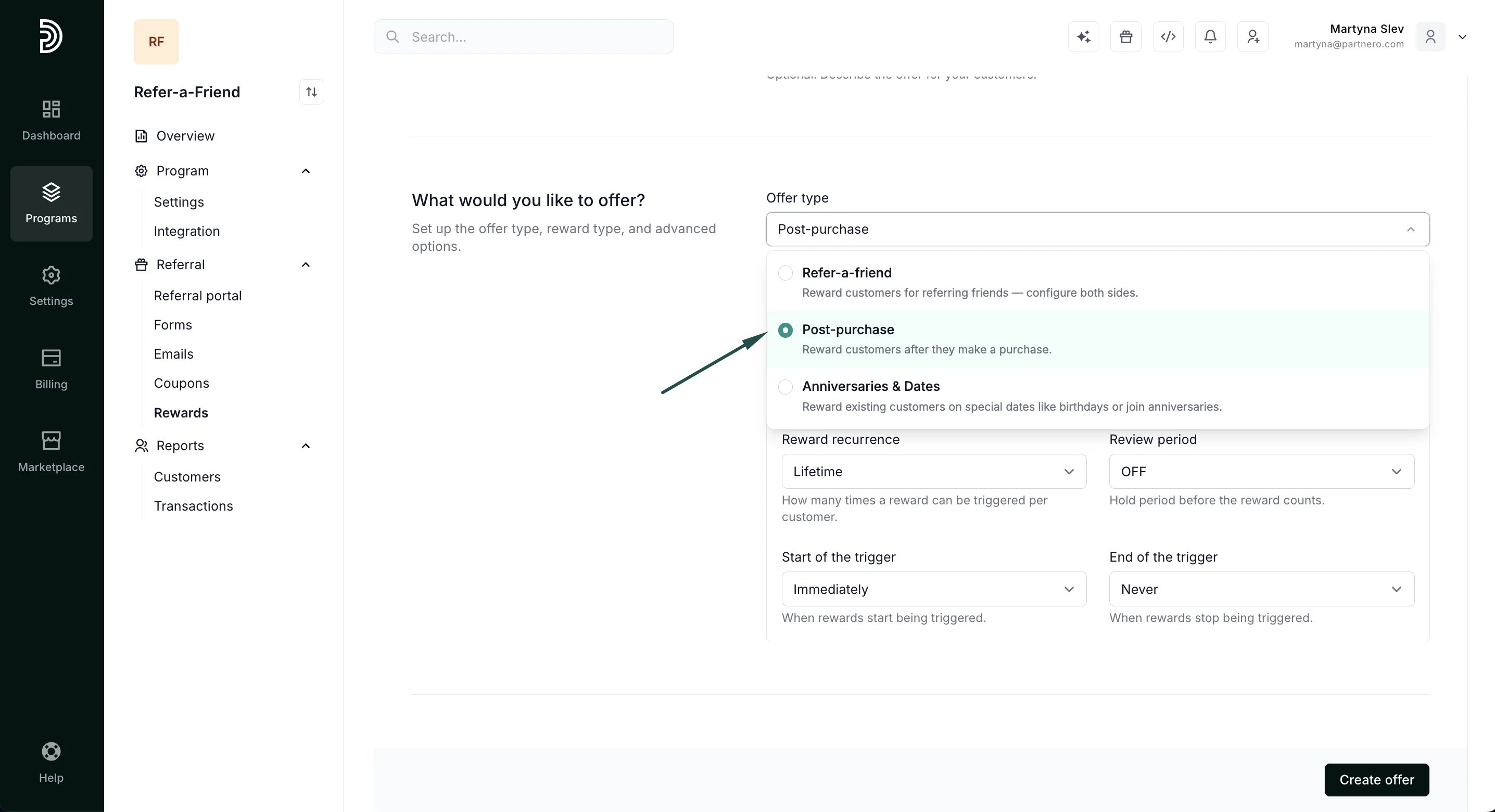
- Post-purchase rewards: reward customers after they make a purchase.
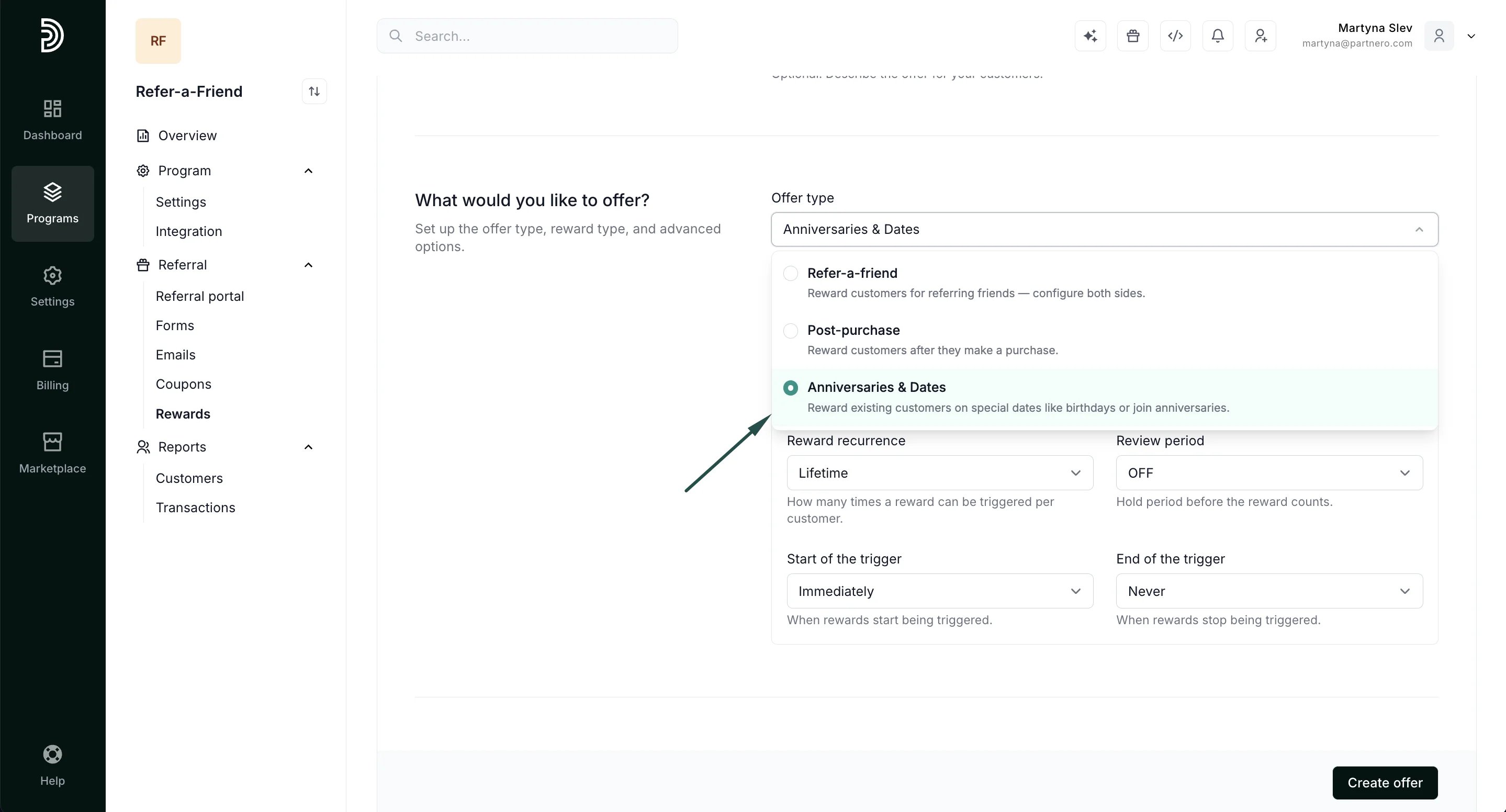
- Anniversaries & Dates: reward customers on special dates like birthdays or join anniversaries.
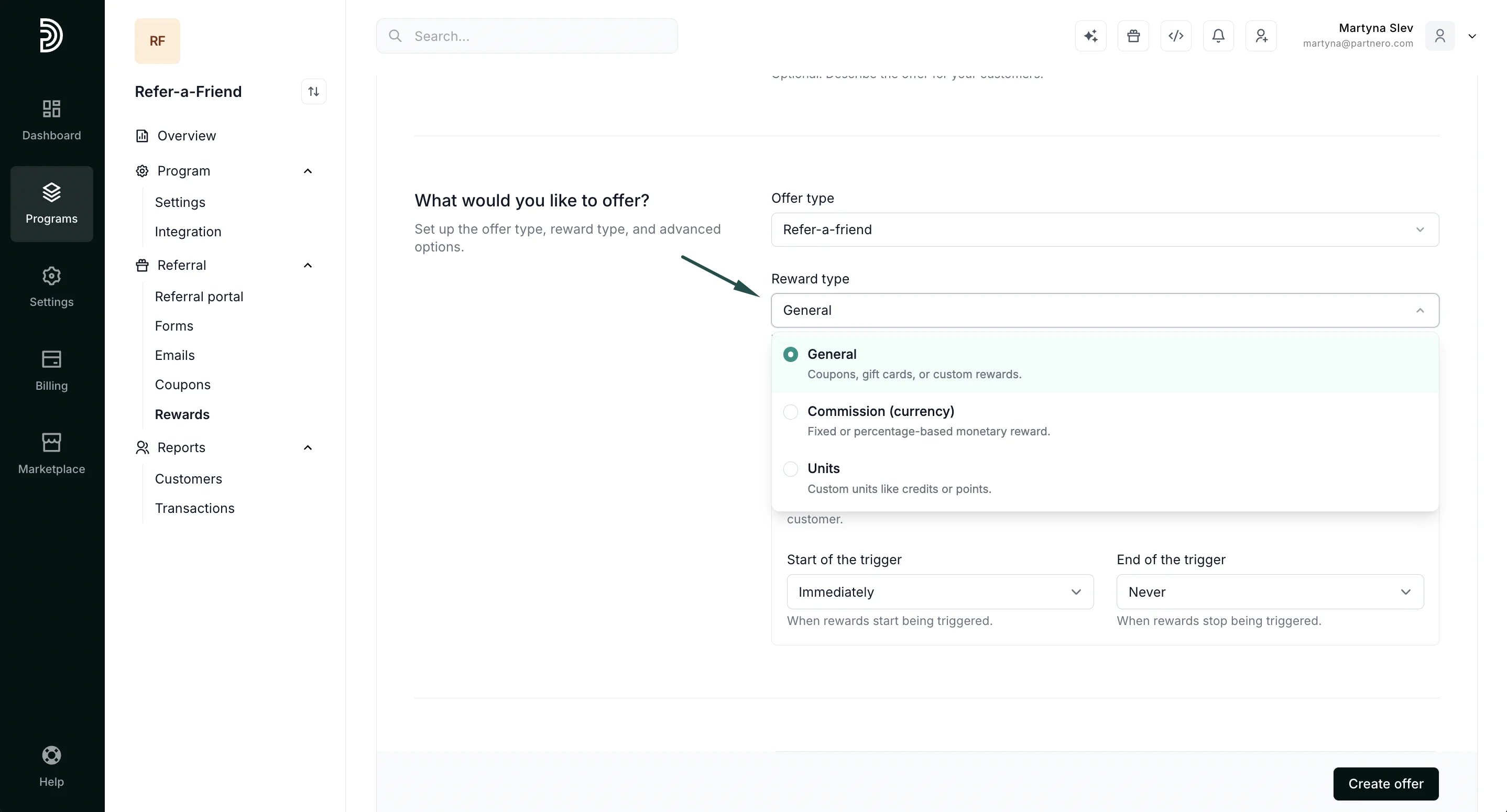
- General: coupons, gift cards, custom rewards.
- Commission (currency): fixed or percentage-based monetary rewards.
- Units: custom units such as credits or points.
⚠️ IMPORTANT: the reward type selected here defines what reward options are available in the “What does the customer get?” section below.Advanced settings allow further customizing reward behaviour.
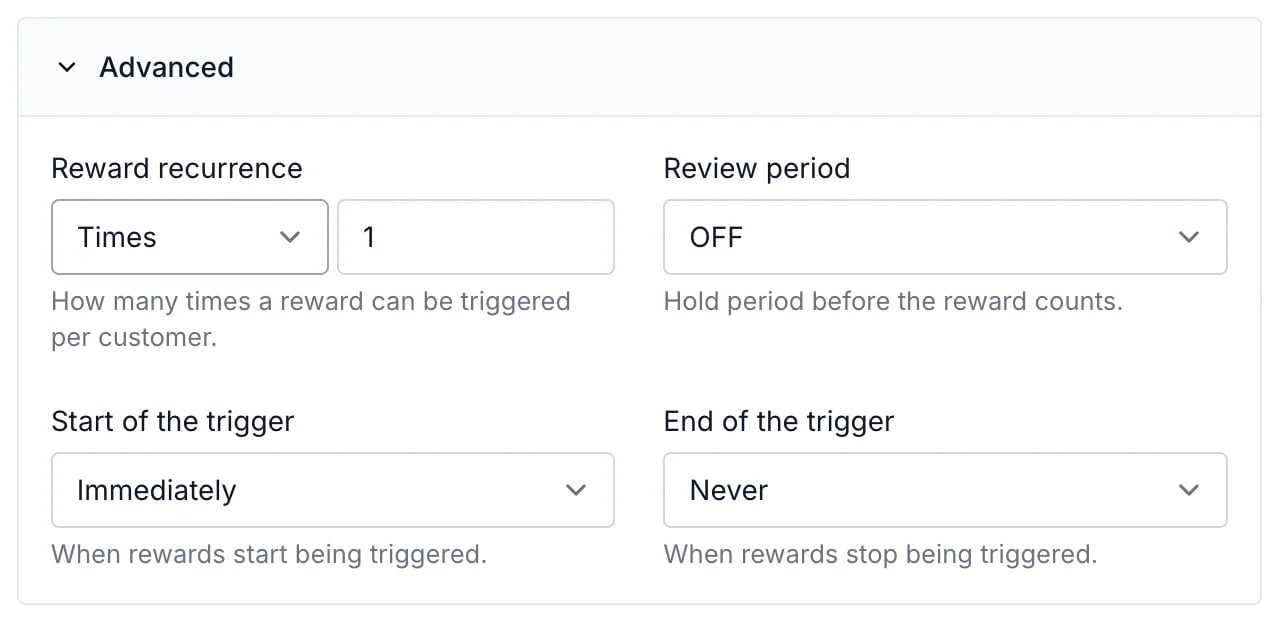
- Reward recurrence**:** select how many rewards your customer receives from a single referral. For example, issue only one reward per customer:
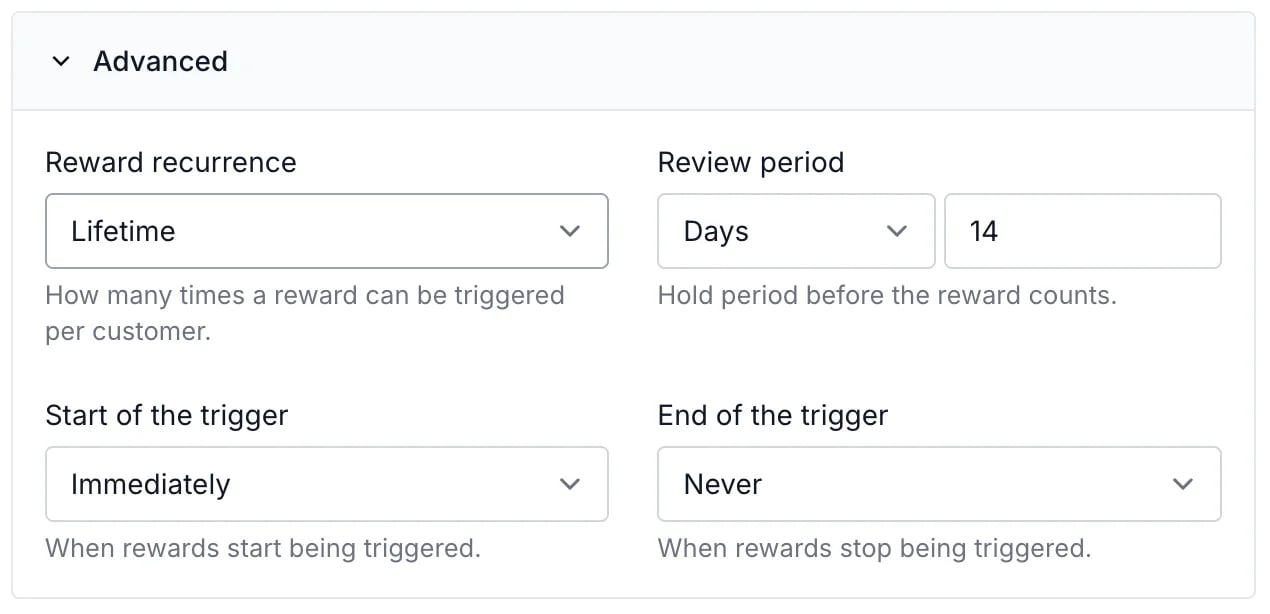
- Review period: define a hold period before the reward is issued. For example, withold a reward for 14 days if you offer a 14-day money back guarantee:
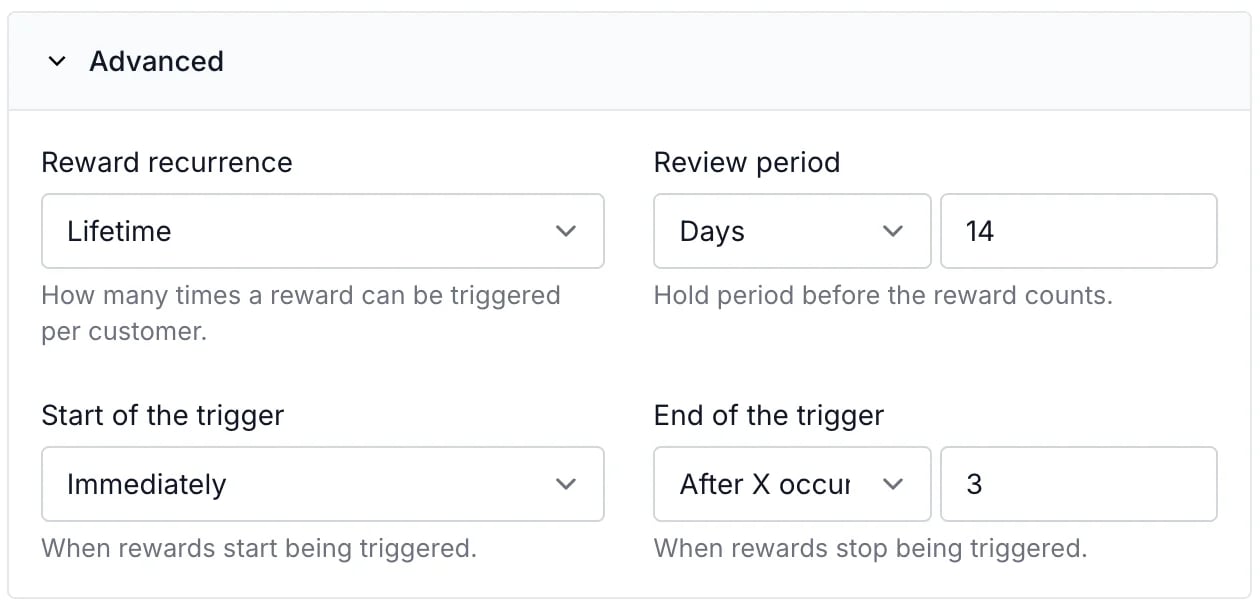
- Start of the trigger: set the reward to trigger immediately or after a set time. E.g., you can issue a reward to your customer after they get three of their friends to sign up.
- End of the trigger: similarly, you can set when the reward should end. This is especially useful if you’re creating reward steps and want to offer a higher reward after specific achievements.
What does the customer get?
This section defines when and what the referring and referred customers will receive.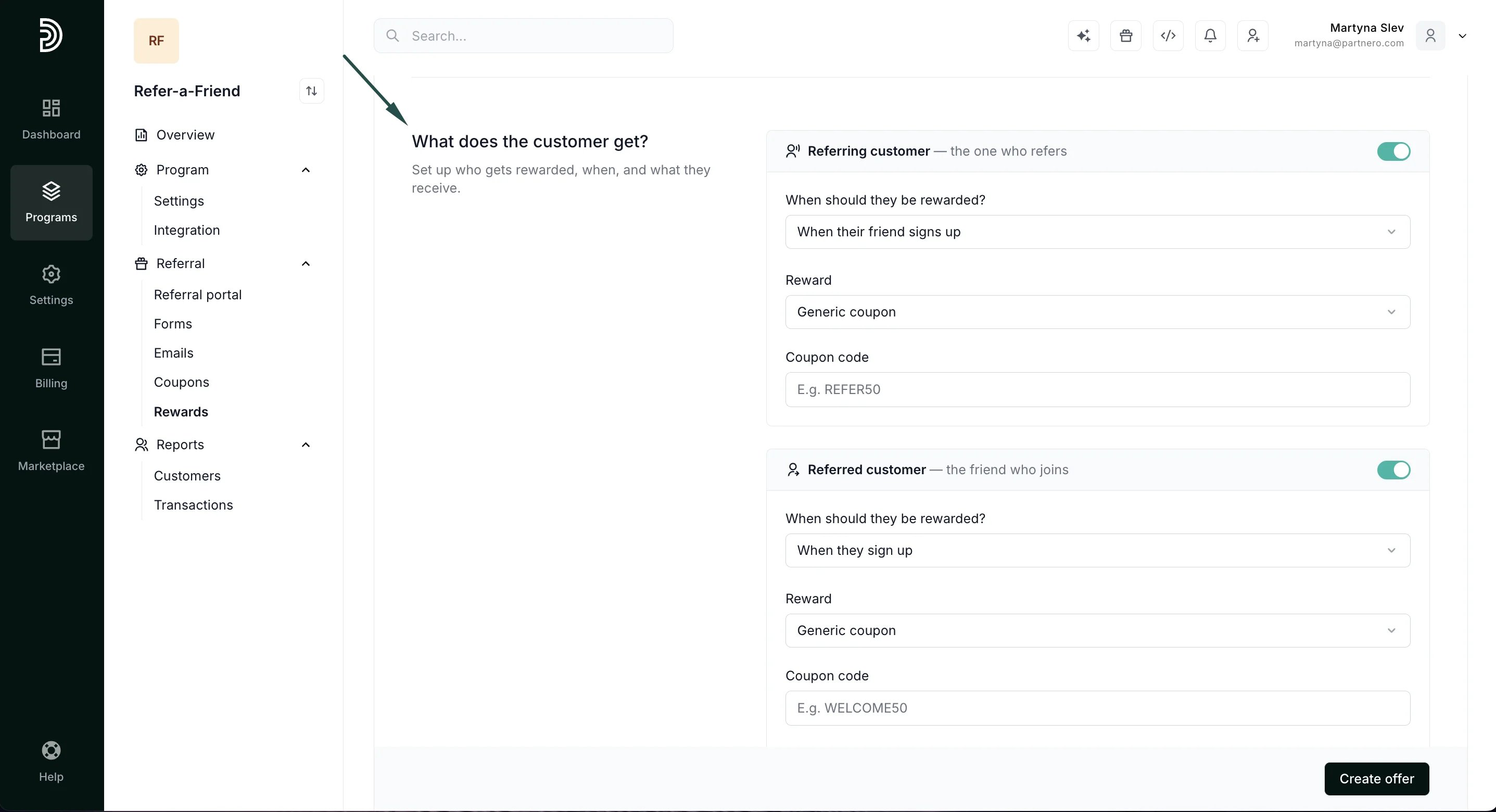
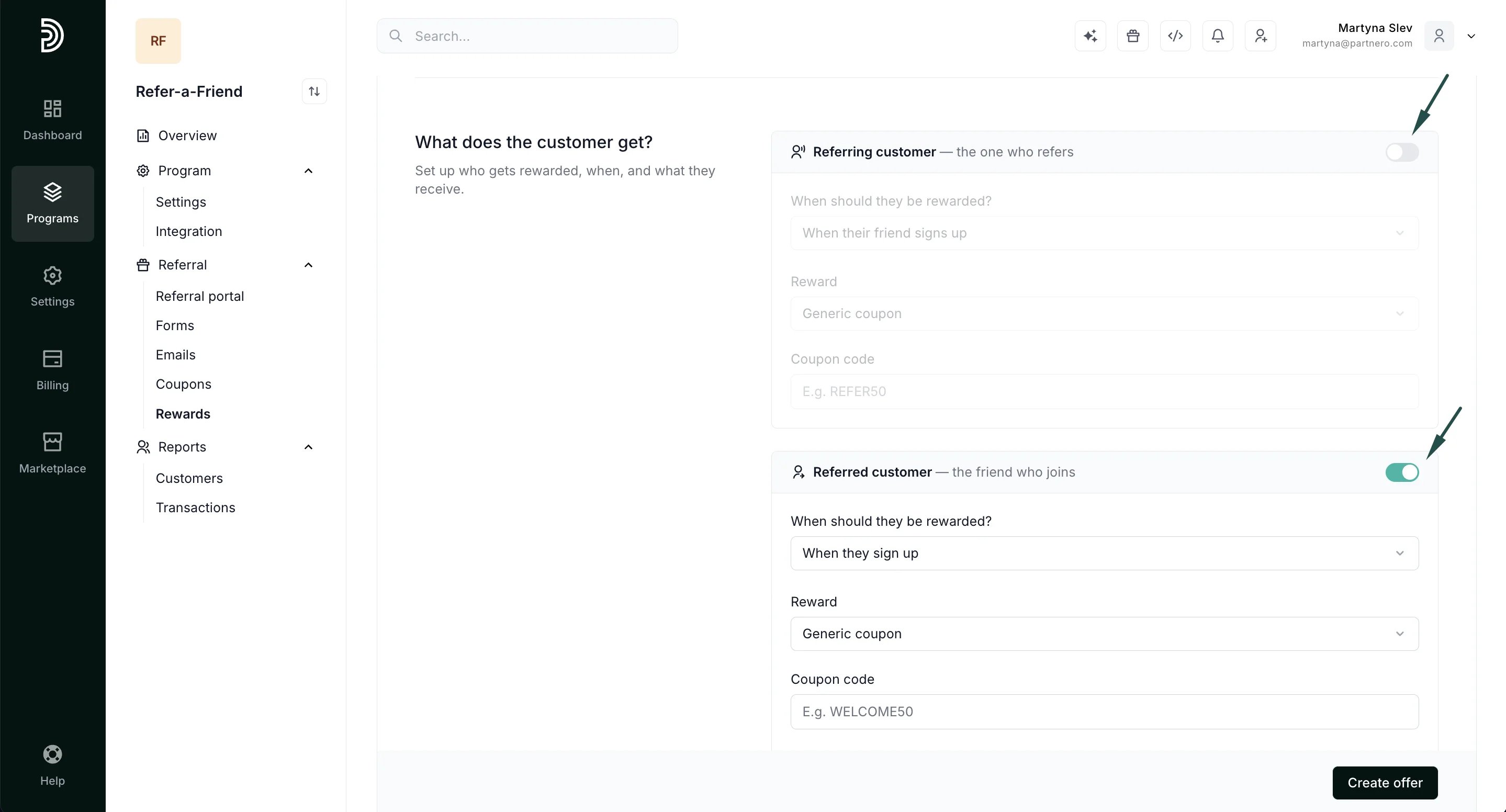
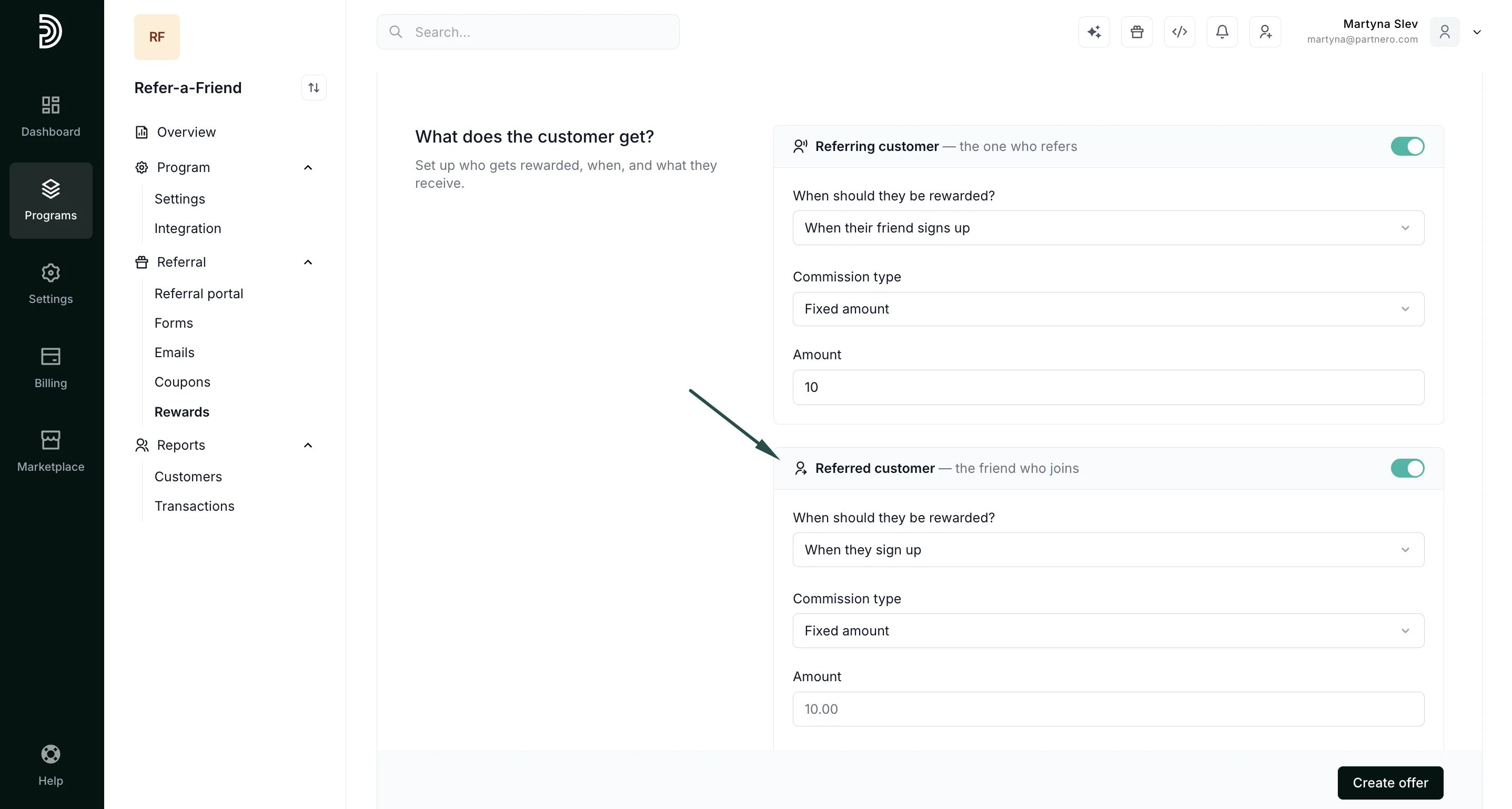
- When their friend signs up
- When their friend makes a purchase
- On a custom event
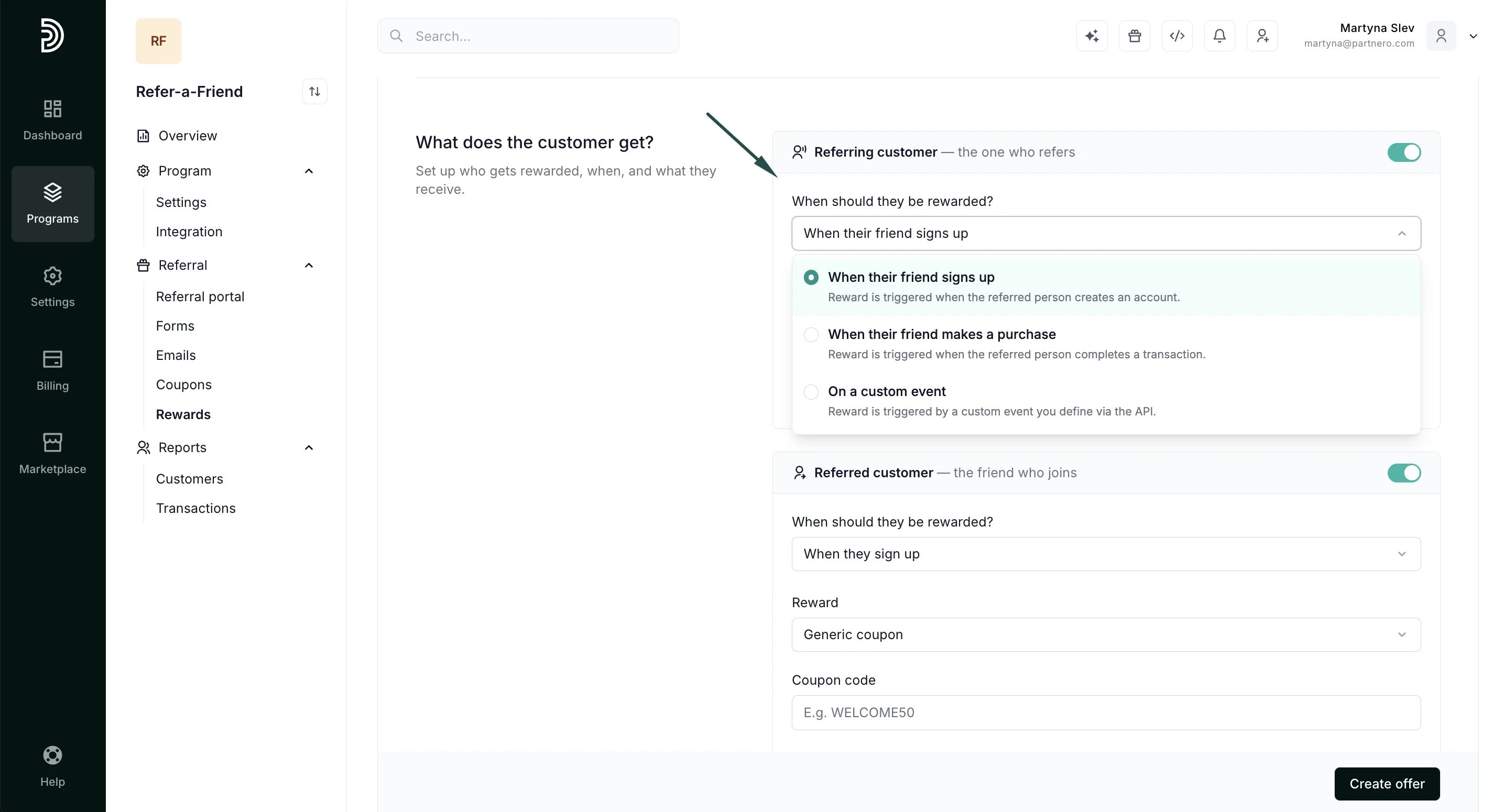
- Generic coupon: issues a static generic coupon, such as ‘THANKYOU20’.
- Dynamic coupon: issues a unique dynamic coupon. Read more about dynamic coupons here.
- Custom: manually add a custom reward, such as a PDF book.
- Shopify Gift Card: offer a Shopify gift card (available only if the program is connected to your Shopify store).
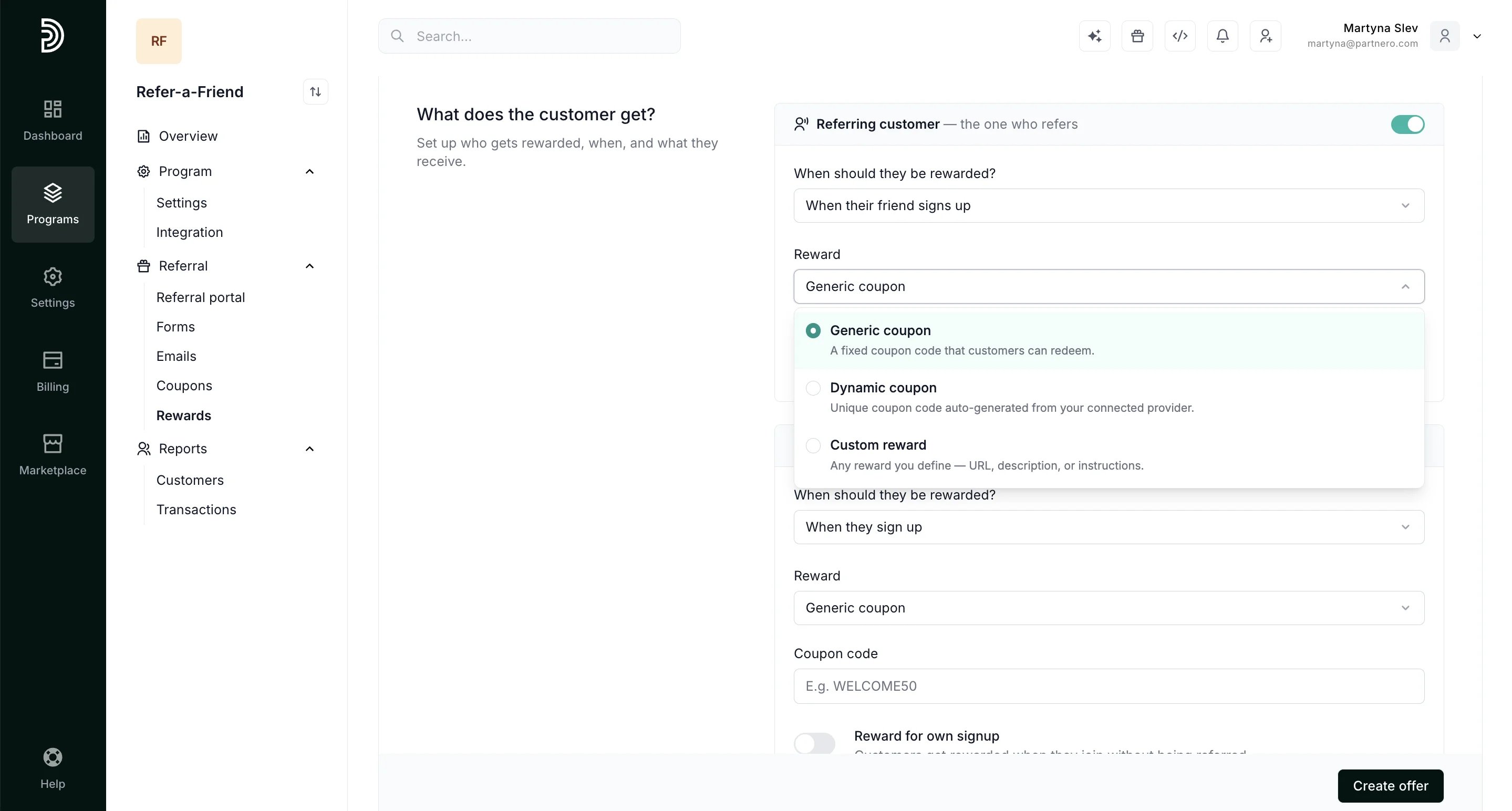
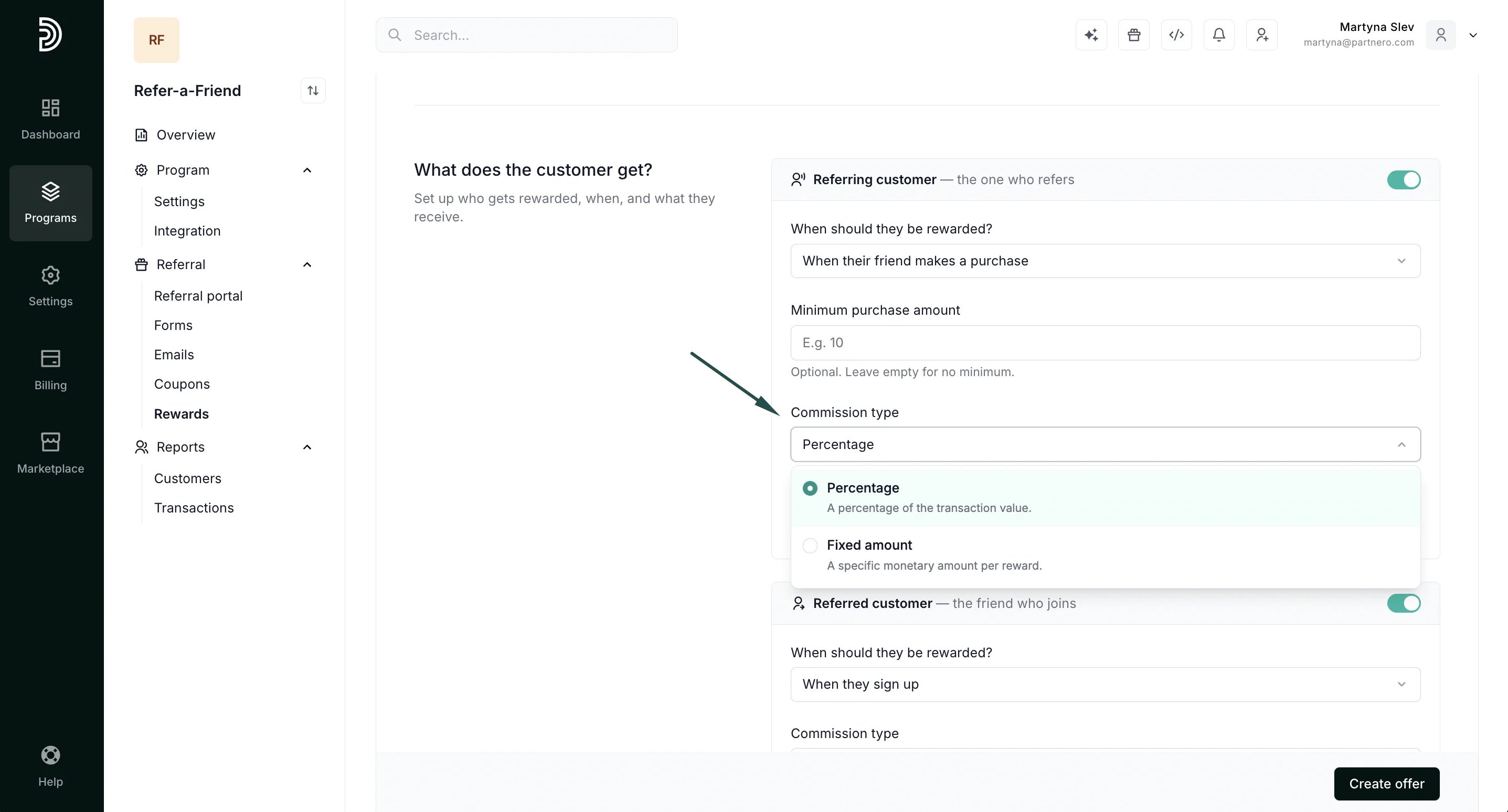
- Percentage: rewards the customer with a percentage of the transaction amount, e.g., 15%.
- Fixed amount: rewards the customer with a fixed amount of reward units, e.g., $15.
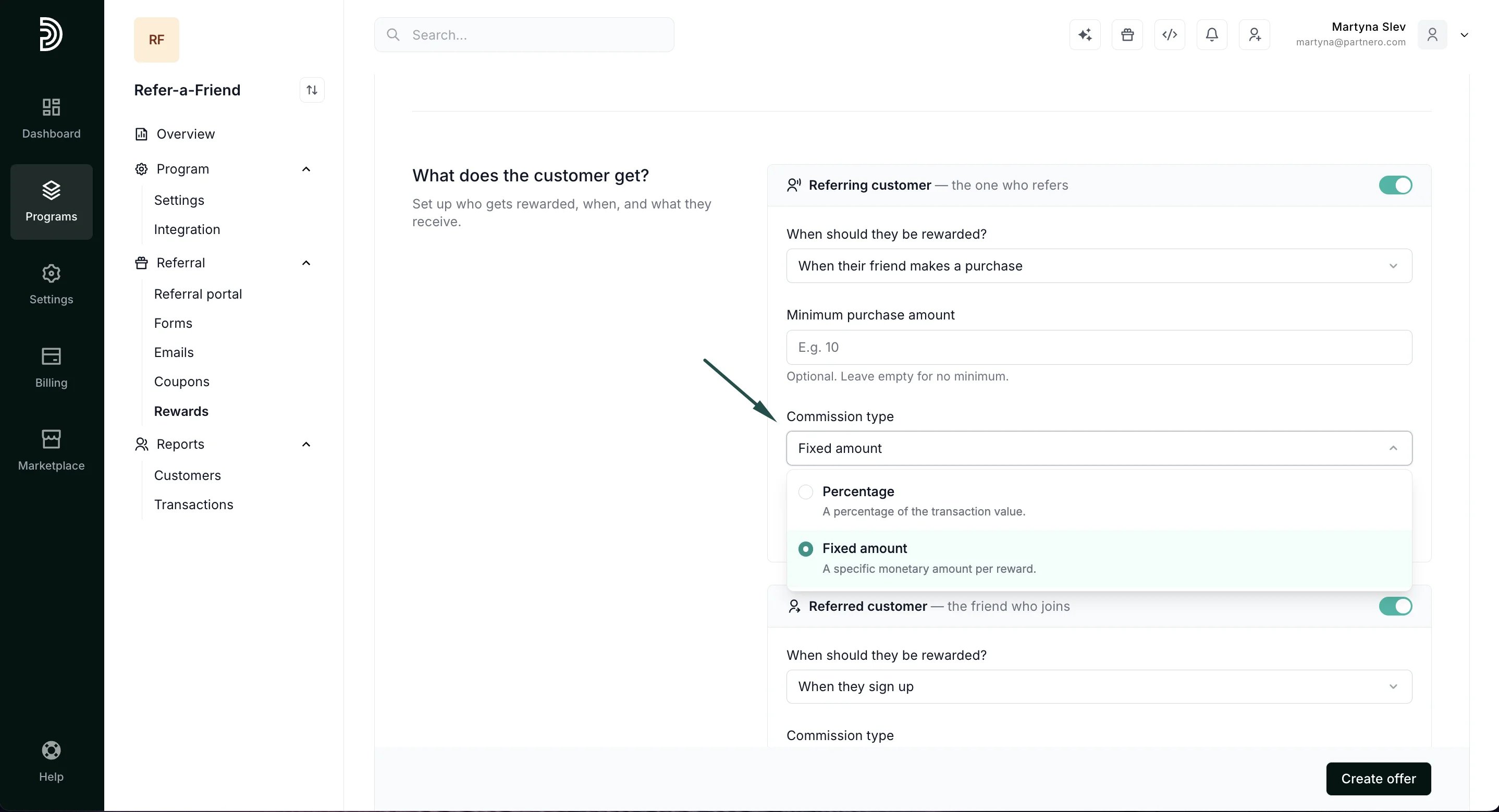
- Rewards triggered for a signup can be a fixed amount only.
- Rewards triggered for a purchase can be set to percentage or fixed amounts.
How should rewards be delivered?
Set up email notifications and webhook integrations to notify customers about earned rewards: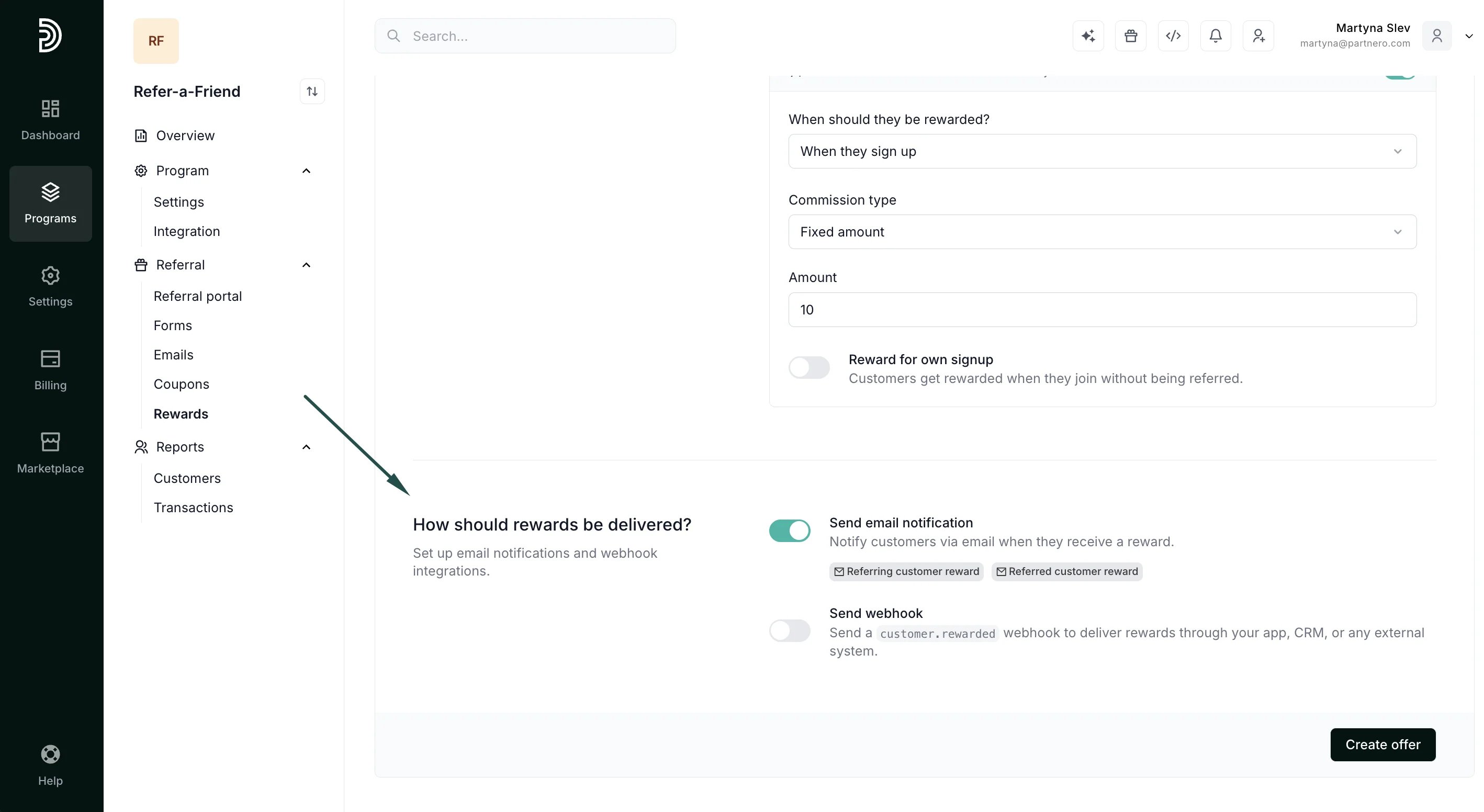
- Send email notification: Notify customers via email when they receive a reward.
-
Send webhook: Send a
customer.rewardedwebhook to deliver rewards through your app, CRM, or any external system.