Approval process
With Partnero, you can choose to make your program open to all registrants or set up an approval process. If partner approvals are enabled:- Upon sign-up, each partner will be asked to complete and submit an approval form.
- The program owner will see all pending approval requests in the dashboard.
- Each request must be reviewed and either approved or rejected.
Enable and customize the approval process
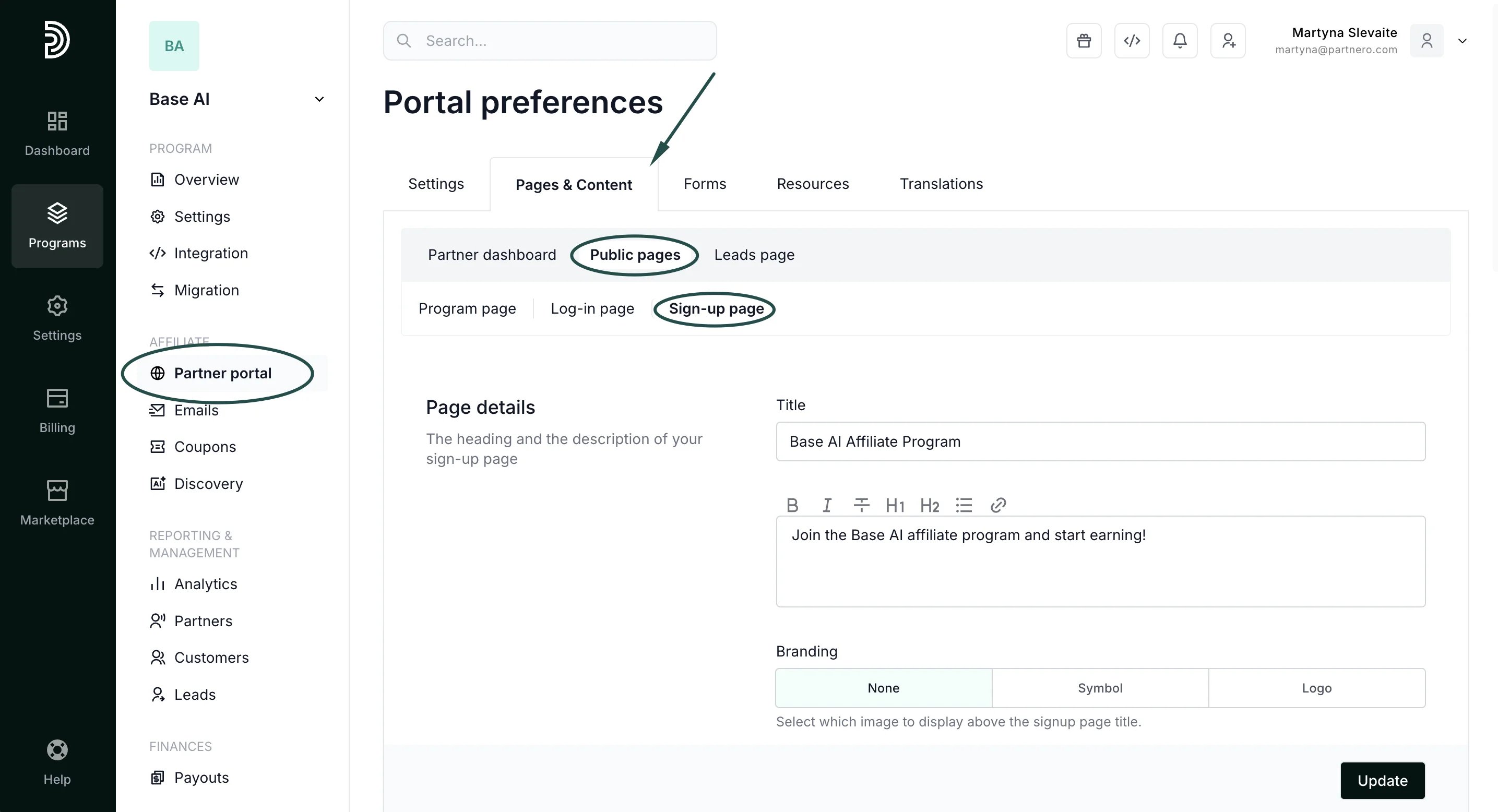
To enable the partner approval process:- Open the program you’d like to work with.
- On the left sidebar, click on Partner Portal under Affiliate.
- Navigate to the Pages & Content tab → Public pages → Sign-up page:
- Toggle to enable the approval form for new partners:
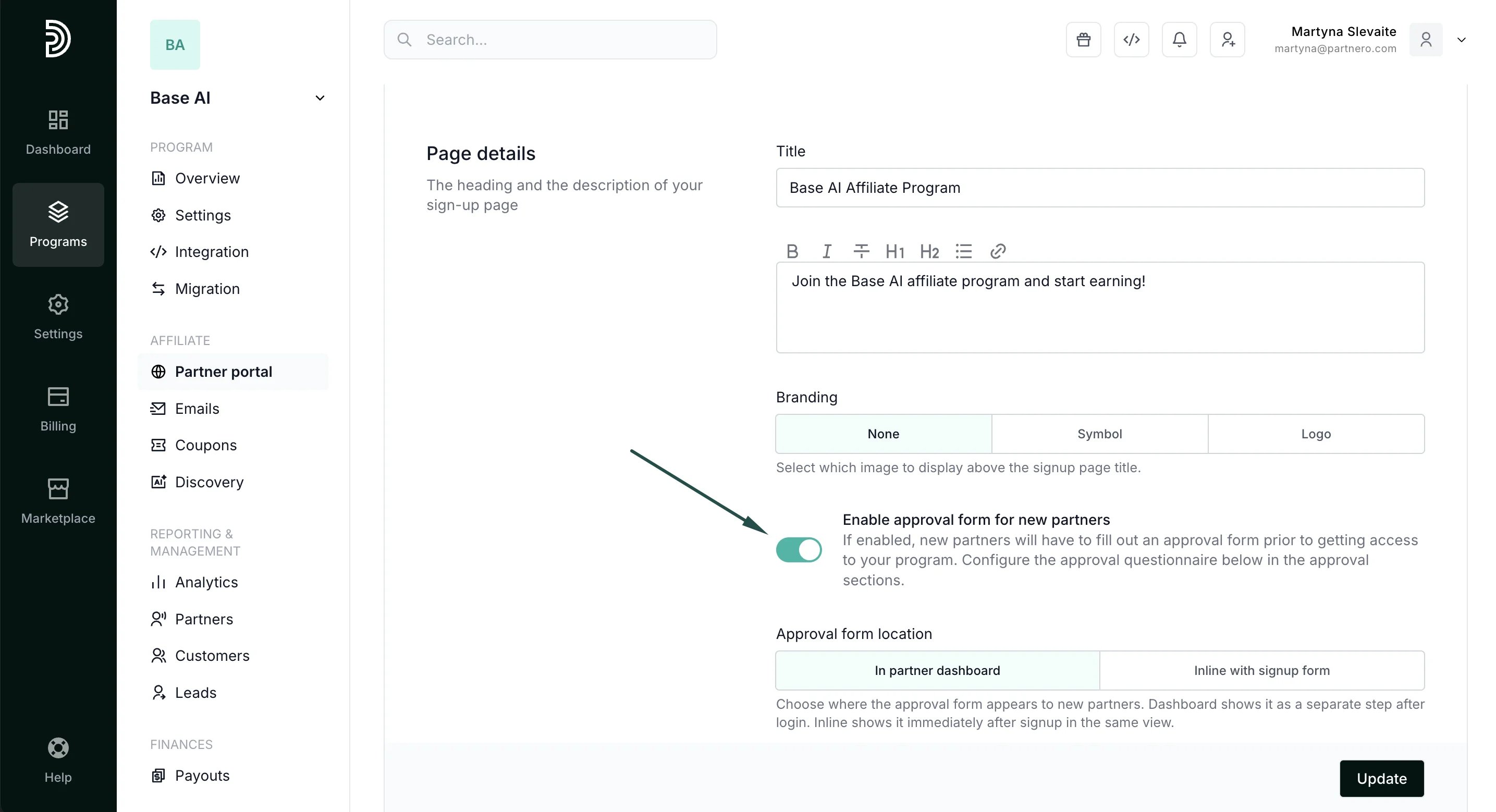
- Click Update to save changes.
Approval form placement
You can choose between two approval form placements: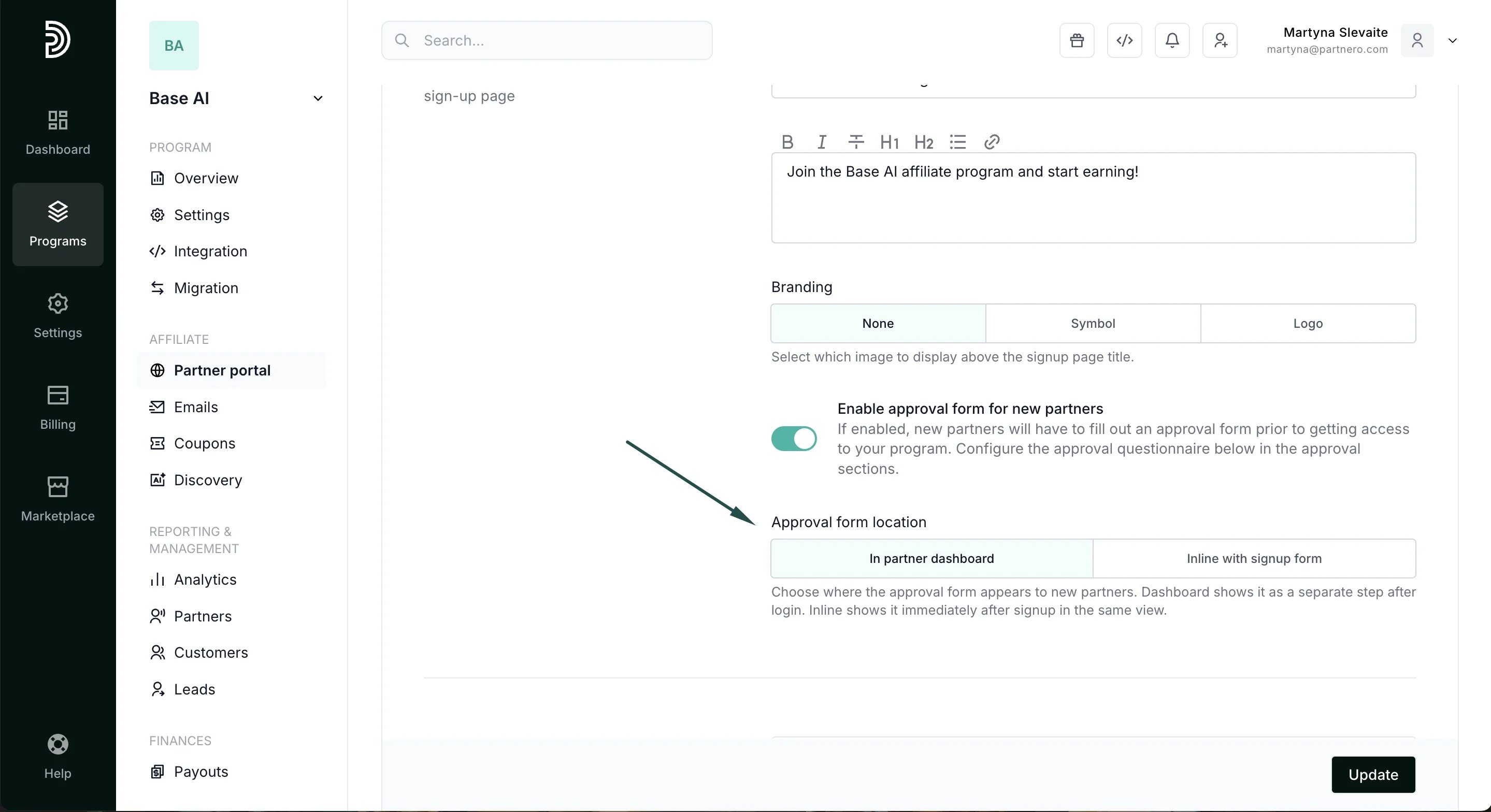
- In partner dashboard – the form appears inside the partner dashboard after a user signs up.
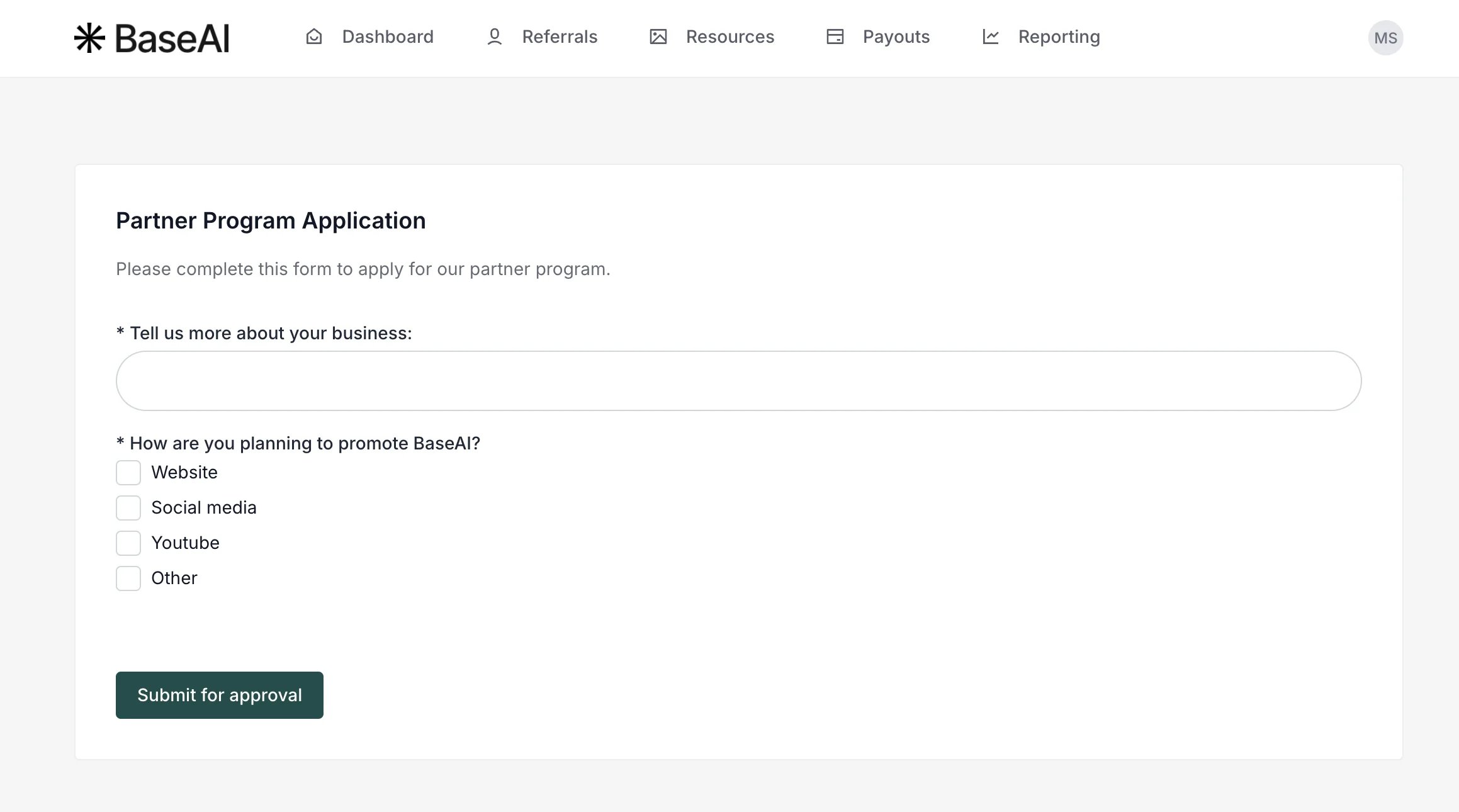
- Inline with signup form – the form appears directly on the sign-up page as part of the registration process:

Approval form content & messaging
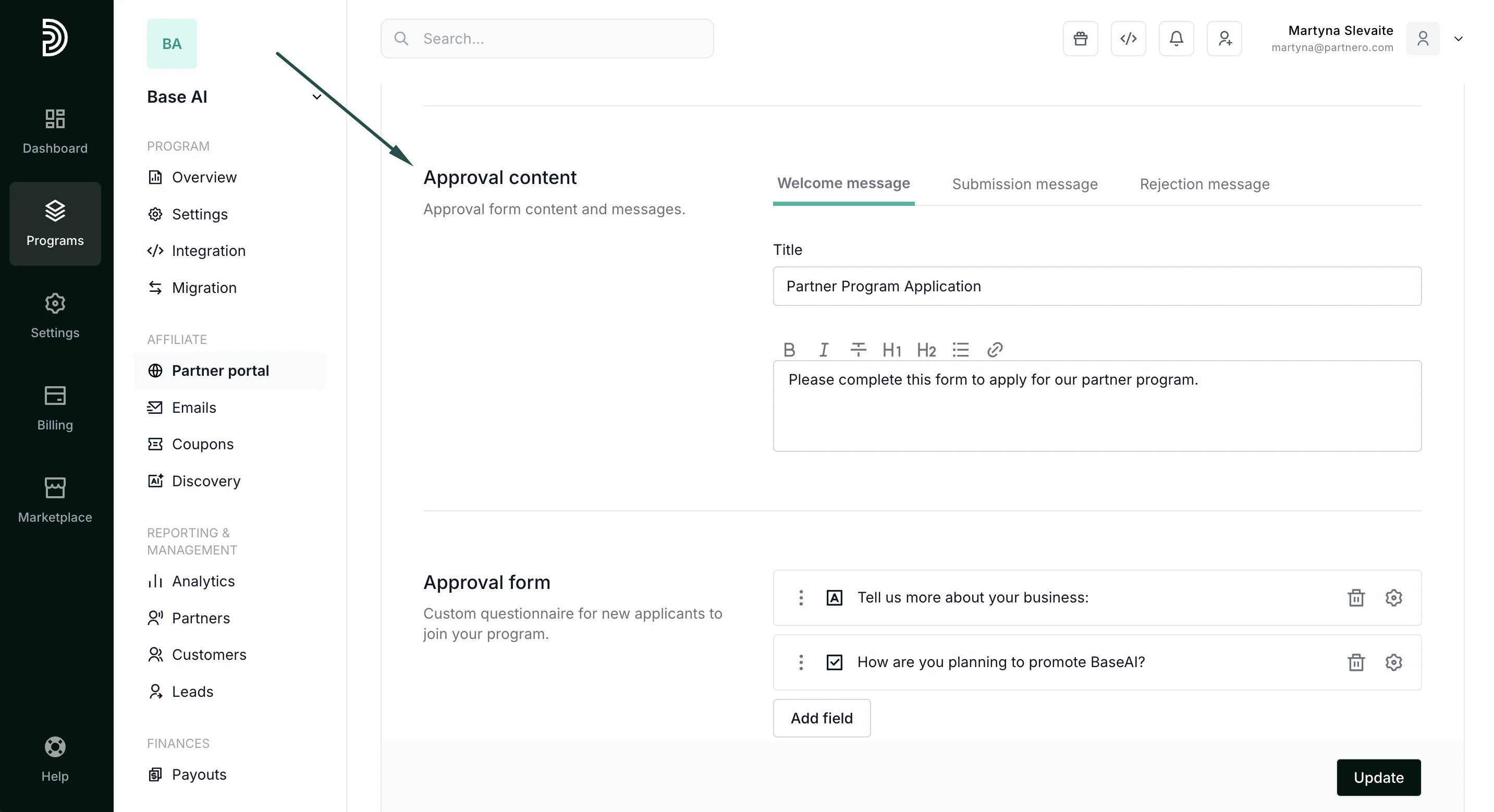
You can customize the messages shown to candidates before and after they complete the approval form. To edit these messages:- Go to Partner portal → Pages & Content tab → Public pages → Sign-up page.
- Scroll down to the Approval content section.
- Switch between the tabs to customize the following messages:
- Welcome message – displayed before a candidate starts the form.
- Submission message – displayed after the form has been submitted.
- Rejection message – displayed if the candidate’s application is rejected.
Approval form questionnaire
Lastly, you can create a custom questionnaire that candidates must complete. To create questions- Go to Partner portal → Pages & Content tab → Public pages → Sign-up page.
- Scroll down to the Approval form section.
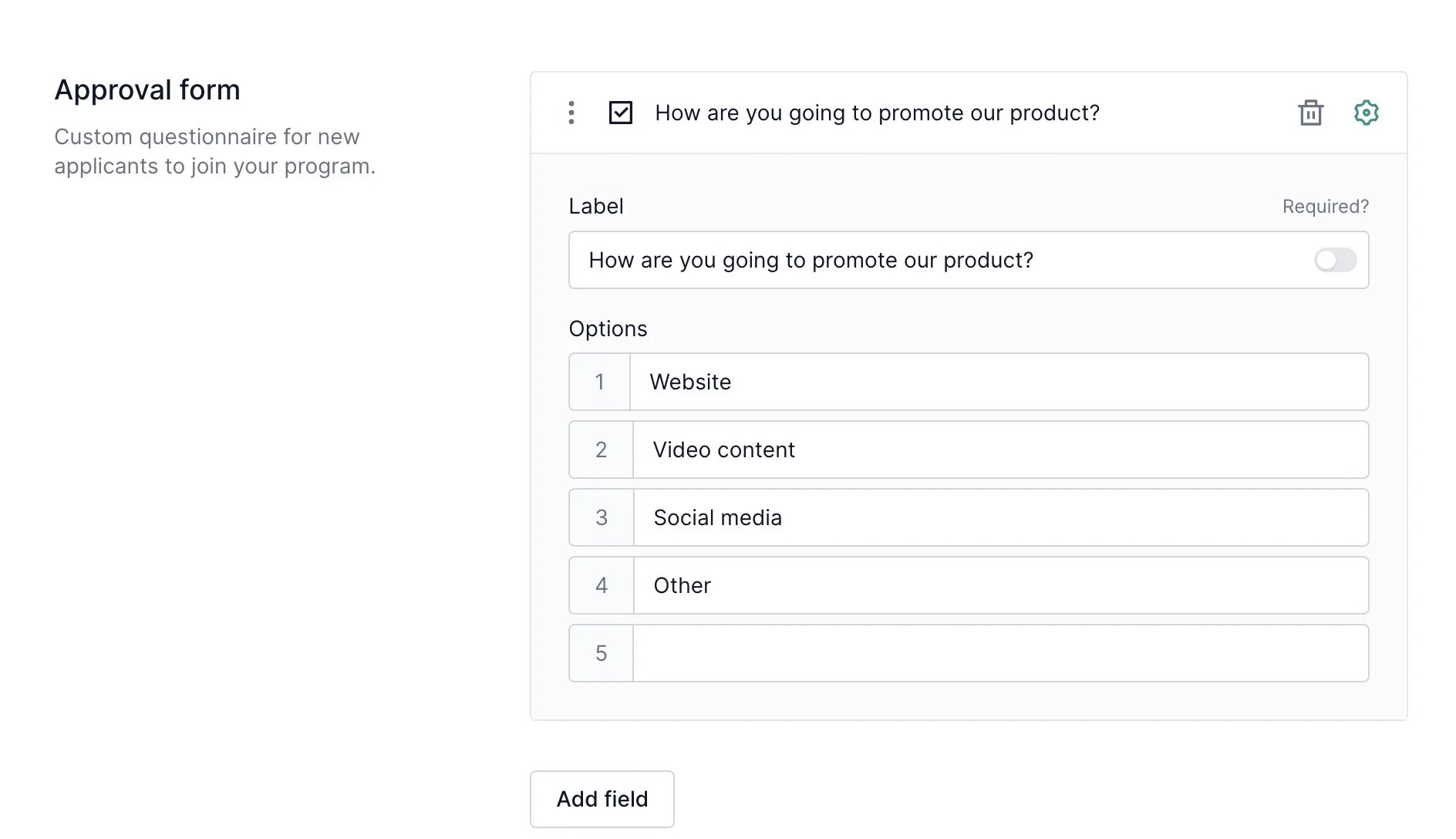
- Click Add field and select the question type:
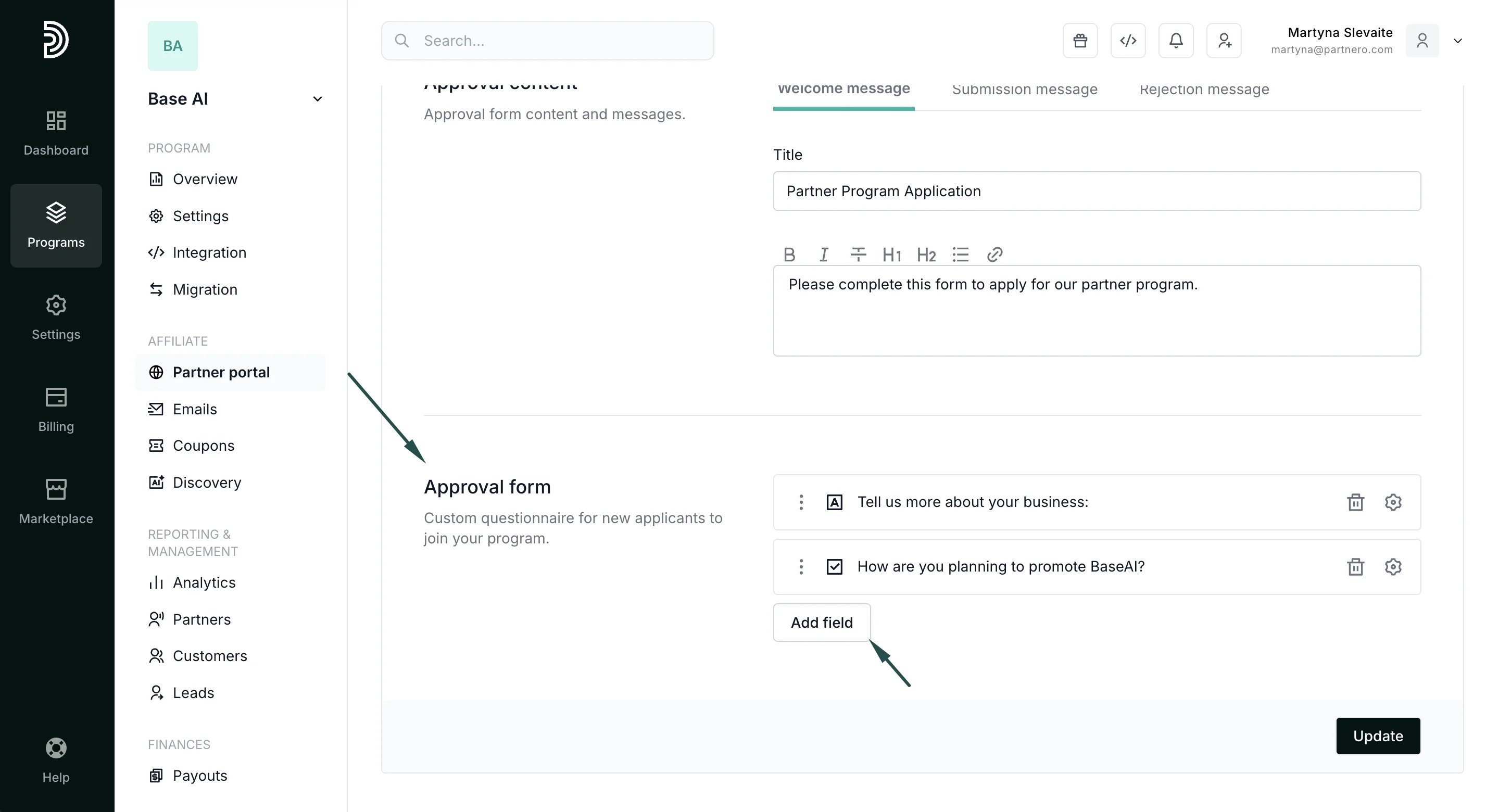
- Add as many questions as you need. Toggle ‘Required?’ to make the answer mandatory:
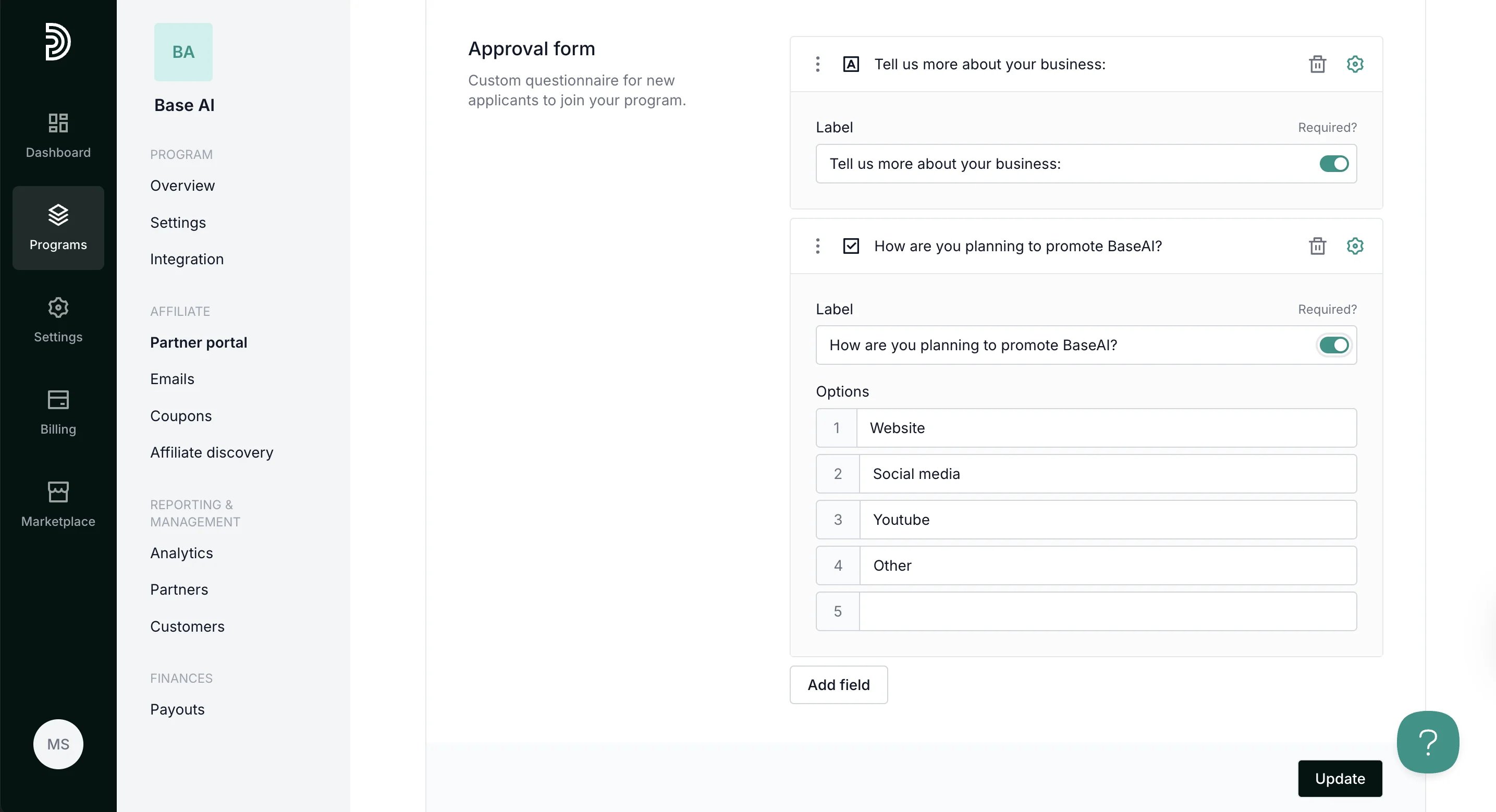
- Click Update to save your changes.
Approval form question types
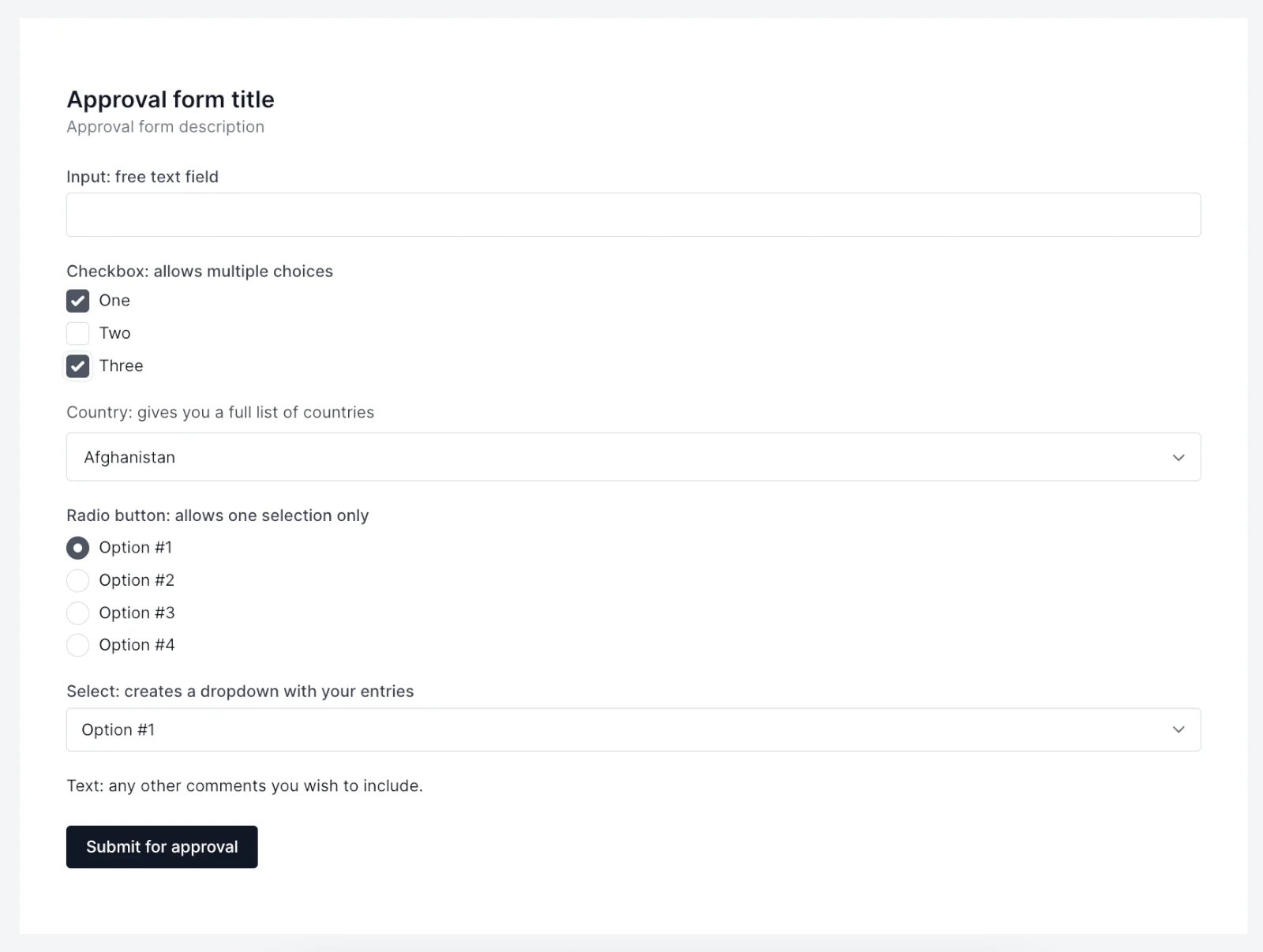
You can add the following field types:To add a free-text input option:
- Click Add field, and then select Input.
- Type your question in the Label field and toggle the Required option if you wish to make this question mandatory.
- Click Update.
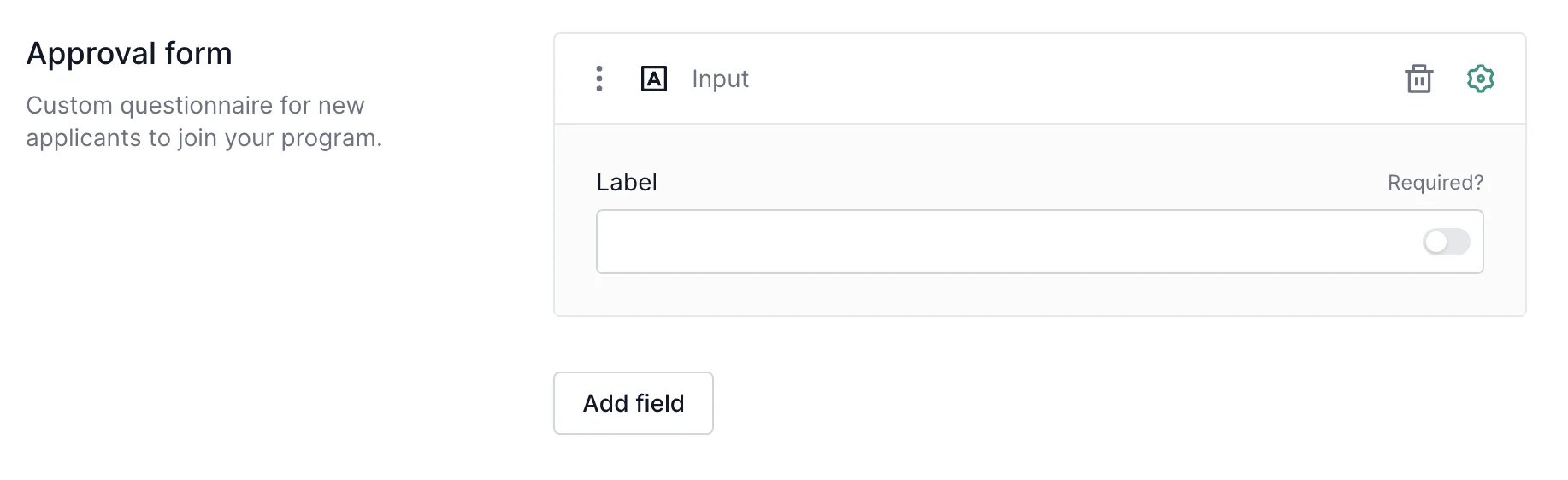
To add checkboxes:
- Click Add field, and then select Checkbox.
- Type your question in the Label field.
- List the checkbox options in the Options field.
- Click Update.