

Edit your main referral link
- Log in to the partner portal. Each program has its own portal link.
- Go to Resources.
- Click the three dots next to your referral link and select Update referral URL.
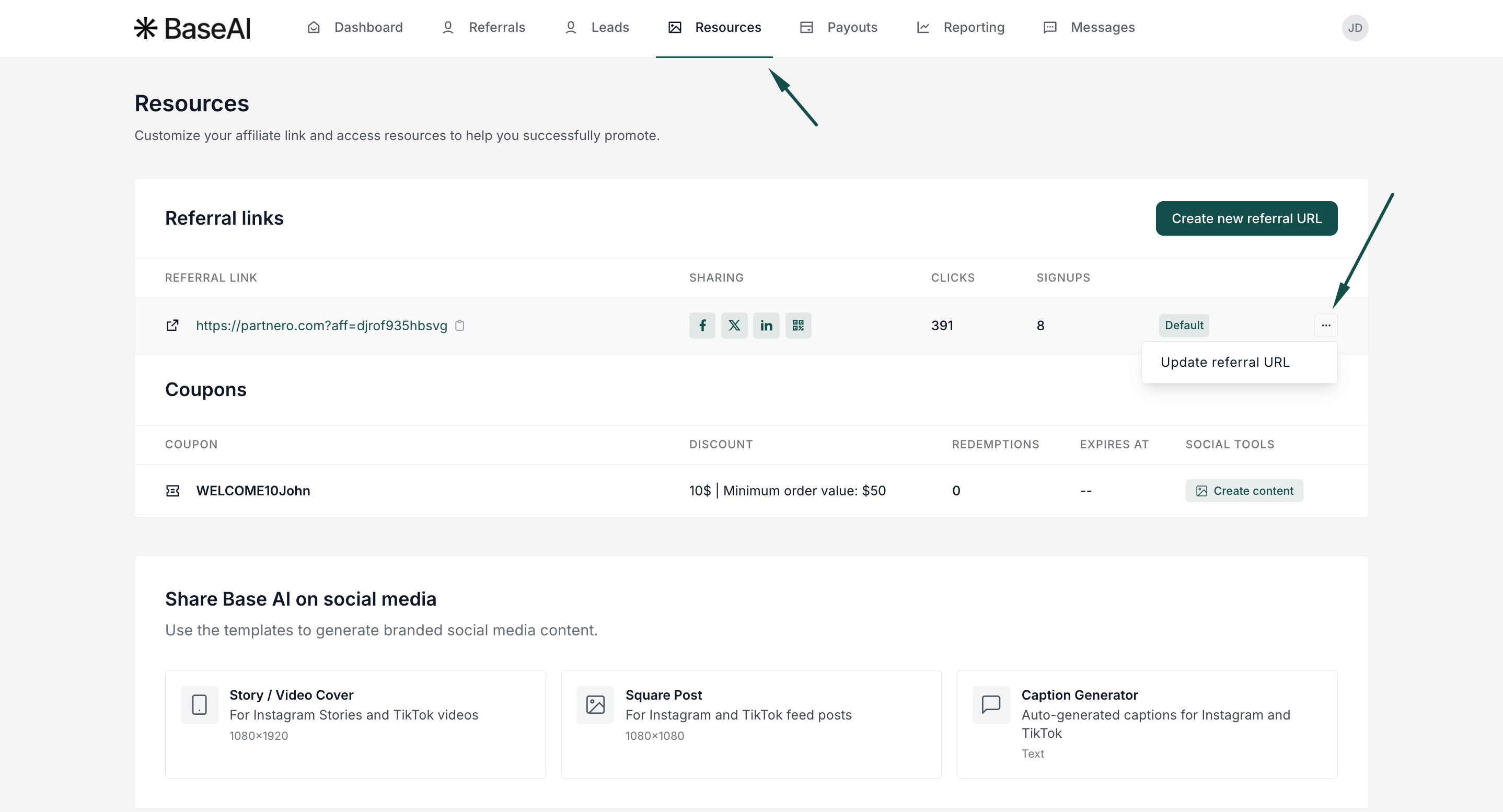
- In the pop-up, enter the link key you want.
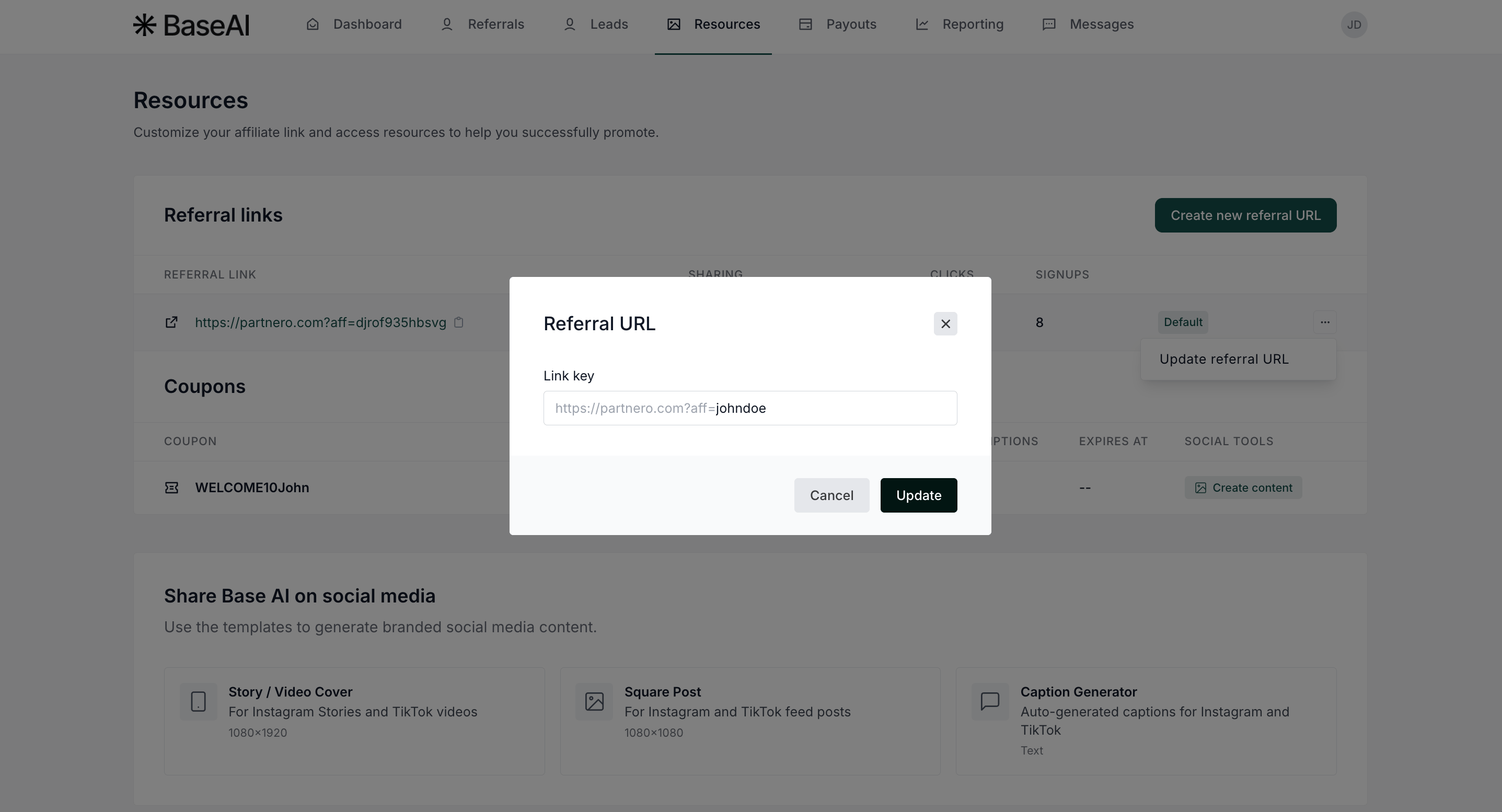
- Click Update.
Create additional referral links
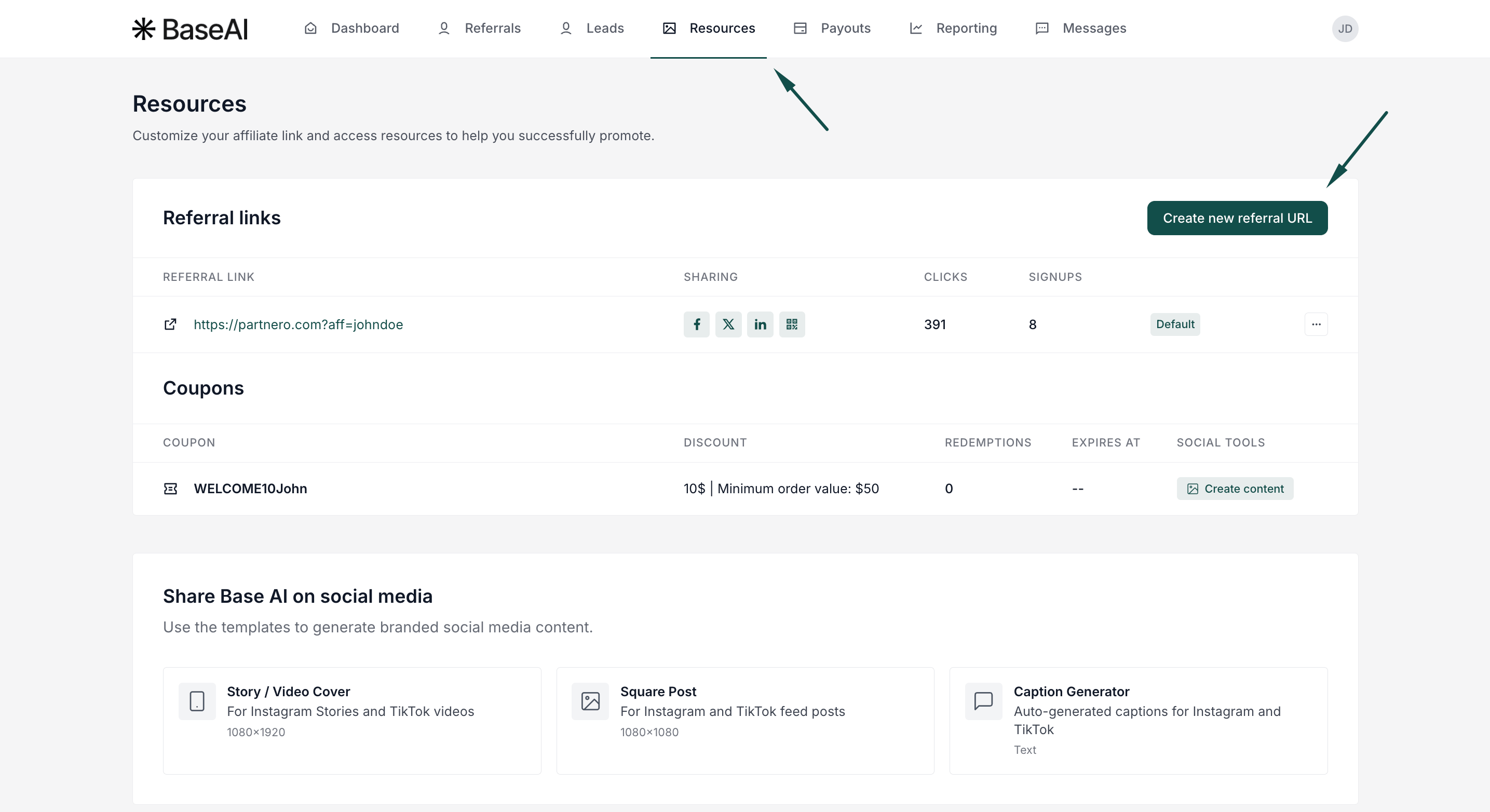
Additional links let you track performance by source, for example, with separate links for your website, YouTube channel, and social media. You can also link to a specific page of the program’s website, such as the pricing page, instead of only the landing page.- In the partner portal, go to Resources.
- Click Create new referral URL.
- Open the domain dropdown and choose where the link should lead. The options depend on the program.
- Enter the link key you want.
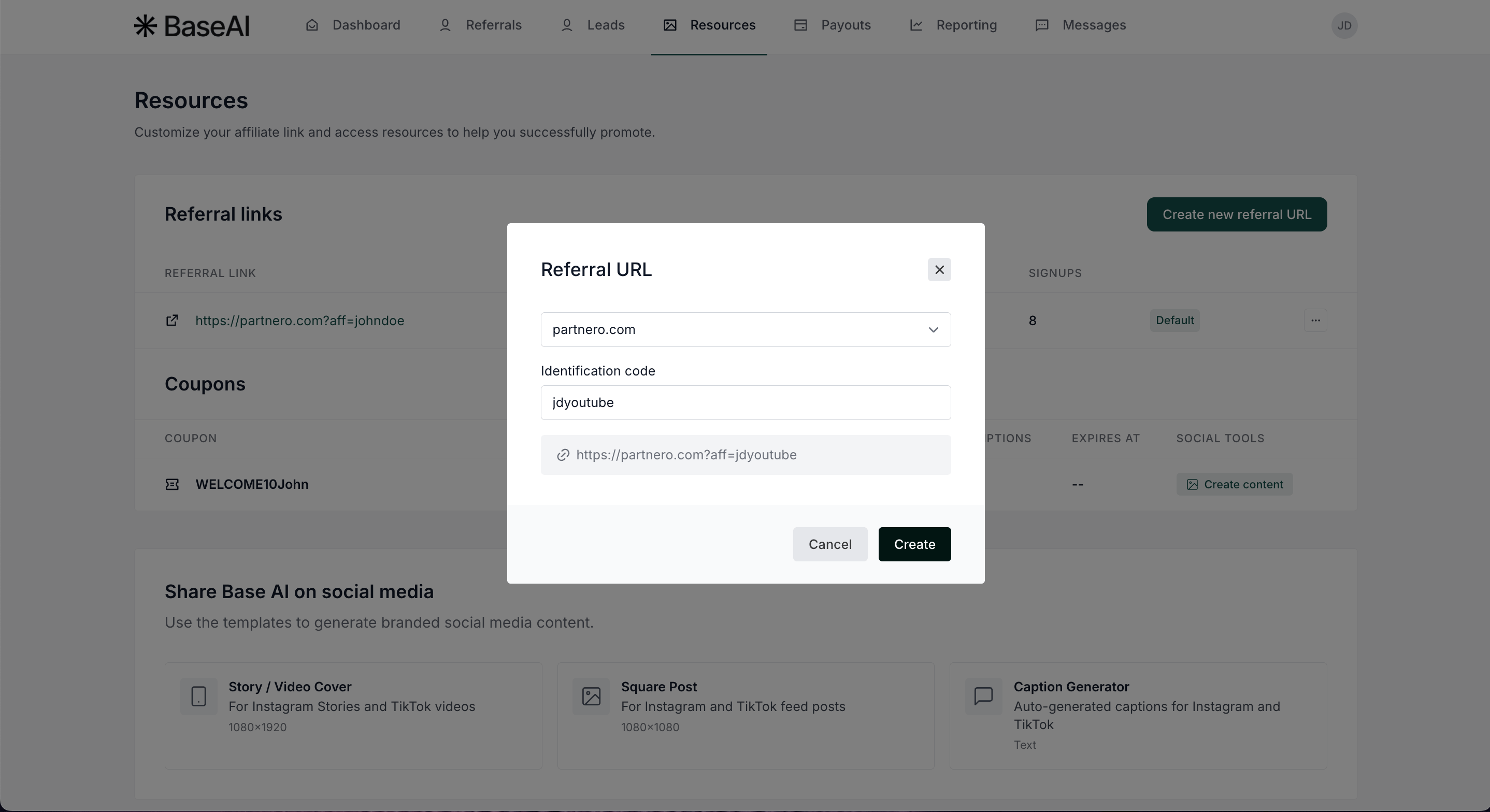
- Click Create.
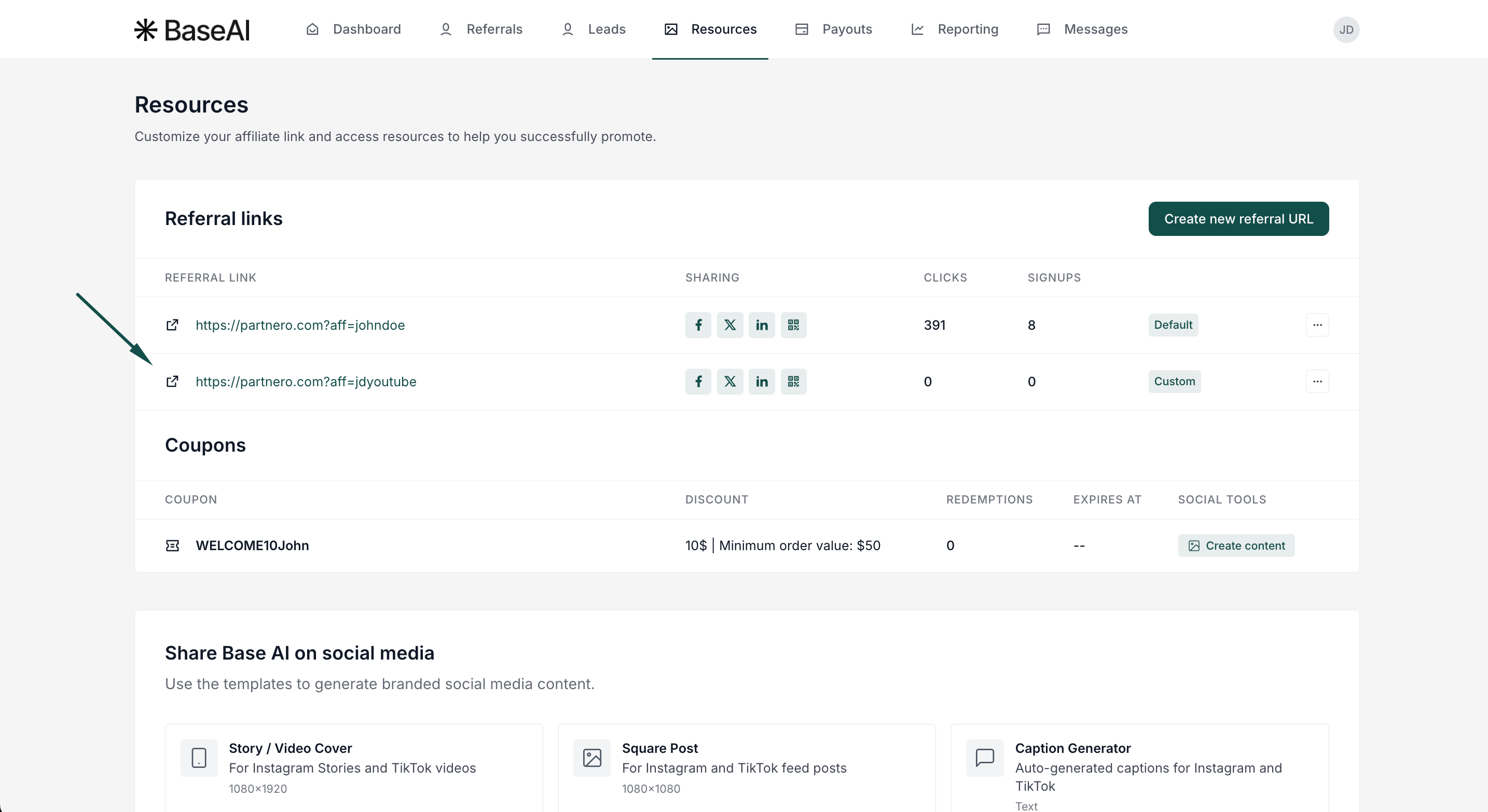
Link to a specific page
To send visitors to a page other than the main program page, choose Custom URL in the domain dropdown.- In Resources, click Create new referral URL.
- In the domain dropdown, select Custom URL. An input appears with the program’s domain already filled in.
- Type only the page path, for example
pricing.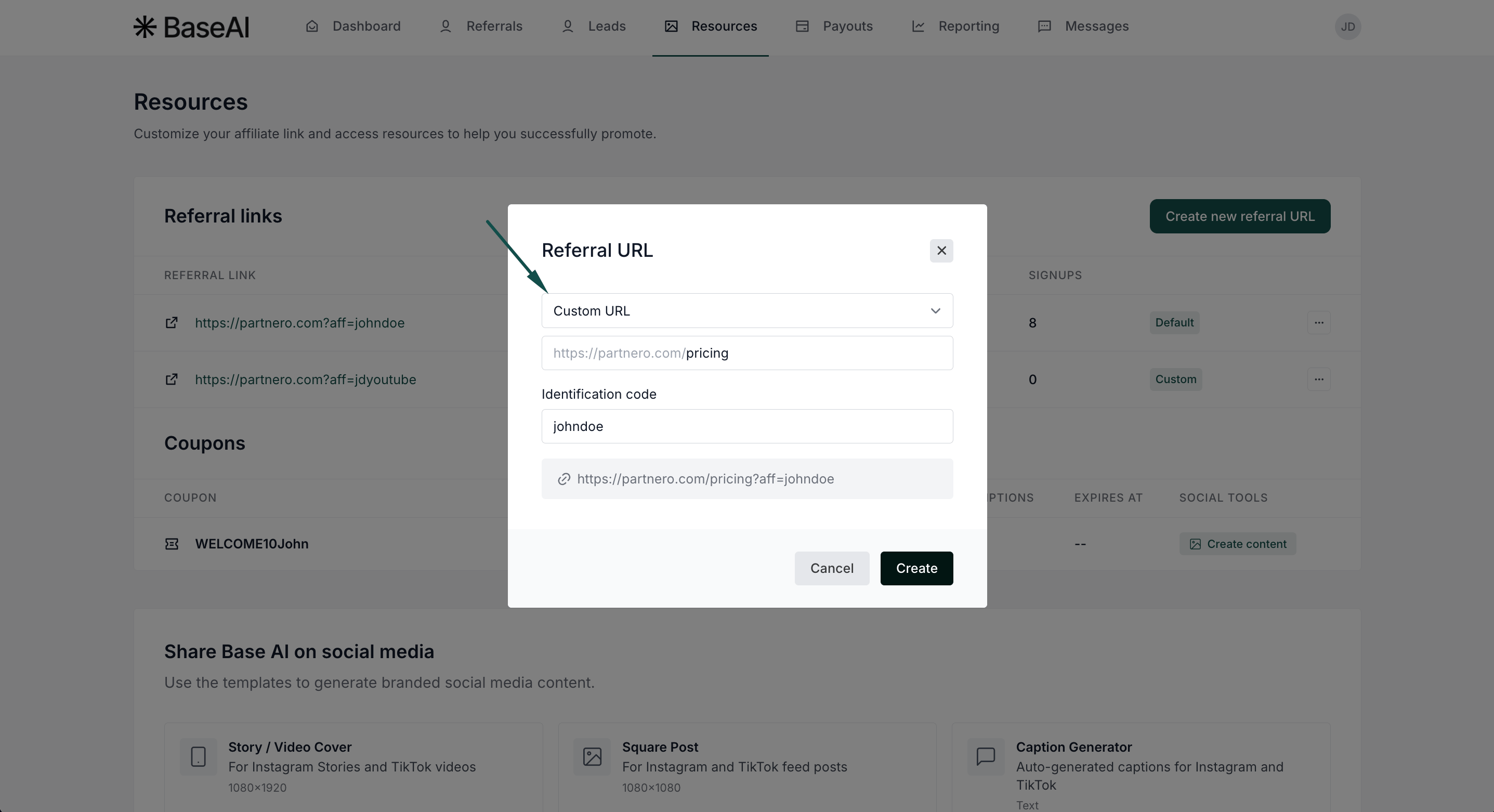
- Click Create.
Guidelines for link keys
- Each link must be unique.
- Use only letters, numbers, and these characters:
-_. - Do not use spaces or other special characters.
- Use up to 64 characters.
- Links are not case-sensitive.
domain.com/a/YourLinkanddomain.com/a/yourlinkare the same link.