

- Partner portal password resets;
- Authentication emails;
- Approval notifications;
- Payout notifications;
- Invitations to join the program;
- Updates about new signups or sales;
- Custom emails.
Settings Navigate to Emails under Partner portal:
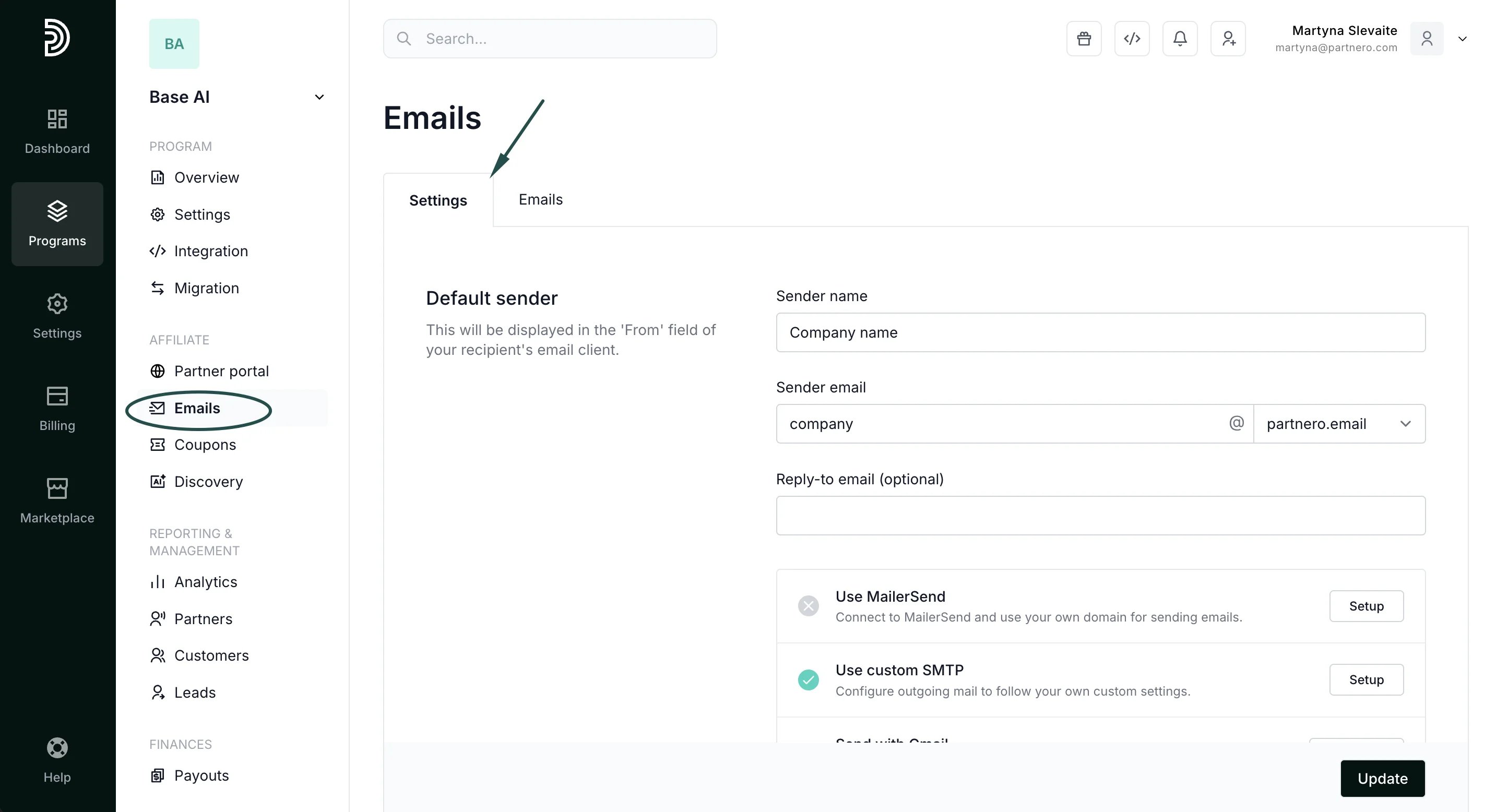
Default sender
Connect your domain for sending emails We recommend connecting your email domain, e.g., [email protected],_ to improve deliverability and ensure that partners know who the emails are coming from_._ There are a few different options to do that. Option 1: MailerSend
- Under Emails → Settings tab, click Setup next to MailerSend:
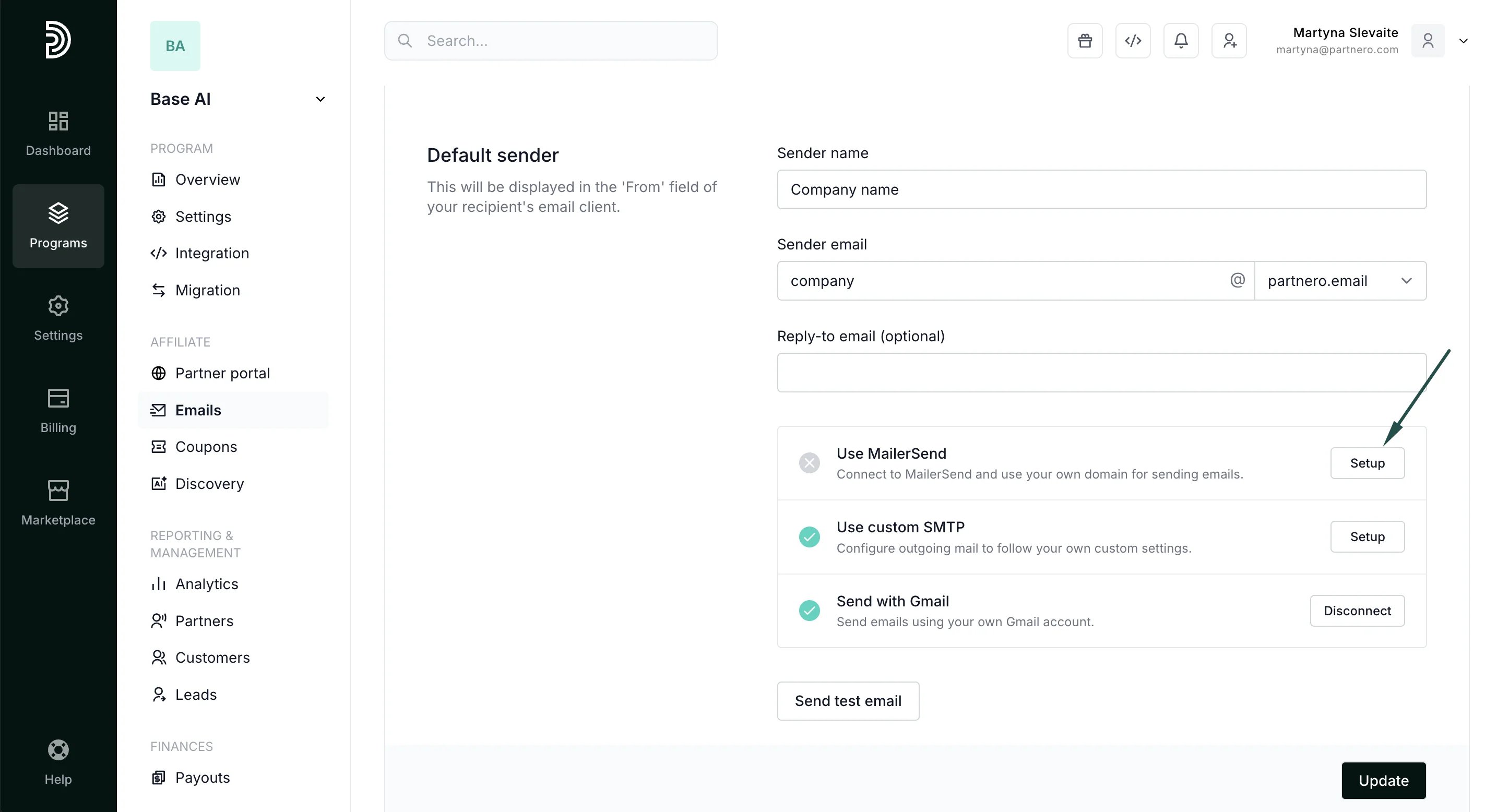
- Enter your MailerSend API token (here’s how to find it).
- Click Connect.
- Once your domain is successfully connected, you will see it listed as an option under Sender email domain select:
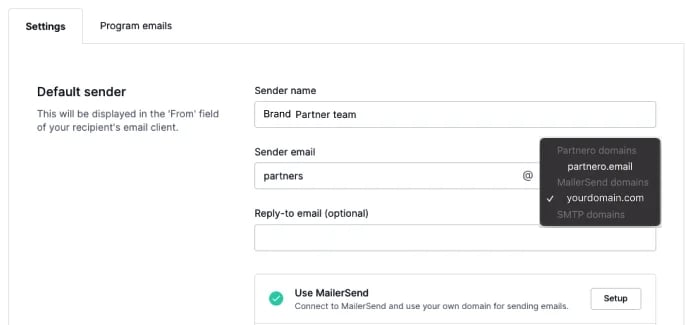
- Select the newly connected domain and click Update.
- Under Emails → Settings tab, click Setup next to SMTP.
- Enter your server information, username, password, and the “From” email address.
- Click Connect.
- Once your domain is successfully connected, you will see it listed as an option under Sender email domain select.
- Select the newly connected domain and click Update.
Logo and disclaimer & Default style
In the Emails → Settings section, you can also customize your logo & disclaimer as well as default styling that will be used across all program emails.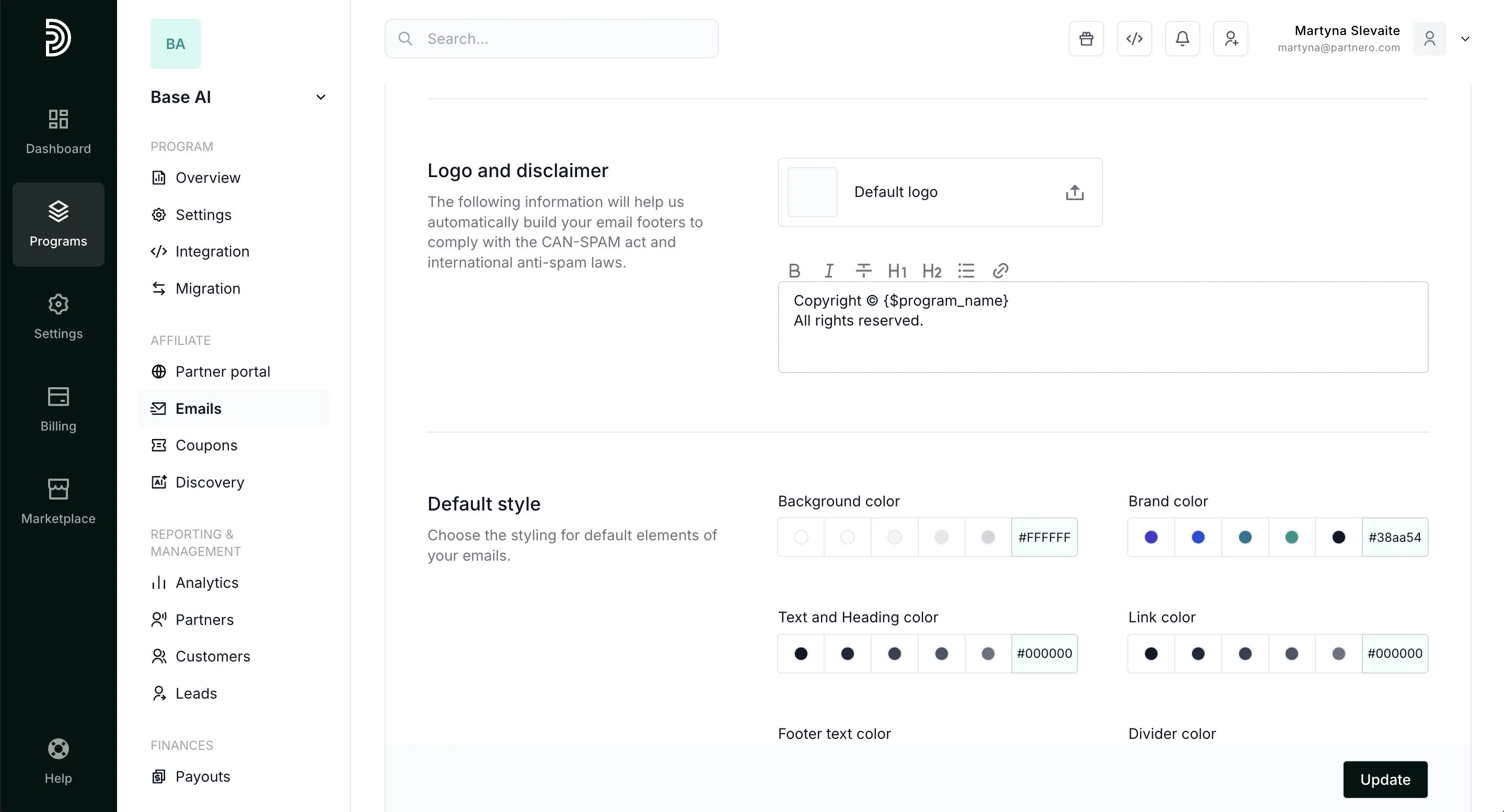
Review and design program emails
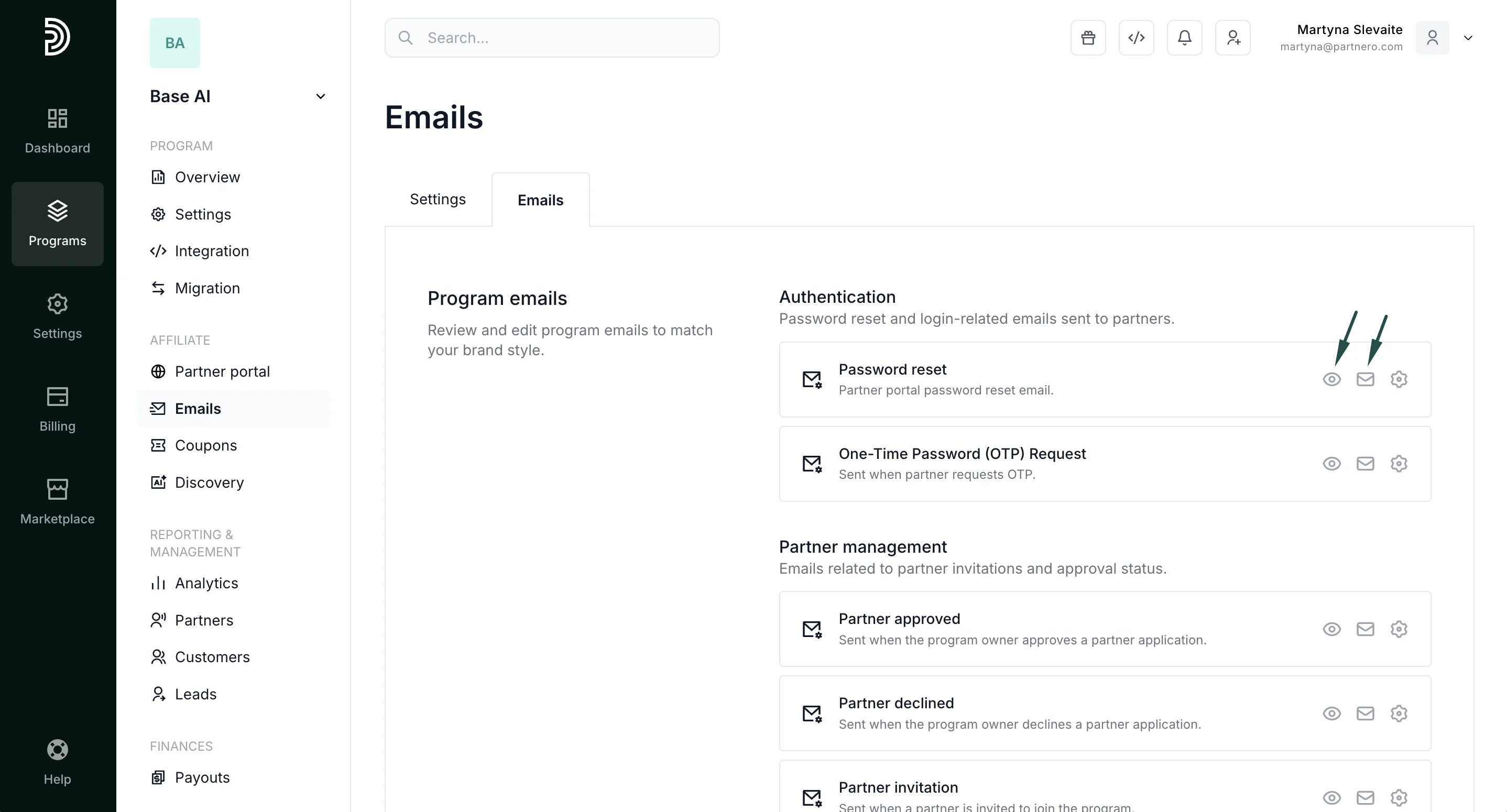
To find all program emails, go to Emails under Affiliate and switch to the E****mails tab: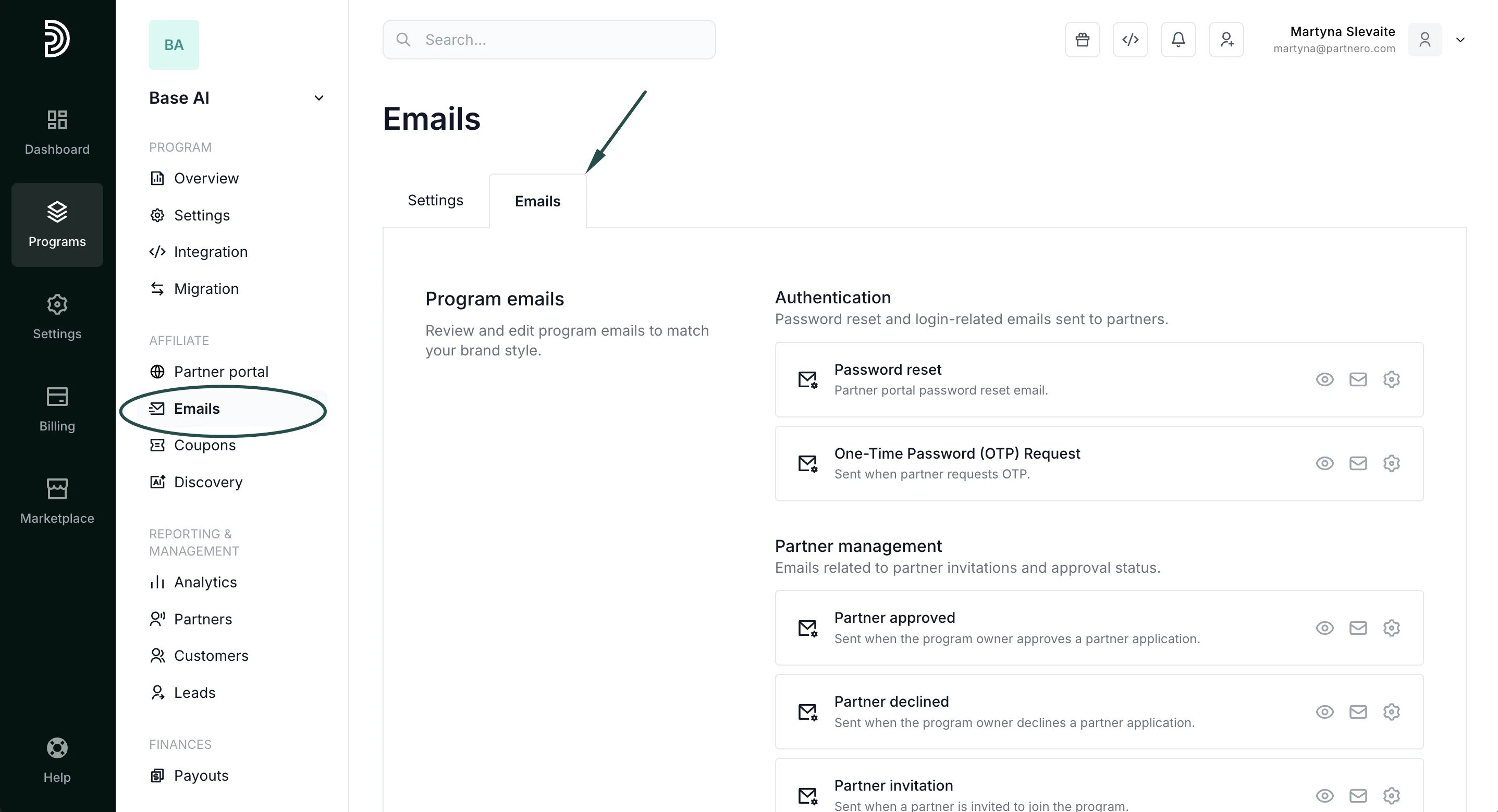
- Authentication
- Partner management
- Payouts
- Referral updates
- Notifications
- Program leads
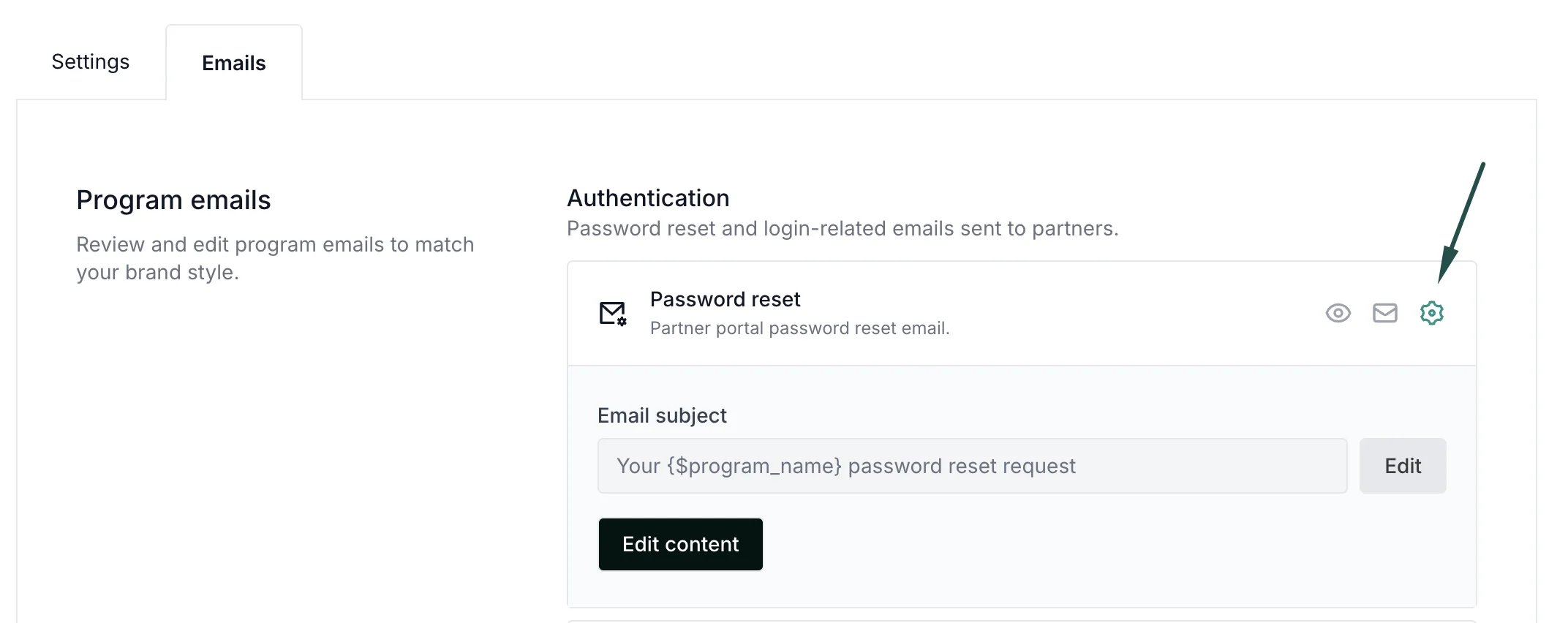
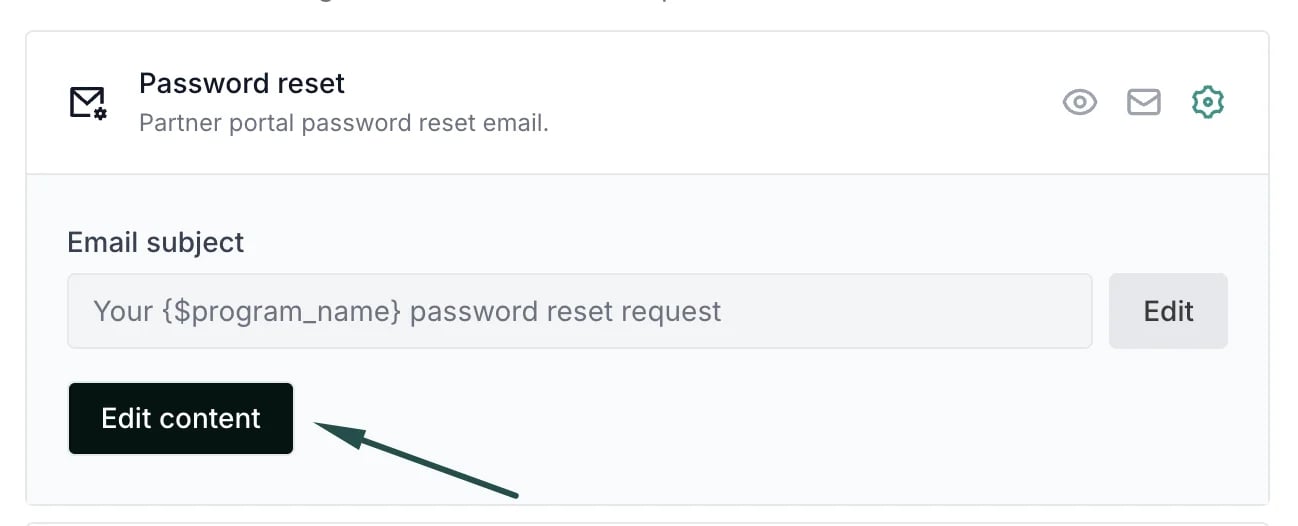
- Click on the gear icon next to the email:
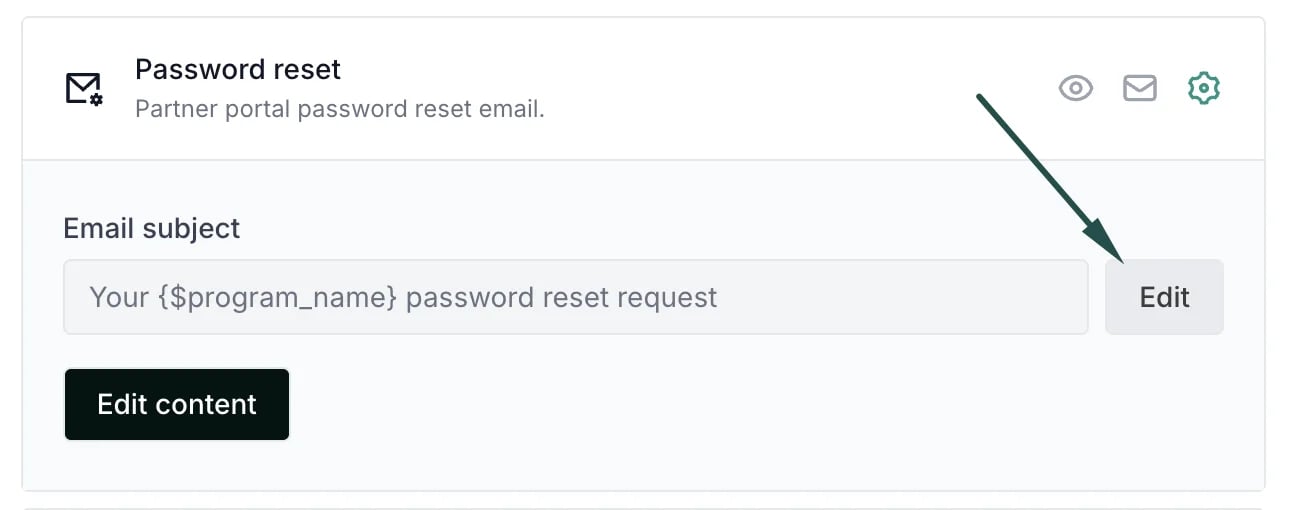
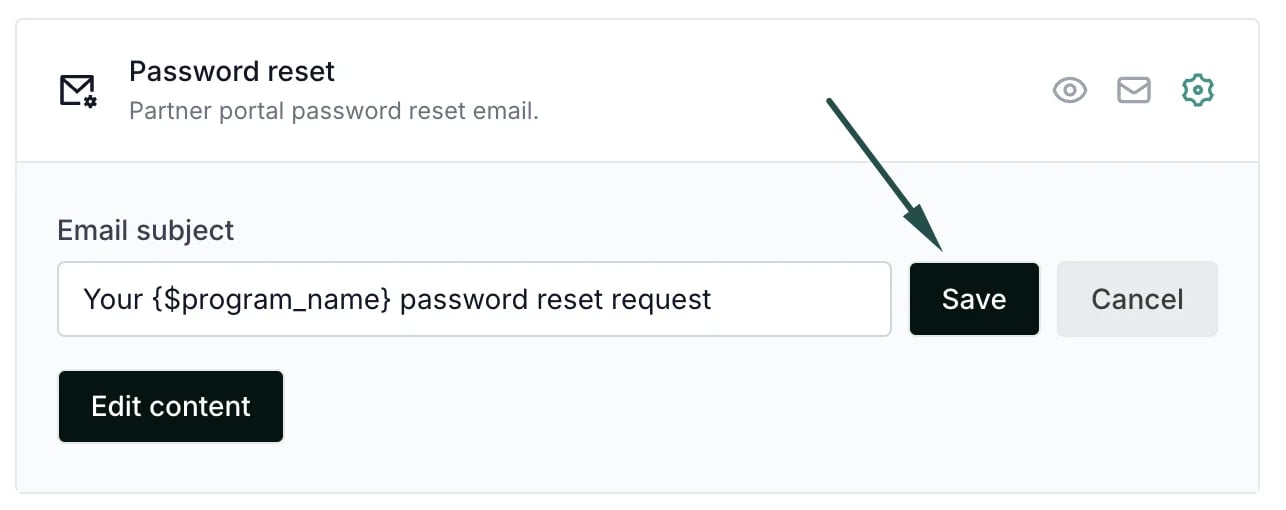
- Click Edit to change the subject line:
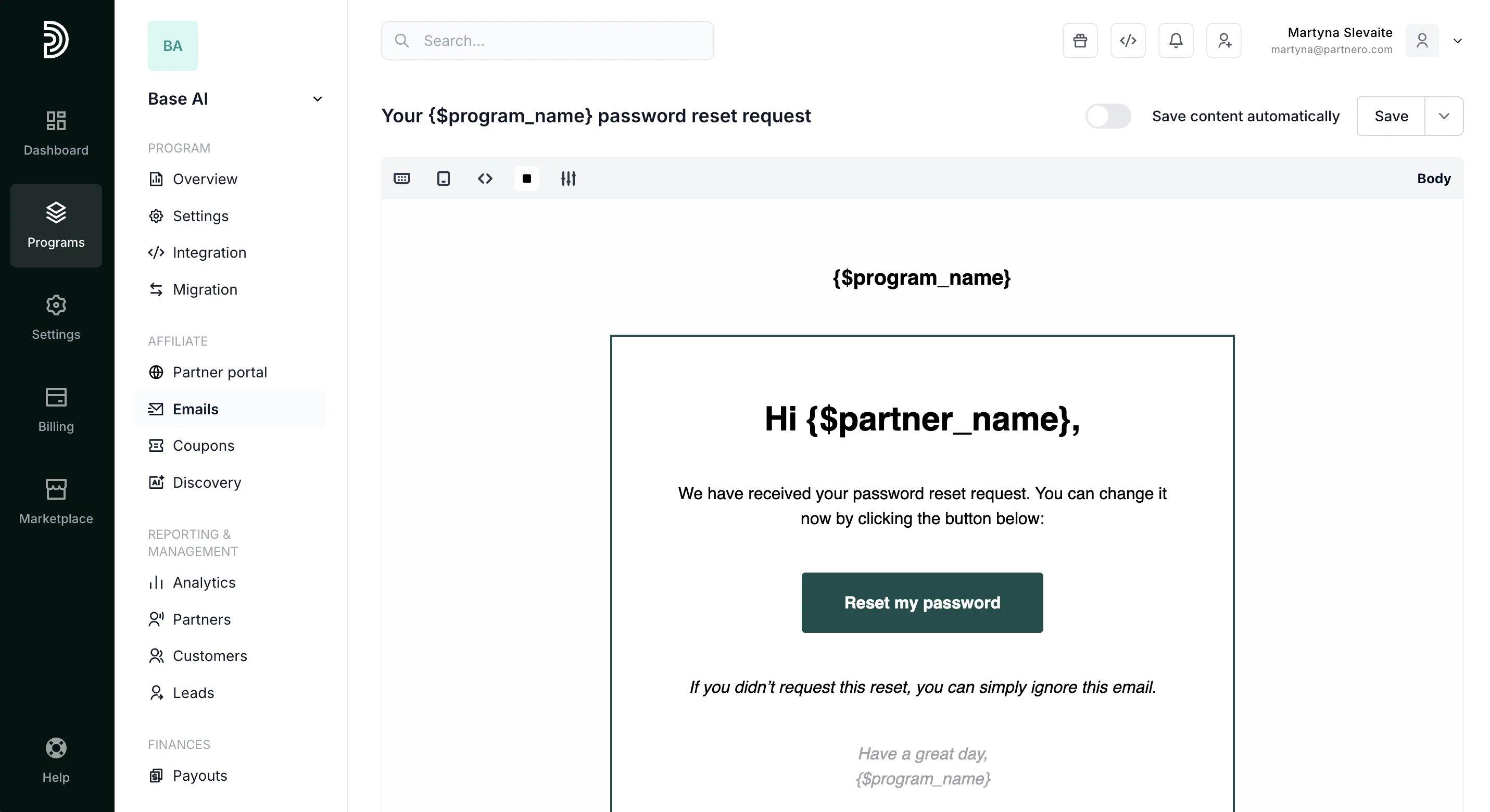
- To edit the content, click **Edit content:
Tags (variables) in emails
You can use tags (variables) to display dynamic information in your emails. Simply insert the required tag, and we will insert the program or partner information when sending the emails out.
For a detailed breakdown of very program email, click here.