

Before you start
Get these SMTP details from your email provider:- Server: the SMTP host name, for example
smtp.yourprovider.com. - Port and security: usually port
587with TLS, or port465with SSL. - Username and password: many providers require an app password or SMTP-specific password rather than your regular sign-in password.
- From email address: the address your emails will come from. Your provider must allow sending from it.
Connect SMTP
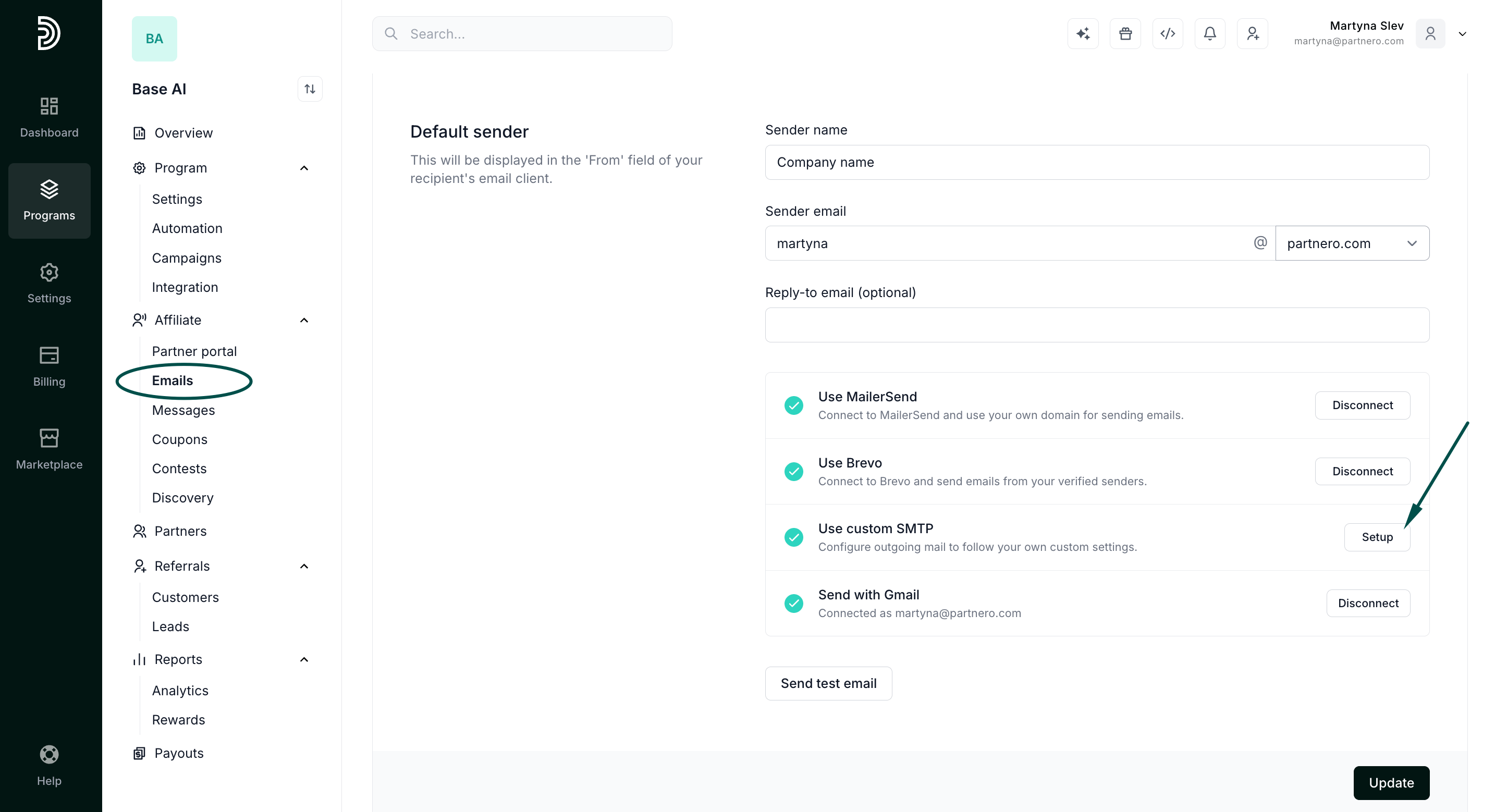
- In your program, go to Emails under Affiliate.
- On the Settings tab, click Setup next to Use custom SMTP:
- Under Server, enter the host name and the port, then choose the security type:
- TLS or SSL: use the one your provider documents for the port you entered.
- None: only for servers that don’t use encryption. Username and password are optional with this setting.
- Auto: Partnero tries TLS on port
587, then SSL, and keeps the first one that connects. The port you entered is not used.
- Enter your Username and Password.
- Enter your From email address.
- Click Connect.
Choose your sender
Connecting SMTP does not change which address your emails come from.- Under Sender email, open the domain list and pick your domain from the SMTP domains group. The domain comes from the From email address you entered, so it only appears if you entered one.
- Check the field before the @. If your SMTP username is an email address, the part before its @ is filled in for you. You can change it, as long as your provider allows sending from that address.
- Click Update to save.
Disconnecting
Click Setup next to Use custom SMTP, then click Disconnect. Your SMTP details are removed from Partnero. If SMTP was sending your program’s emails, your sender email switches back to Partnero’s default @partnero.email address, so your emails keep going out. To change any SMTP details, disconnect and connect again with the new details.Troubleshooting
Connecting fails or times out
Connecting fails or times out
Check the server name and port with your provider, then choose the matching security type instead of
Auto. Port
587 usually uses TLS and port 465 usually uses SSL. Your server must also accept
connections from outside your network, because Partnero connects to it over the internet.Authentication fails
Authentication fails
Make sure the username and password are your SMTP credentials. Many providers, including Microsoft 365 and
Zoho Mail, need SMTP sending turned on for the mailbox or an app password instead of your regular password.
The SMTP domain is not in the Sender email list
The SMTP domain is not in the Sender email list
The domain comes from your From email address. Disconnect SMTP and connect again with a From email
address filled in.
Connecting works but test emails fail
Connecting works but test emails fail
Your provider may only allow sending from addresses it knows about. Make sure the sender email matches an
address or domain your provider allows, and check your provider’s sending limits.
Next steps
Email settings
Compare every email gateway you can connect
Program emails
Which emails Partnero sends