

- Pay 0% commission when a code is used on the customer’s first order.
- Scale the commission down as the customer’s discount gets bigger (e.g., small discount → full commission, big discount → no commission).
- Pay a reduced share (say 50%) of the normal commission on any discounted order
How it works
- When a sale comes in, Partnero records whether a discount/coupon code was applied and how big the discount was.
- If discount-based rules are enabled and a code was used, Partnero calculates the commission as normal, then applies your adjustment on top as a percentage.
- Everything is logged, so you can always see whether an adjustment was applied and why.
The adjustment is a percentage of the commission the affiliate would normally earn, not a percentage of the sale. So if the normal commission is 4.
How to set it up
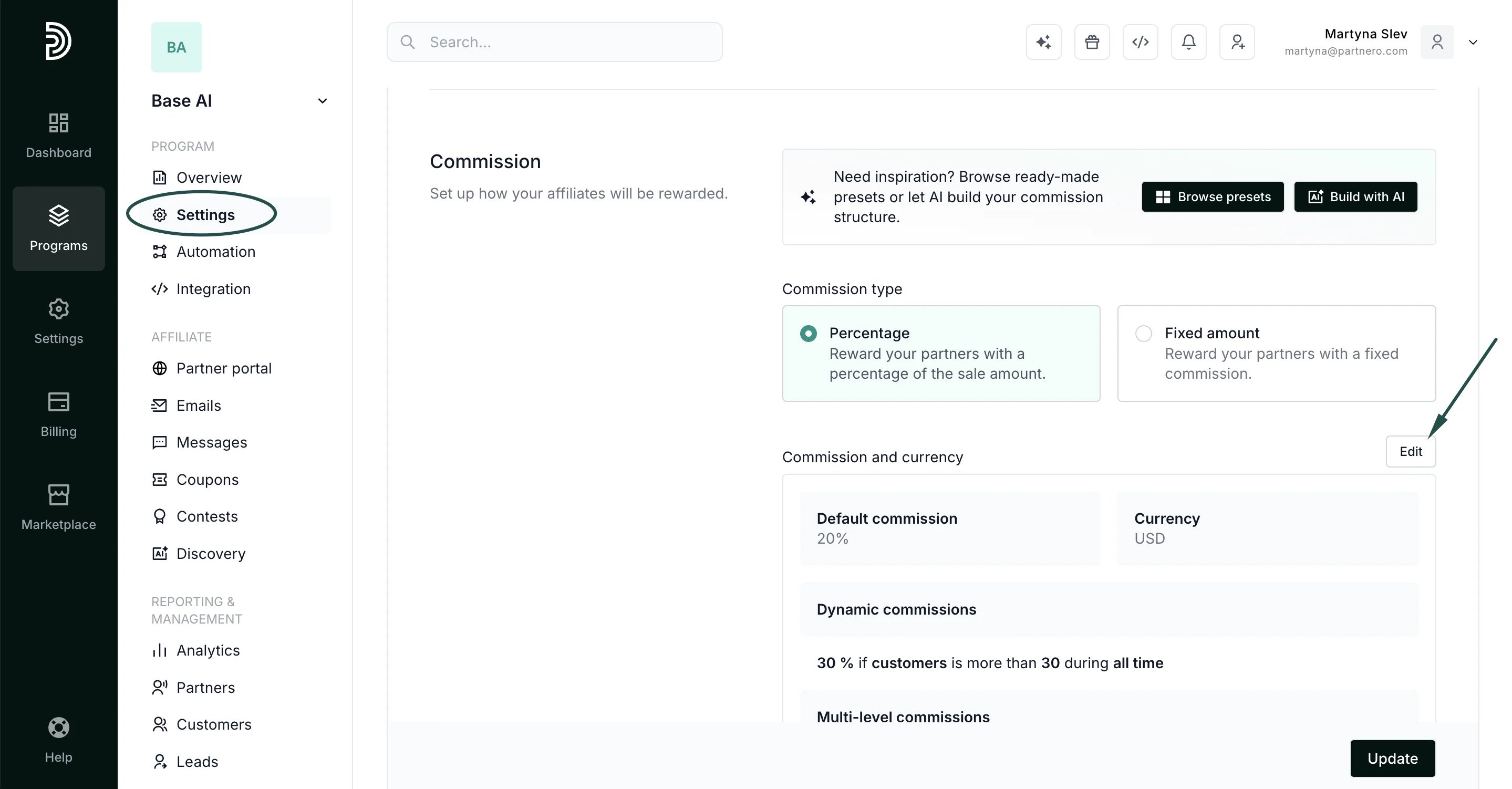
To set up commission adjustment for discount codes:- Go to Settings → Commissions and open Advanced commissions. If you already have advanced commissions in place, click Edit:
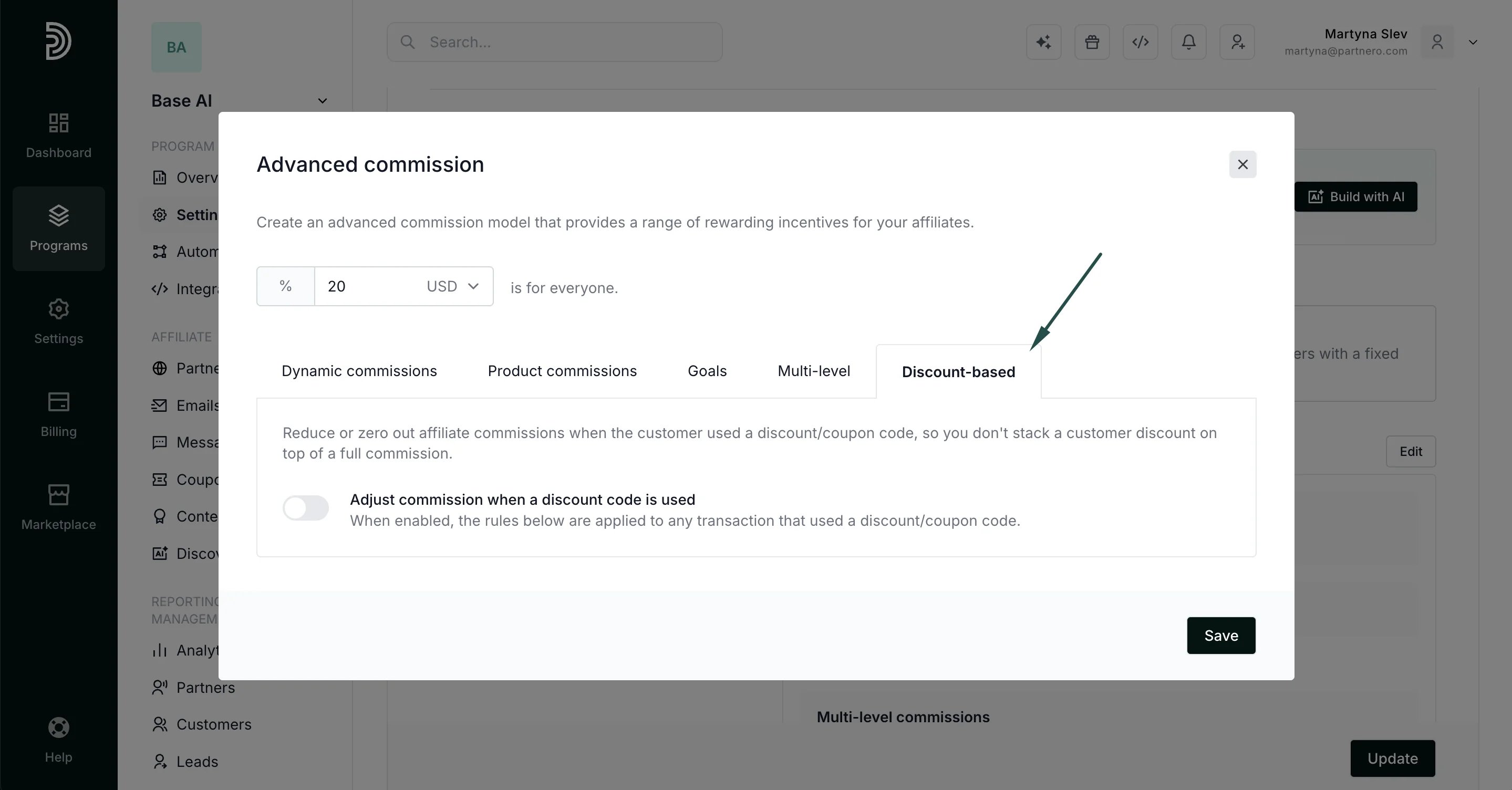
- Select the Discount-based tab.
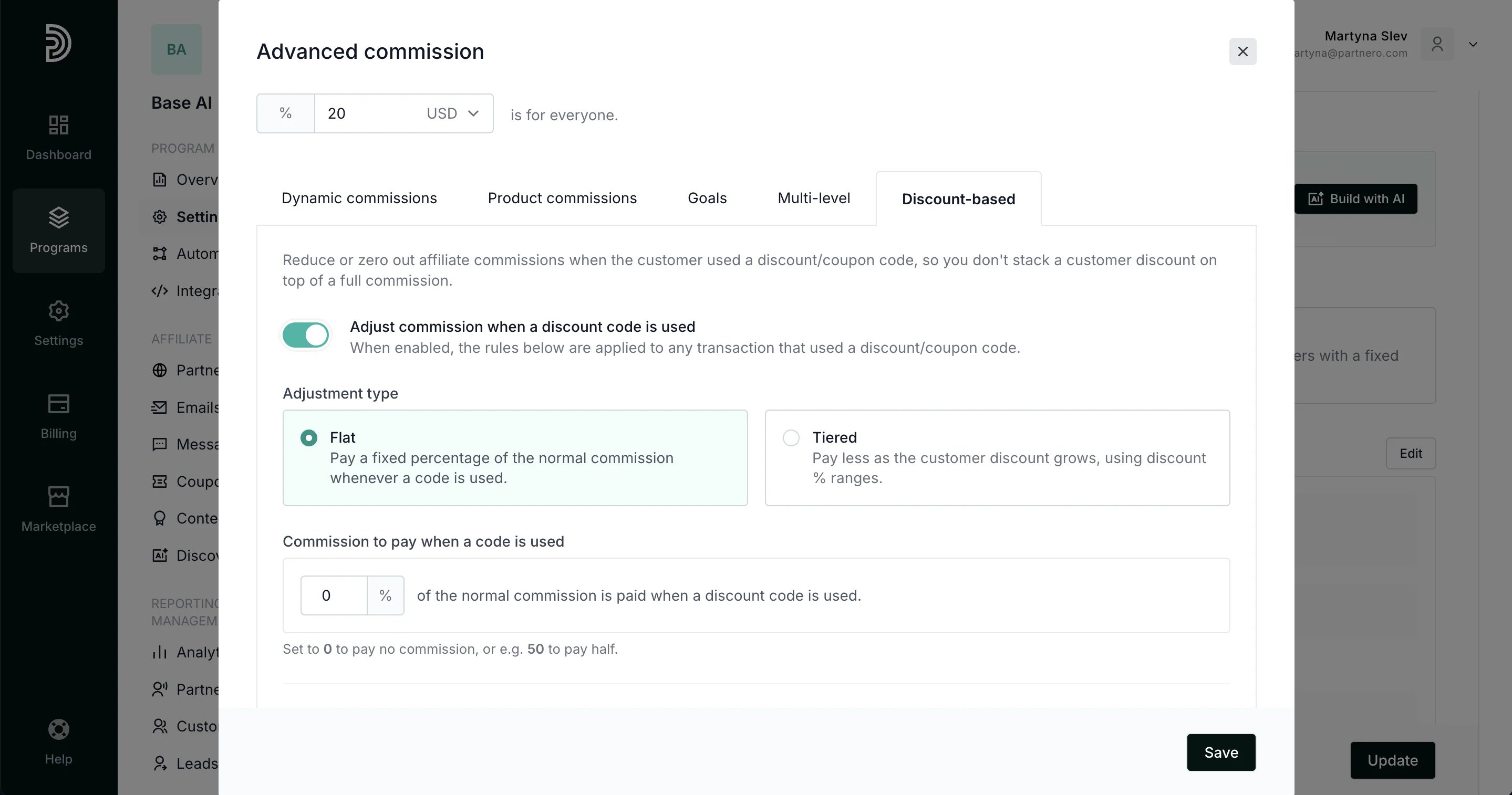
- Turn on Adjust commission when a discount code is used.
- Choose an Adjustment type and a scope (details below).
- Click Save.
Adjustment type
Flat: pay a fixed percentage of the normal commission whenever a code is used.0= pay no commission on discounted orders.50= pay half the normal commission.100= pay the full commission (effectively no reduction).
For each order, Partnero finds the first range the discount falls into and applies that percentage. If the discount doesn’t match any range, the normal commission is paid in full.
Apply this adjustment (scope)
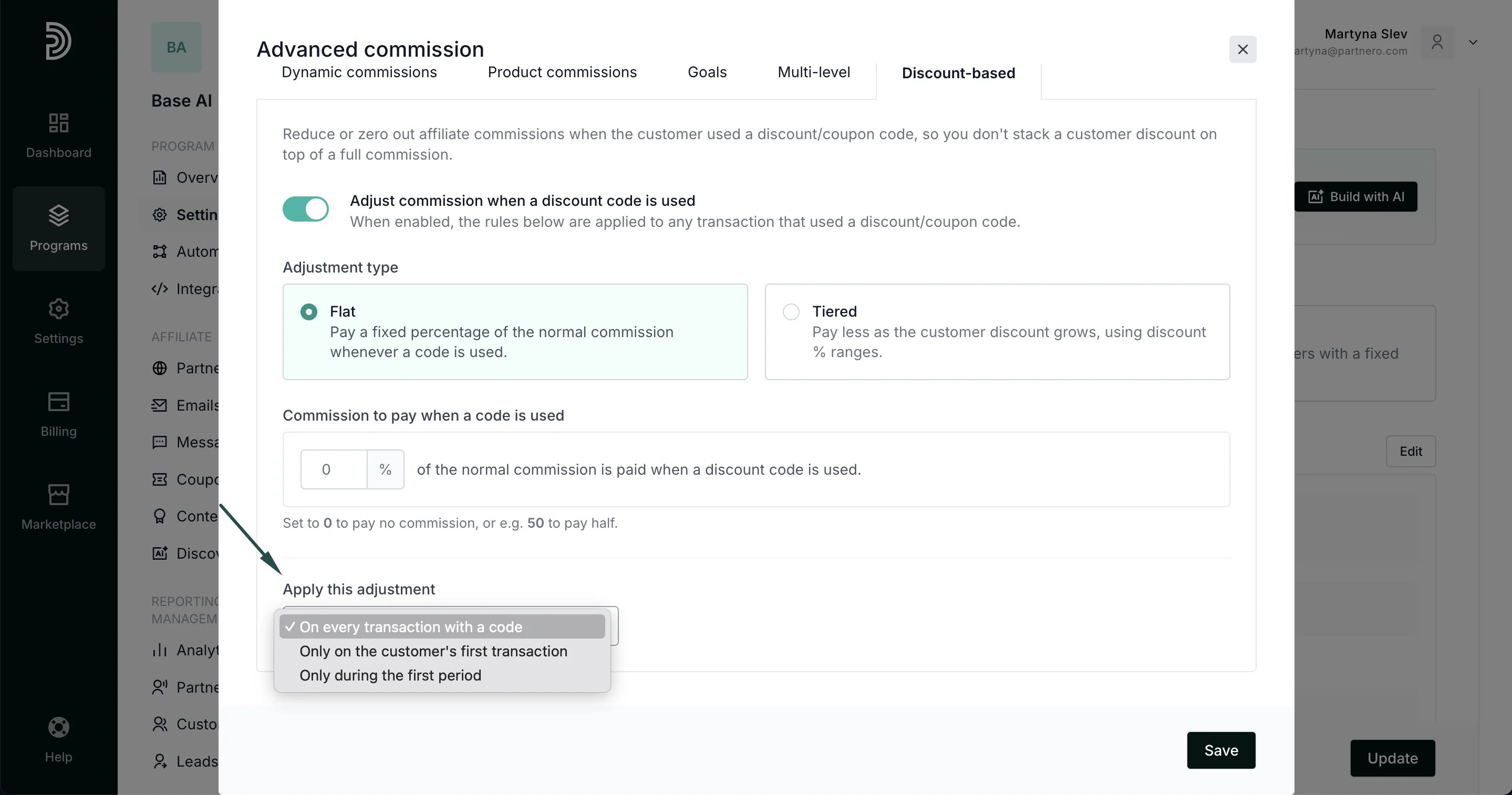
- On every transaction with a code: the adjustment always applies when a code is used.
- Only on the customer’s first transaction: the adjustment applies to the customer’s first purchase; normal commissions resume afterward.
- Only during the first period: the adjustment applies for a set number of days or months, measured from either the customer’s or the partner’s start date. After the period ends, normal commissions resume.
Examples
Example 1: No commission on the first discounted order Goal: When a customer uses an affiliate’s code, they get the discount instead of the affiliate getting a commission, but only the first time.- Adjustment type: Flat, pay 0%
- Apply (scope): Only on the customer’s first transaction
- Adjustment type: Tiered
- 0–10% → pay 100%
- 10–25% → pay 50%
- 25%+ → pay 0%
- Apply (scope): On every transaction with a code
- Adjustment type: Flat, pay 25%
- Apply: Only during the first period → First 3 months from customer creation
Integrations
Discount information is captured automatically; no changes are needed on your side for these integrations:- Stripe: reads the discount from the invoice.
- Paddle: reads the discount from the transaction.
- WooCommerce: reads the order discount total.
- Shopify: reads the order discounts.
Good to know
- Adjustments only apply when a discount/coupon code is actually used on the order. Full-price orders are never affected.
- The rule multiplies the final commission, so it works alongside your other rules (fixed, percentage, dynamic, product, and goal commissions) as well as currency conversion and maximum-commission caps.
- Turning the feature off restores normal commissions immediately for new transactions.
For developers: sending discount data (API & JS)
If you create transactions via the API or the JavaScript library, include these optional fields so discount-based rules can be applied:amount stays the net amount the customer actually paid (after the discount).
REST API
POST /v1/transactions
{
“key”: “order_12345”,
“amount”: 32.00,
“amount_units”: “USD”,
“customer”: { “key”: “[email protected]” },
“discount_amount”: 8.00,
“gross_amount”: 40.00,
“discount_code”: “SAVE20”
}
Minimum needed to derive the discount percentage (gross is inferred as 32 + 8 = 40):
{
“key”: “order_12345”,
“amount”: 32.00,
“customer”: { “key”: “[email protected]” },
“discount_amount”: 8.00
}The same fields are supported per item when creating transactions in bulk via the
transactions array.
Javascript library
partnero(‘track’, ‘transaction’, {
key: ‘order_12345’,
amount: 32.00, // net amount paid (after discount)
amount_units: ‘USD’,
customer: { key: ‘[email protected]’ },
discount_amount: 8.00, // optional
gross_amount: 40.00, // optional; defaults to amount + discount_amount
discount_code: ‘SAVE20’ // optional
});If you don’t send any discount fields, the transaction behaves exactly as before and no adjustment is applied.