

Create a newsletter referral program
- Sign up or log in to Partnero.
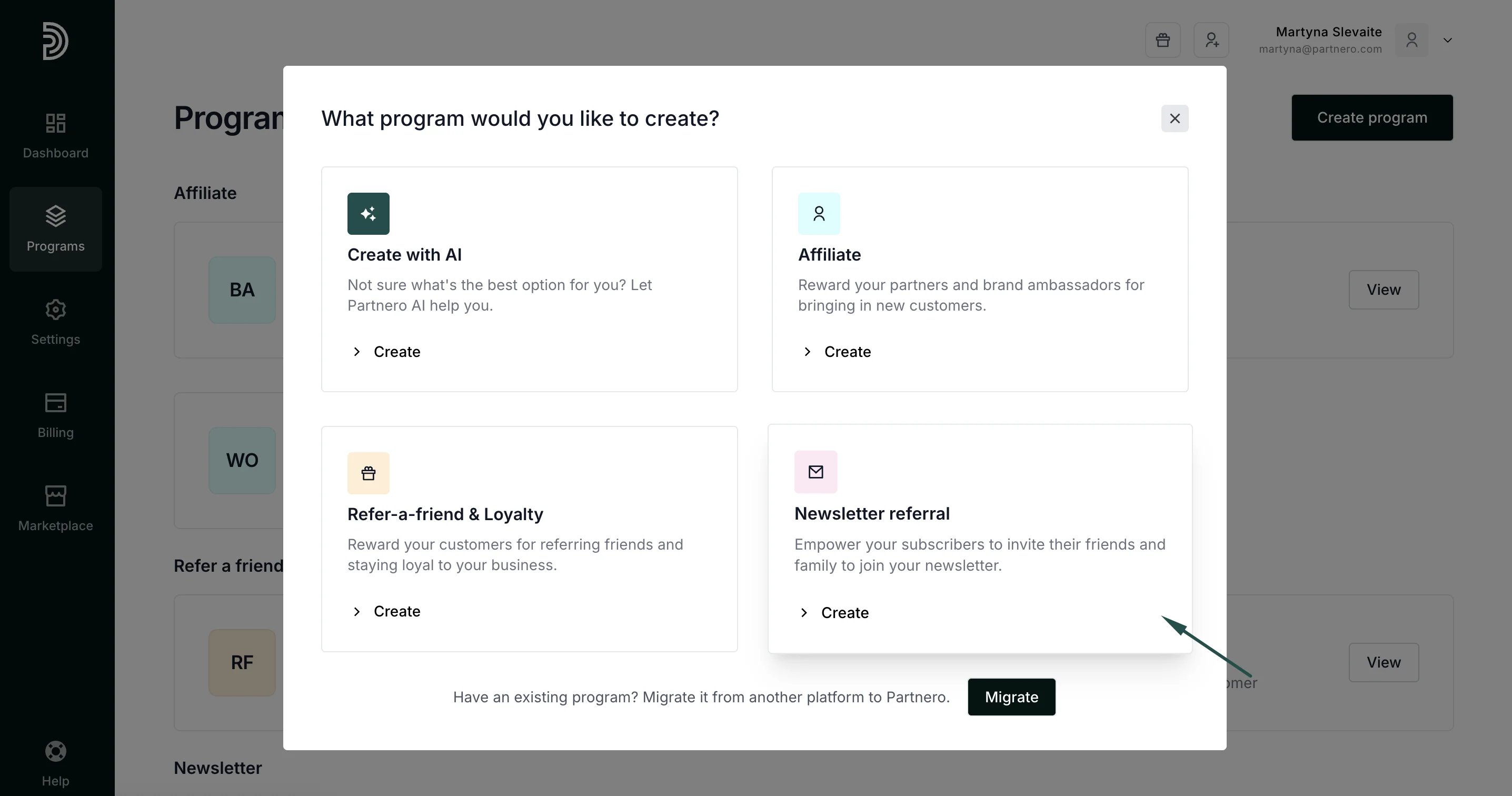
- Go to Programs and click Create program. Select Newsletter referral program type:
- Enter the program name and choose what email service provider you’re using:
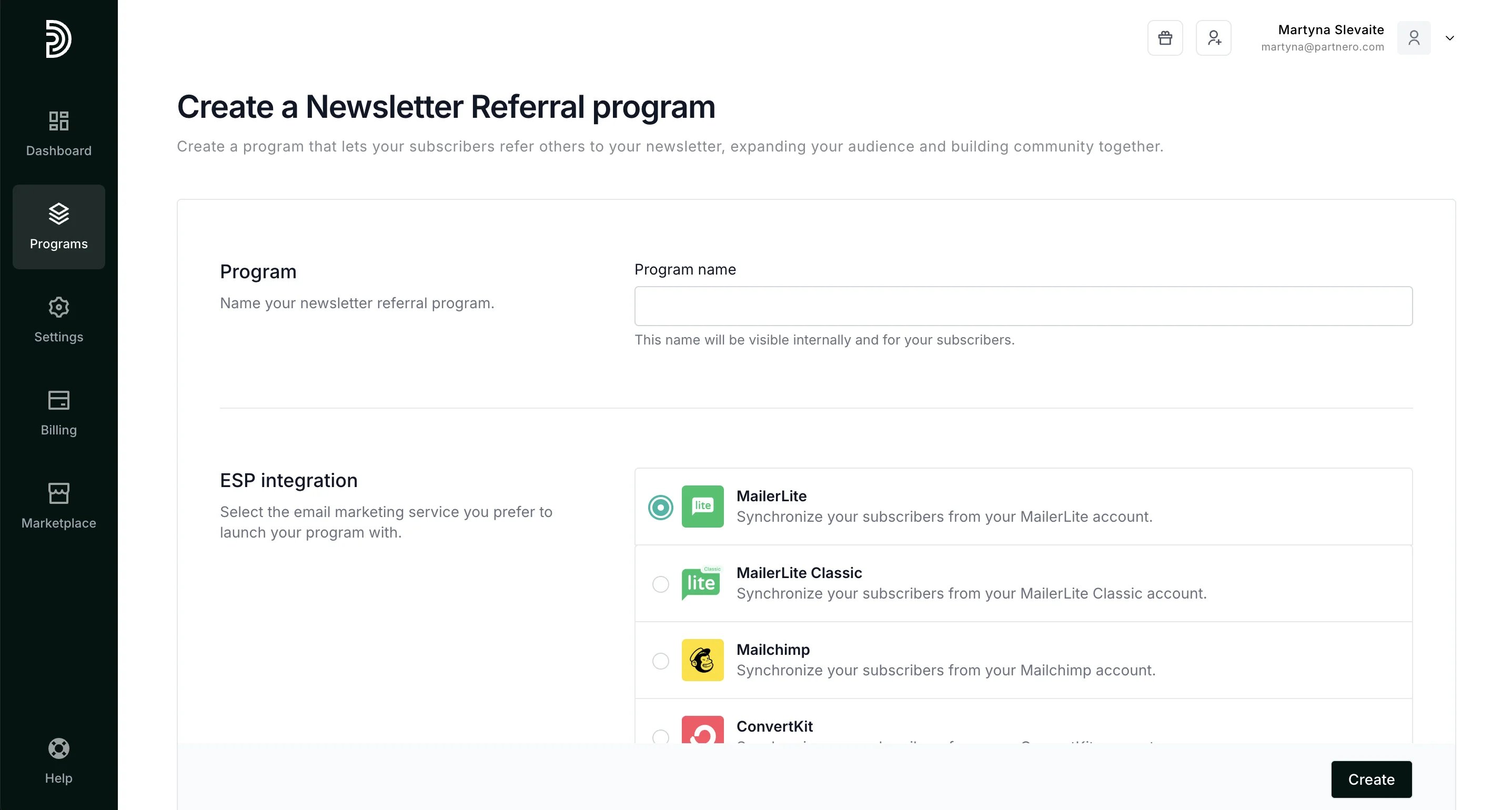
- Click Create.
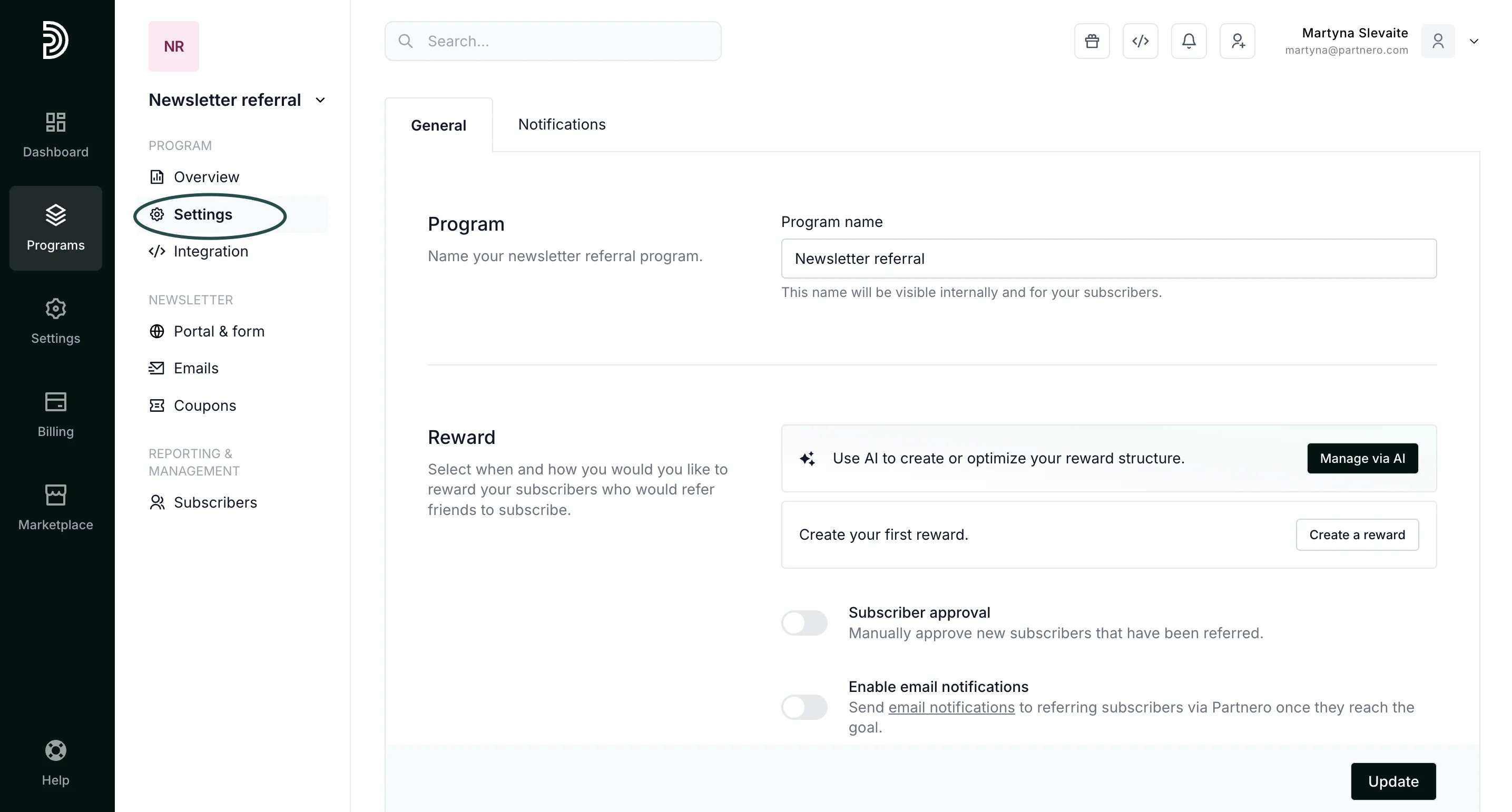
Program settings
The Program Settings page contains the following:- Program name - this name will be visible internally as well as for your subscribers.
- Reward - set up the rewards to be issued to your subscribers.
- Subscriber approval - option to manually approve each referred subscriber.
- Email notifications - option to send email notifications for referring subscribers when they reach the goal.
- ESP integration - option to connect your ESP with Partnero.
Set up rewards
To set up program rewards:- Go to Settings under Program.
-
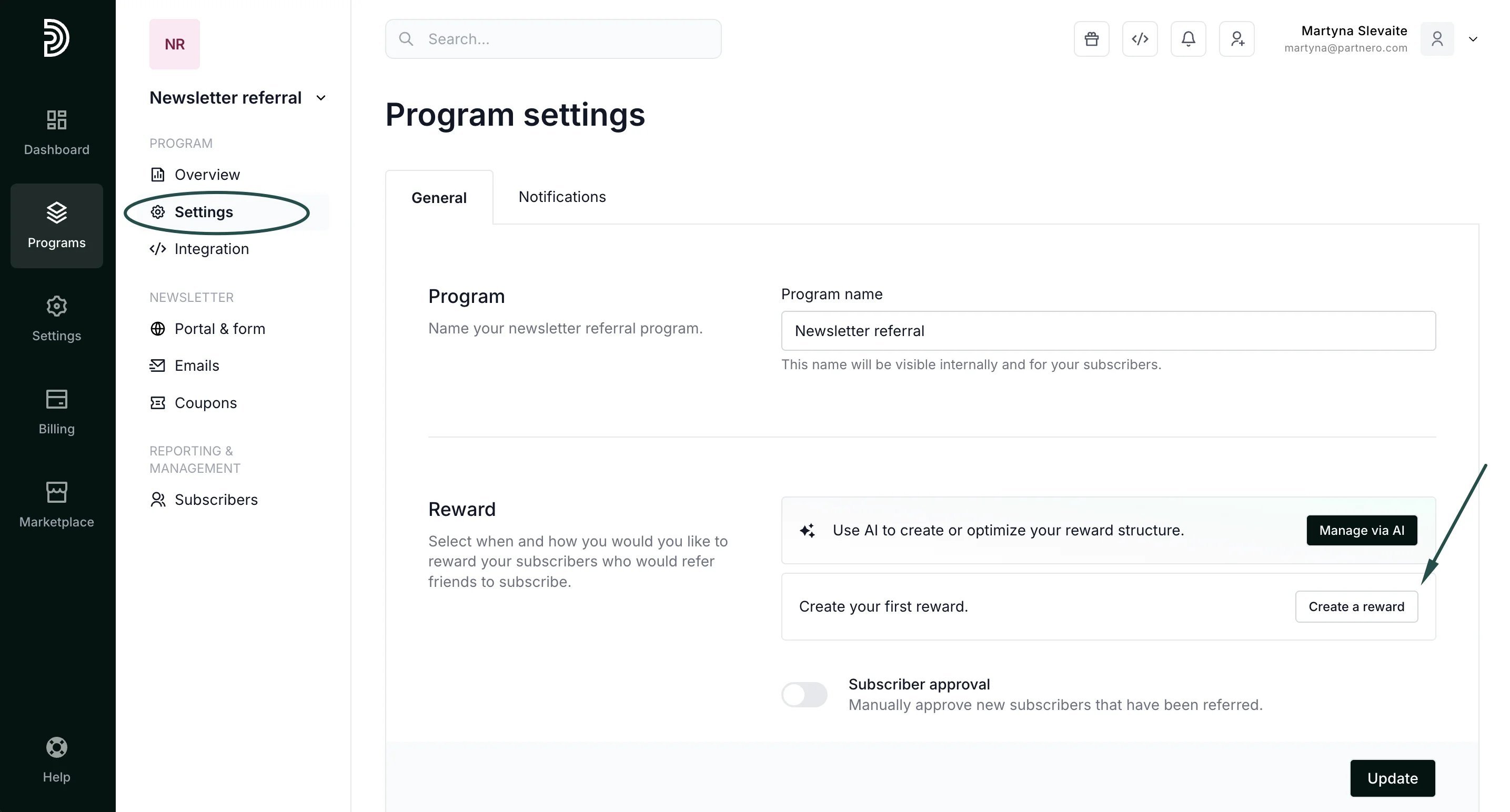
Click Create a reward under the Reward section:
-
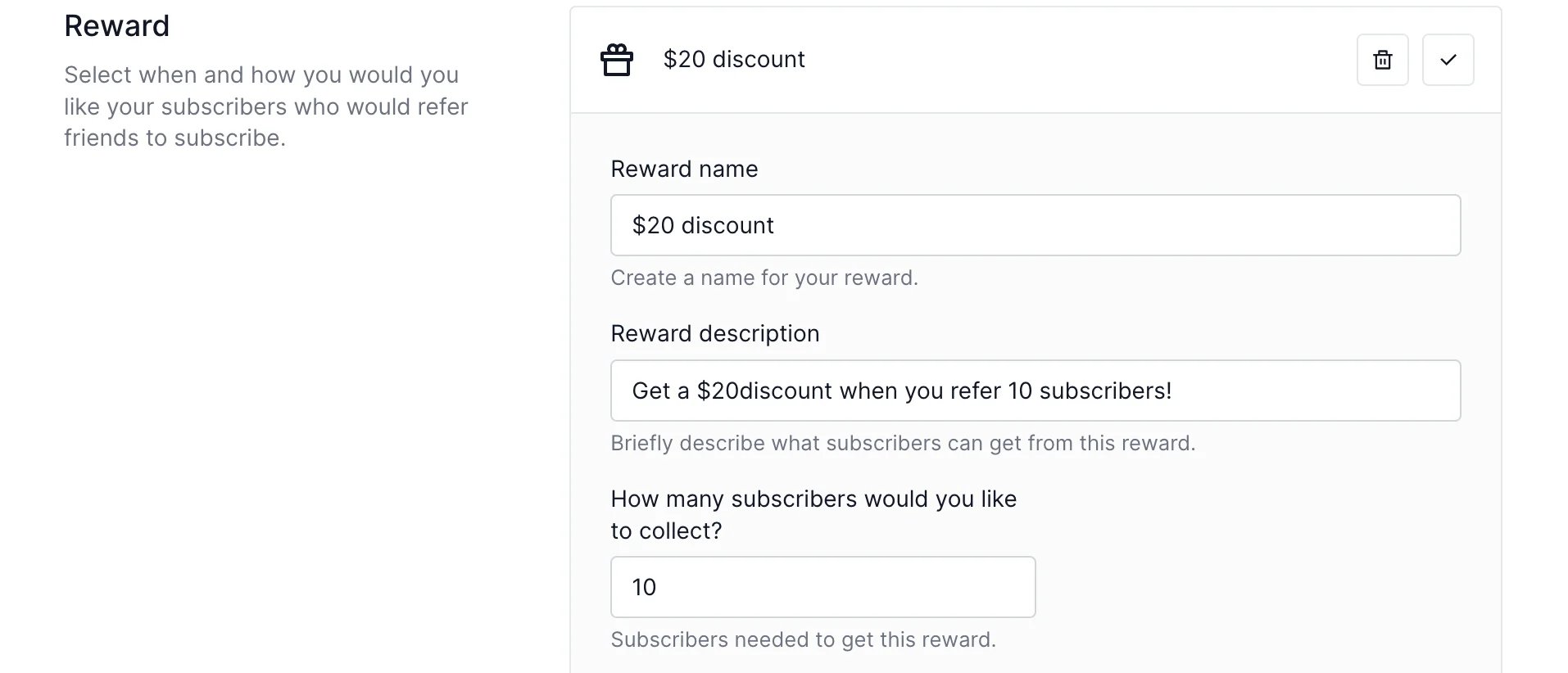
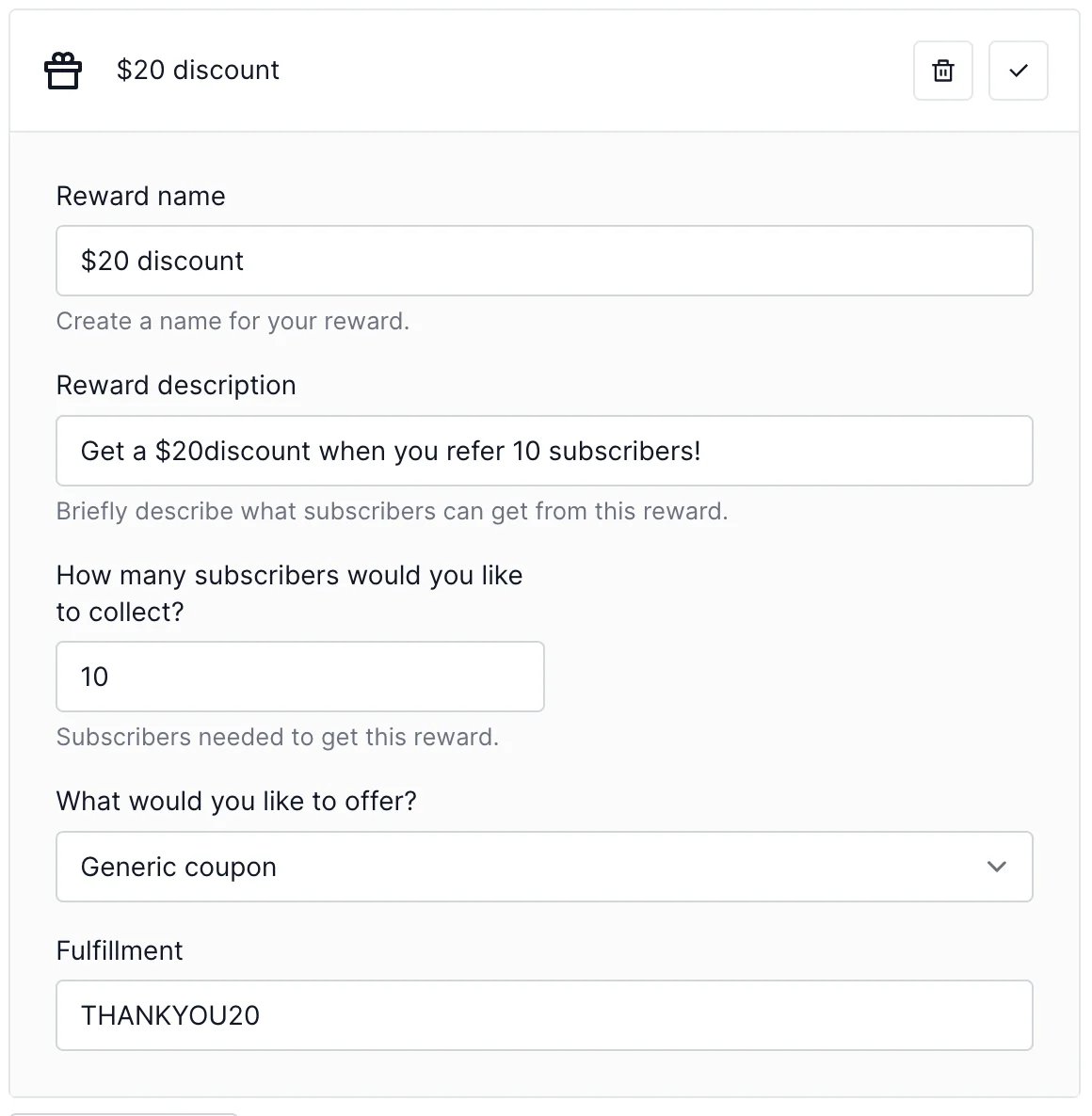
Add the reward name and description. Then add how many new subscribers should be referred in order to get this reward, e.g.:
-
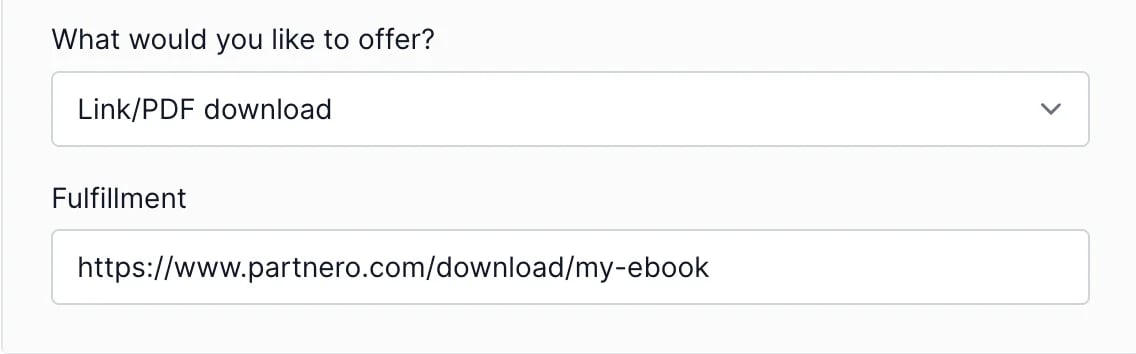
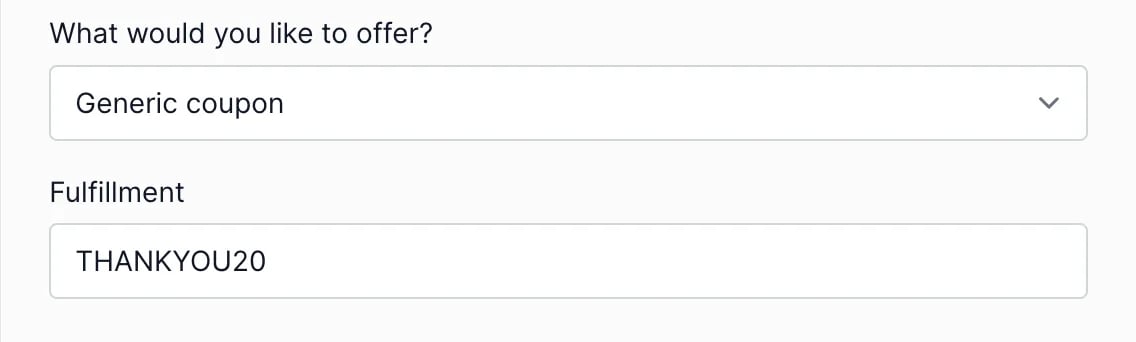
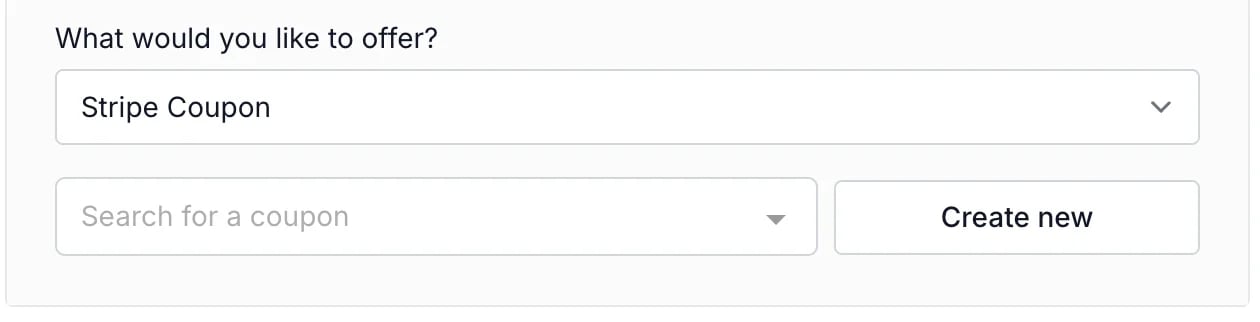
Set the reward Fulfillment based on the reward type:
- Link/PDF download - enter the URL where the file can be downloaded;
- Link/PDF download - enter the URL where the file can be downloaded;
-
At this step, you can set up additional (tiered) rewards. For example, you might want to offer another reward when someone refers 20 or 50 subscribers. Here’s an example of a reward setup:
- Click Update.