

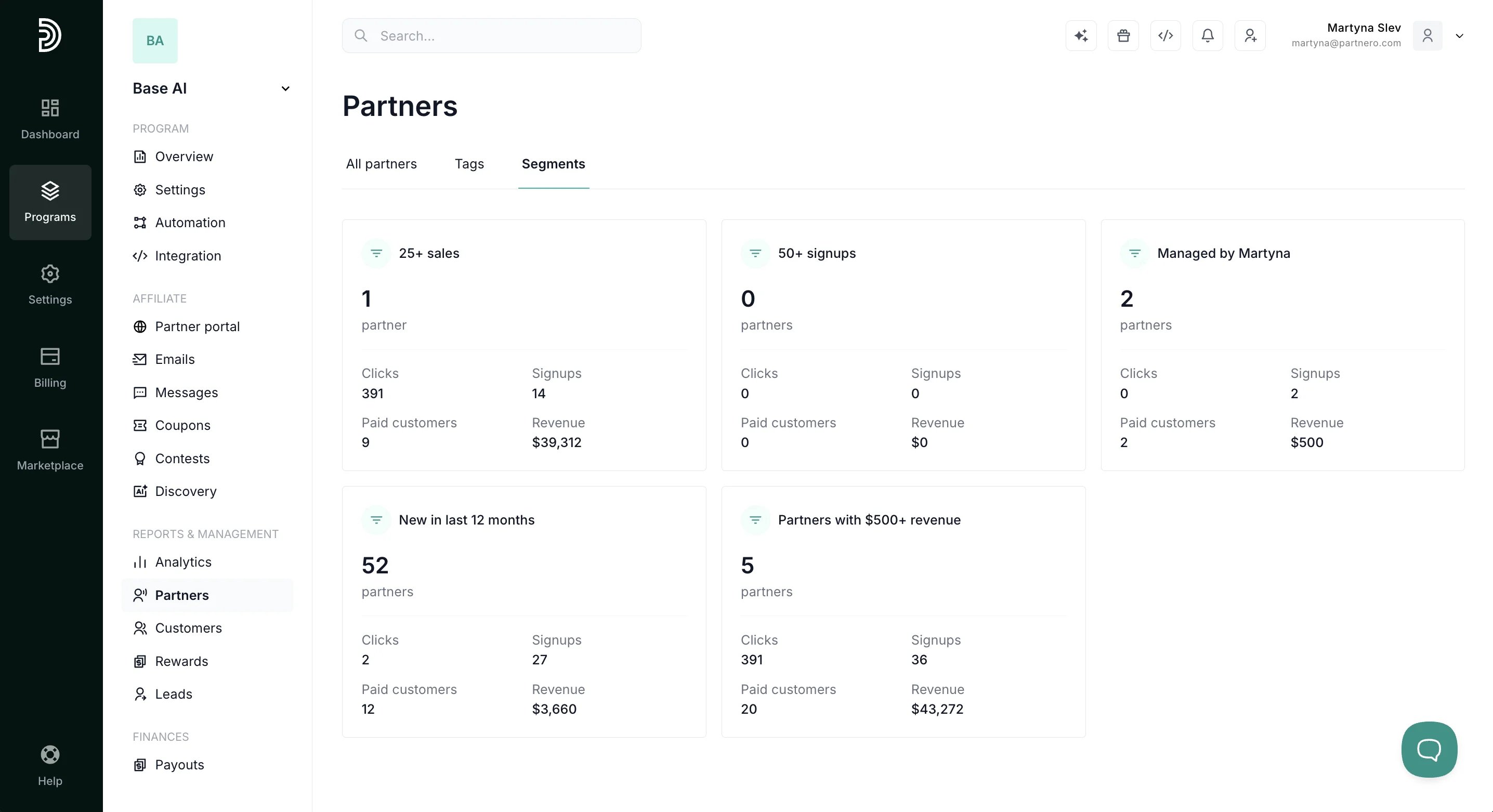
Create a segment
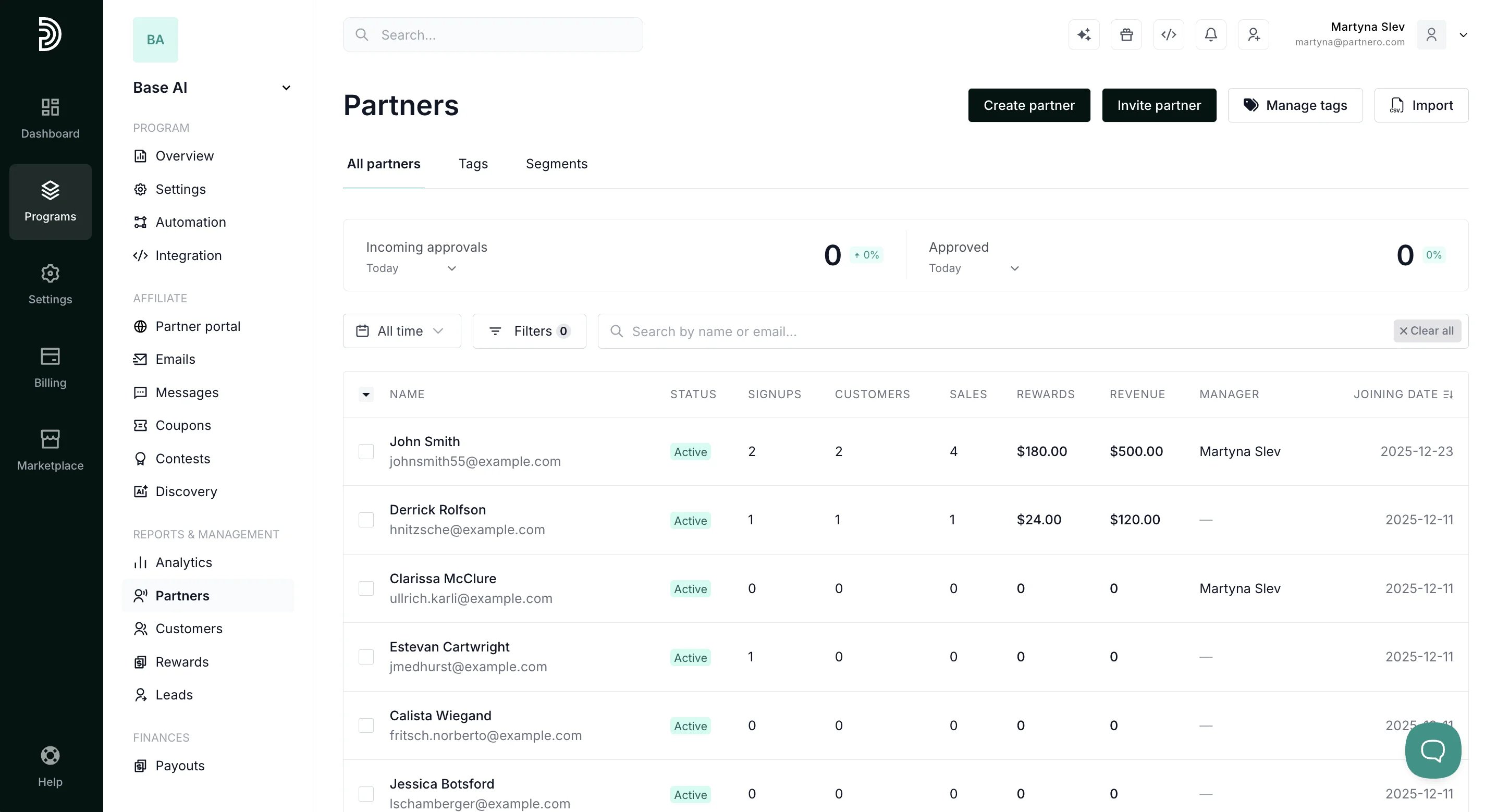
To create a segment:- Go to Partners and apply the filters you want to save:
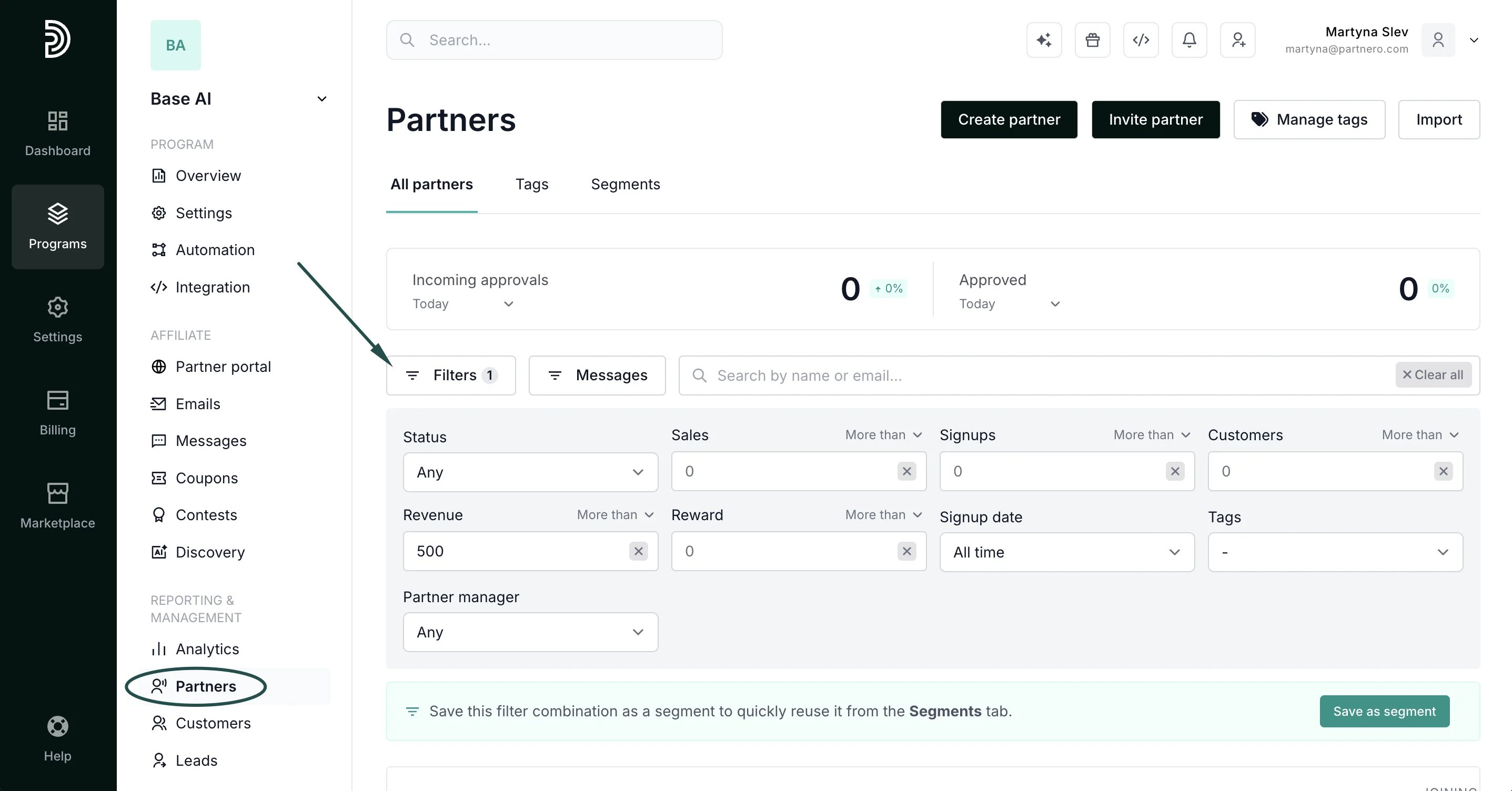
- In the filter panel, click Save as segment.
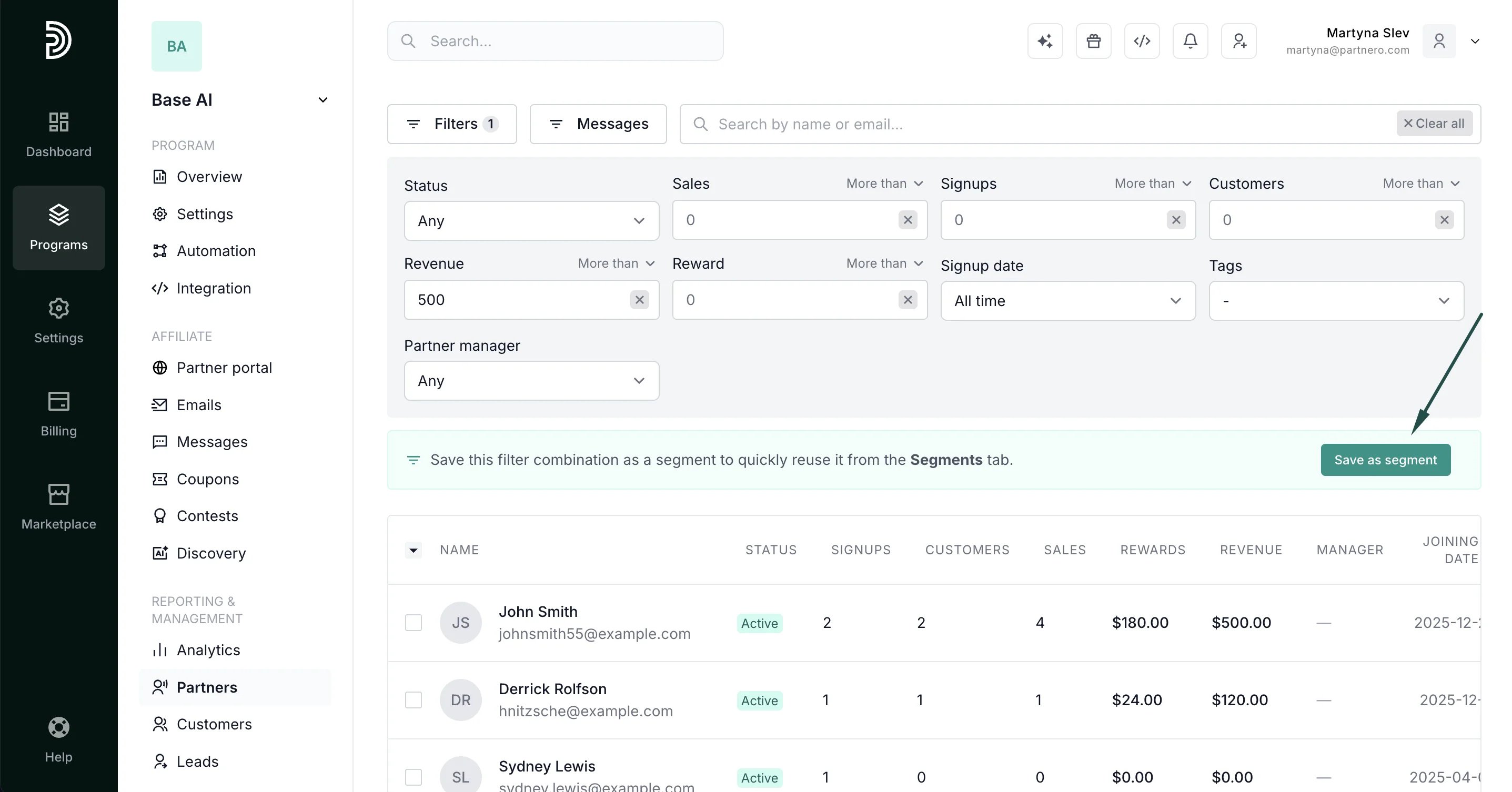
- Enter a name and click Save segment.
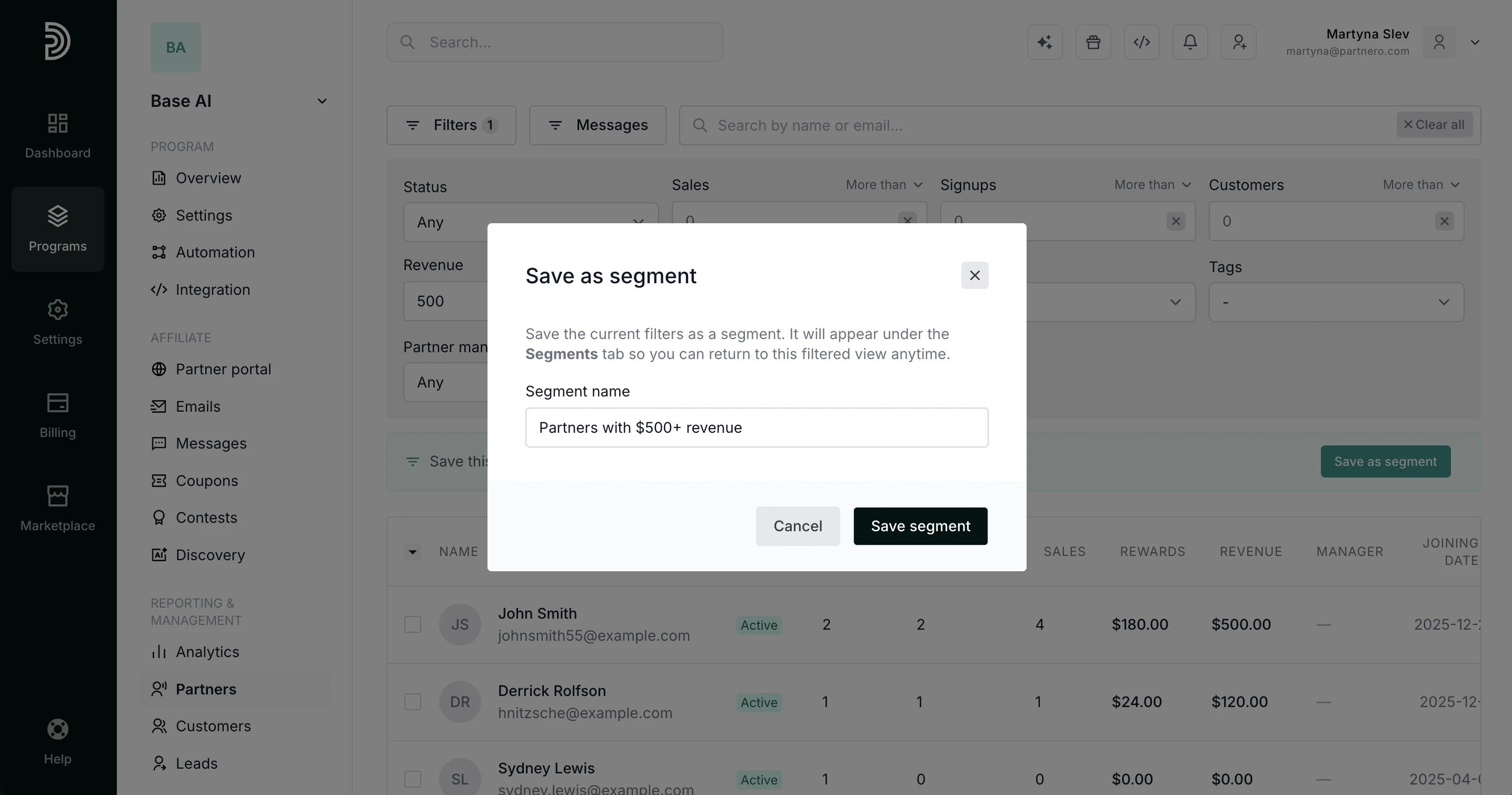
Using a segment
Click any segment card to open the pre-filtered partner list. The live count on each card always reflects the current number of partners matching that segment’s filters.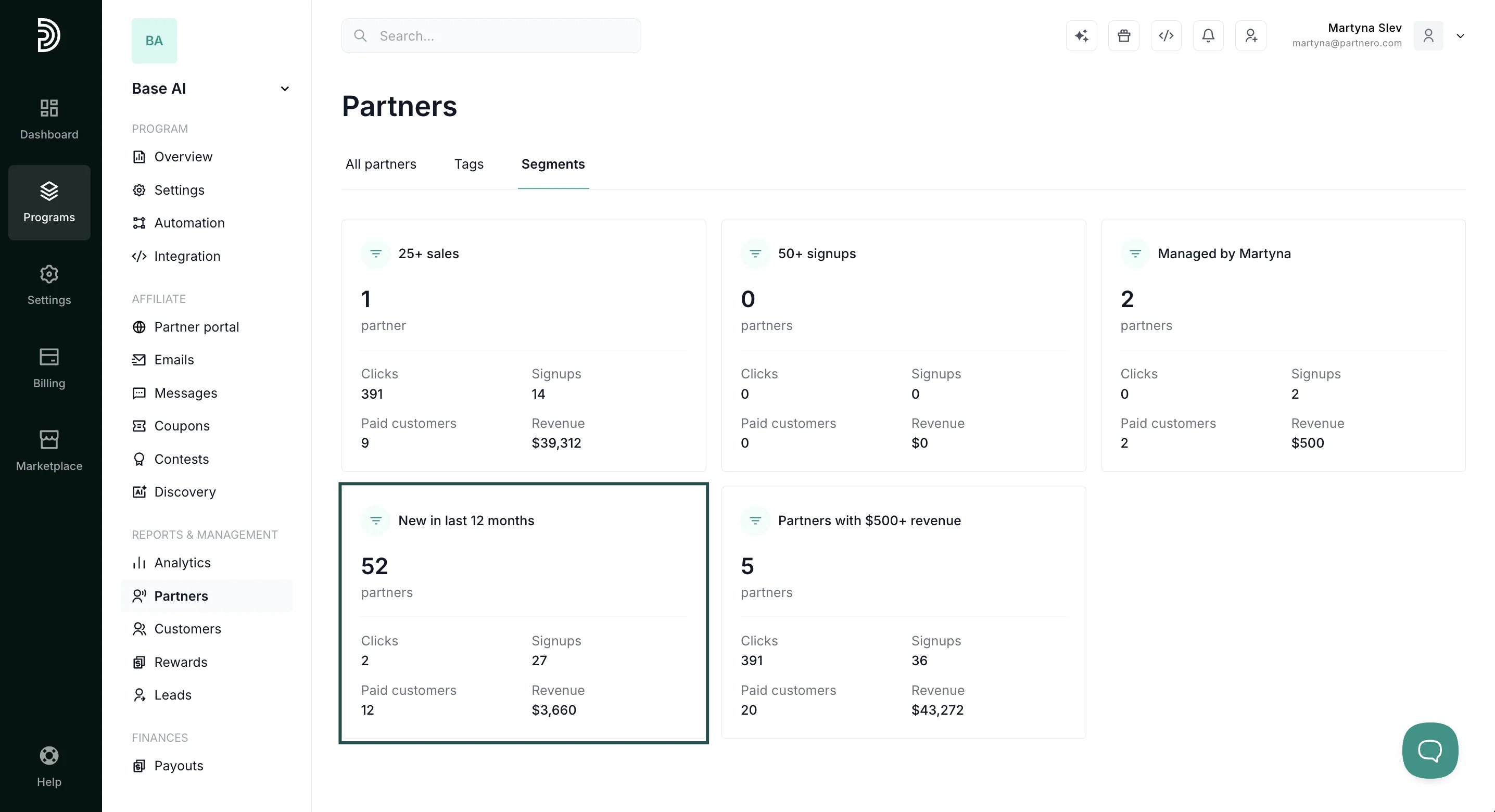
Update or save a new segment
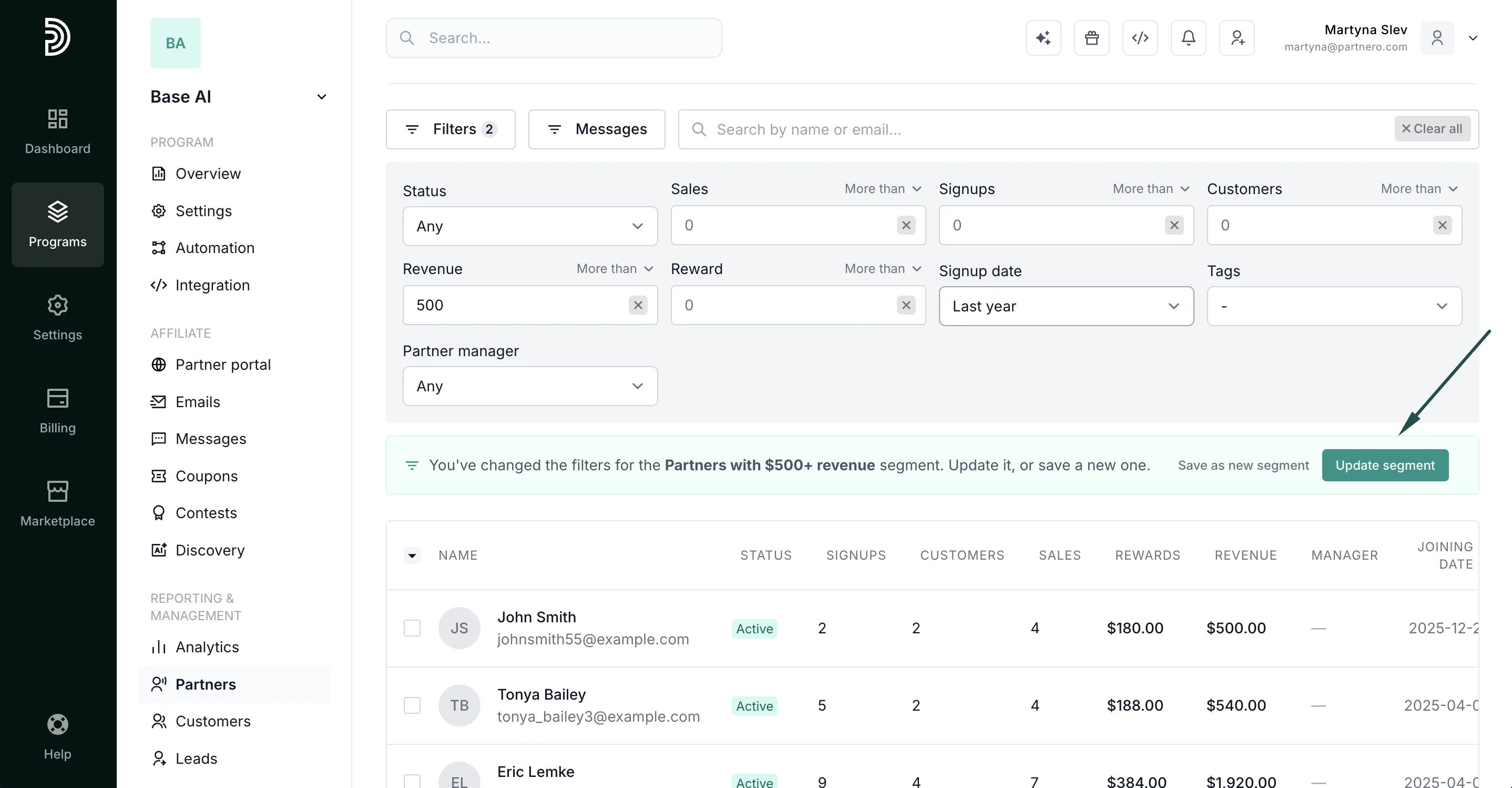
When you open a segment and make changes to the filters, you’ll see two options in the toolbar:- Update segment: overwrites the current segment with the new filter combination
- Save as new segment: saves the changed filters as a separate segment, leaving the original intact
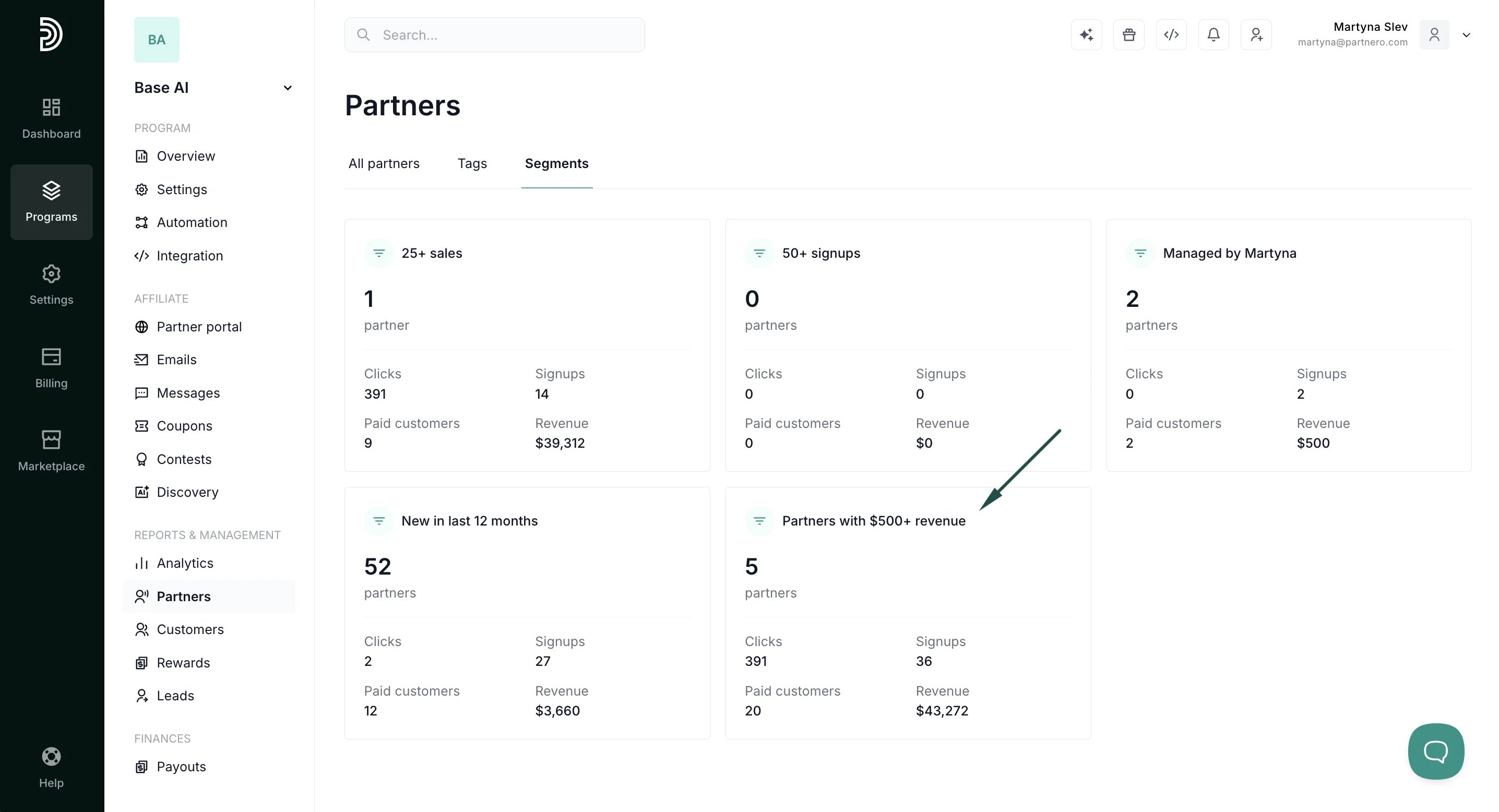
Performance overview by segments
The Segments tab shows performance for each saved segment, so you can compare groups of partners without opening each one. Every segment card displays:- Partners: the live number of partners matching the segment’s filters.
- Clicks: total tracked link clicks.
- Signups: customers referred by the segment’s partners.
- Paid customers: referred customers who generated at least one reward.
- Revenue: revenue attributed to the segment’s partners, shown per currency.
Good to know
- Stats respect the segment’s own filters, including any date range you saved with it.
- If a segment has a date range, the card reflects activity within that range, while the partner list columns always show lifetime totals — so the two can differ for date-scoped segments.
- Cards load their stats individually. Larger segments may take a moment to populate.