Integrate WooCommerce Coupons
First, you’ll need to integrate WooCommerce coupons into your Refer-a-Friend program. Click here for detailed instructions.Important: This integration is separate from the general WooCommerce integration and needs to be done in addition.
Set up dynamic WooCommerce coupon rewards
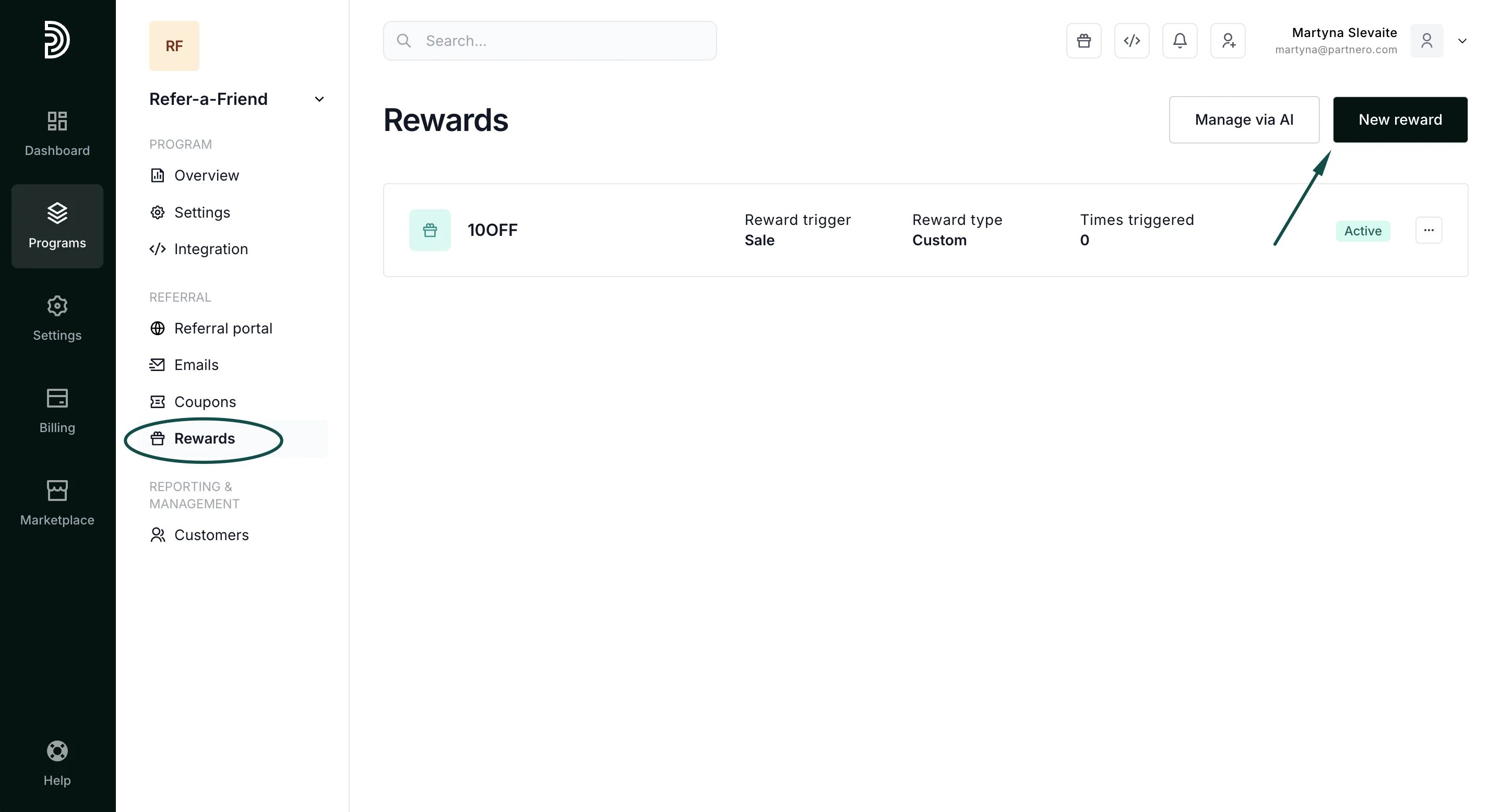
- Open your refer-a-friend program and go to Rewards under Referral. Click New Reward:
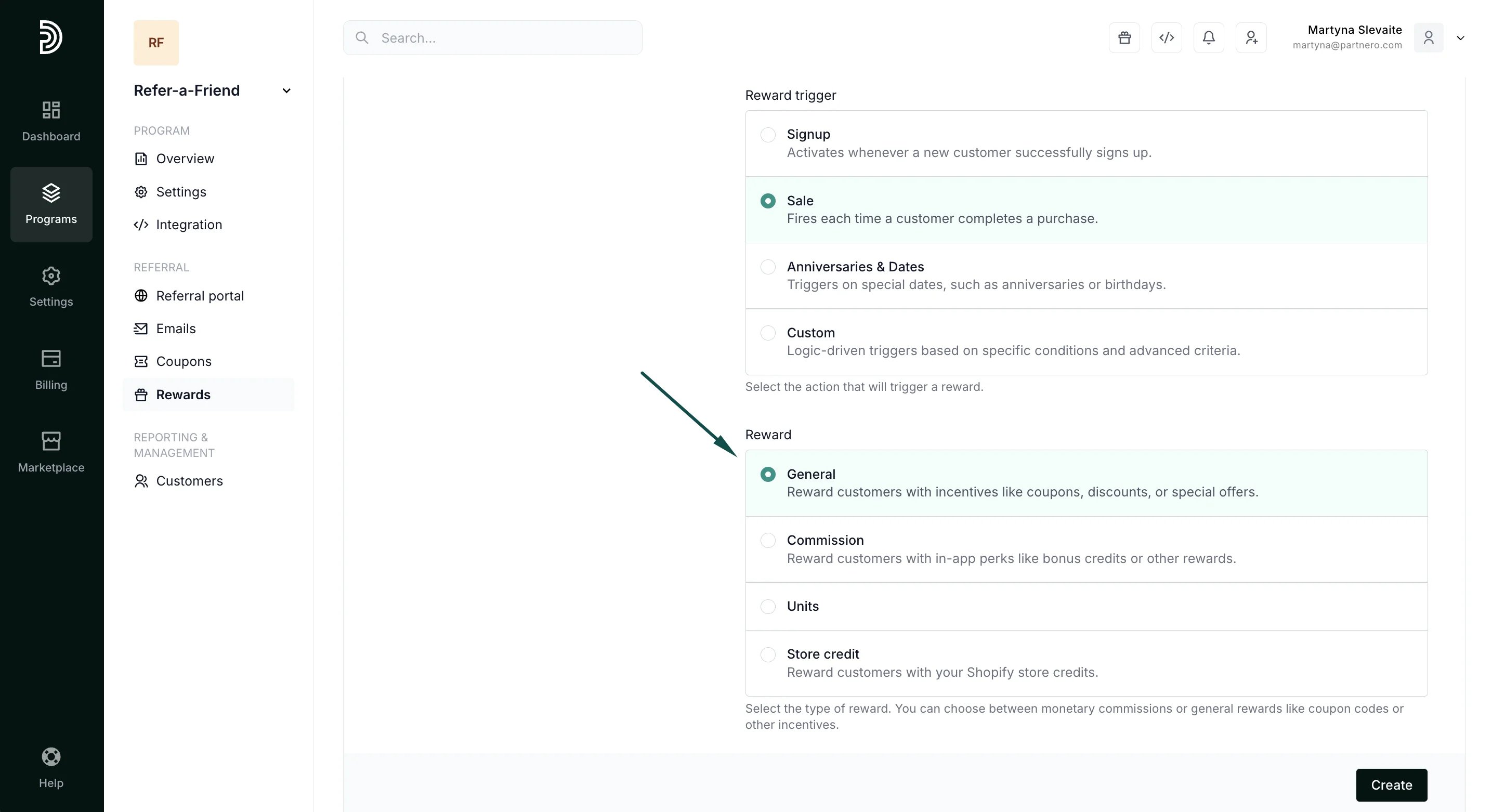
- Name your reward and select a trigger. In the Reward row, select General:
- Both the referring and referred customers will have the option to receive a Dynamic coupon:
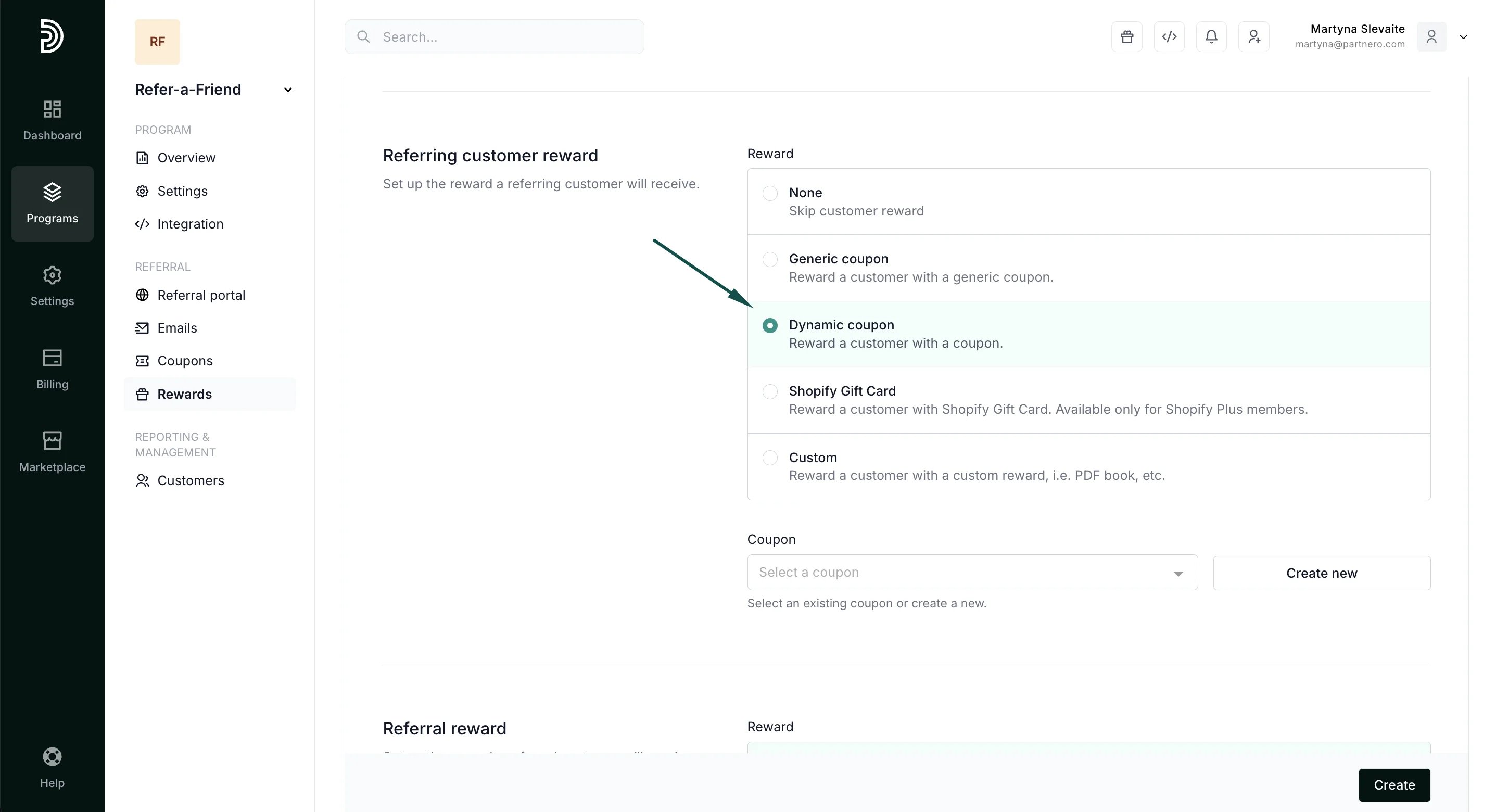
- If you have already created coupons under the Referral > Coupons, you can search and select them. Please note that one coupon can be used for one reward (for both the customer and the referral). If you have a coupon already connected to a different reward, it will not be available here when you search. If you do not have any coupons, click Create new.
- You will be presented with a modal to set up the coupon details. Fill out the information and click Create coupon. We’ll go through all the settings below.
Coupon settings and promotion codes
When creating a new coupon, you can define how it can be used. One coupon can have many promotion codes (customer-facing codes). First, you’ll have to set up the main details of the coupon: Coupon provide****r - if you’ve connected WooCommerce coupons to your program, you’ll see that option listed. Coupon name - an external name that will be shown to your customers.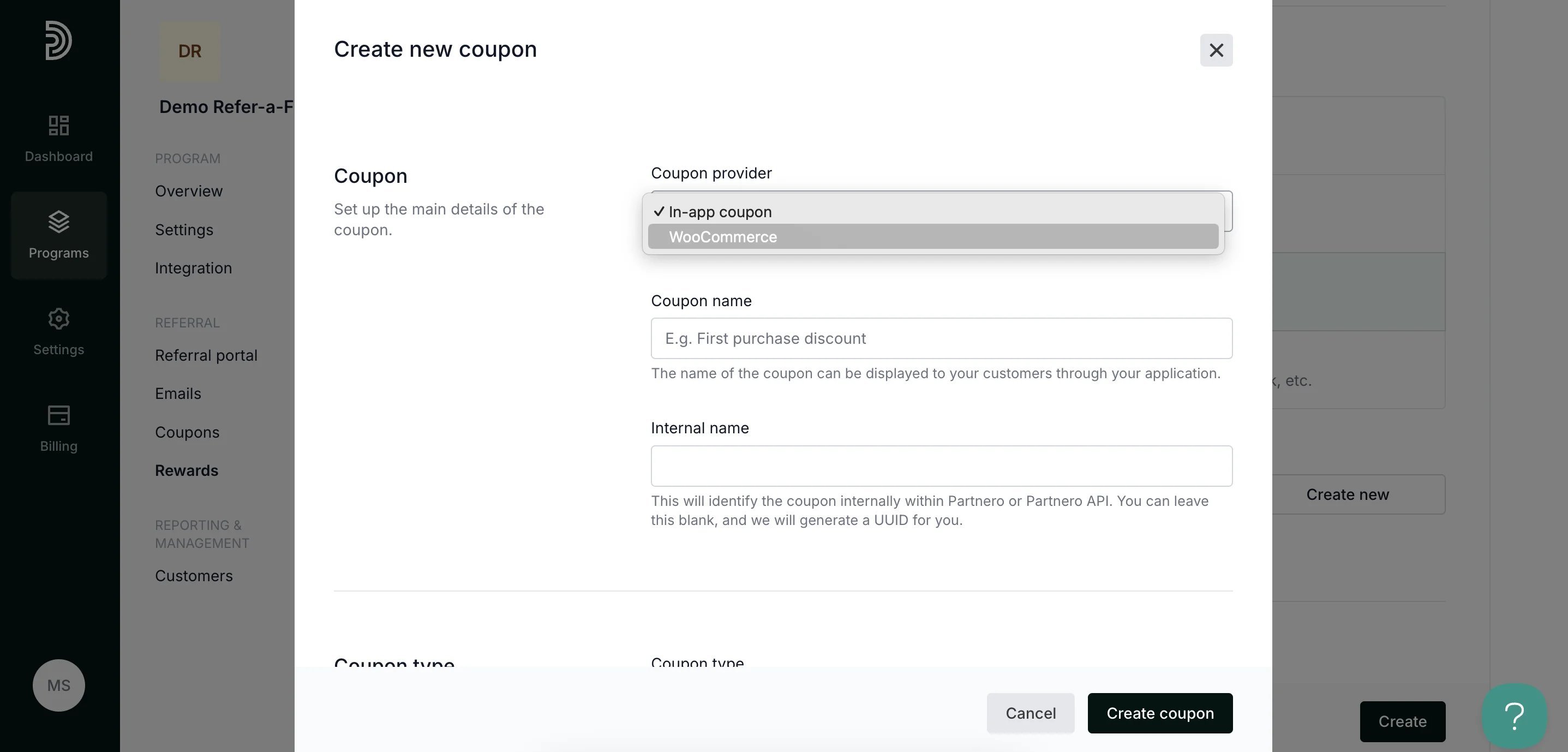
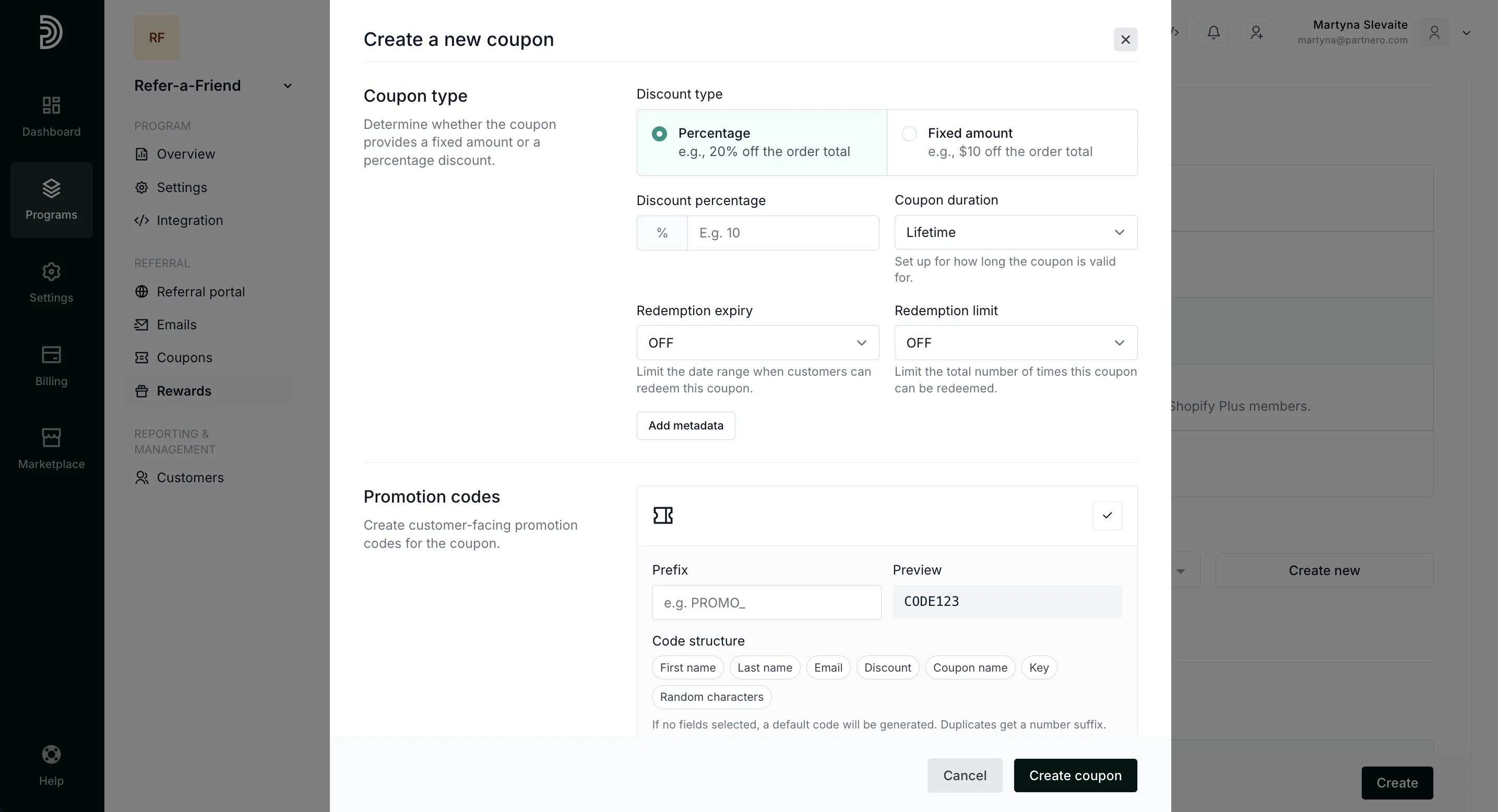
- Coupon duration: the period during which the coupon is valid.
- Redemption expiry: limit the date range when customers can redeem this coupon.
- Redemption limit: limit the total number of times the coupon can be redeemed.
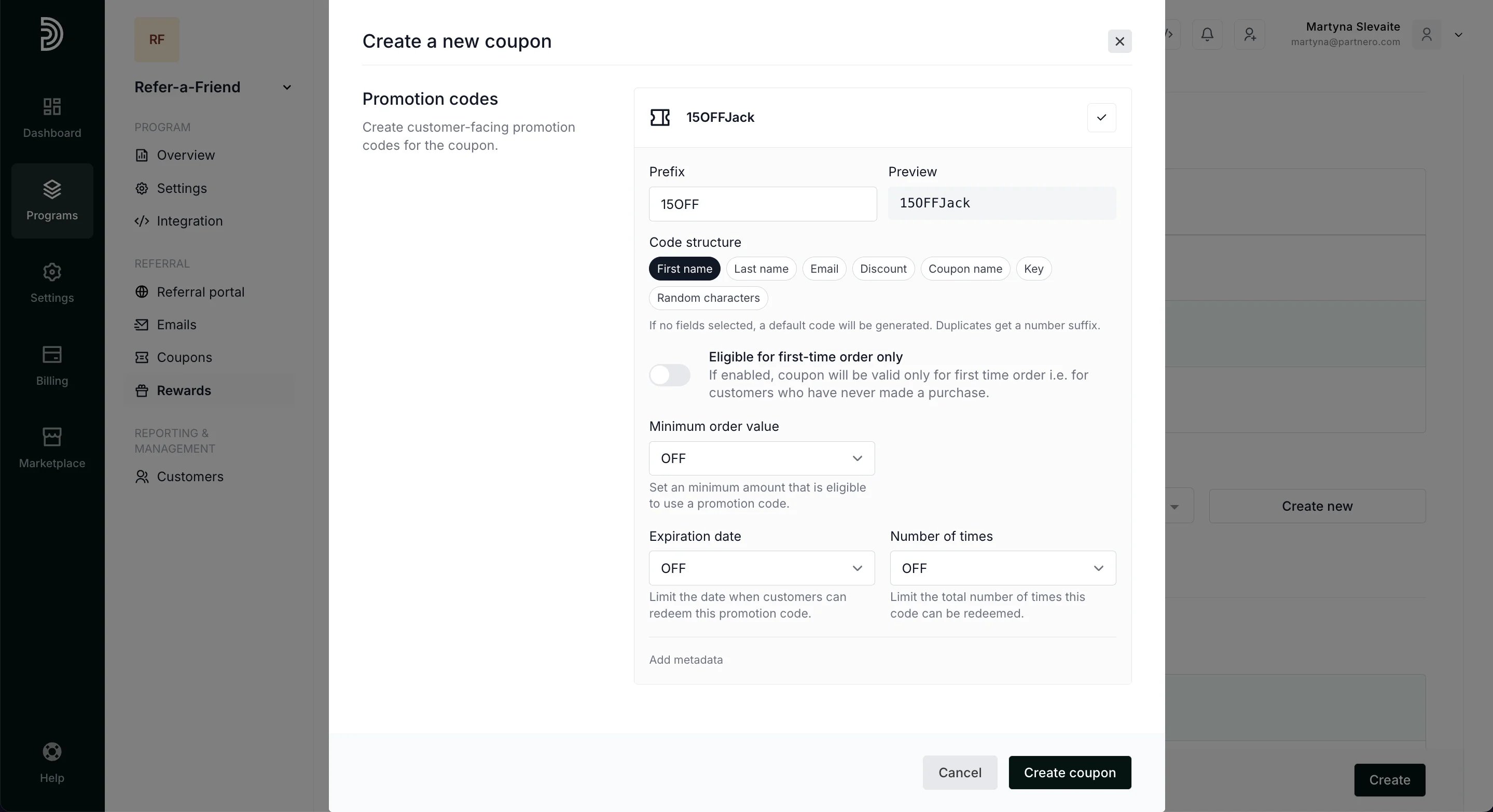
- Minimum order value: Set a minimum spend amount required to use a promo code.
- Expiration date: limit the date when customers can redeem the promo code.
- Number of times: limit how many times this promotion code can be used.
Coupon management
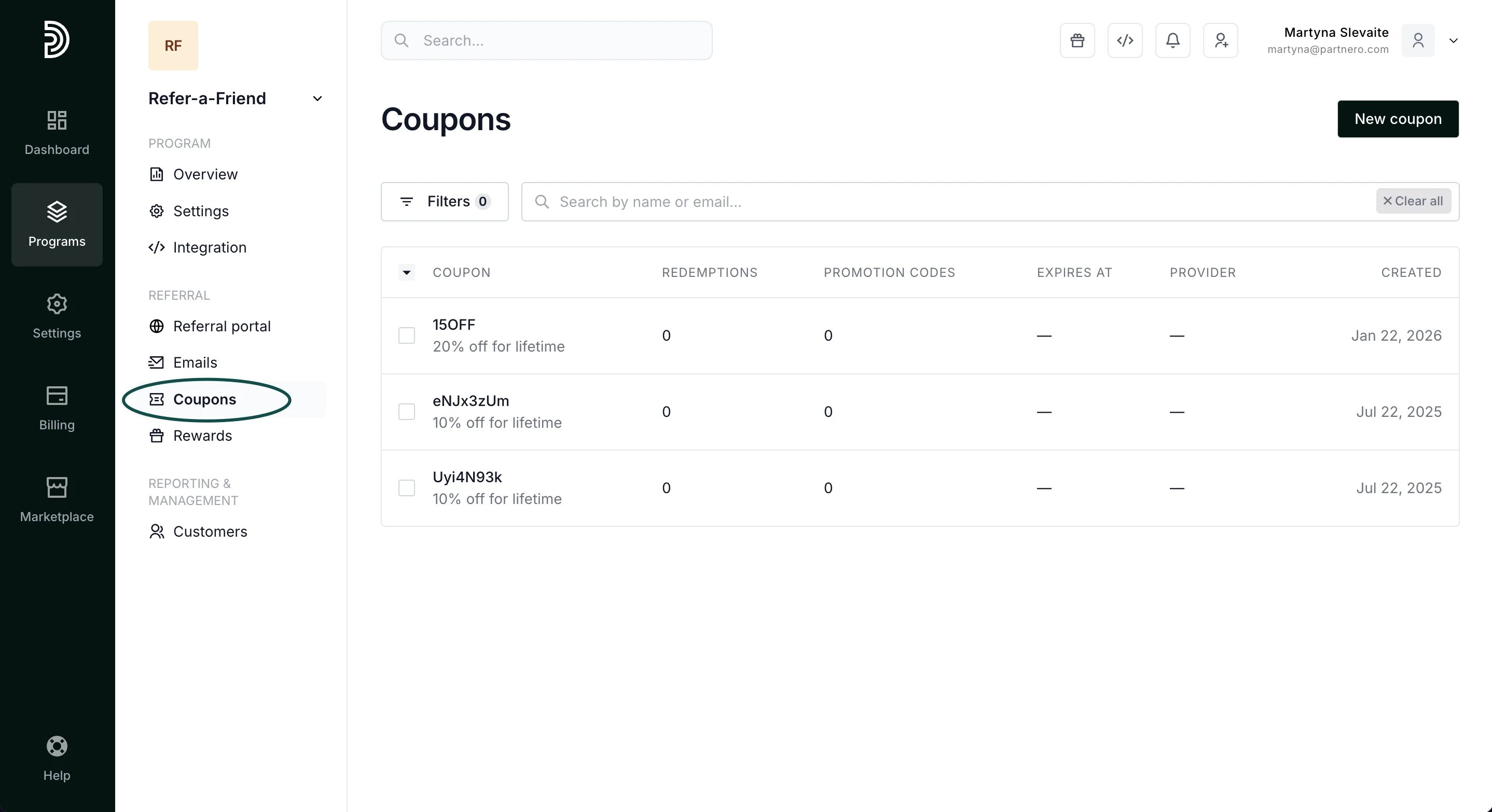
Once the coupon is created, it will also be available under Referral > Coupons: