

What is a program page?
A Program Page in Partnero is a dedicated, customizable landing page that showcases your affiliate program to potential partners. Hosted on the same domain as your partner portal, this page provides a professional space to explain what your program offers, highlight key benefits, and guide visitors to sign up. This feature is optional and can be used as an addition or replacement for standard program promotion on your website. Here are some of the use cases for a program page:- Promote on social media – Share your program page on LinkedIn, X, Instagram, or other platforms to attract affiliates, creators, and partners to sign up.
- Include in email campaigns – Use the page as the destination for partner recruitment emails sent to customers, leads, or your newsletter audience.
- Run paid ads – Drive targeted traffic from Google Ads or social ads directly to your program page to recruit new partners at scale.
- Link from your website – Add the program page to your site’s navigation, footer, or blog posts to capture organic interest from visitors.
- Partner outreach and pitches – Share the page with potential partners during direct outreach so they can quickly understand your program and apply.
- Community and forum sharing – Post your program page in relevant online communities, groups, or partner networks where potential partners are active.
Program page link (URL)
The program page will be hosted on the same domain as your partner portal, at /program. For example: Partner portal URL: partners.company.com Program page URL: partners.company.com/program To find your program page link and preview, open the program Overview tab and click View next to Program page: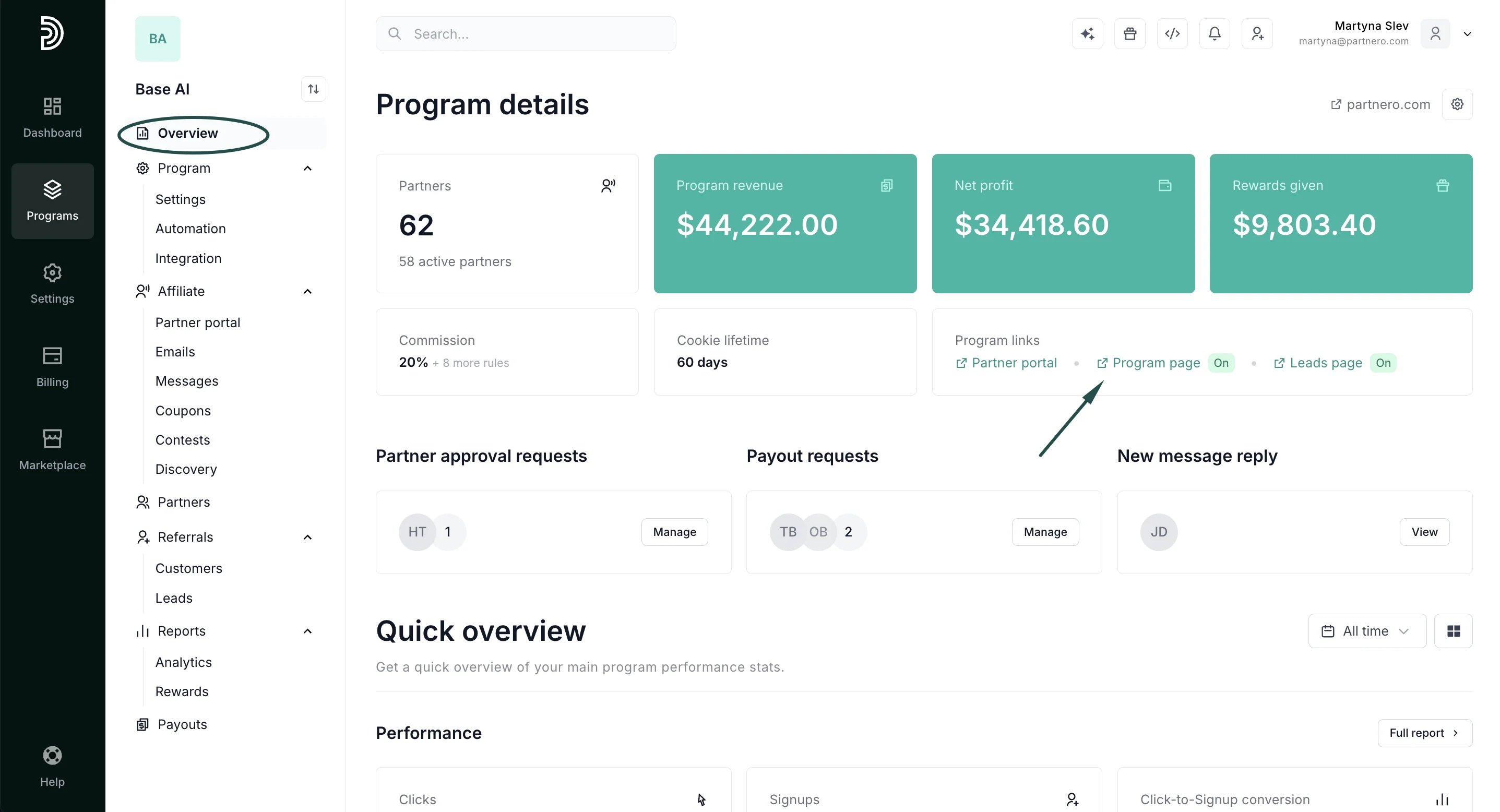
Add program page content
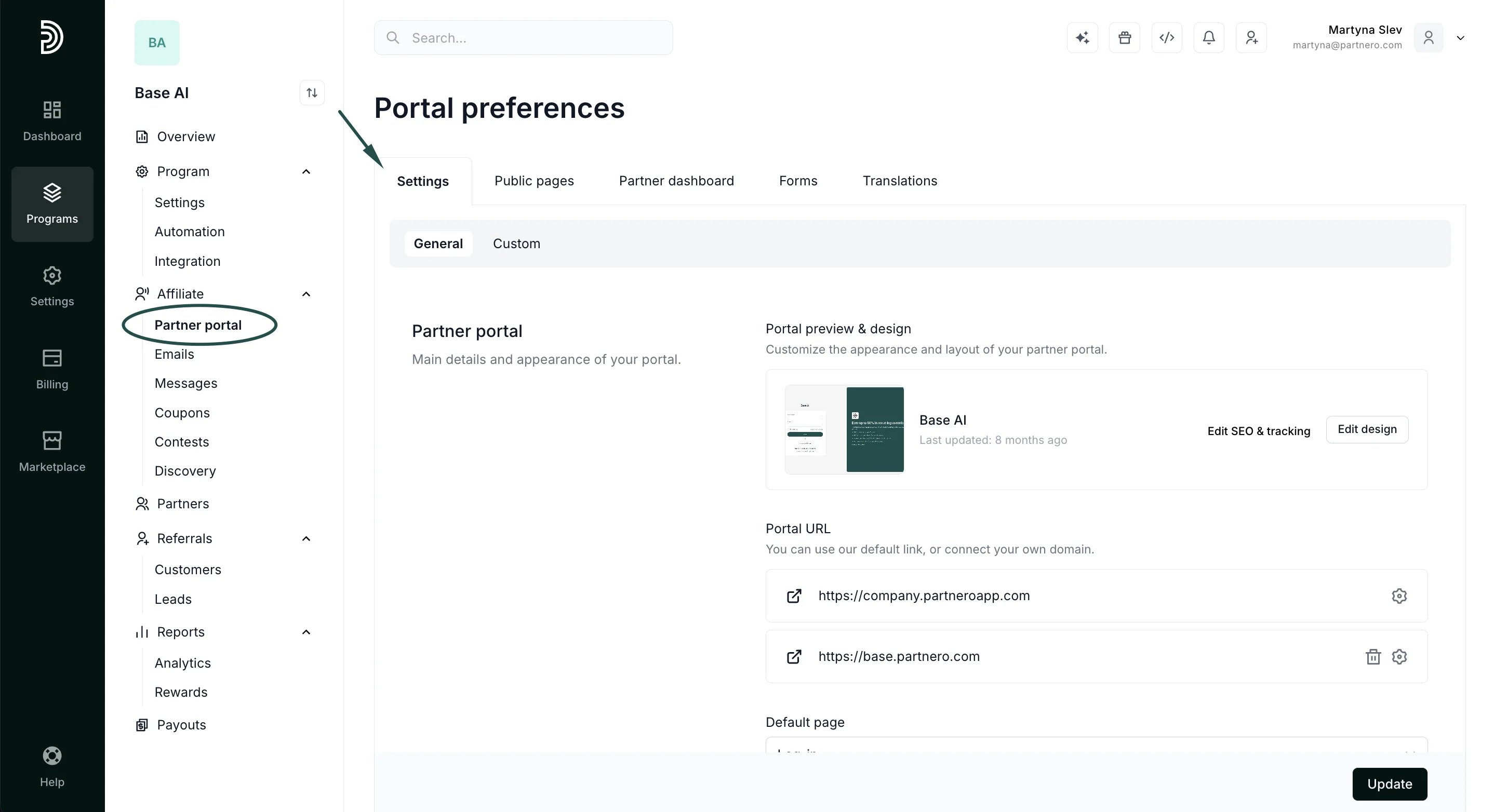
To add content to your program page:- Click on Partner portal under Affiliate.
- Switch to the Public pages tab → Program page:
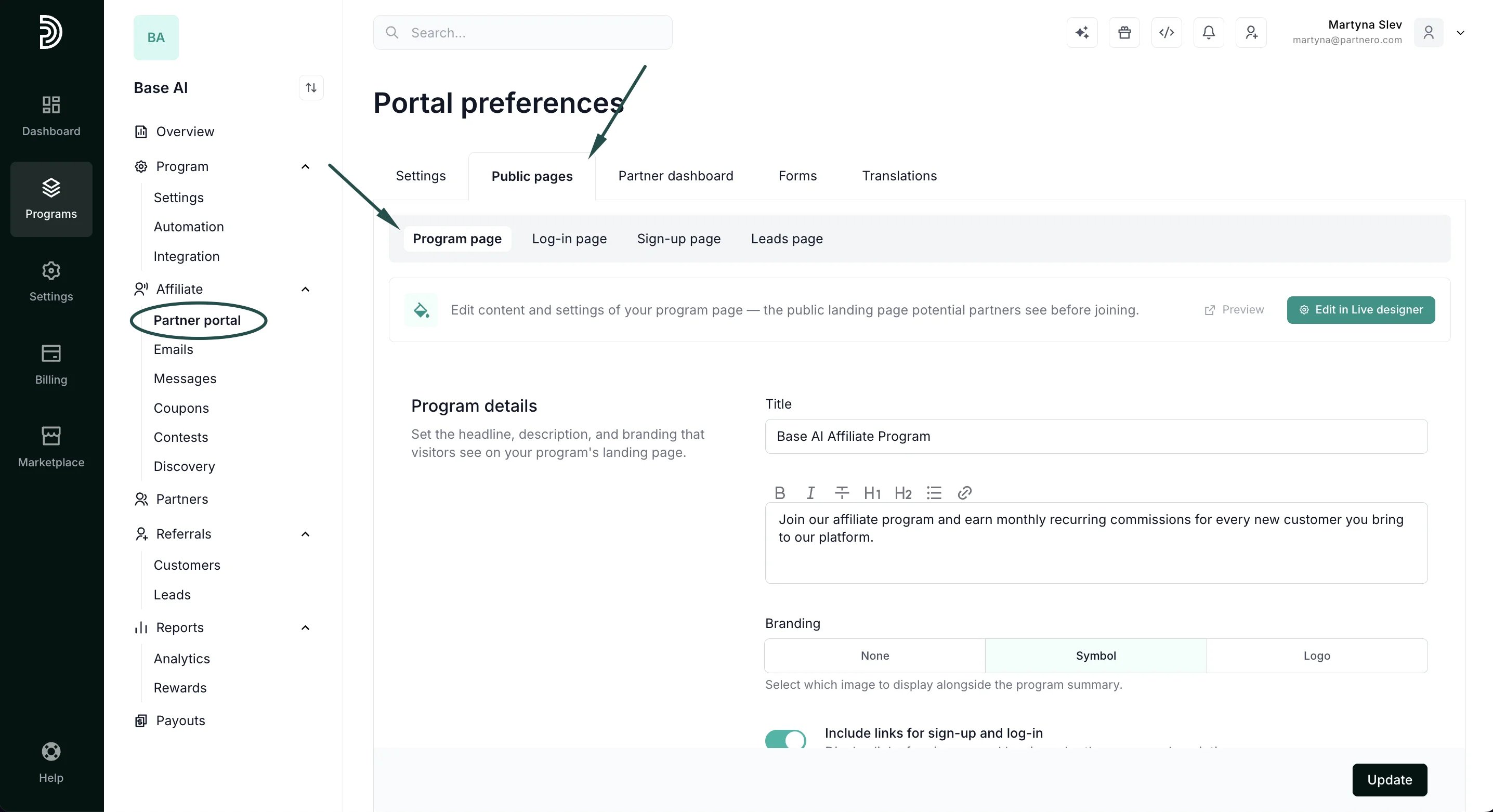
Program details
Add your program name and description. Then decide if you want to include links for sign-up and log-in pages, show commission structure, and include a footer: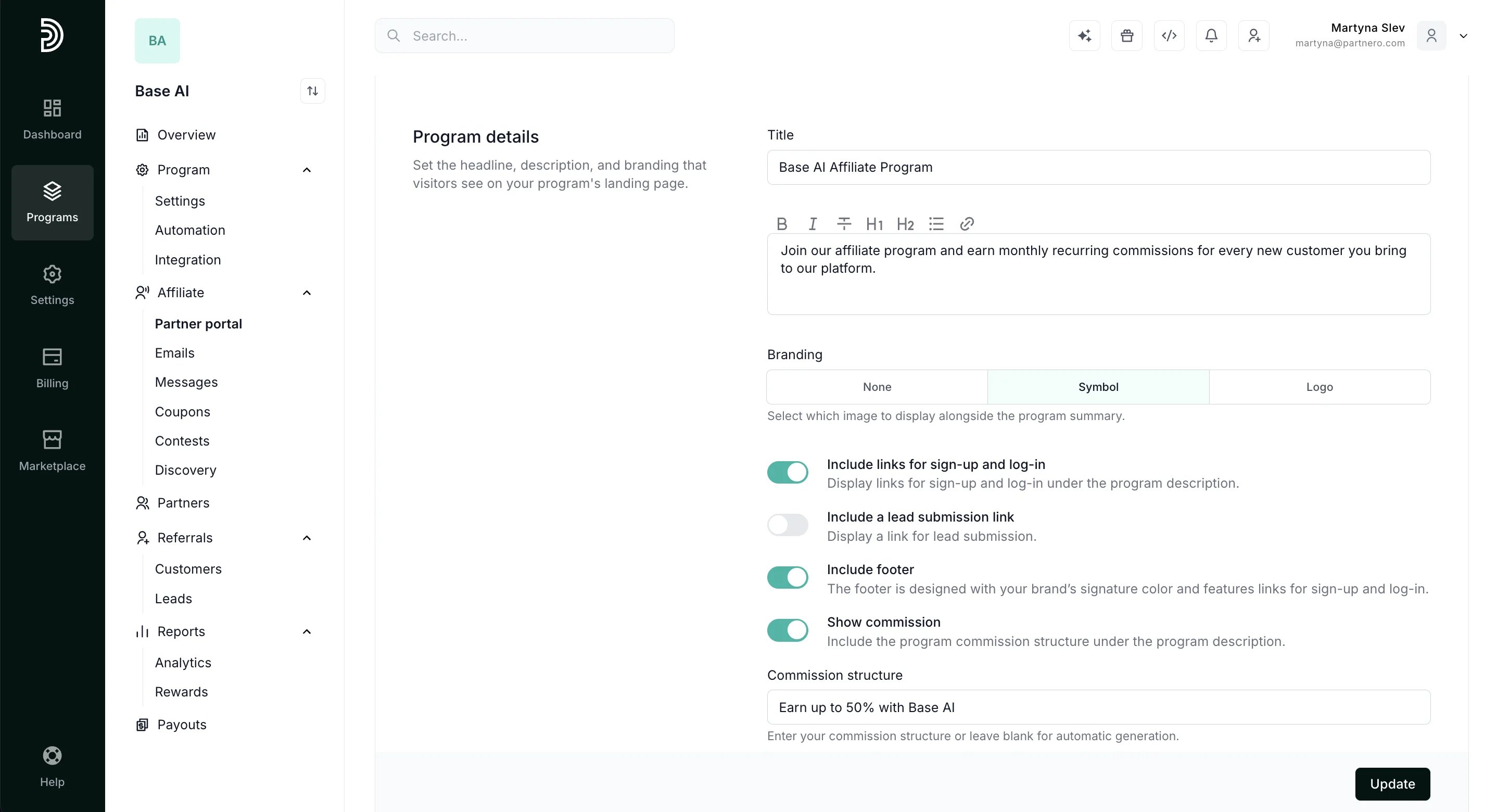
Page Content
Here, you can add your program details and upload various resources. For example, list the benefits of joining your program, discuss your product, or share other important information.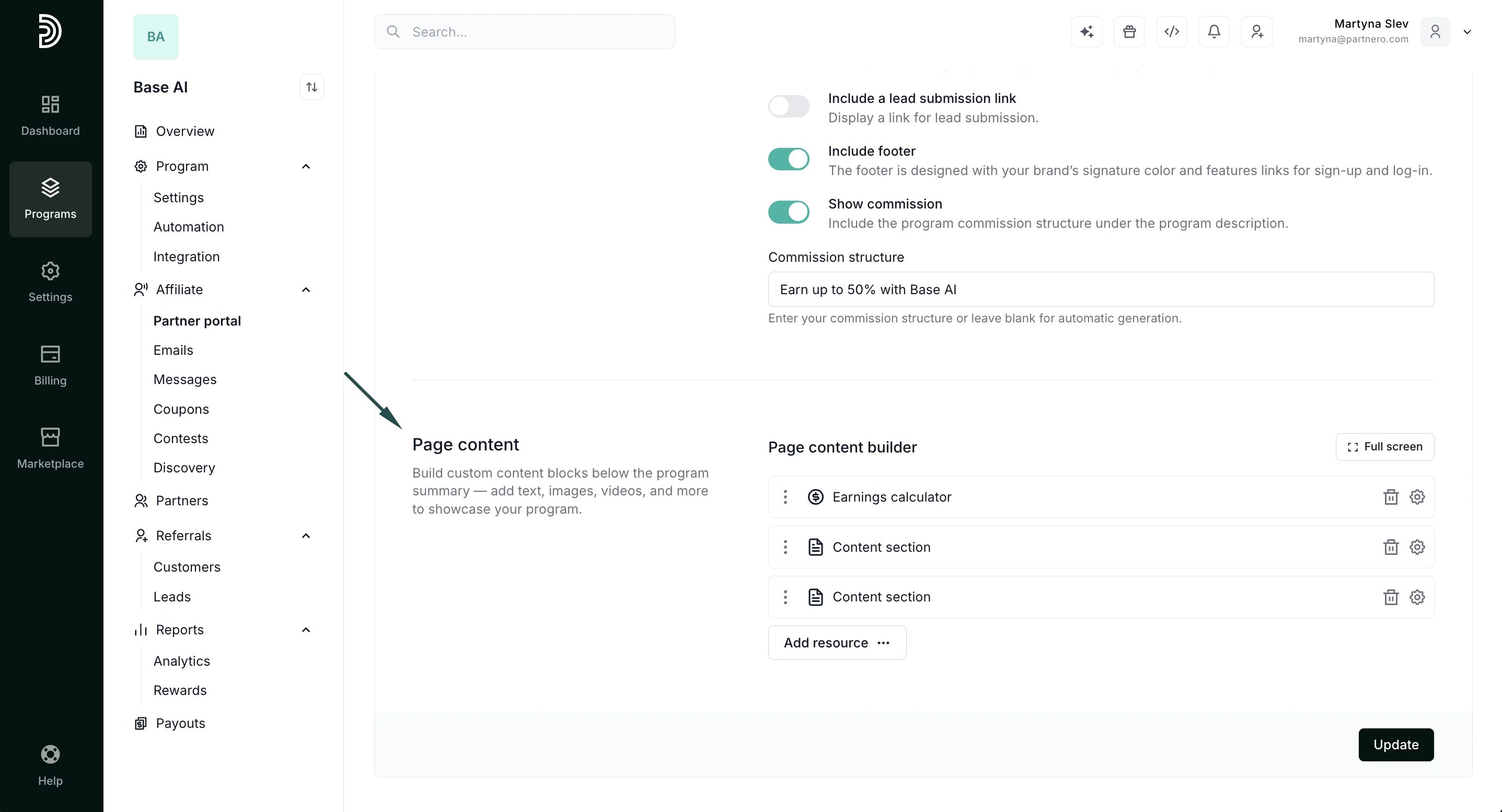
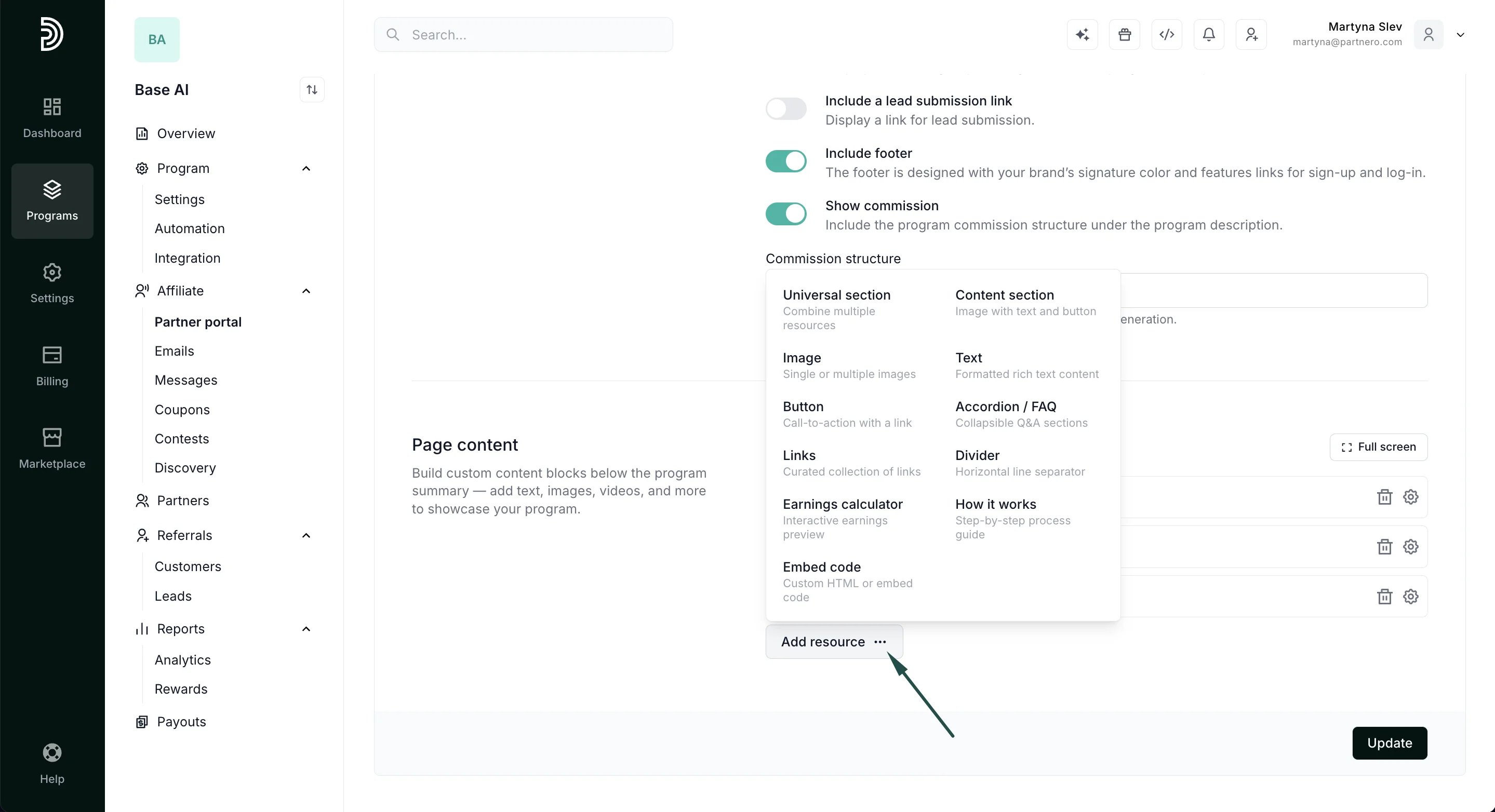
- Universal section (combines multiple resources)
- Content section
- Images
- Text
- Button
- Accordion / FAQ
- Links
- Divider
- How it works
- Custom code
- Earnings calculator.
Make sure to click Update after you fill in the informationAlternatively, the page content can also be added using the Live Designer, together with editing the page design - more on this option below.
Design the program page appearance
Use Live Designer to update the page design (and edit content or other settings):- Go to Partner portal under Affiliate.
- Switch to the Public pages tab → Program page and click Edit in Live Designer:
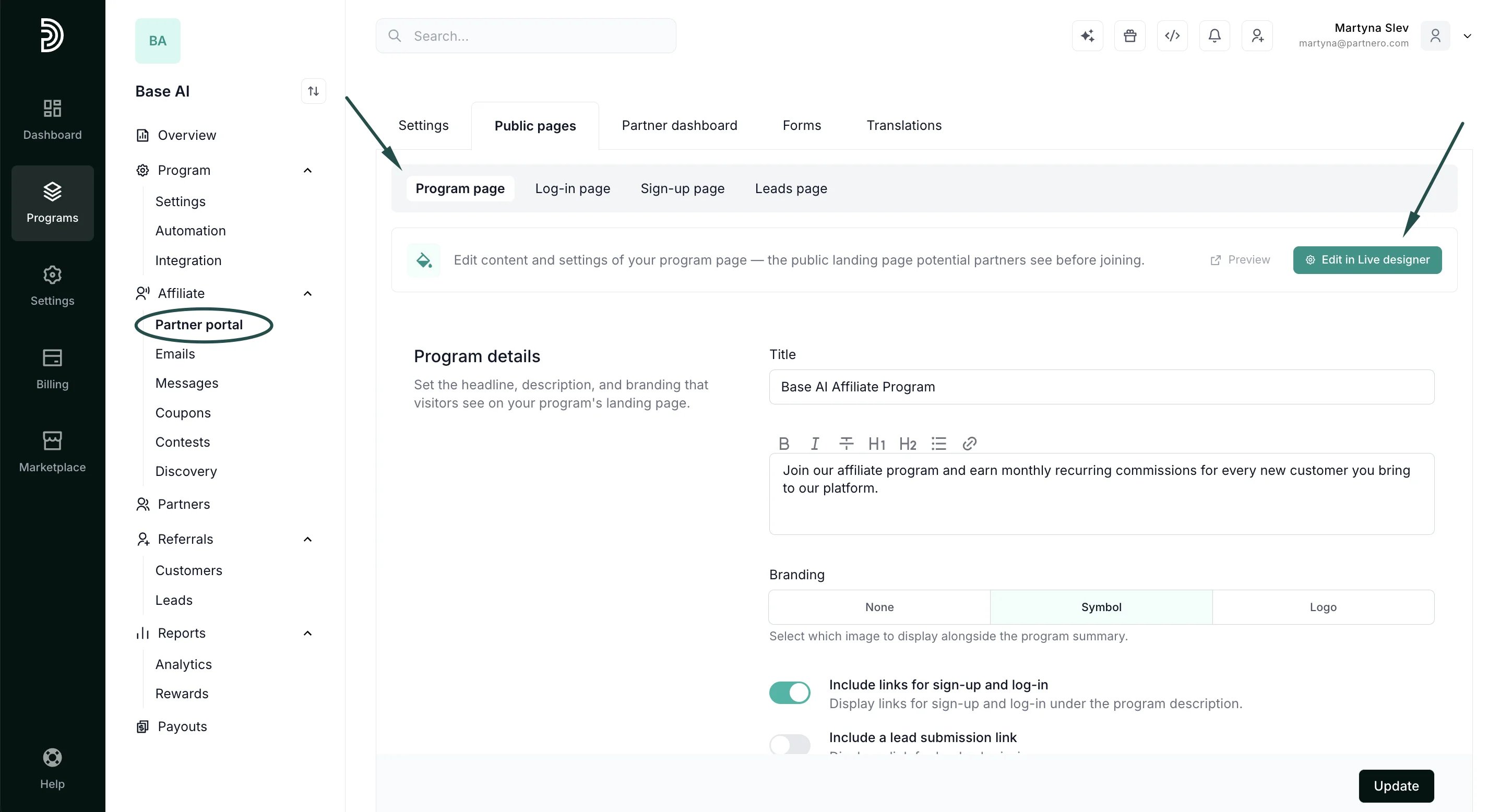
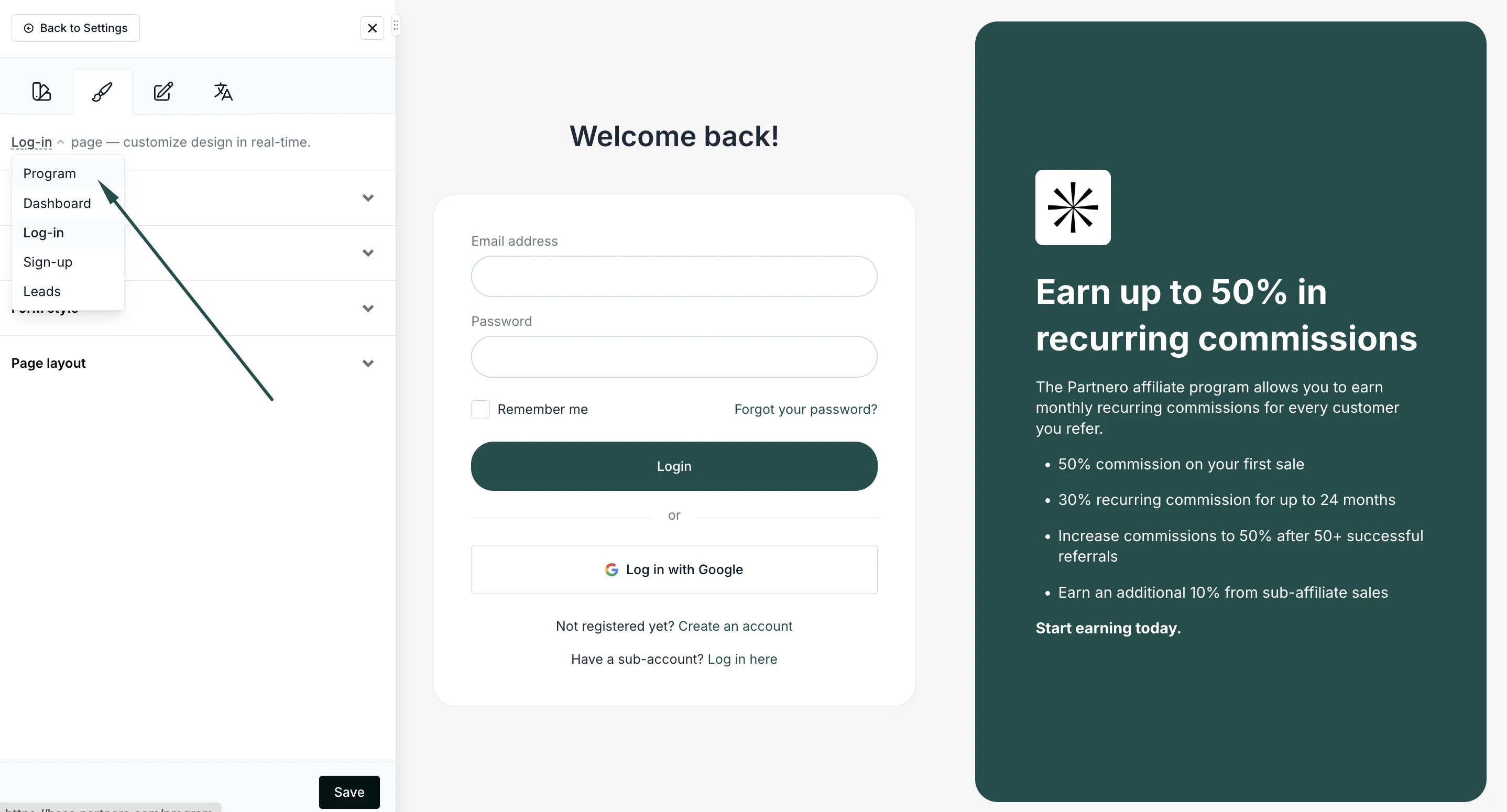
- You will be presented with the Live Designer view, with the editor on the left and a real-time preview in the center. In the top left, switch to edit the Program page:
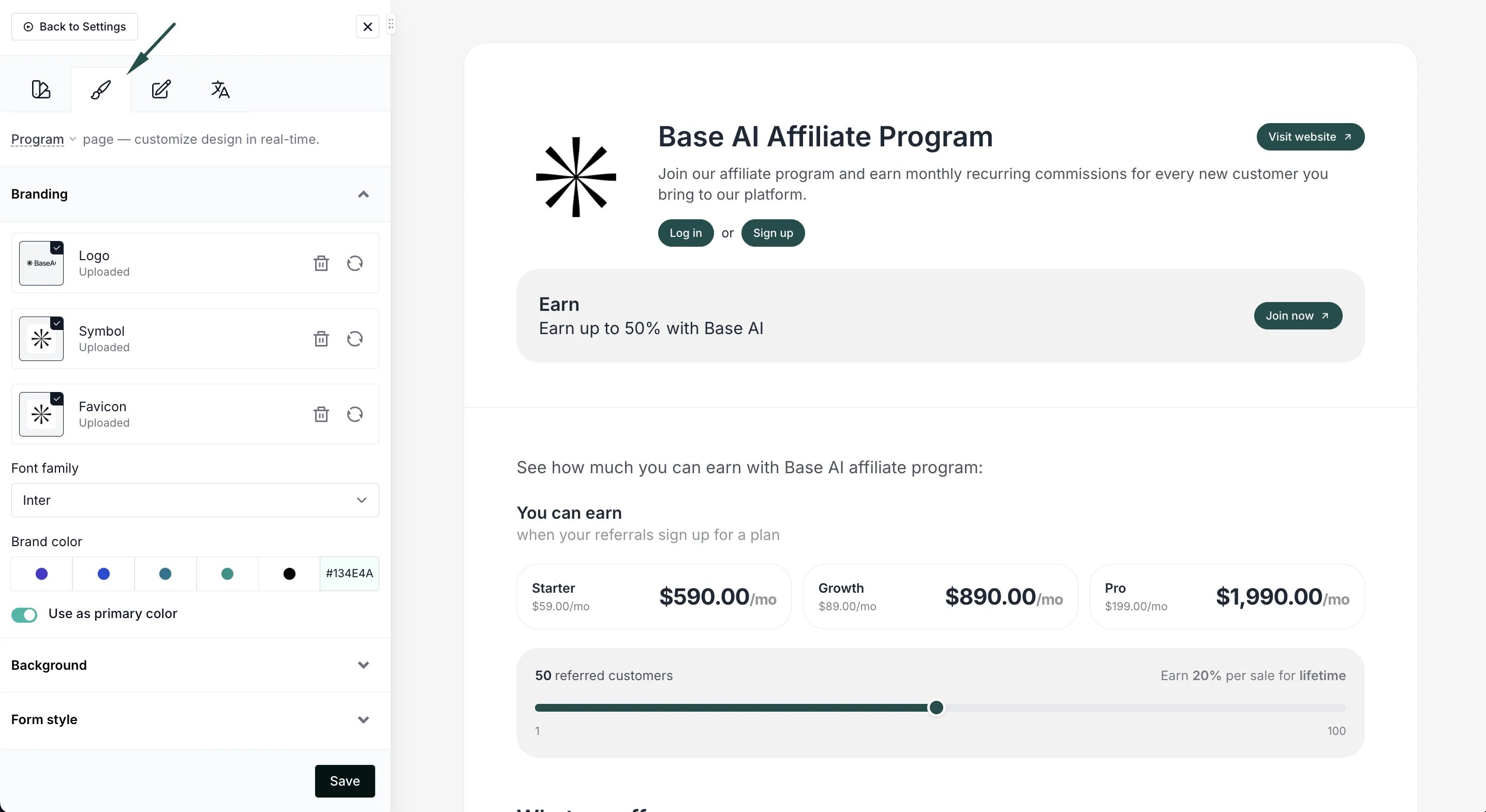
- Use the design tab on the editor to change colors, layouts, and other design elements:
- Use the content tab to change page settings and add content blocks:
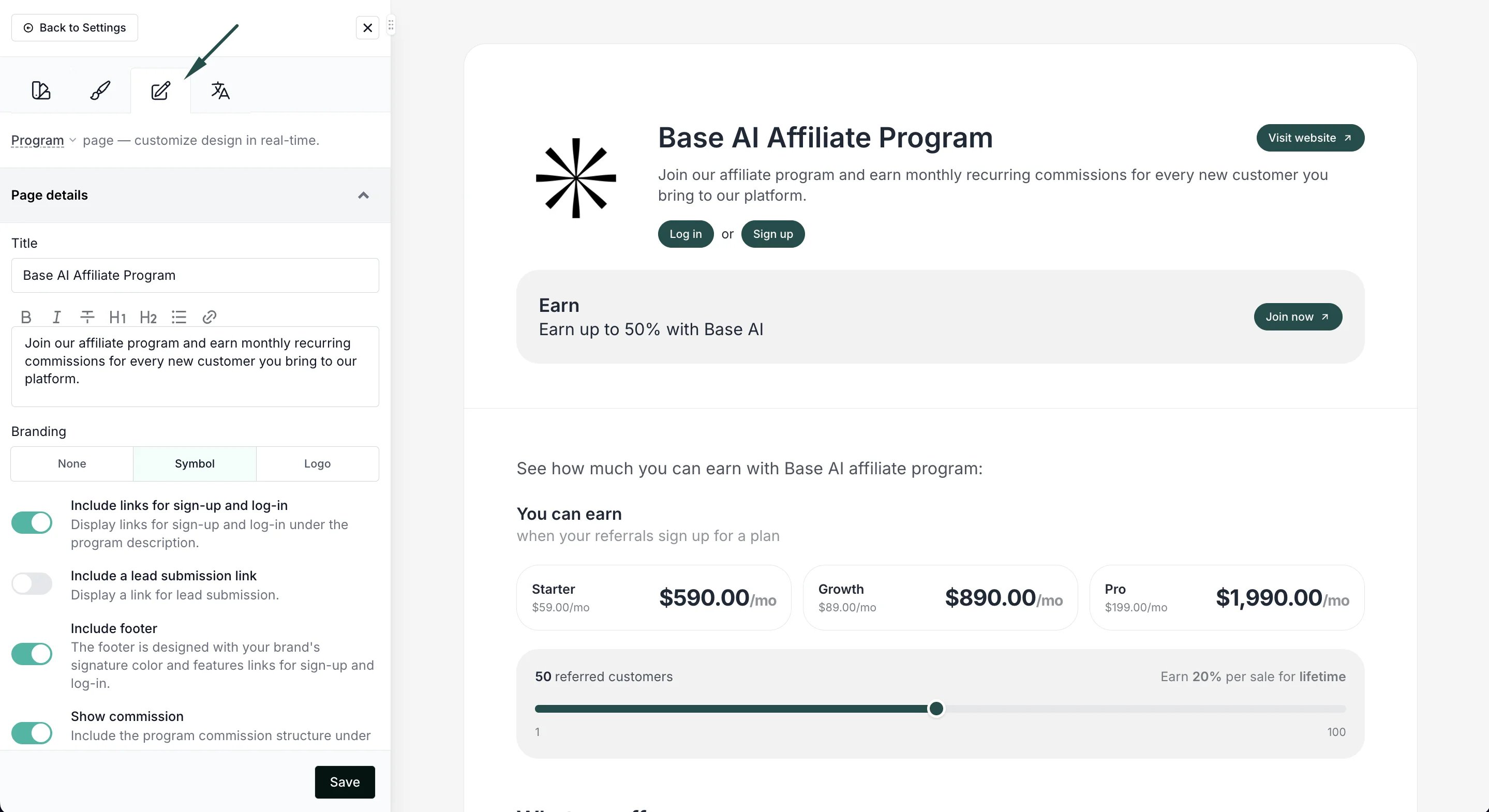
- Use the Themes tab to apply a pre-designed theme:
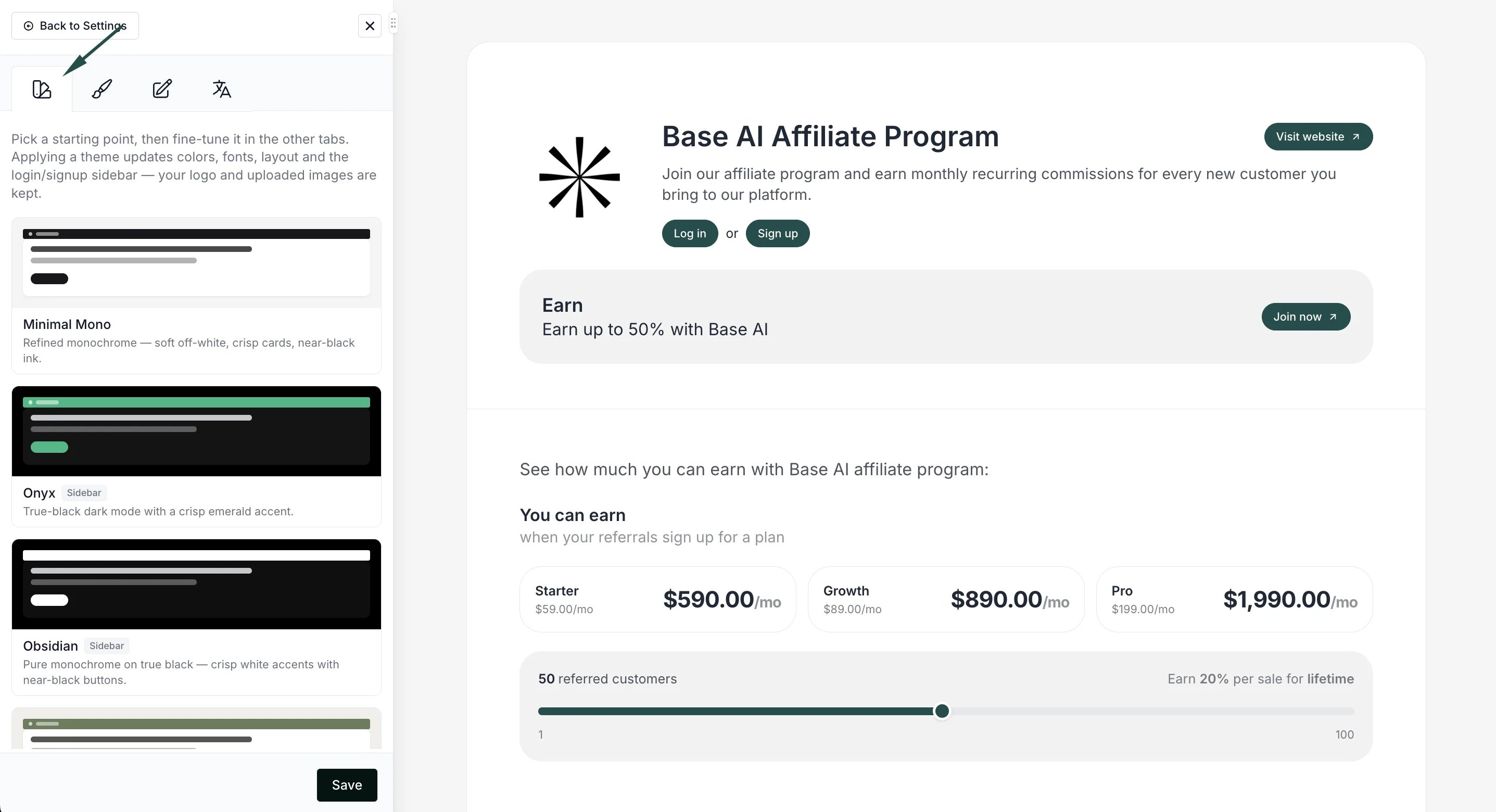
- Additionally, you can hover your mouse over any element in the program page preview to edit it in line:
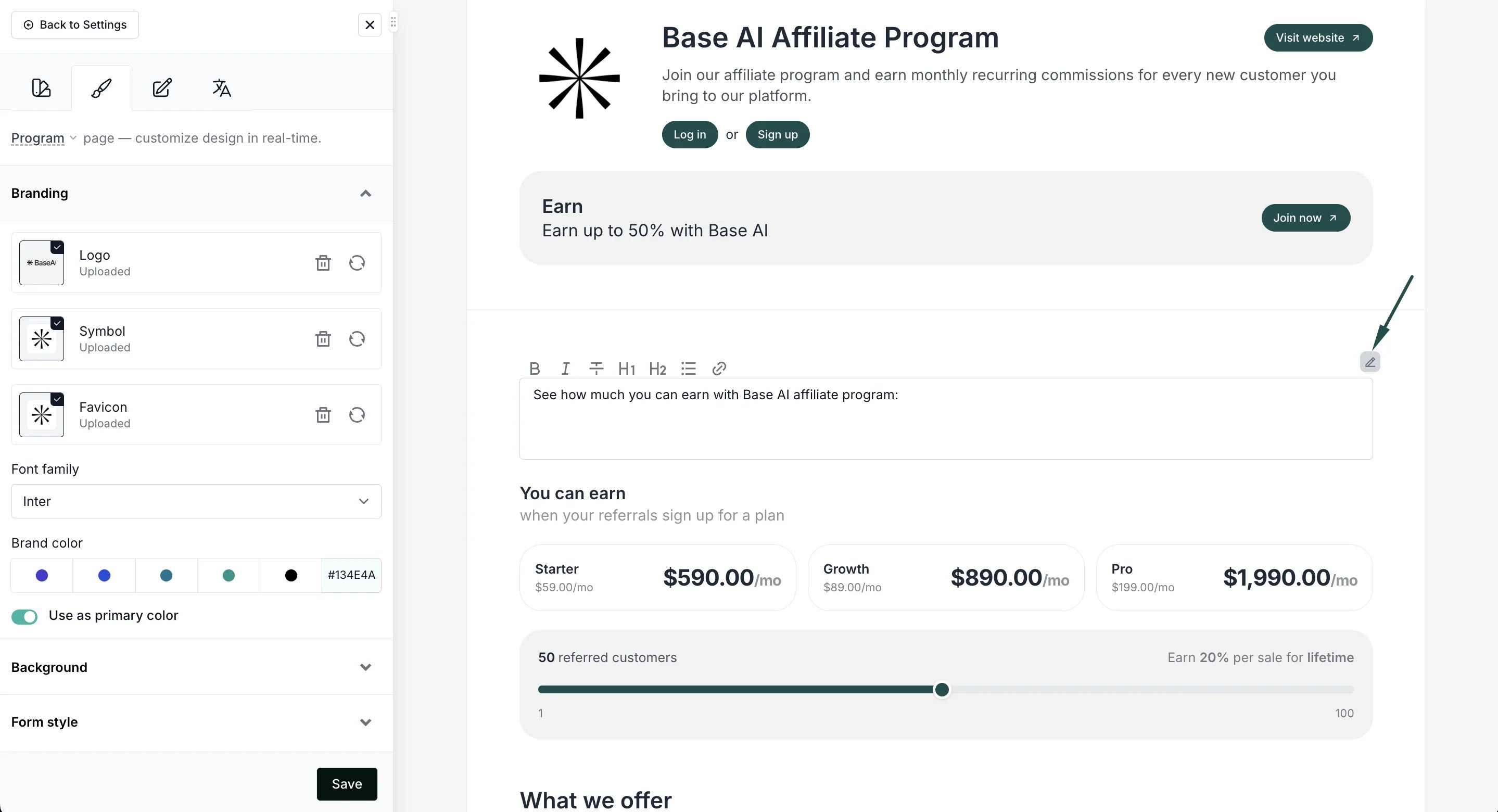
- Don’t forget to click Save when you’re happy with the edits.
Enable the program page for your program
By default, the program page is disabled and not visible. To enable the program page:- Go to Partner portal under Affiliate:
- In the Settings tab, scroll down to Portal features section. Toggle to Enable program introduction page:
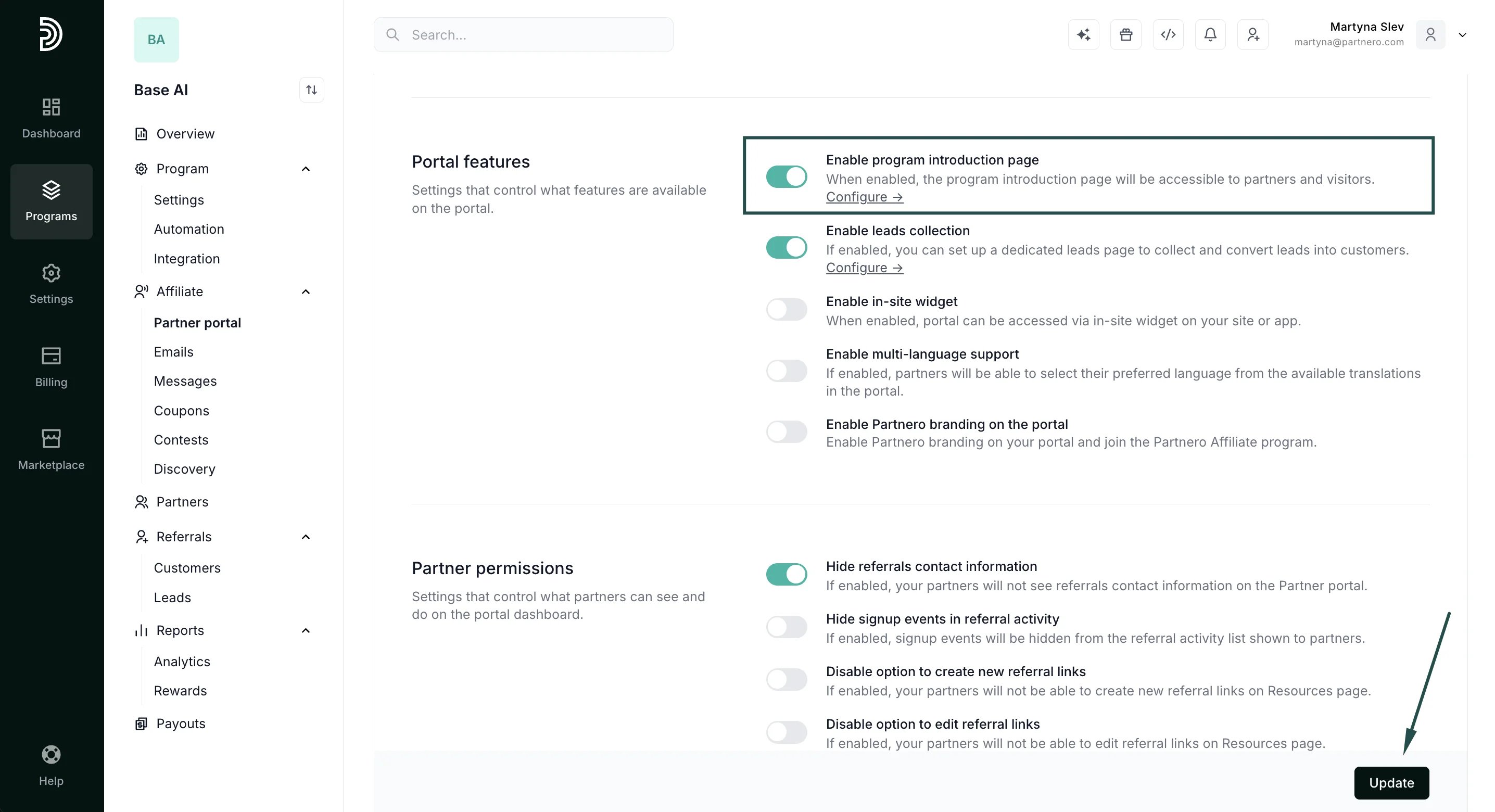
- Click Update.
Partner portal default page
You can use the program page as the default page for your partner portal instead of the sign-up. To do that:- Go to Partner porta****l under Affiliate:
- In the Settings tab → General section, find the Default page option. Switch to Program introduction:
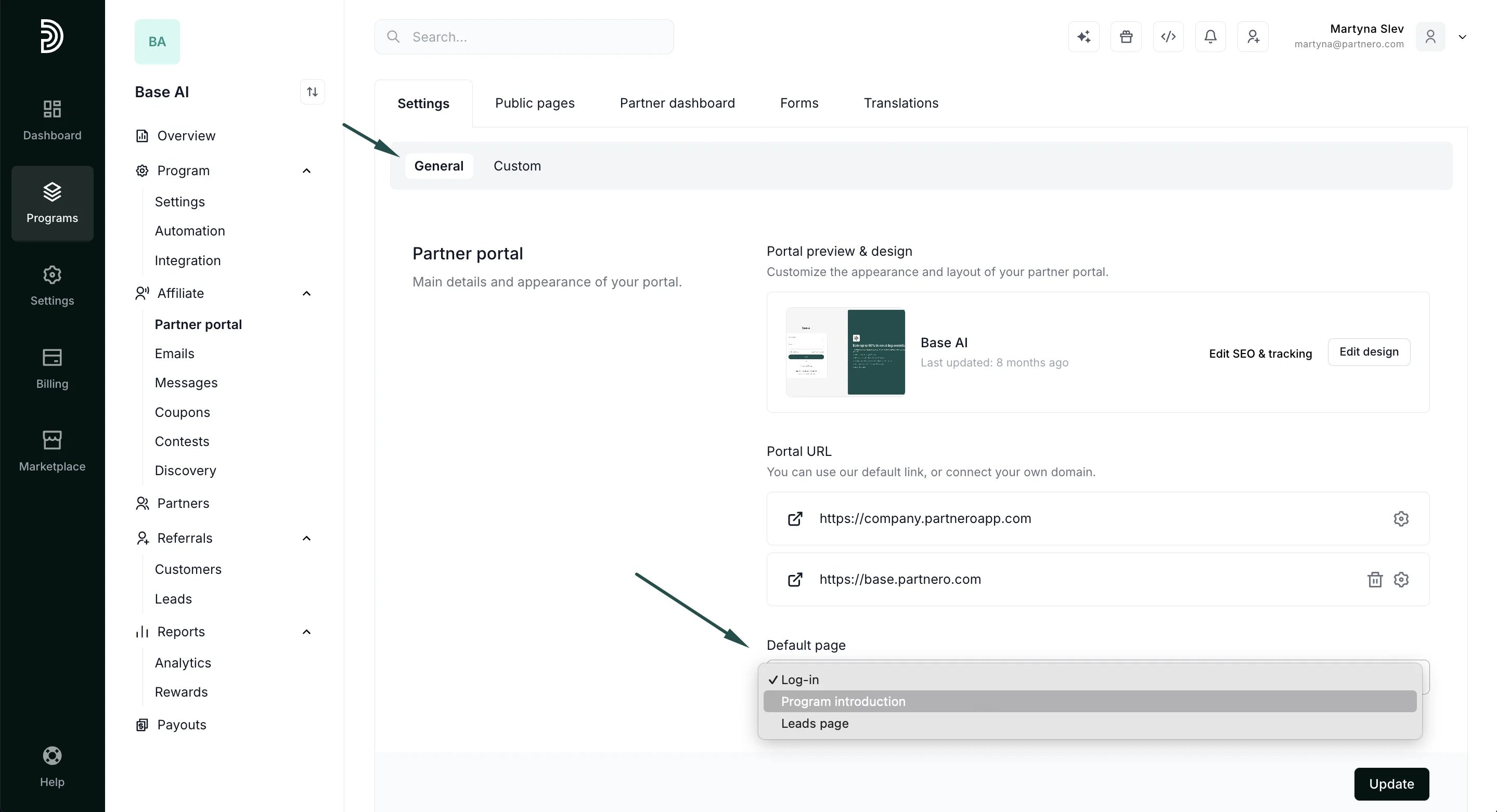
- Click Update.