

- rearrange or remove default elements
- add informational blocks, links, and content sections
- tailor the dashboard to better match your program’s needs and communication style
How to customize the dashboard
- Open the program you’d like to work with.
- Go to Partner portal under Affiliate.
- Open the Partner dashboard tab:
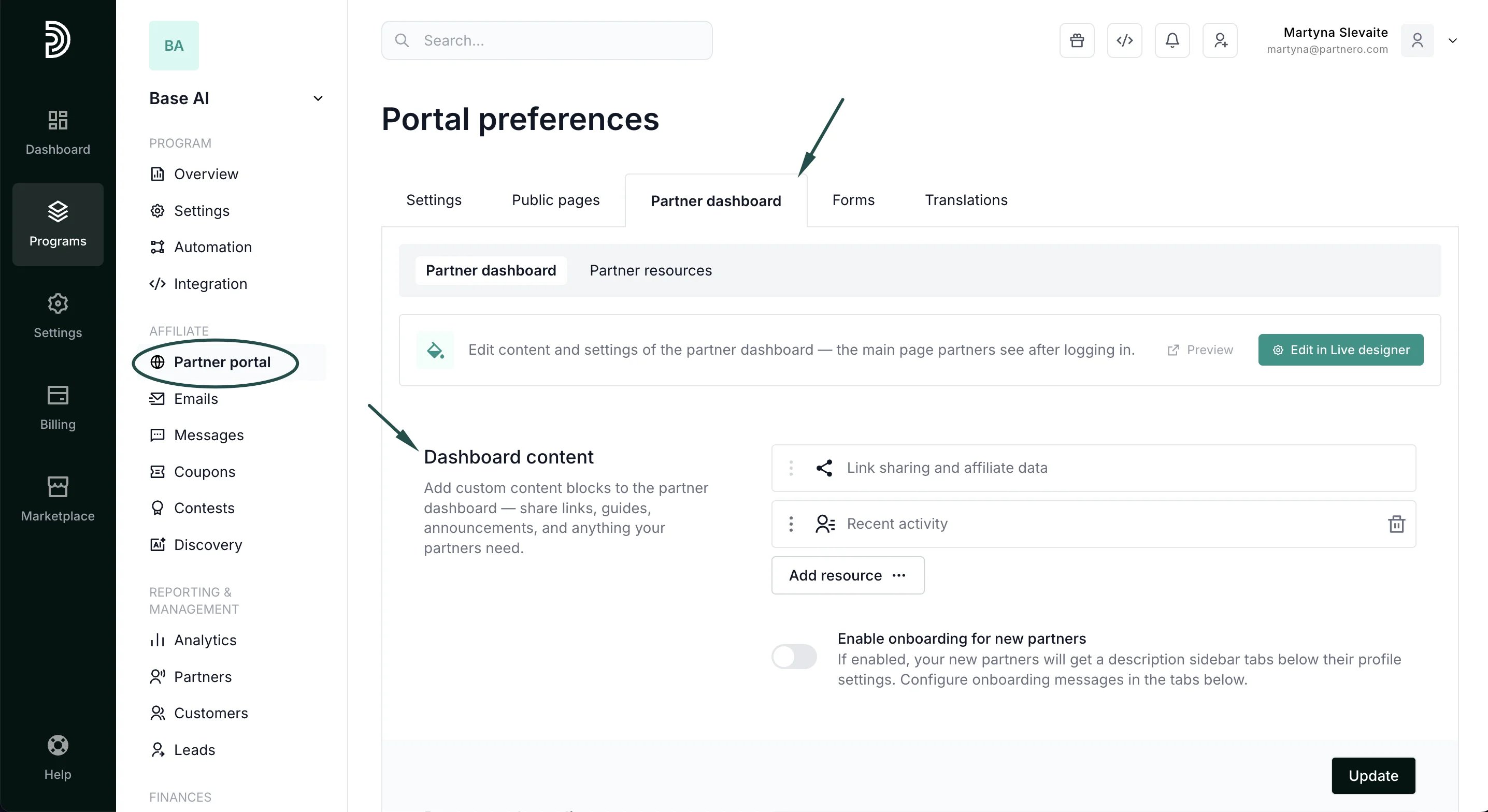
- Link sharing and affiliate data: this section displays the main performance metrics and the affiliate URL. It cannot be removed from the dashboard.
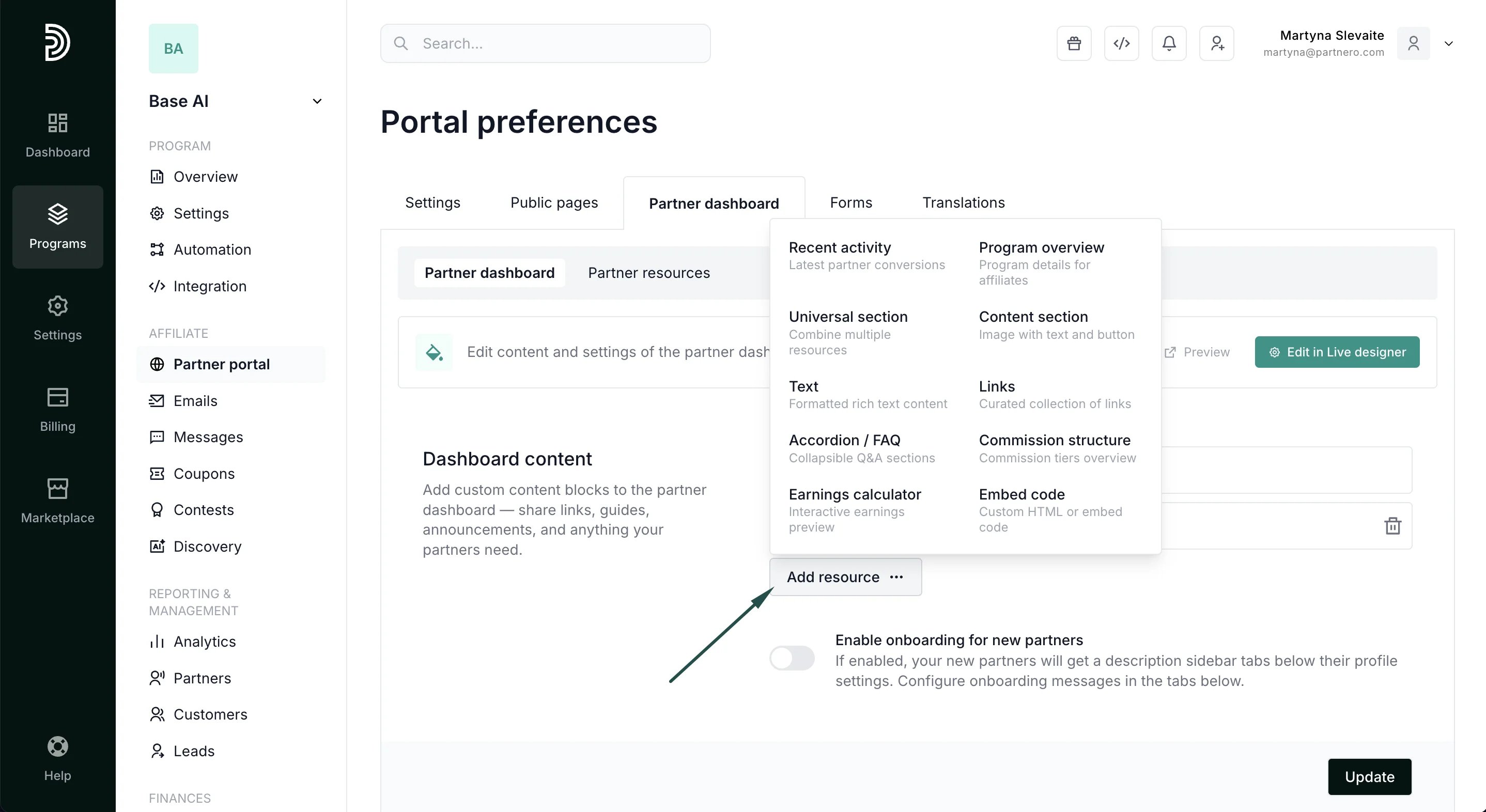
- Recent activity: shows the most recent signups and sales. This section can be deleted or rearranged.
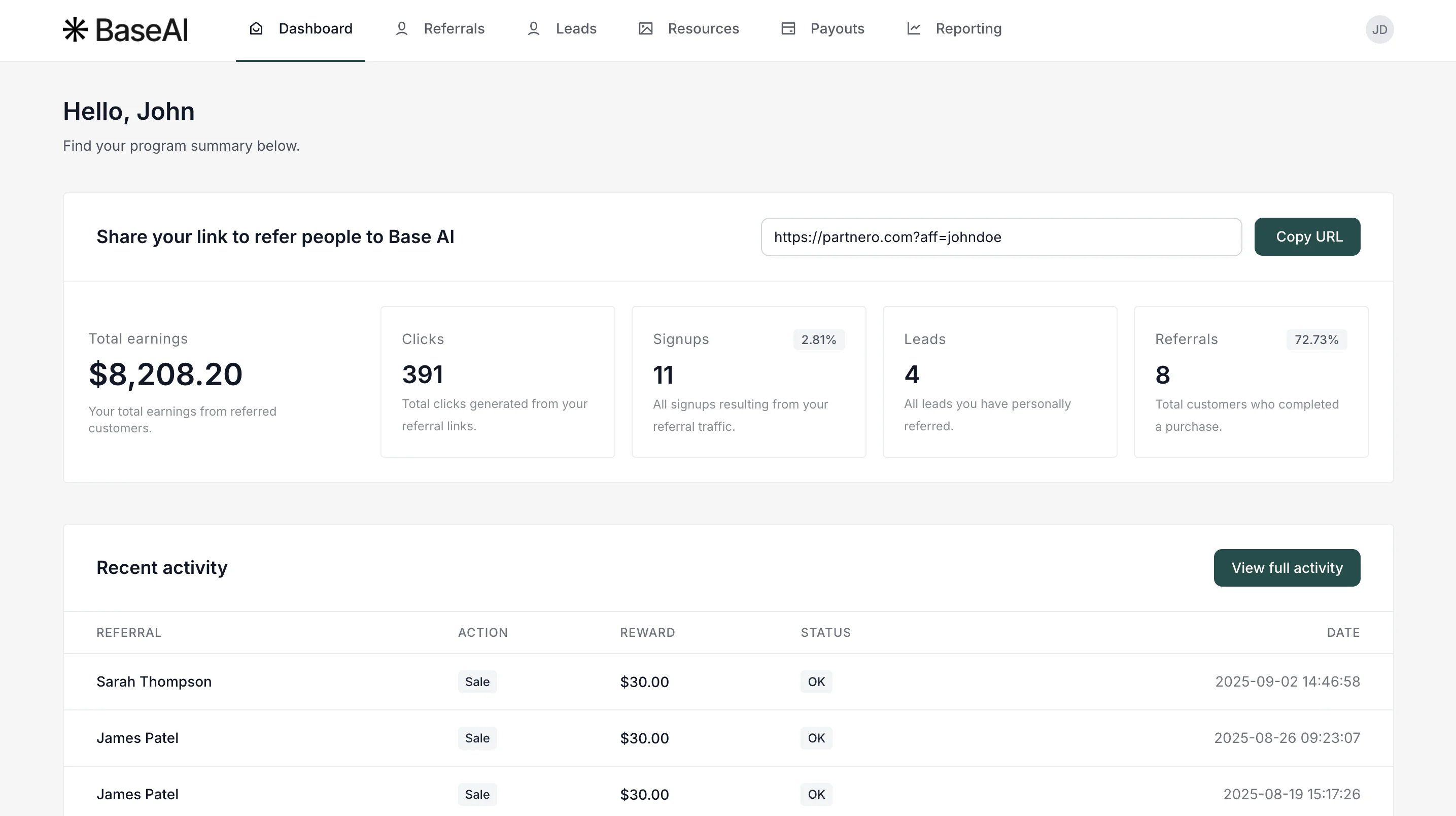
- Recent activity: show latest partner conversions (visible by default).
- Program overview: display main program details.
- Universal section: allows combining different resources for a custom view.
- Text: add rich text content.
- Content section: add images, titles, descriptions, and buttons with links.
- Links: share links to important articles.
- Accordion / FAQ: add a collapsible FAQ section.
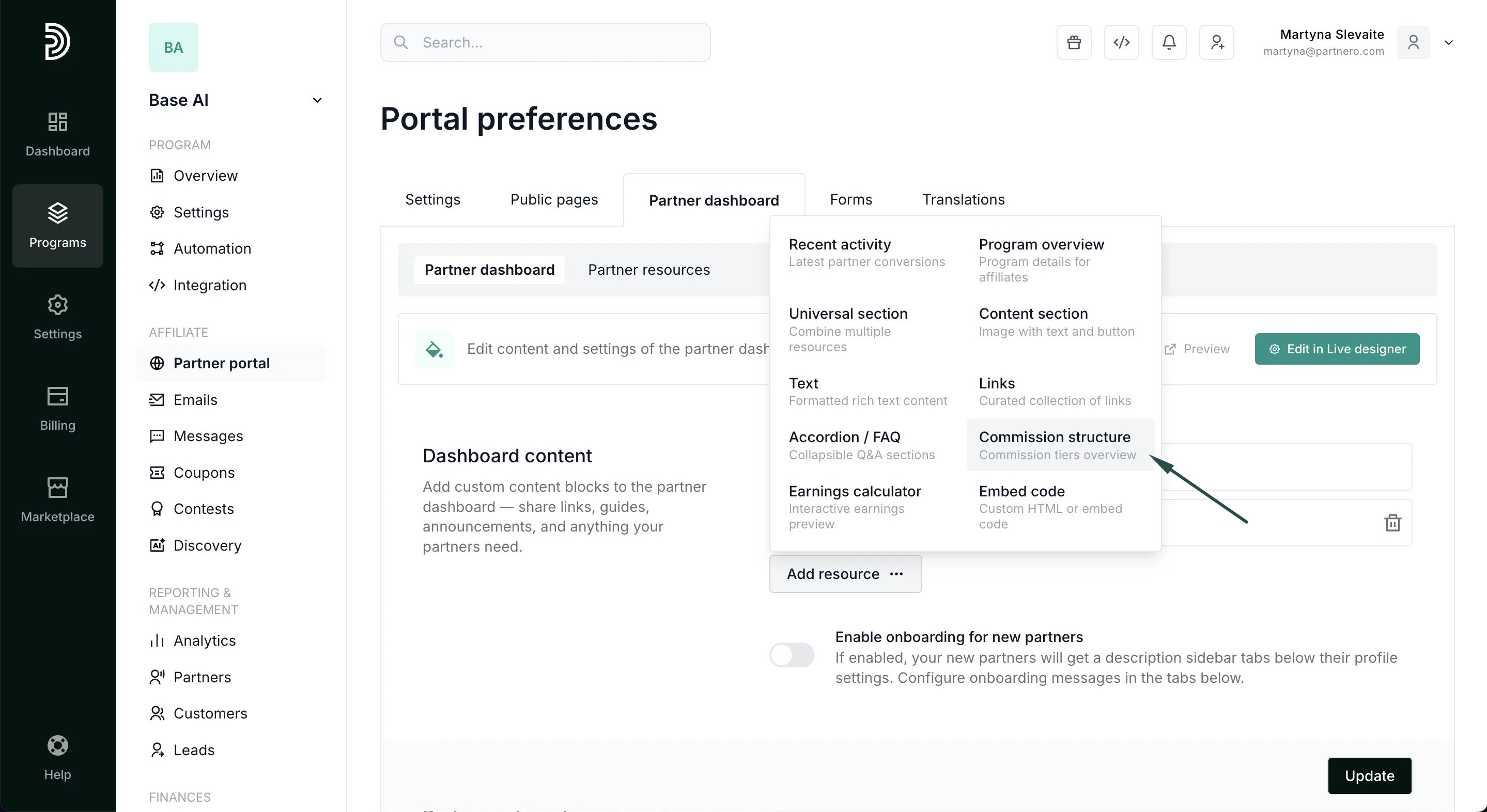
- Commission structure: display the program commission structure, including available tiers and goals.
- Earnings calculator: show an interactive potential earnings preview.
- Embed code: add custom HTML or embed code.
Example A: Content section
Here’s a Content block example highlighting the benefits of the program: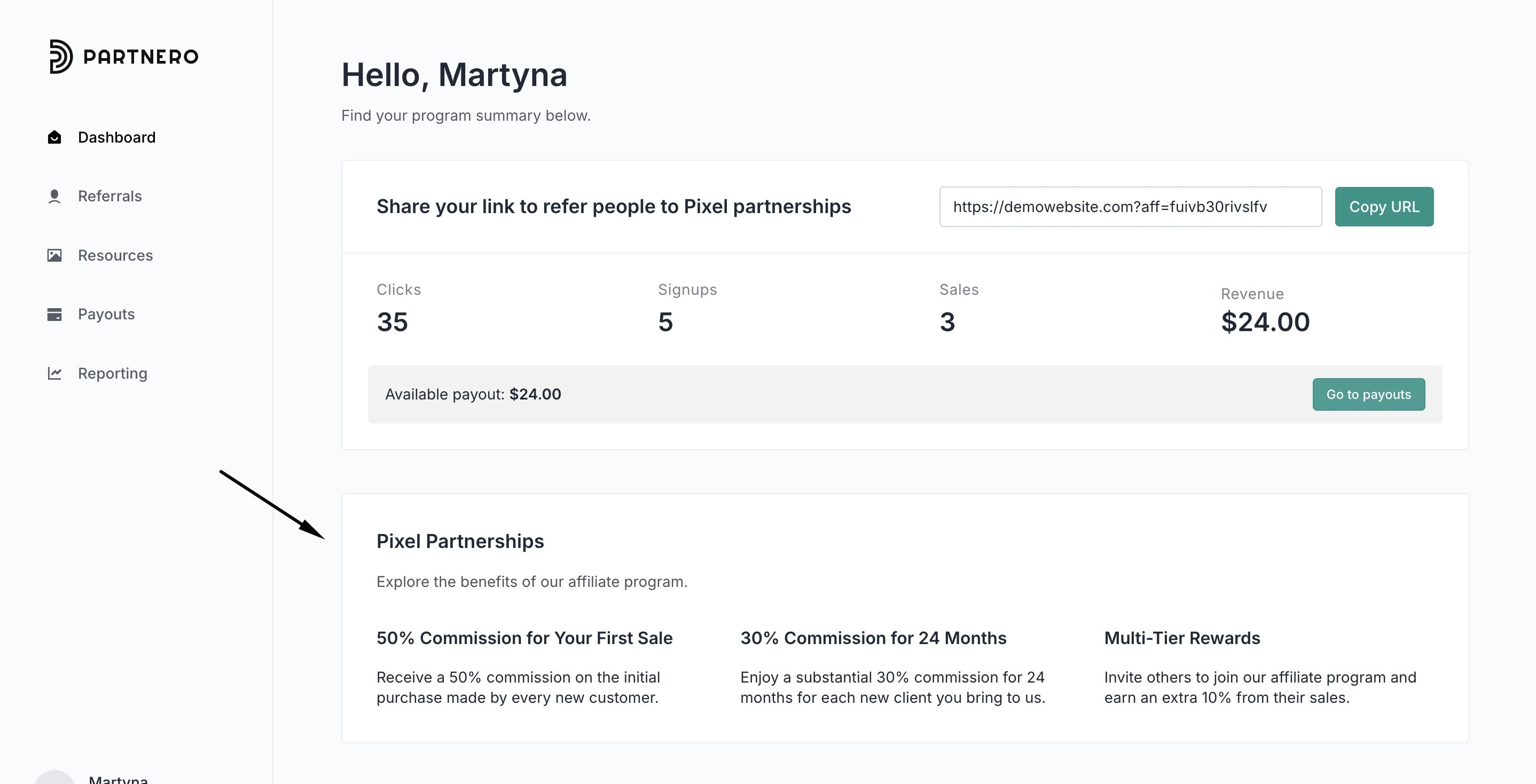
- Click Add Resource and select Content section:
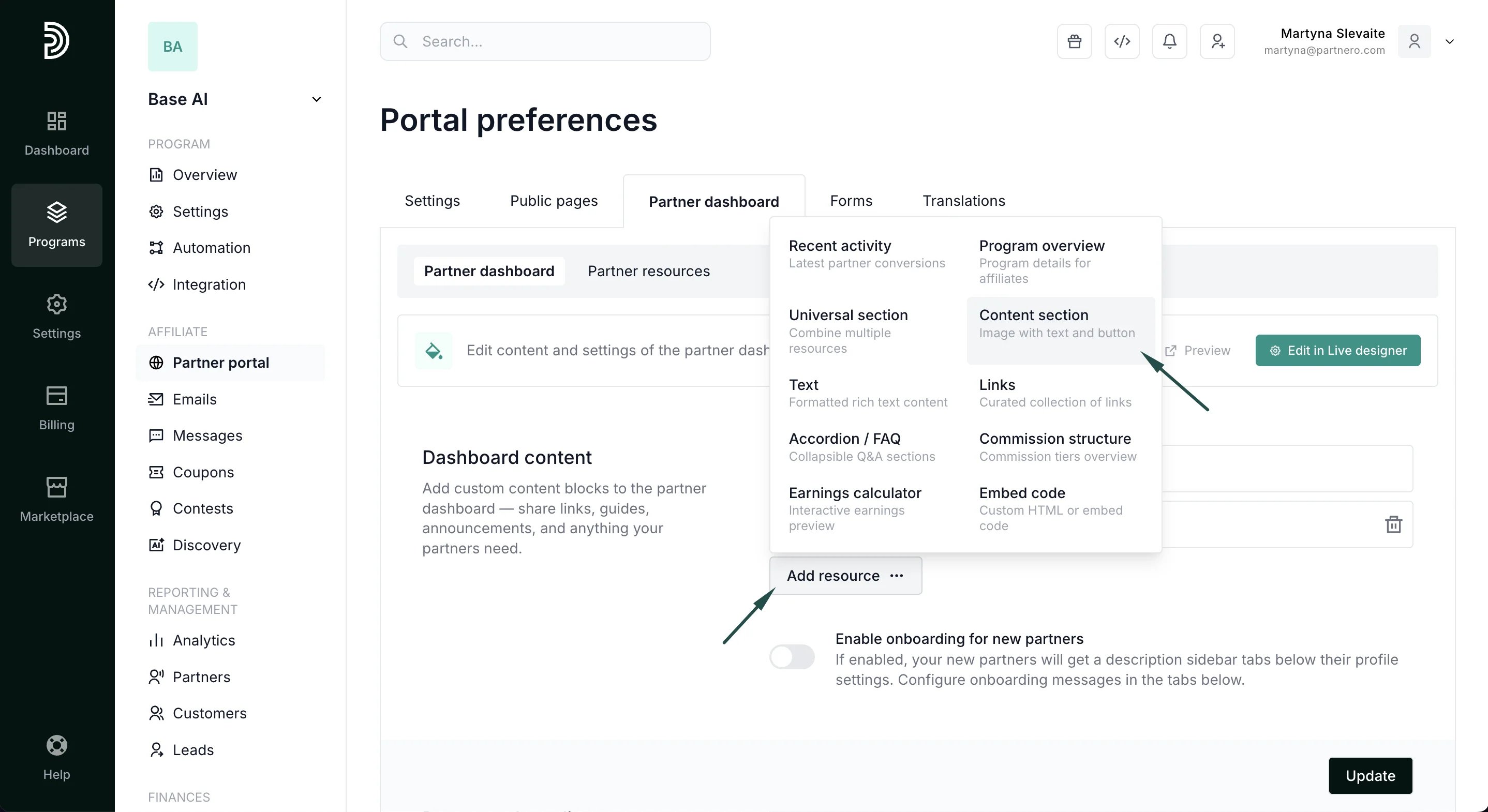
- Add title and description (optional).
- Click Add content block under Content and toggle Display blocks in columns:
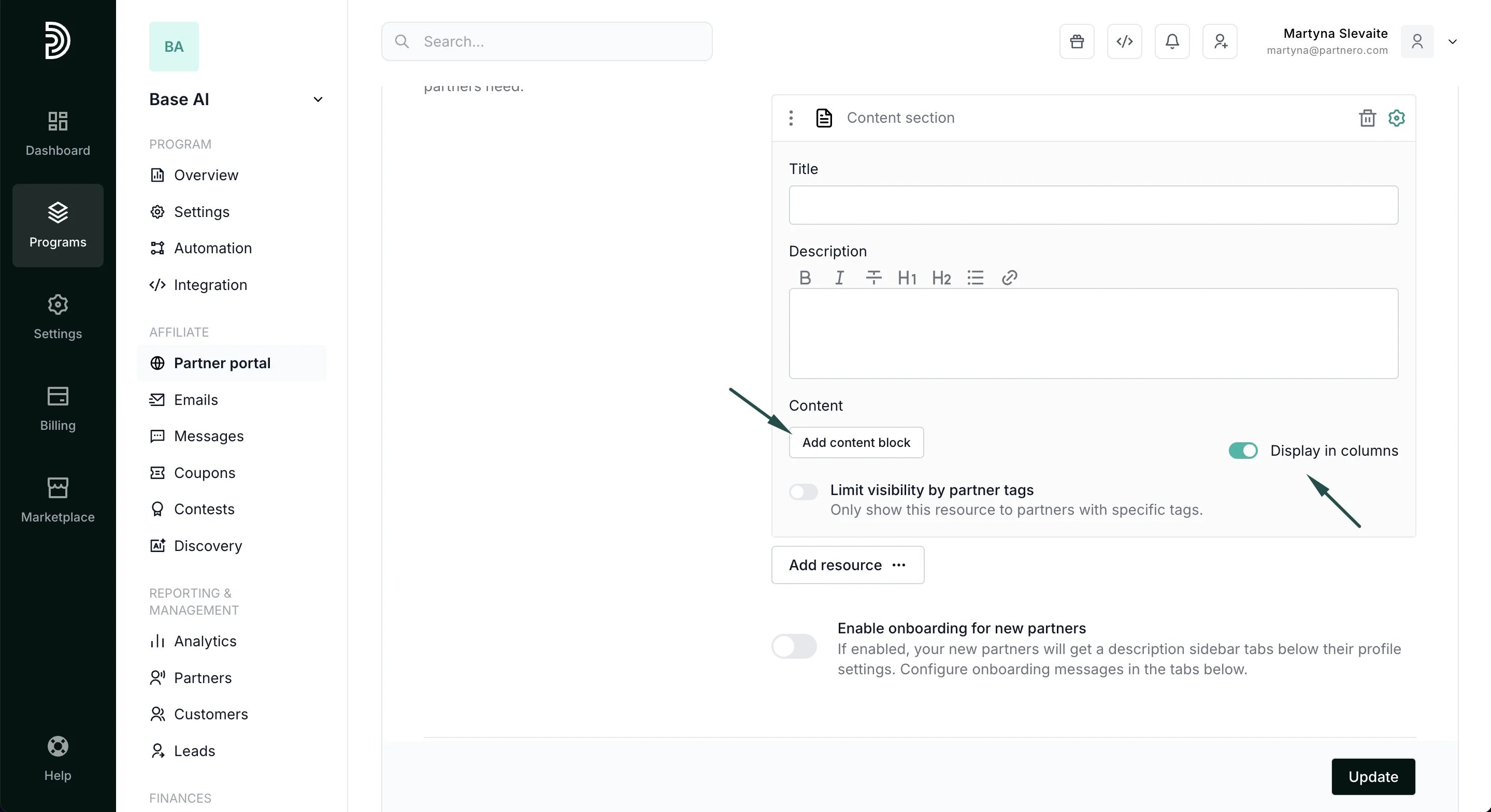
- You can enter the title and text for each block. Additionally, if you’d like to link to something, you can add a button name and a URL for each content piece you want to share. If the button fields are left empty, no button will be shown.
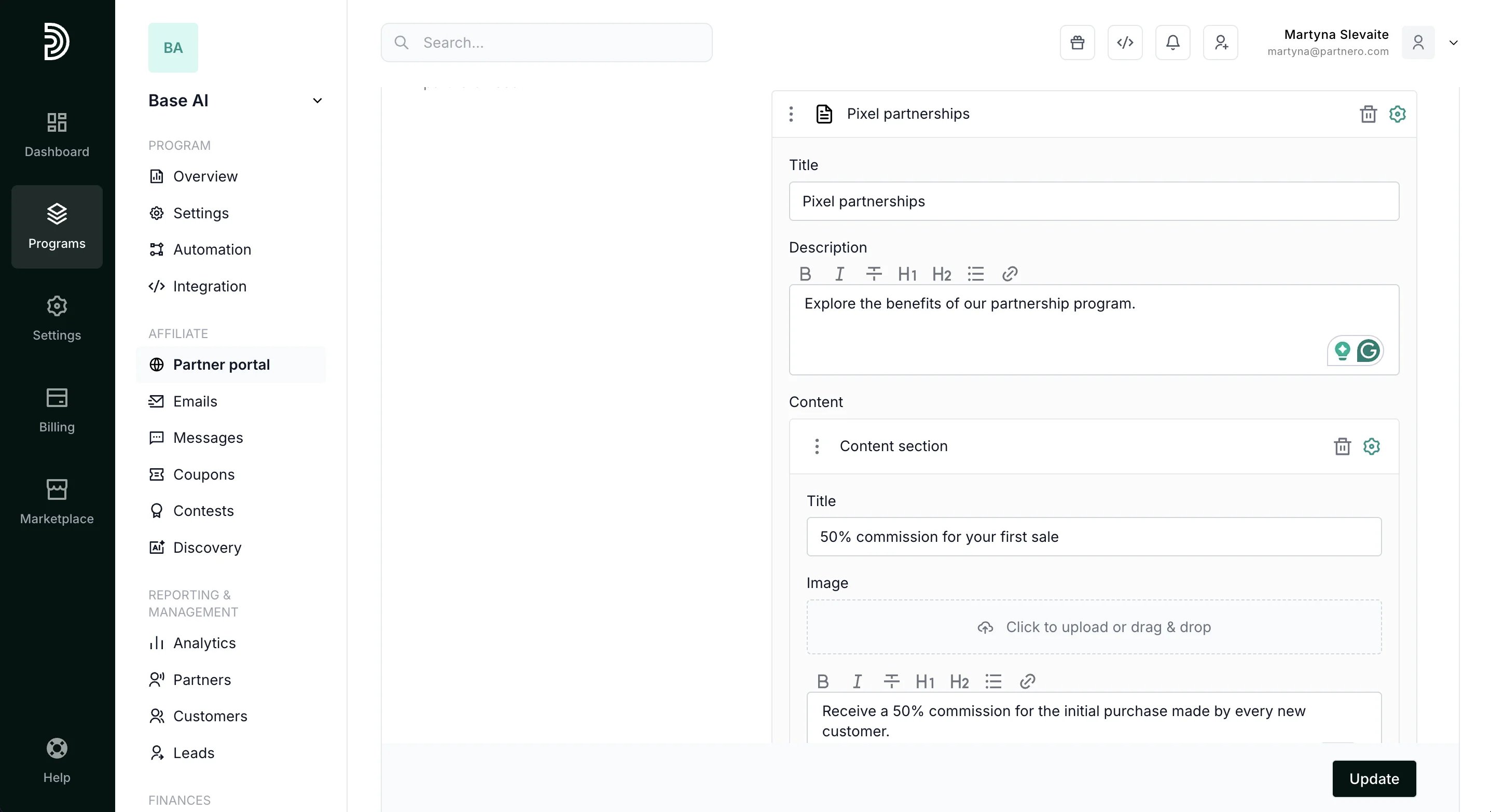
- Click Update.
Example B: Commission structure
Here’s a partner dashboard showing the current commission structure as well as available tiers and goals: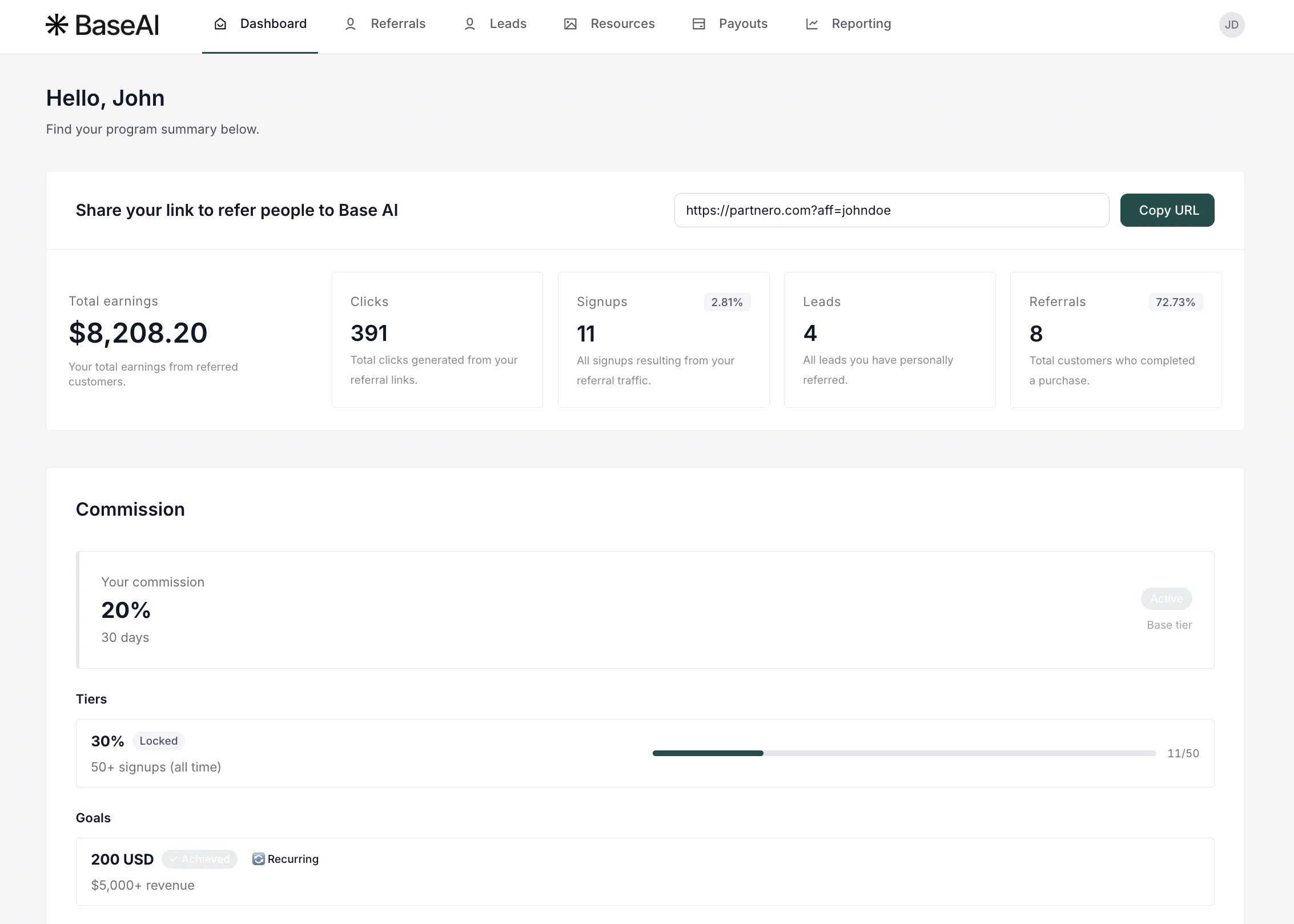
- Navigate to the Partner dashboard page and click to Add resource. Select Commission structure:
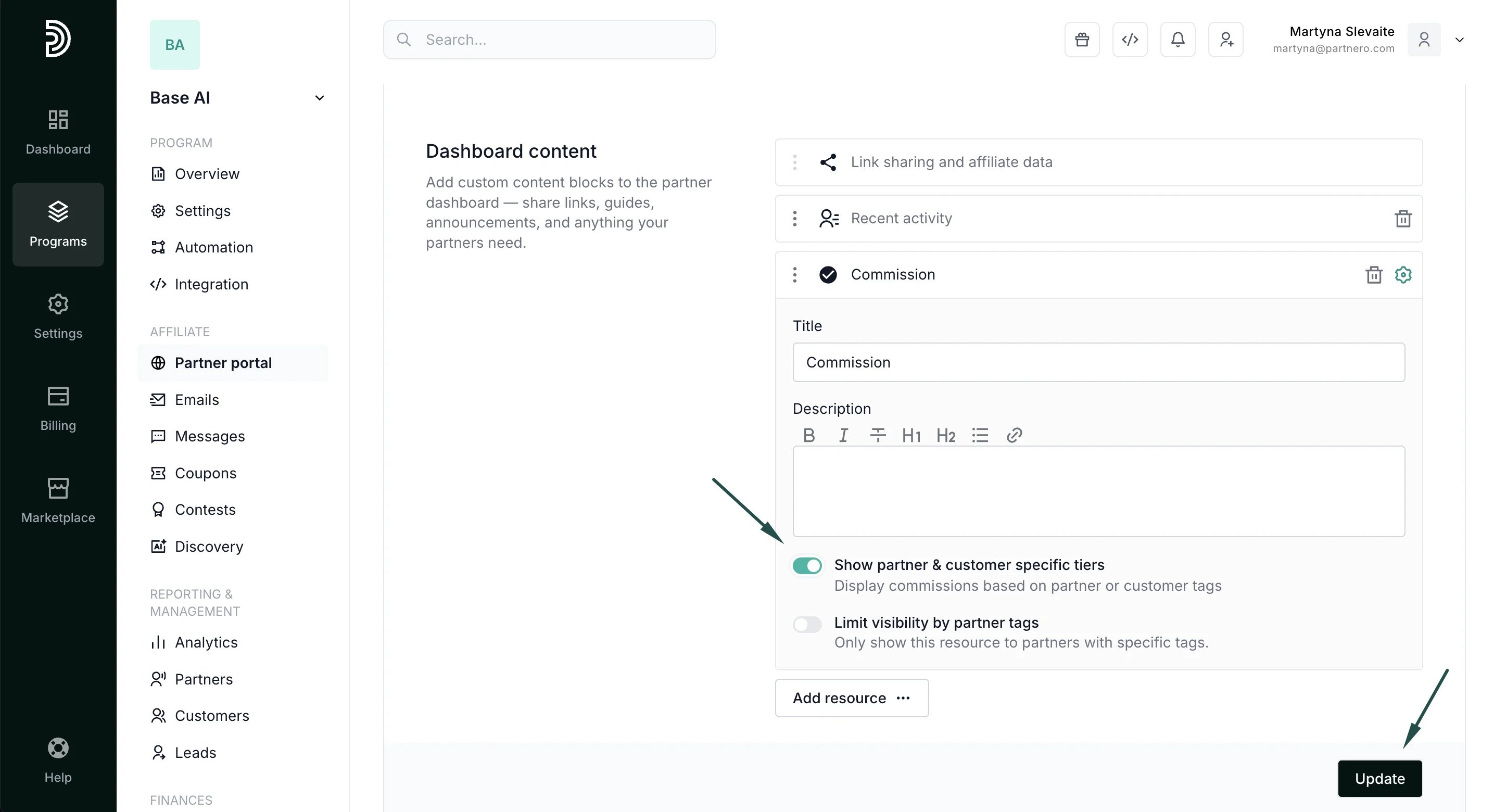
- Toggle to Show partner & customer-specific tiers. If you’d like, edit the title and add a description (optional; the example shown has no description):
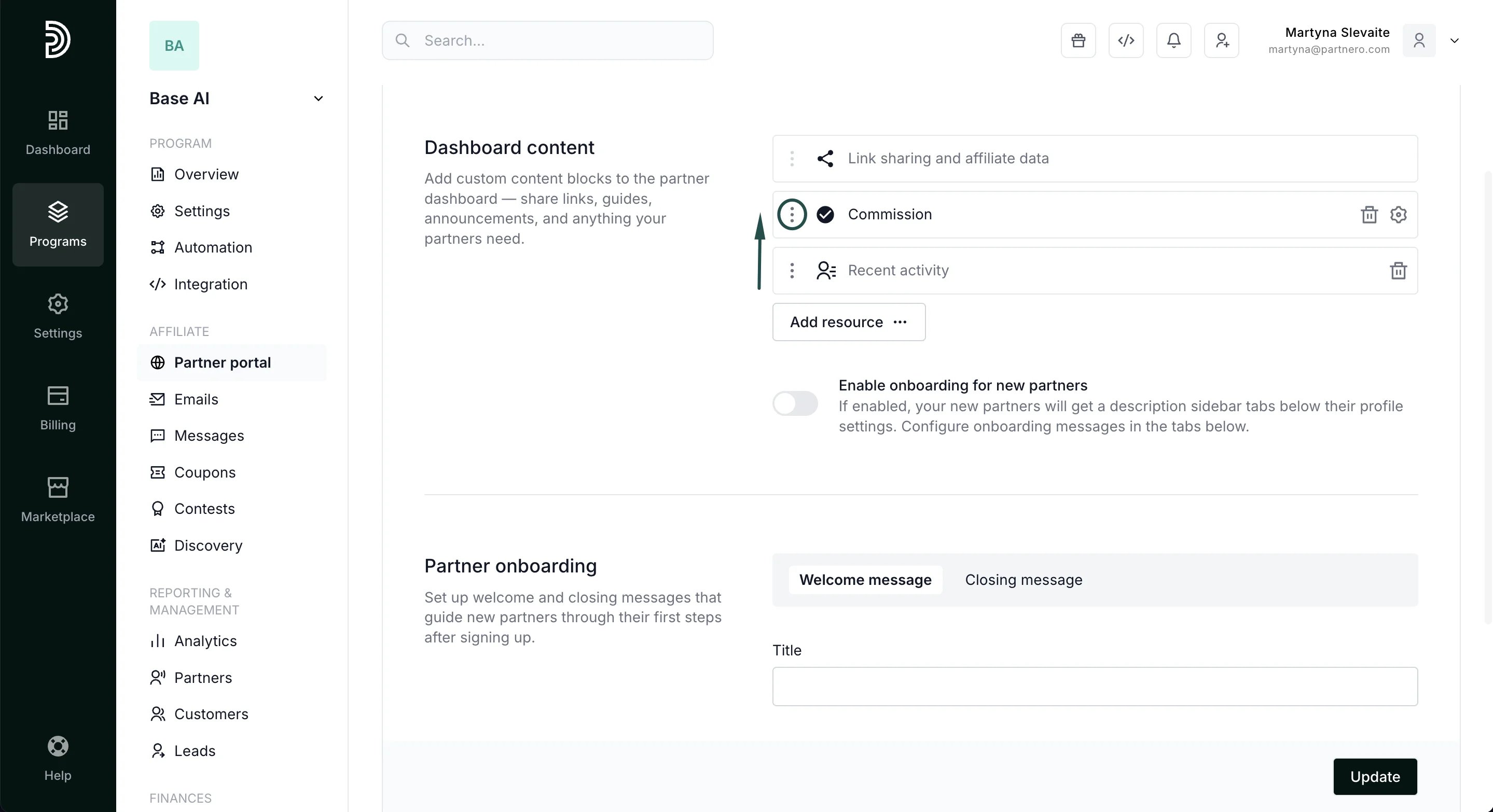
- Click the gear icon to collapse the modal, then use the three-dot menu on the new row to drag it into the second position in the layout:
- Click Update to save the changes.
→ Add program overview to the portal dashboard.