

What is auto-apply for promotion codes?
Auto-apply adds a partner’s promotion code to their referral links. When a visitor clicks the link, the code is passed to your website and pre-filled in the coupon field at checkout, so customers get their discount without typing the code. It works for both affiliate and refer-a-friend programs, and the setup is the same.Requirements
- An active integration (Stripe, Paddle Billing, Shopify, or WooCommerce) or a custom API setup
- At least one coupon with promotion codes assigned to partners
- The Partnero tracking script installed on your website
How to enable auto-apply
Setup has two parts: adding promotion codes to referral links, and telling Partnero which checkout field to fill.- In your program, go to Program > Settings and scroll down to the Coupon tracking section.
- Turn on Include promotion codes in referral links.
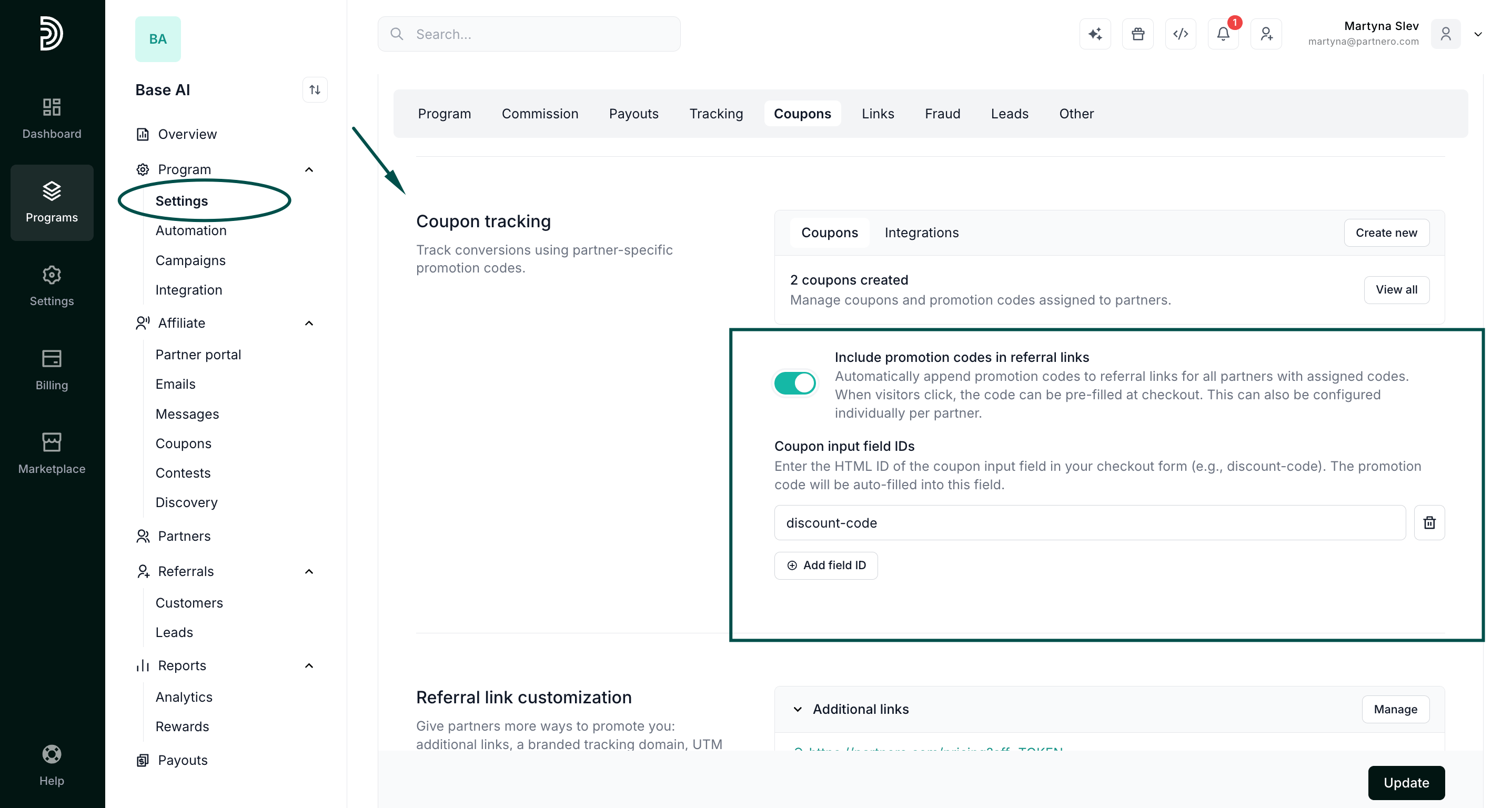
- Under Coupon input field IDs, enter the HTML ID of your coupon field, for example
discount-code. If your checkout pages use different field names, add one ID for each.
Important: The ID must match your checkout form exactly. IDs are case-sensitive. - Click Update.
- Original link:
https://yoursite.com/?via=john - With promotion code:
https://yoursite.com/?via=john&coupon=JOHN20
Auto-apply with Stripe
How auto-apply works depends on how you accept payments with Stripe. Stripe Payment Links Auto-apply is fully supported. When a visitor clicks a referral link that includes a promotion code (for example,?coupon=JOHN20), the coupon is applied at the Stripe Payment Link checkout. No extra setup is needed.
Custom checkout page
If you use your own checkout page, add the coupon input field ID as described in Step 2, and Partnero will fill in the code for you.
How it works
- The partner shares their referral link, which includes their promotion code, such as
https://yoursite.com/pricing?via=john&coupon=JOHN20. - A visitor clicks the link, and Partnero detects the promotion code.
- Partnero saves the code in a browser cookie, so it stays available while the visitor browses.
- At checkout, Partnero fills the code into the coupon field, and the customer sees the discount applied.
- After the purchase, the sale is credited to the partner who owns the promotion code.
Troubleshooting
The code is not filled in at checkout- Check that the field ID matches your checkout form exactly (IDs are case-sensitive).
- Check that the Partnero tracking script is installed on your checkout page.
- Check that the URL contains the coupon parameter (for example,
?coupon=CODE). - Turn on debug mode in your browser console to see Partnero messages.
- Check that the promotion code is assigned to a partner in Partnero.
- Check that your payment integration is connected and working.
- Check that the same coupon exists in both Partnero and your payment provider (Stripe, Paddle, and so on).
- Check that Include promotion codes in referral links is turned on.
- Check that the partner has at least one promotion code assigned.
- Check whether automatic promotion codes are set up.