

What are newsletter referral program emails?
Within a newsletter referral program, there are 2 transactional emails:- Reward notification: sent when a referring subscriber unlocks a reward.
- Double opt-in emails: sent to referred subscribers to confirm subscription.
Email settings
Navigate to Emails under Features. In the Settings tab, you’ll find the following sections:Default sender
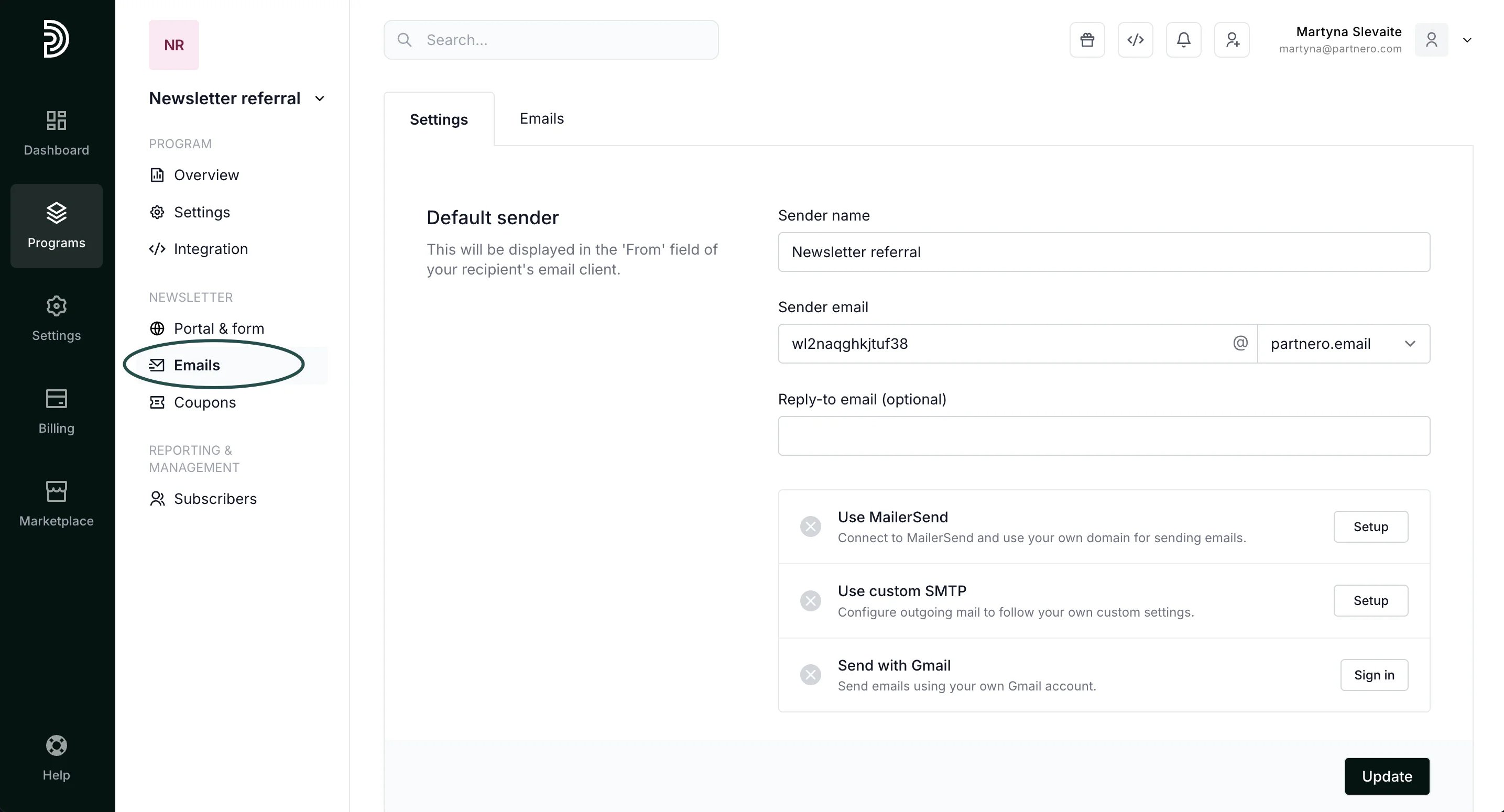
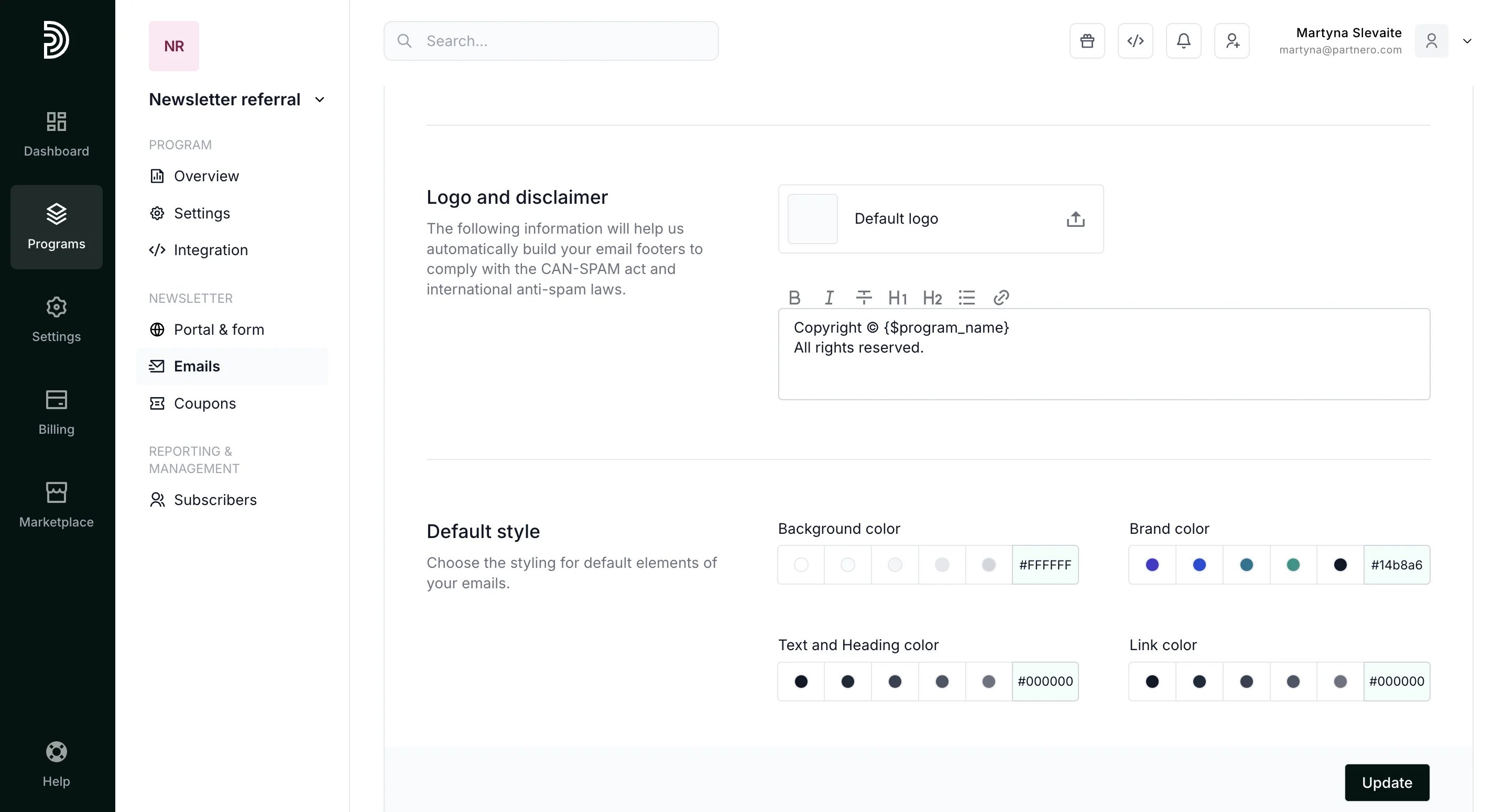
Connect your domain for email sending
We recommend connecting your own domain to send program emails, as it improves deliverability and makes your emails more recognizable to your customers.Connect your domain through MailerSend
- Under Emails, Settings tab, click Setup next to MailerSend.
- Enter your MailerSend API token (here’s how to find it).
- Click Connect.
- Once your domain is successfully connected, you will see it listed as an option under the Sender email domain select:
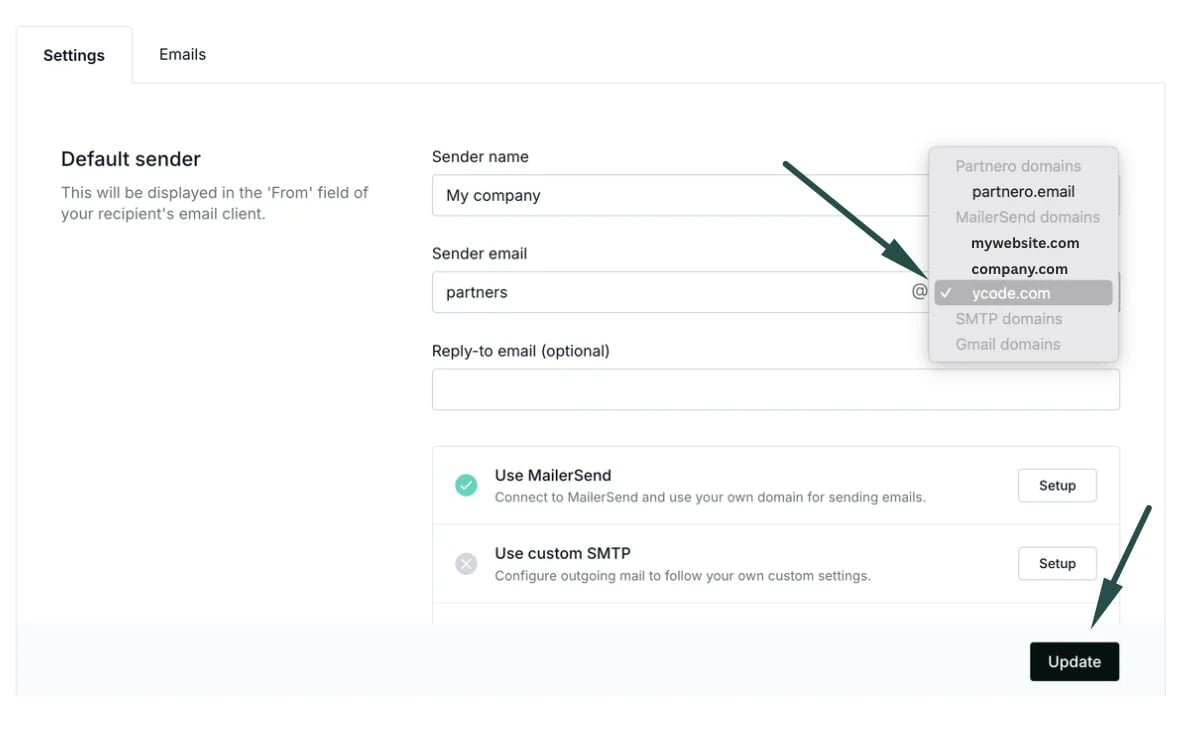
- Select the newly connected domain and click Update.
Connect your domain through custom SMTP
- Under Emails, Settings tab, click Setup next to SMTP.
- Enter your server information, username, password, and the “From” email address.
- Click Connect.
- Once your domain is successfully connected, you will see it listed as an option under Sender email domain select.
- Select the newly connected domain and click Update.
Connect your domain through Gmail
Click here to read more on how to connect your domain through Gmail.Customize the email content
Each email can be edited to fit your brand colors and voice. To edit the emails:- Open the newsletter referral program you’d like to work with.
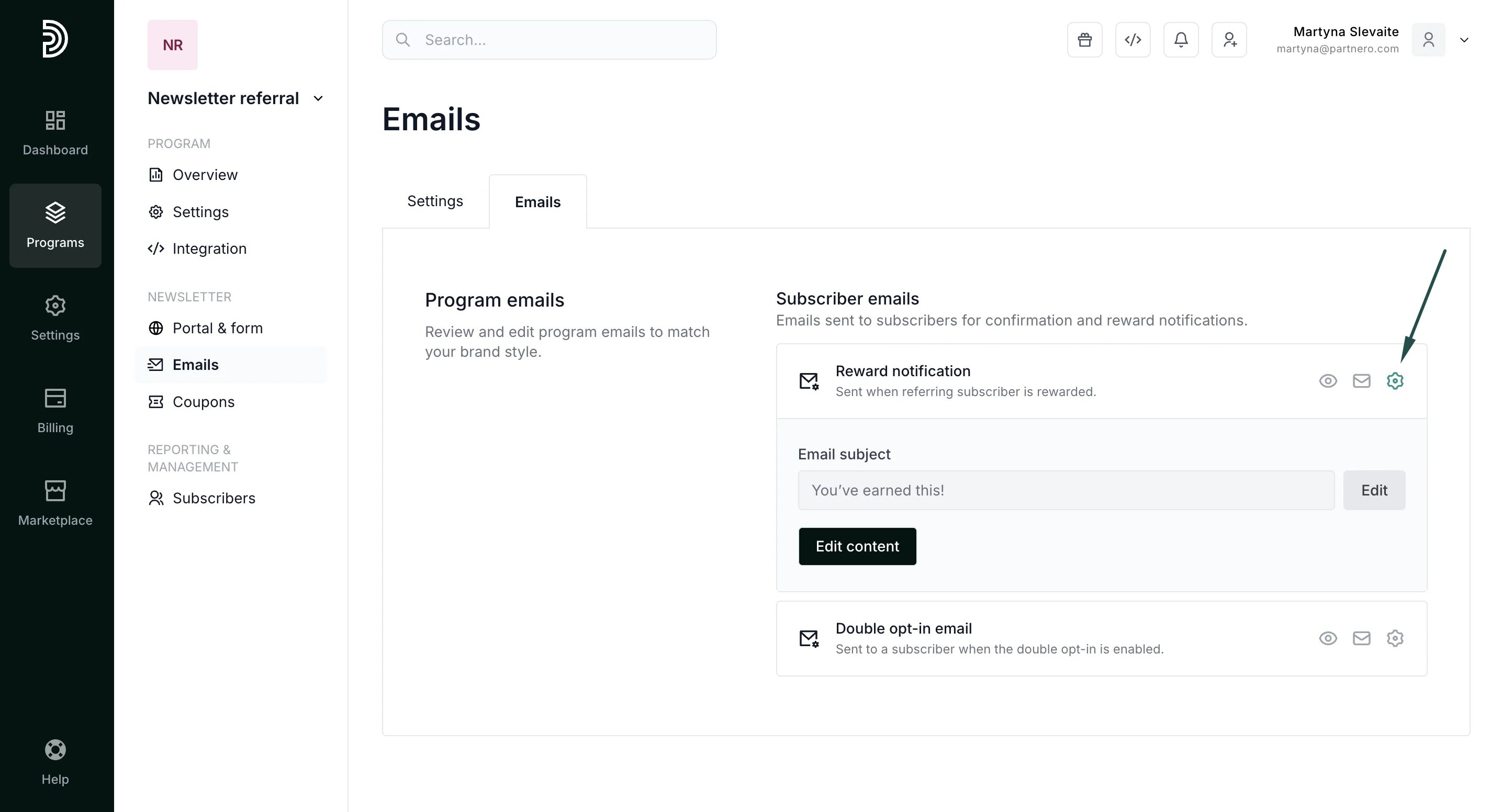
- Go to Emails under Features. Switch to the Emails tab:
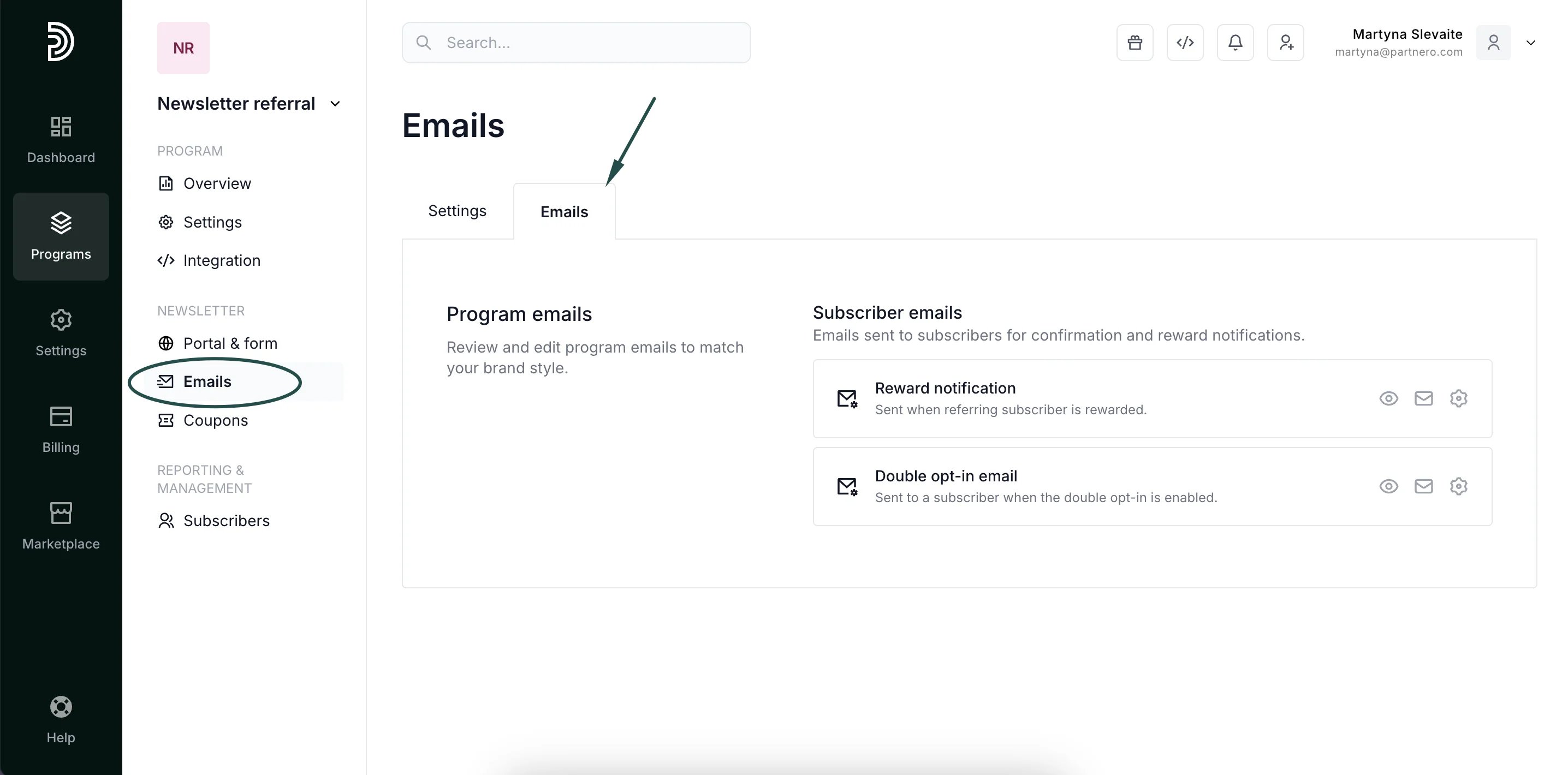
- To edit an email, click on the gear icon and click Edit content.
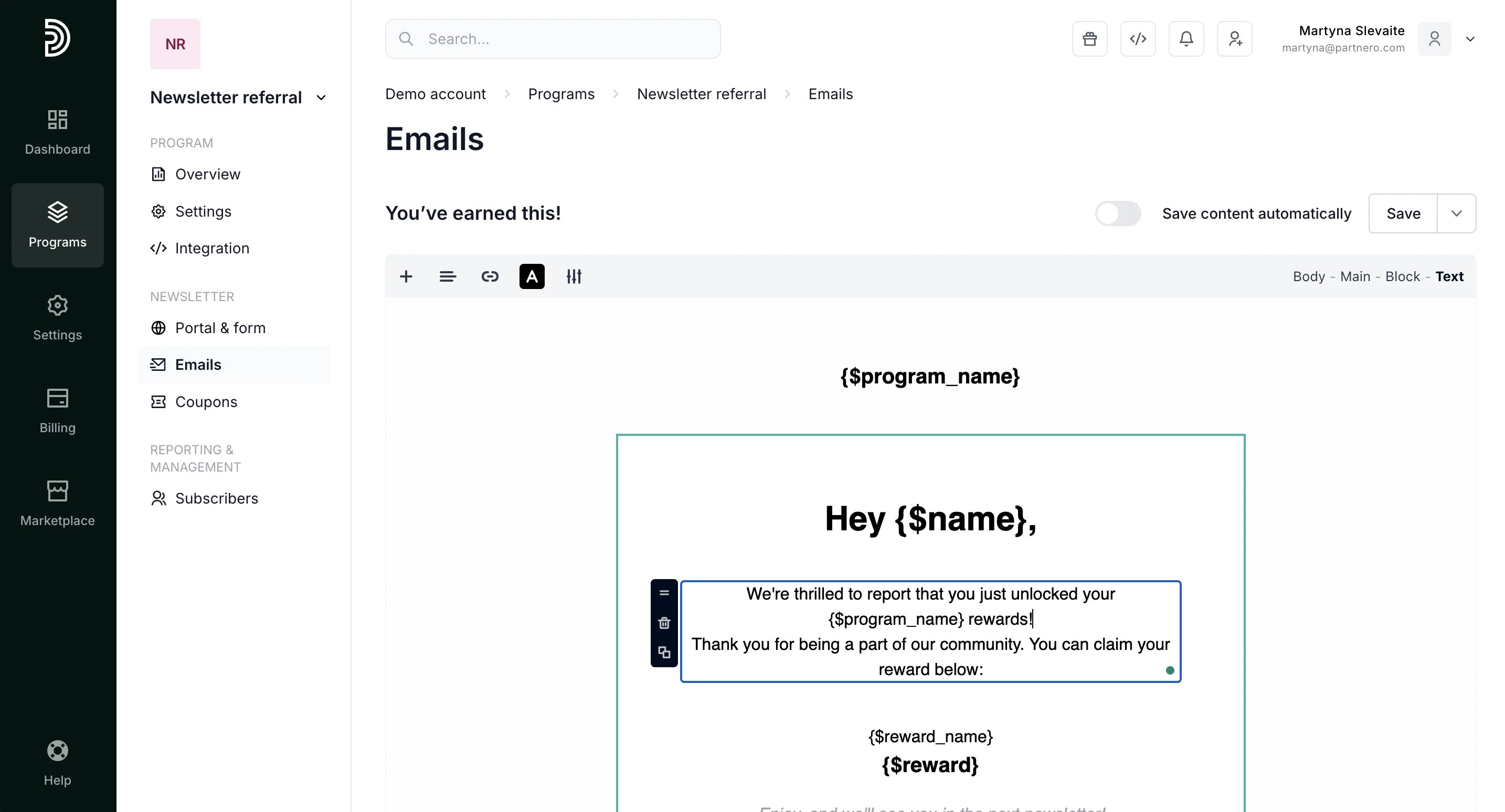
- Change the text and layout to fit your needs:
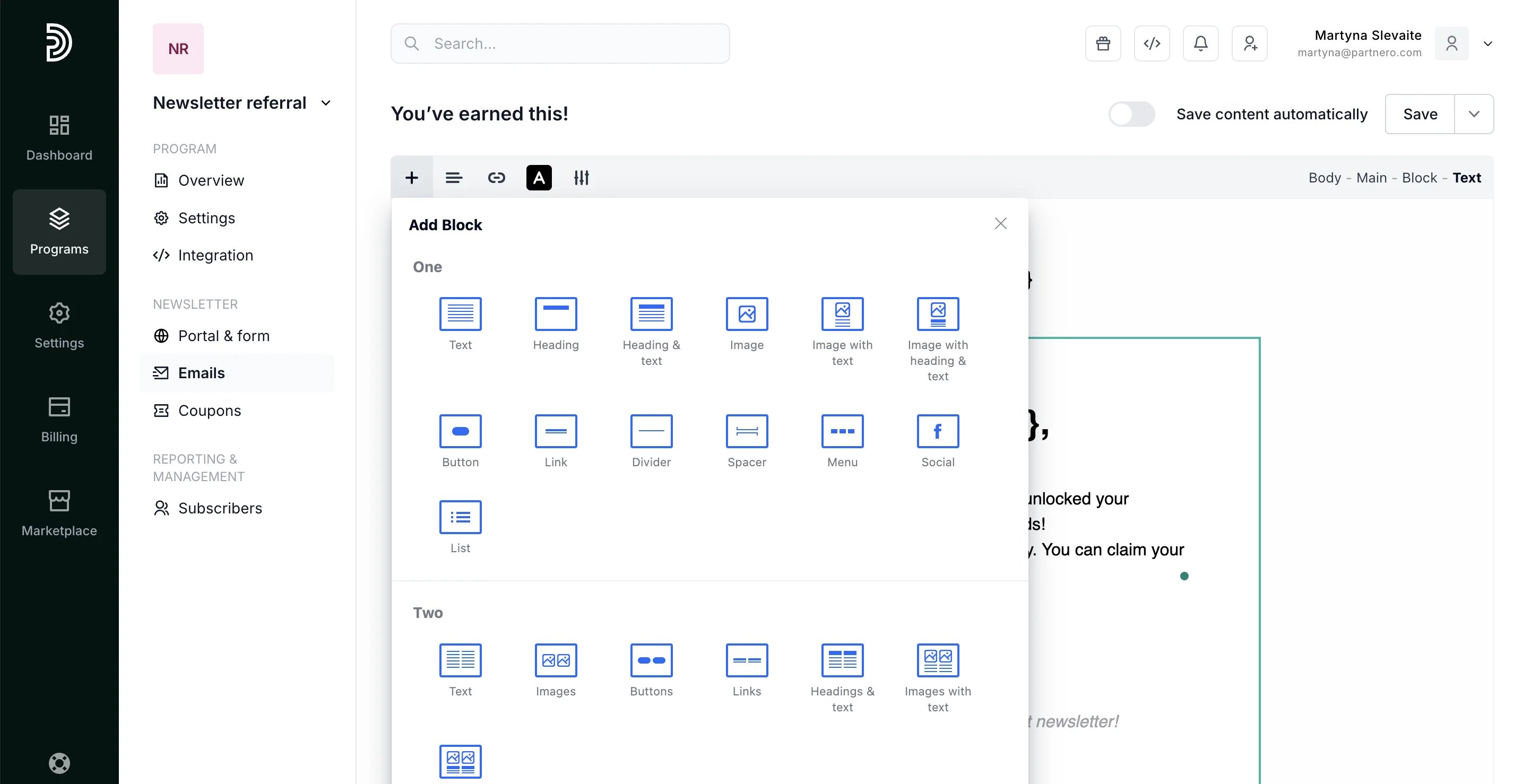
- To add additional blocks, click the + sign:
- Click Save once you’re done.
Receive notifications when your customers unlock rewards
If you wish to be notified when your subscribers unlock a reward:- Navigate to Settings under Program. Switch to the Notifications tab:
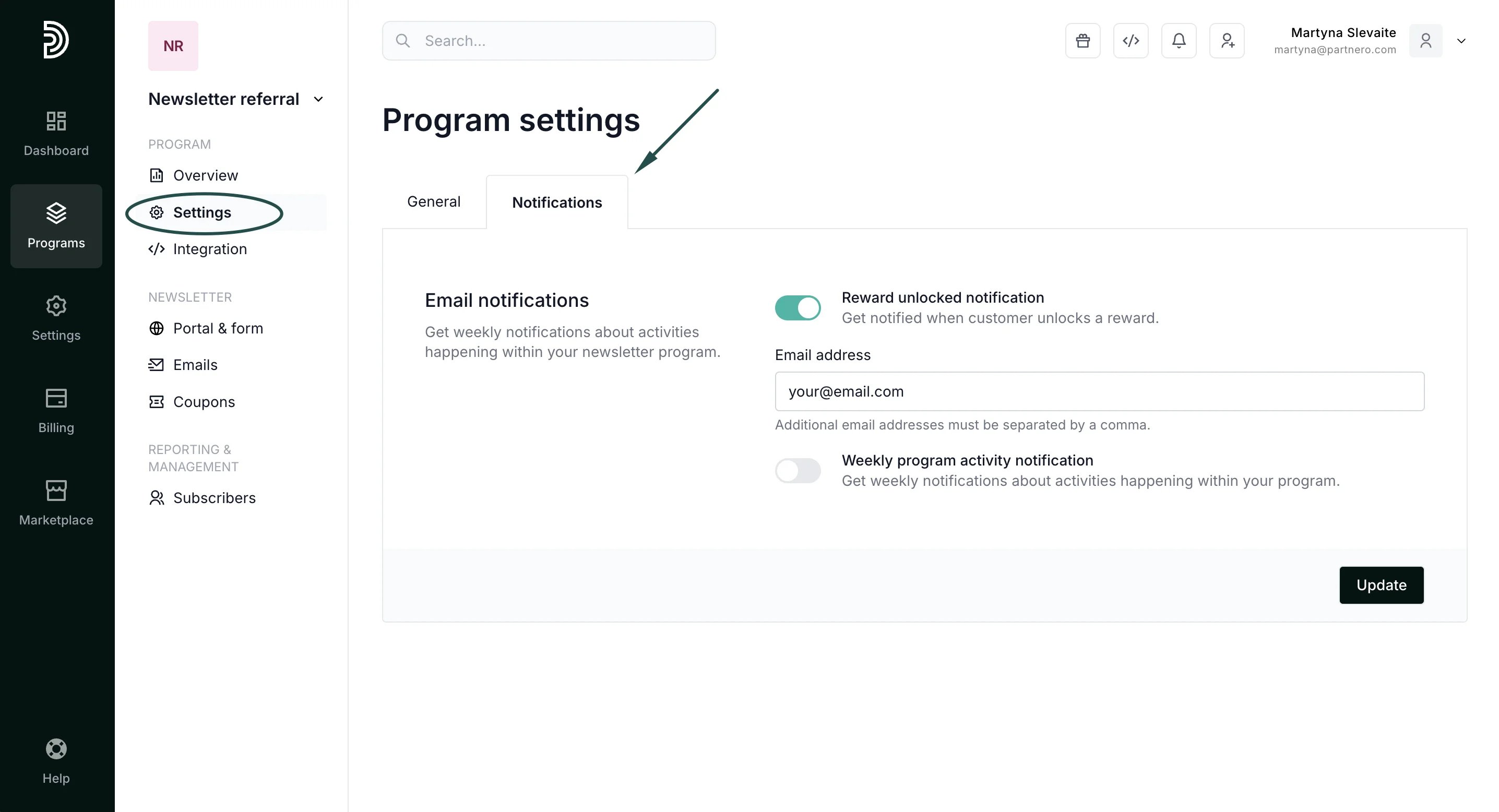
- Toggle “Rewards unlocked notification” and enter your email address.
- Click Update.