

- Go to Referrals → Customers.
- Search for the customer by name or email address and open their profile.
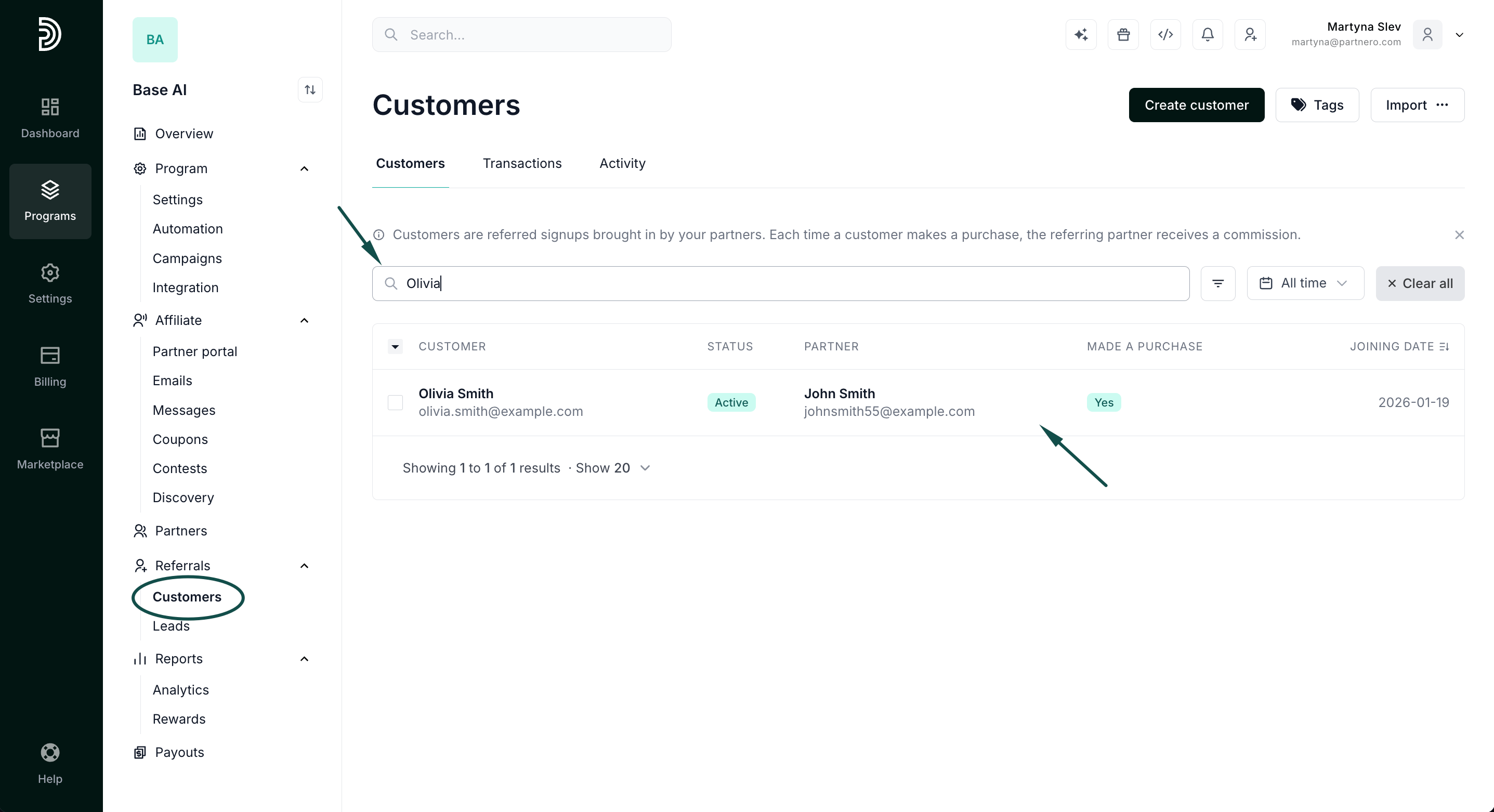
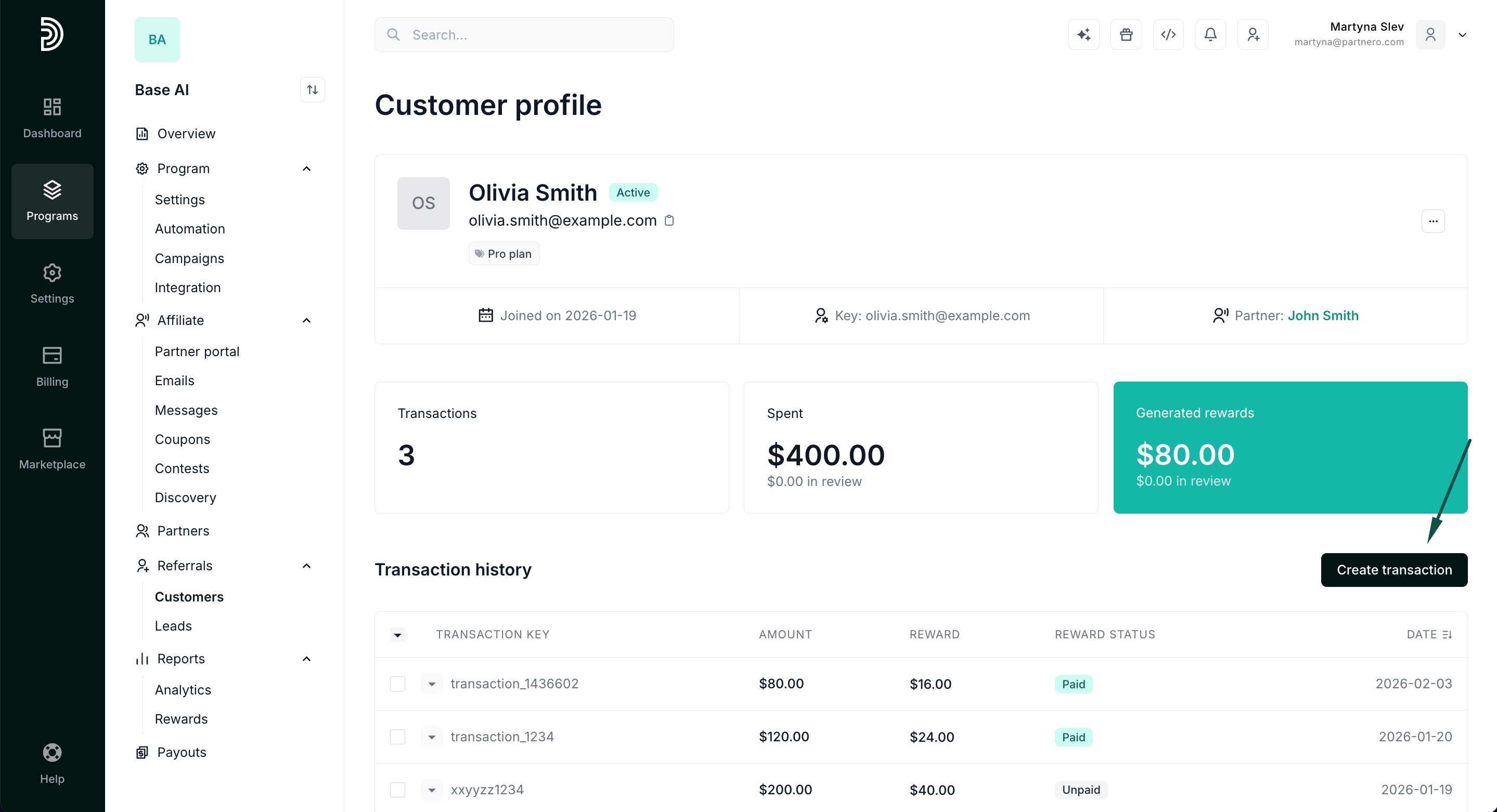
- In the Transaction history block, click Create transaction.
- In the pop-up, fill in the transaction details.
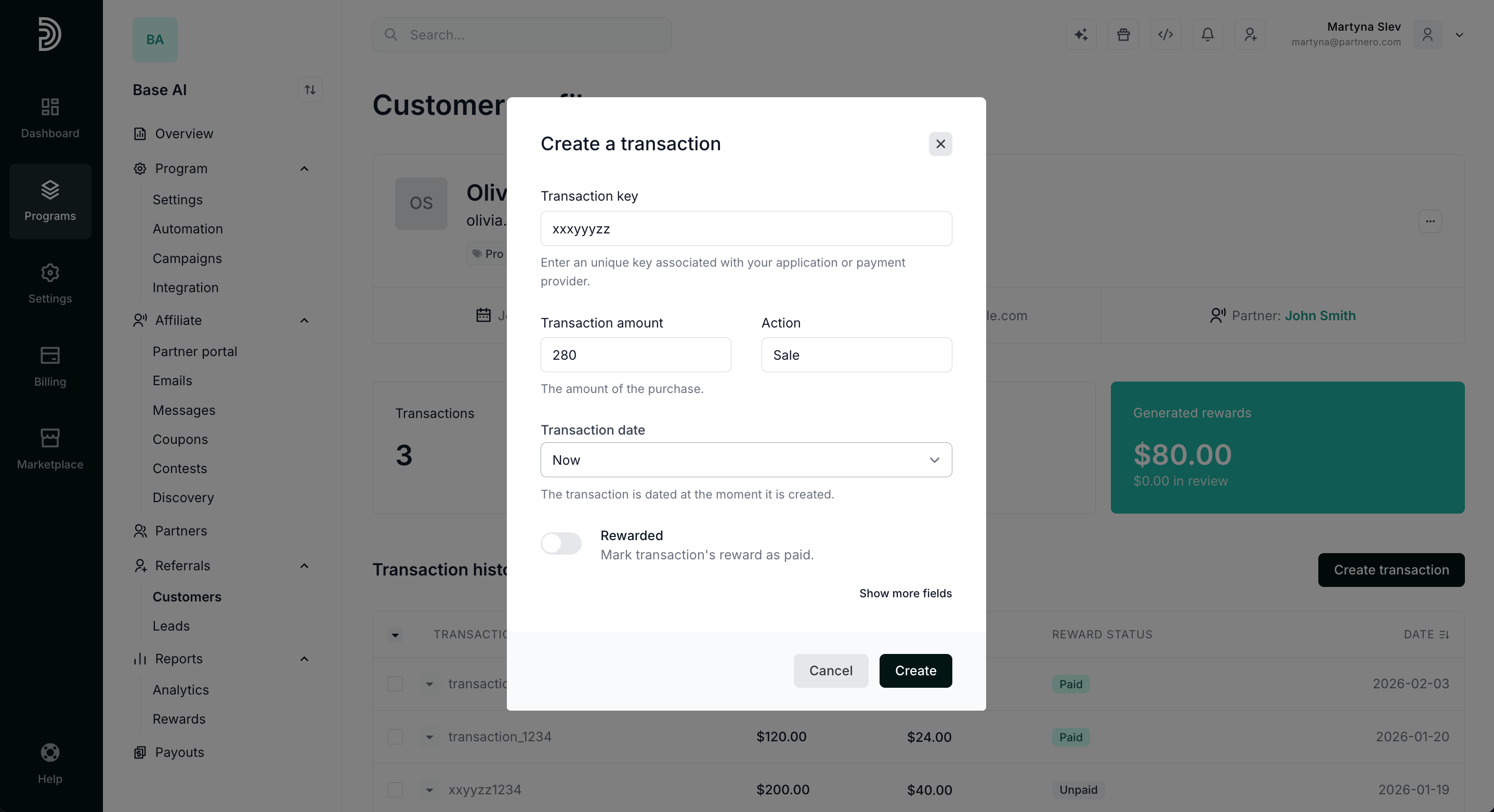
- Transaction key: A unique key from your application or payment provider.
- Transaction amount: The amount the partner’s commission is calculated on. Enter it without tax, shipping or anything else you don’t pay commission on — see What commissions are calculated on.
- Action: The name the partner sees, for example, Sale.
- Transaction date: Now (the default) or Custom date for a sale that happened earlier, but not earlier than the customer creation date. The commission period and the review period are counted from this date, so a backdated sale can already be past its review period or outside the commission period.
- Rewarded: Turn this on if the reward for the transaction has already been paid.
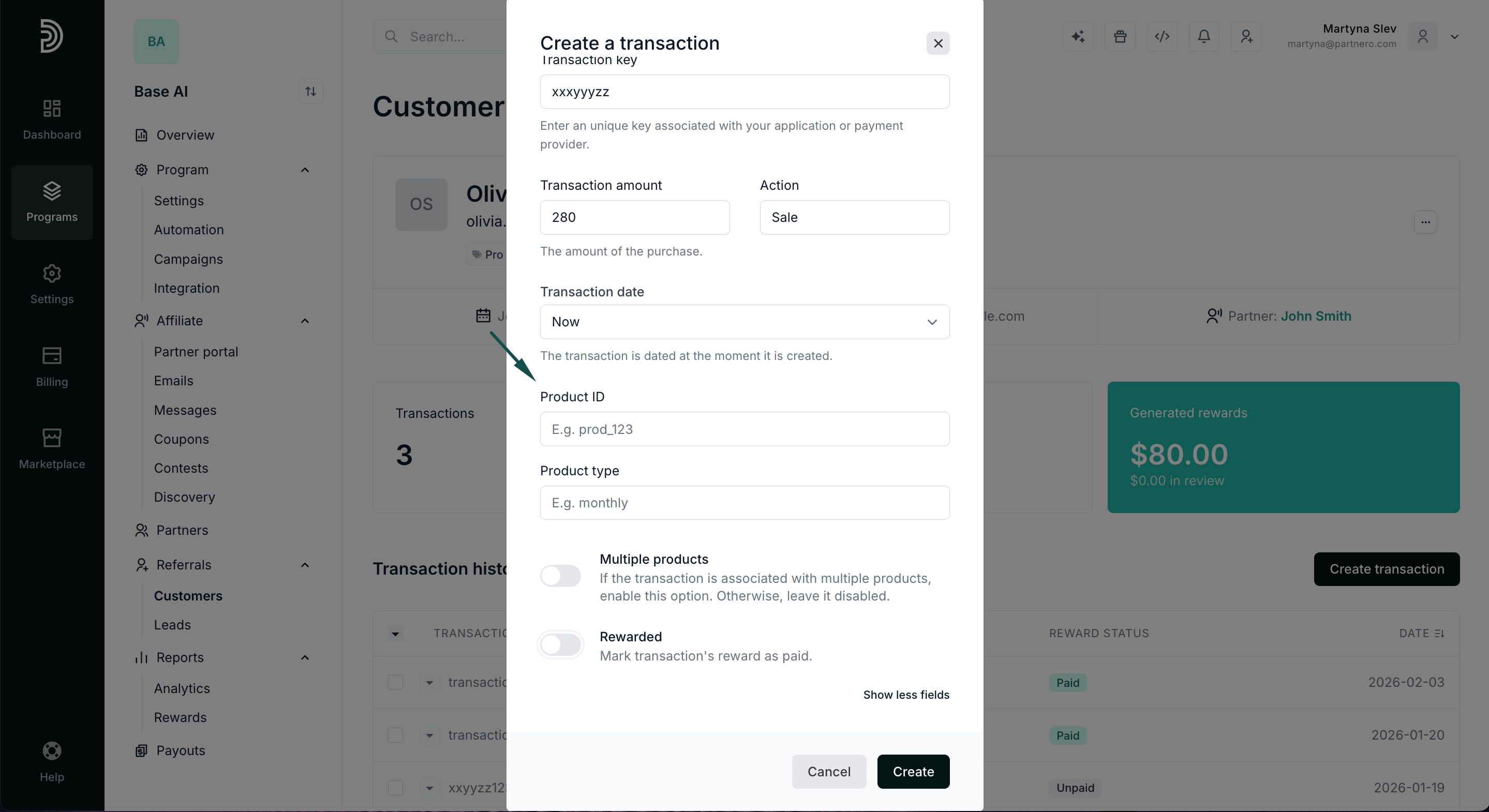
- Optionally, click Show more fields and add details such as the product ID or type.
- Click Create.
Customers & leads
How to create a transaction
Create a transaction manually when it was not recorded automatically, for example, when a customer or partner forgot to use the referral link. Once the transaction exists, the partner’s commission is calculated from its amount.
Note: The customer must exist in Partnero before you can add a transaction. If they don’t, create the customer first.
To create a transaction:
Was this page helpful?