

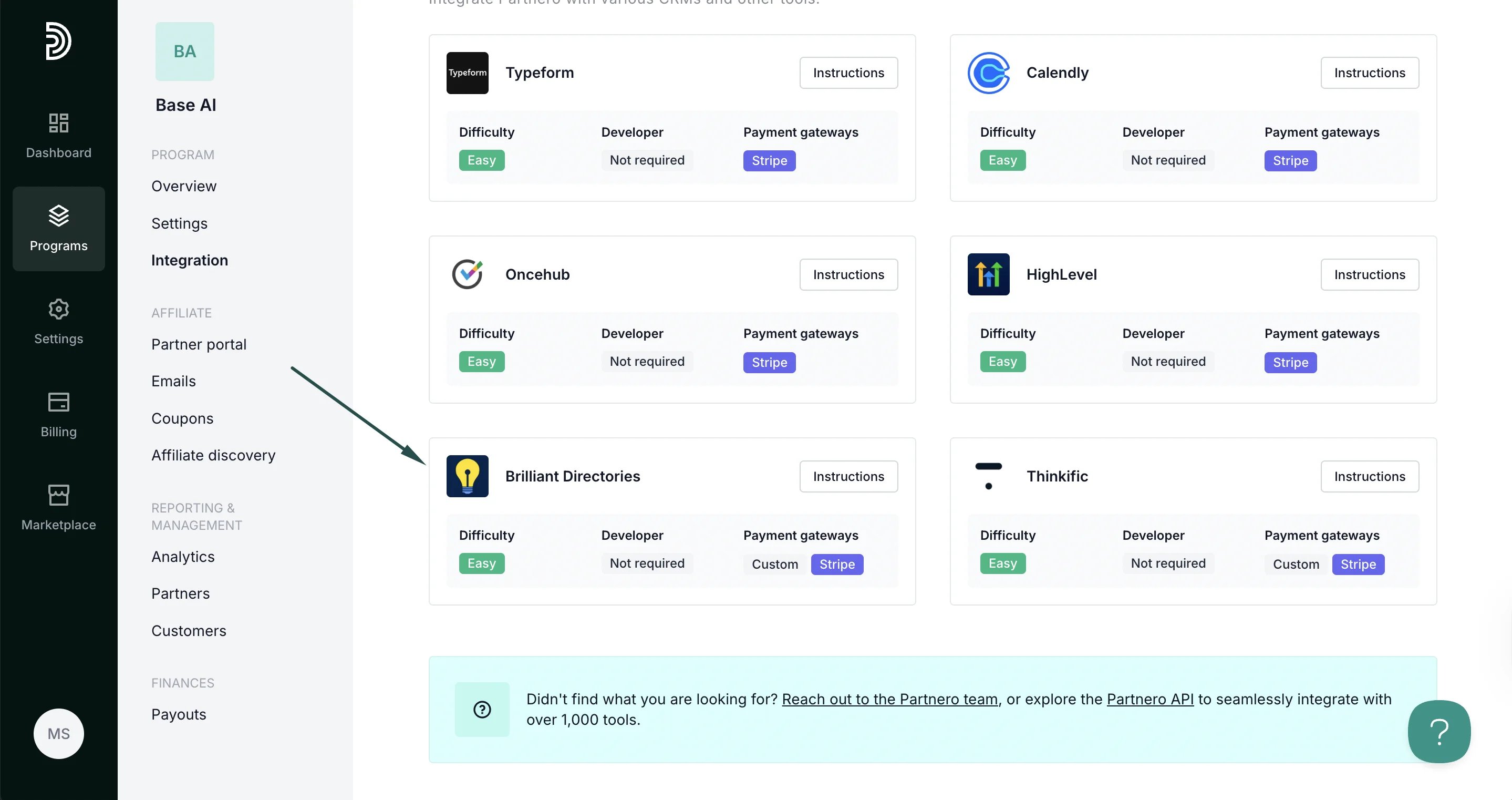
Step 1: Start tracking website visitors
To track visitors on your website, you need to install the PartneroJS snippet as custom code.Install the PartneroJS Snippet
- On Partnero, go to Integration > Guides tab > Brilliant Directories. Click Instructions.
- Copy the PartneroJS snippet:
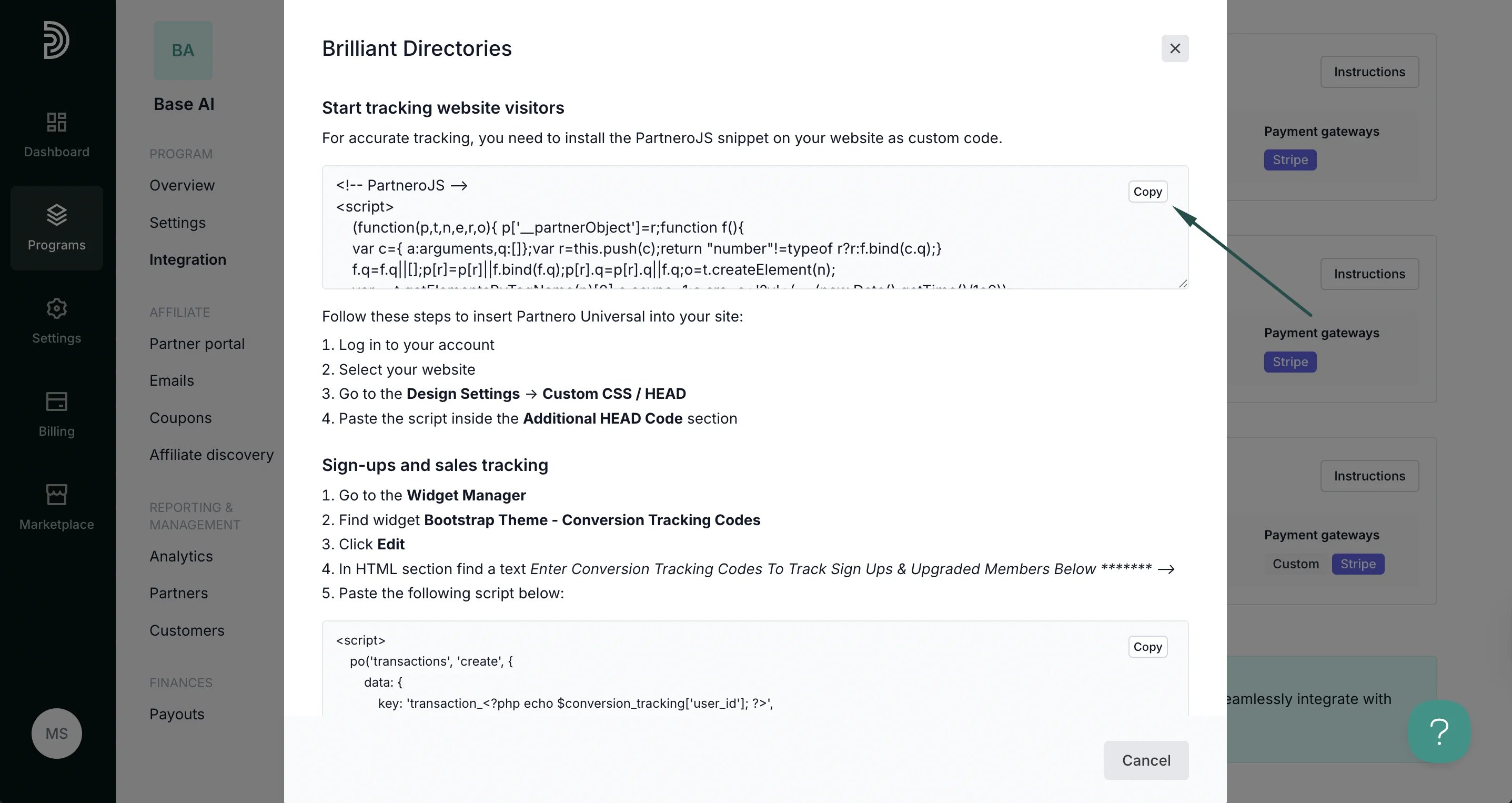
- Log in to your Brilliant Directories account and select your website.
- Go to the Design Settings > Custom CSS / HEAD.
- Paste the script inside the Additional HEAD Code section.
Step 2: Sign up and sales tracking
Here’s how to set up order tracking during checkout:- On Partnero, copy the sign-up and sales tracking code from the Brilliant Directories integration guide:
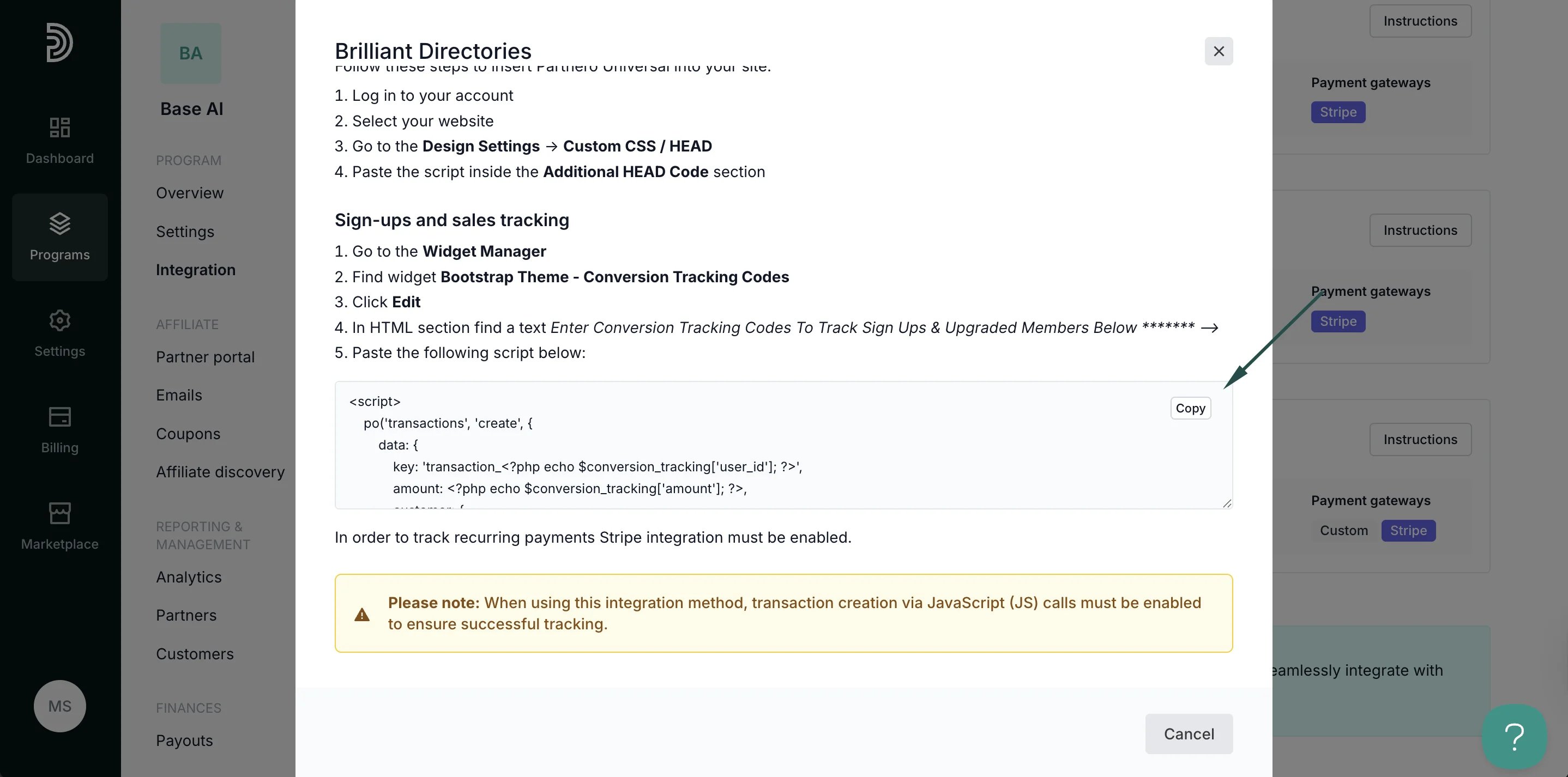
- On Brilliant Directories, go to the Widget Manager.
- Find widget Bootstrap Theme - Conversion Tracking Codes.
- Click Edit.
- In the HTML section find a text Enter Conversion Tracking Codes To Track Sign Ups & Upgraded Members Below ******* —>
- Paste the script and save.
Step 3: Authorize Stripe
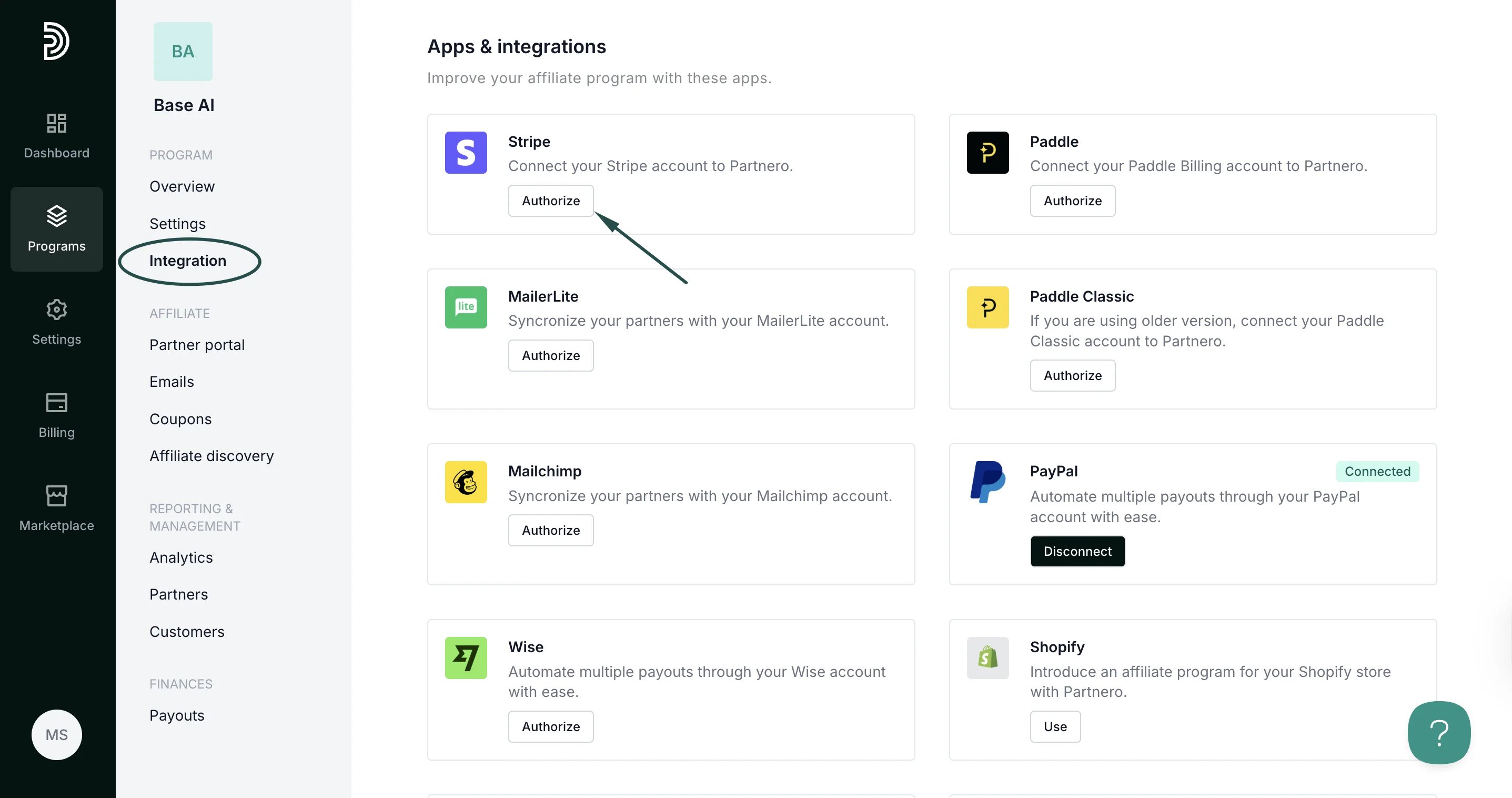
Next, you’ll need to authorize Stripe to track recurring sales.-
Go to Integration > scroll down to Apps & integrations > click Authorize next to Stripe:
-
There are two authorization methods available: OAauth or API key.
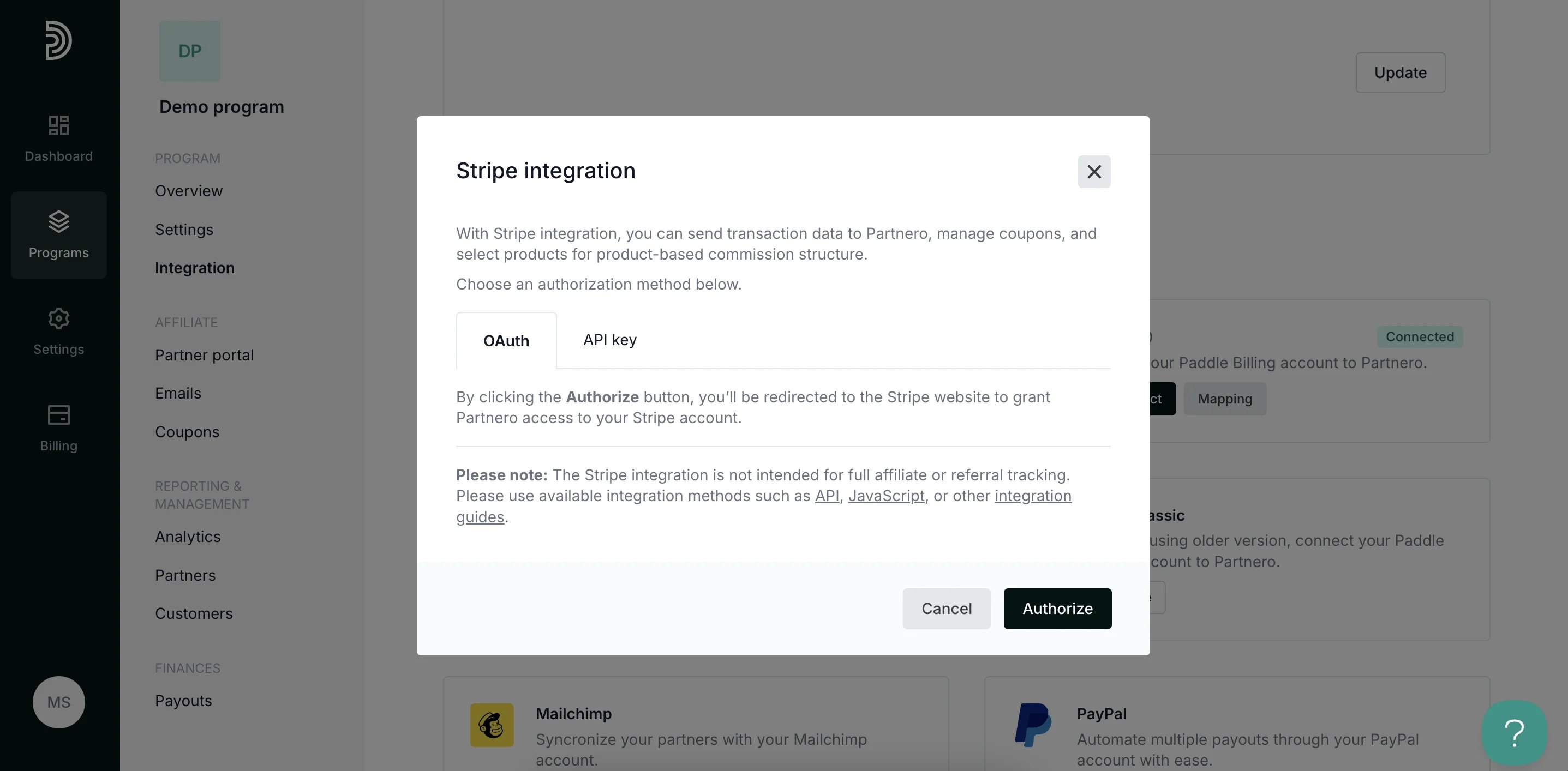
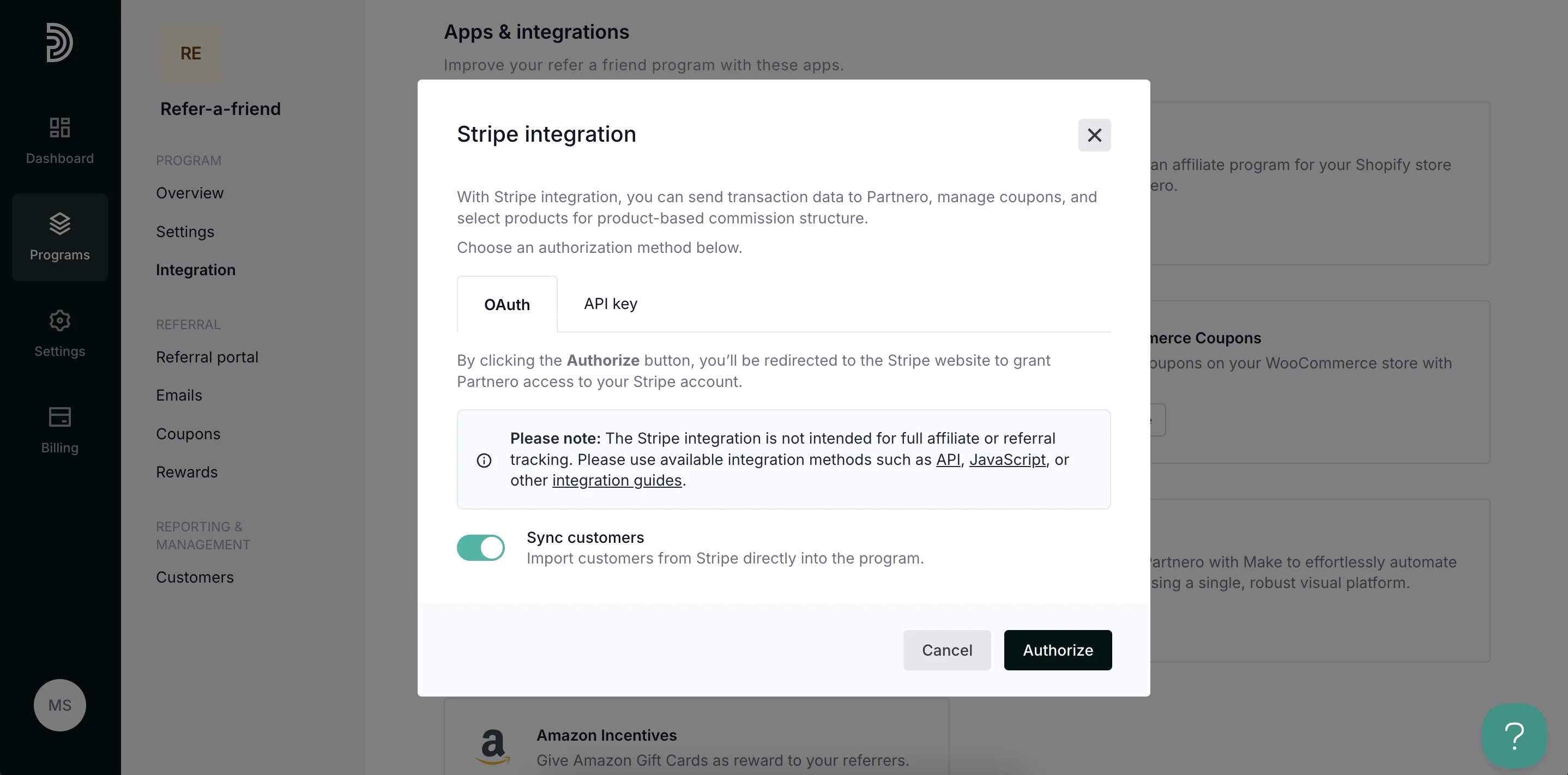
- Click Authorize.
Step 4: Enable transaction creation via JS
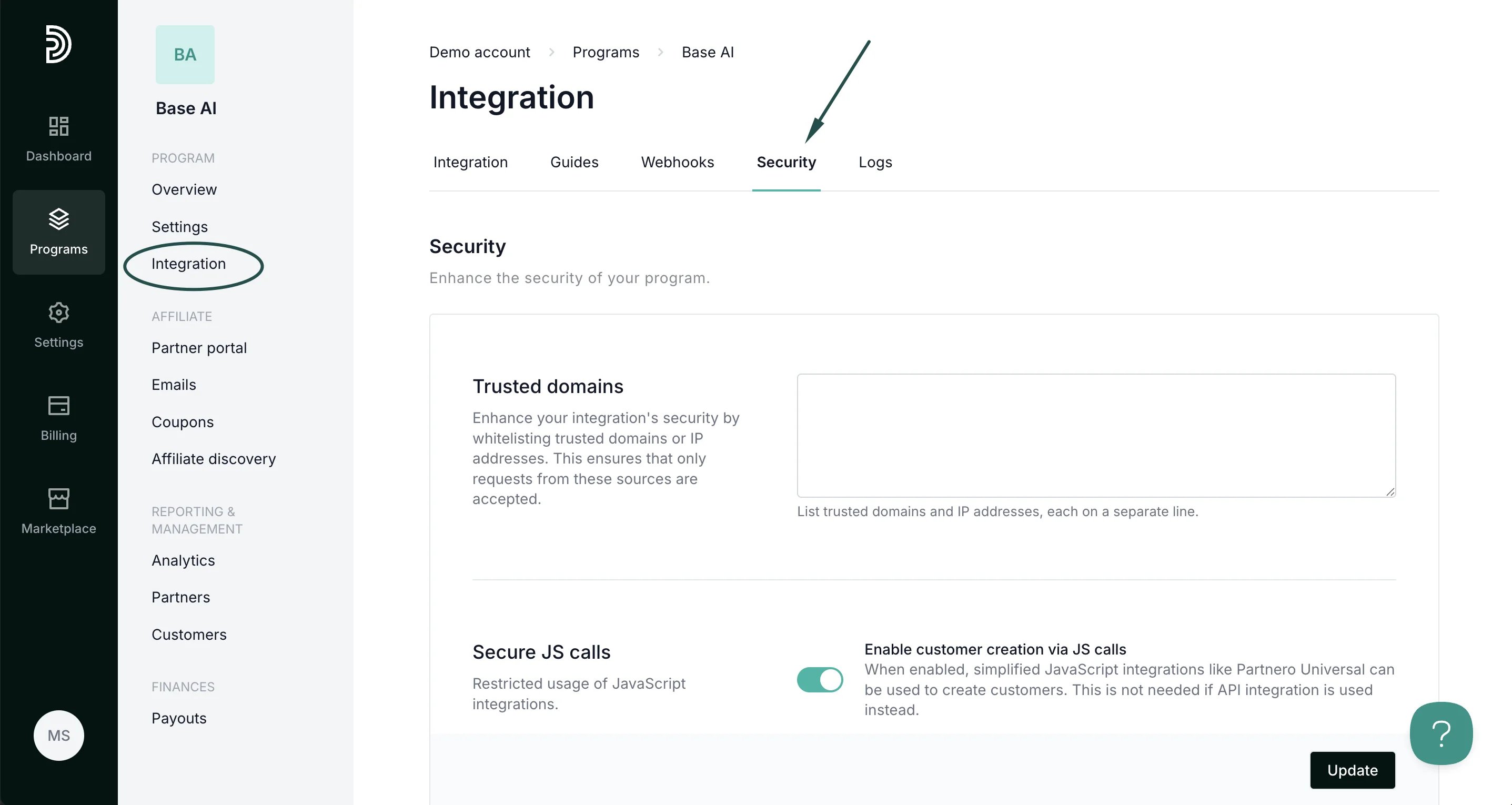
Lastly, transaction creation via JavaScript must be enabled on your Partnero account. To do that:- On your Partnero account, go to Integration > Security tab.
- Scroll down to Secure JS calls. Toggle to enable transaction creation:
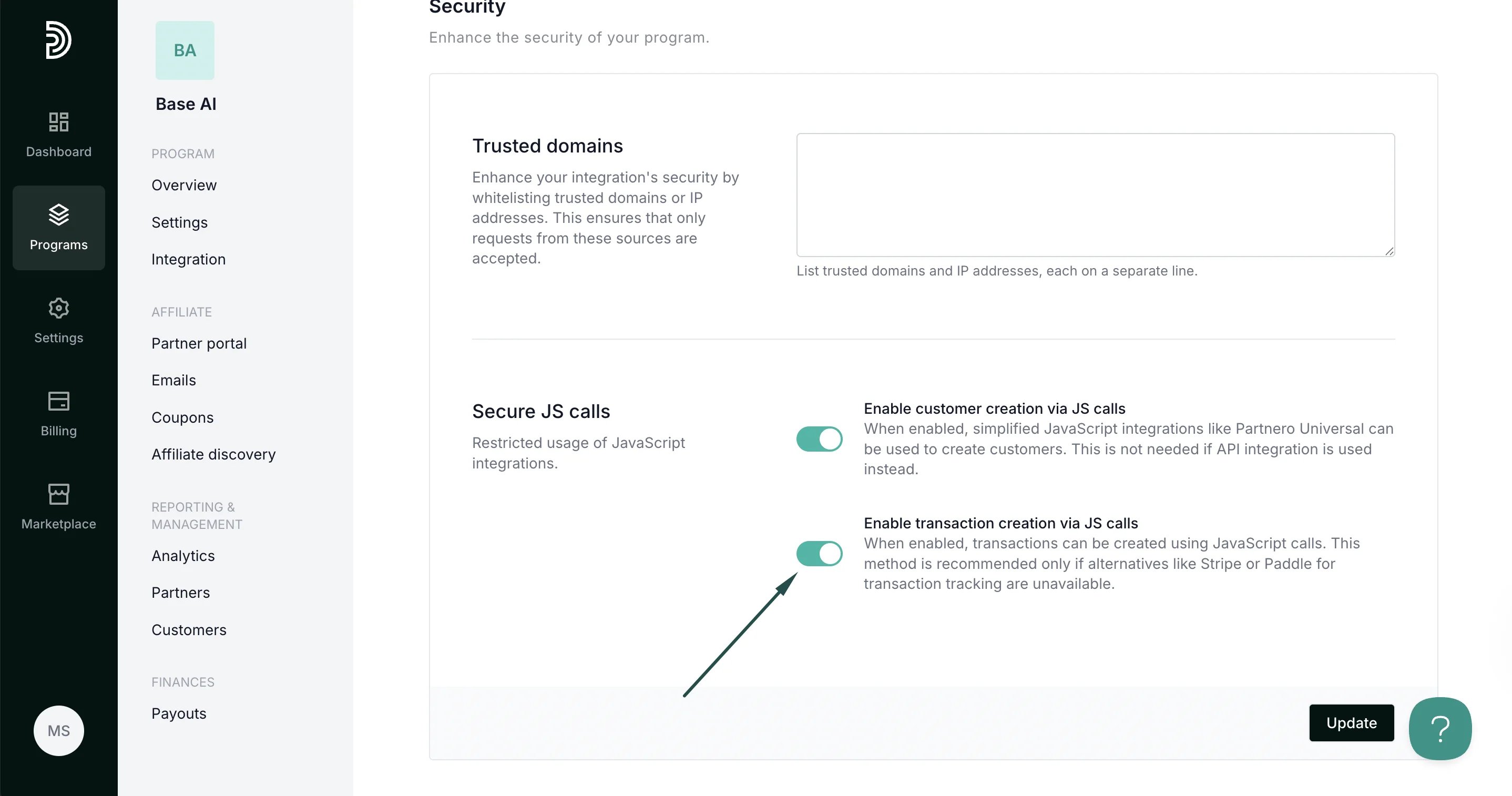
- Click Update.
Your integration with Brilliant Directories is now complete! We strongly recommend testing the integration by purchasing through an affiliate link.